Settings reference
Everything behind your avatar → Settings: company identity, what the booking form offers, payments and invoicing, pricing rules, truck sizes, crew behaviour, security and integrations. Most of it is set once during onboarding; this page is the map for when you need to change something later.
- Company: branding, details, contact hours
- Booking: which services you offer
- Legal: policies and terms
- Payments: bank details, card setup, invoicing
- GST: showing prices with or without tax
- Pricing rules: call-out fee and minimums
- Transport: truck sizes and distance rules
- Diary entry types
- Inventory: the item catalogue
- Crew: visibility, acceptance, rate roles
- Communications & notifications
- Integrations & API keys
- AI permissions
- Fix list checks
- Security: multi-factor authentication
- Depots
Company: branding, details, contact hours
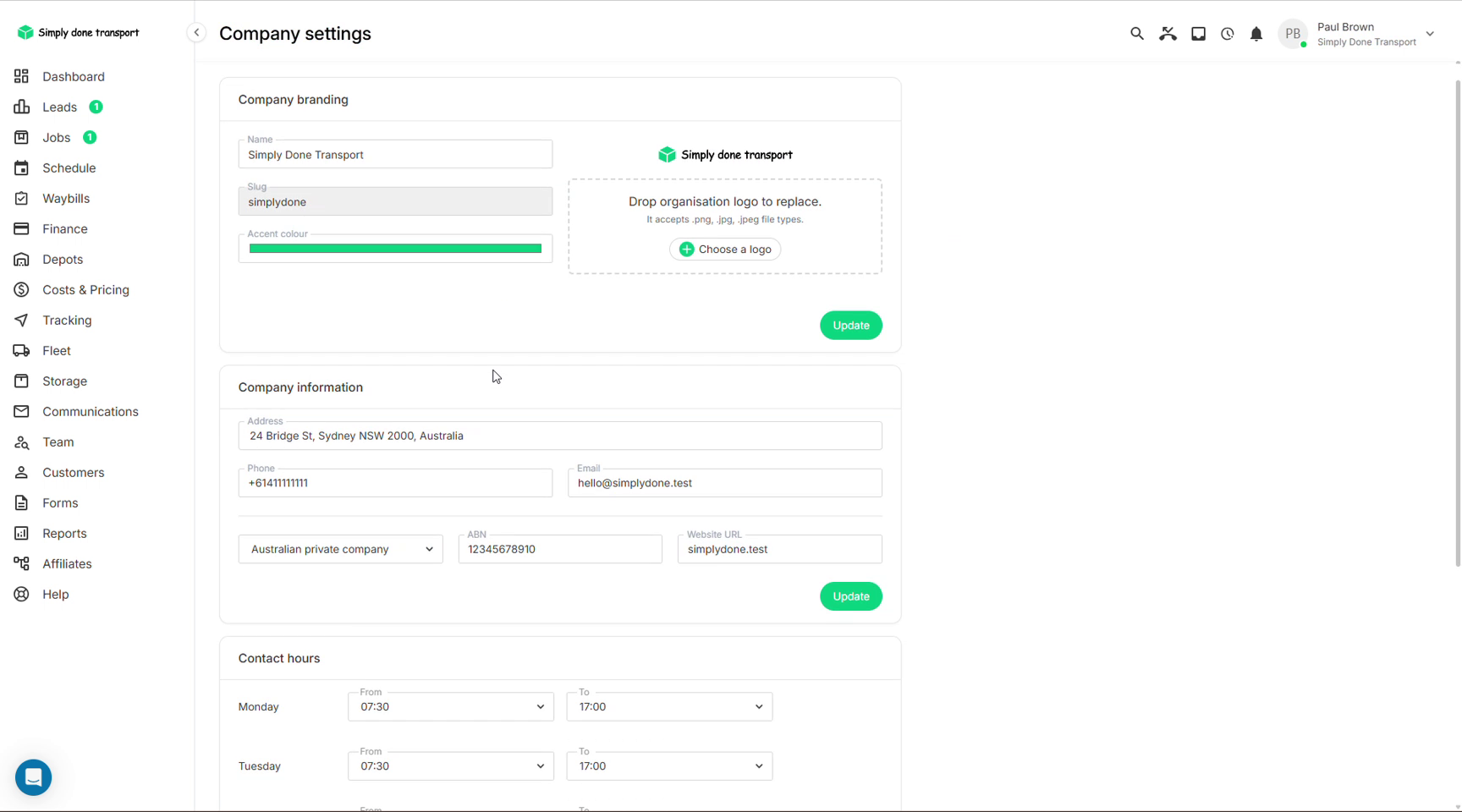
Company settings holds your identity: name, URL slug, accent colour and logo (these brand the booking form, portal and emails), your address, phone, email, company type, ABN and website, plus the contact hours shown to customers.
Booking: which services you offer
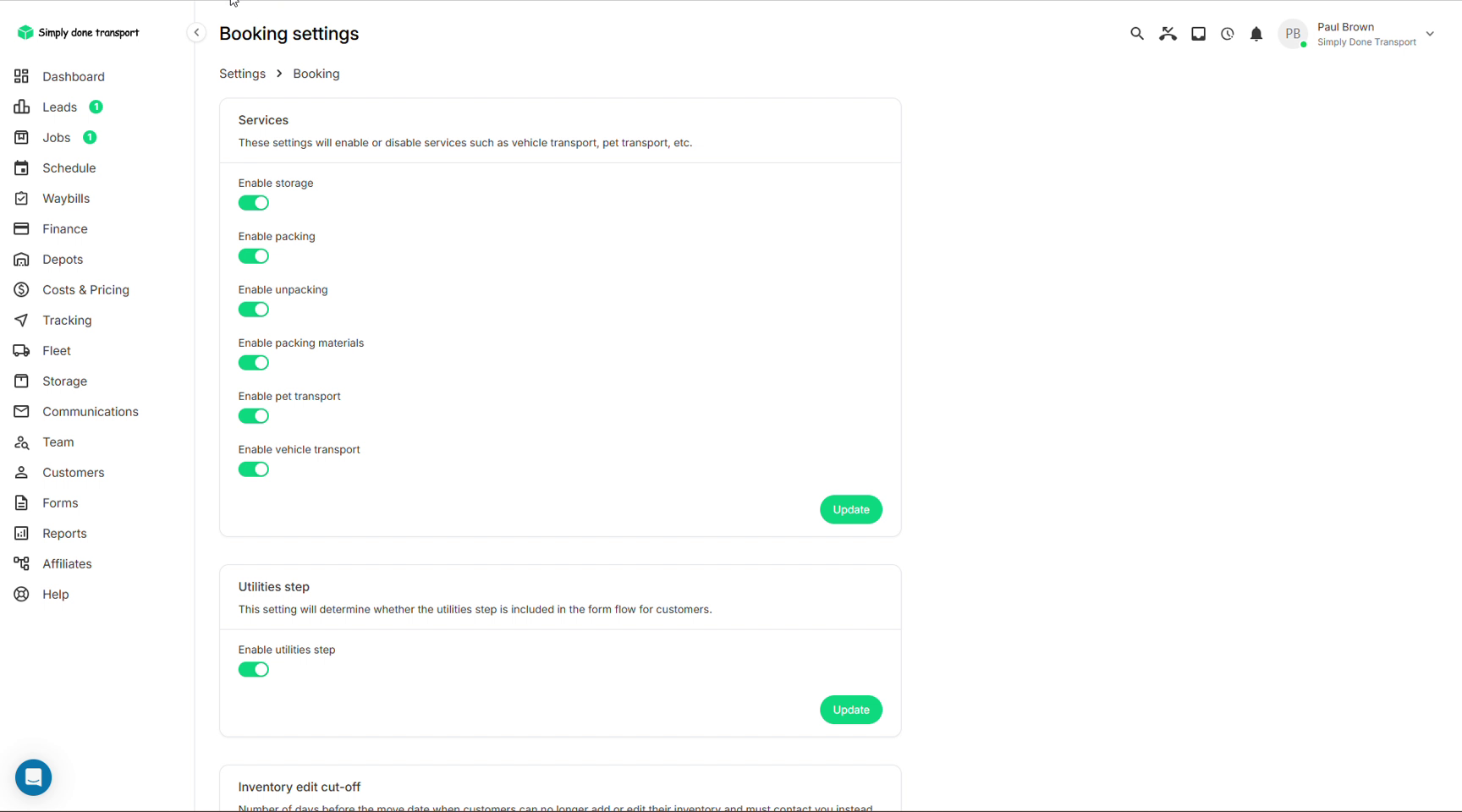
Booking settings decides what the customer-facing booking form offers: toggle storage, packing, unpacking, packing materials, pet transport and vehicle transport on or off, choose whether the utilities step appears in the form flow, and set the inventory edit cut-off: how many days before the move customers can still edit their own inventory.
Legal: policies and terms
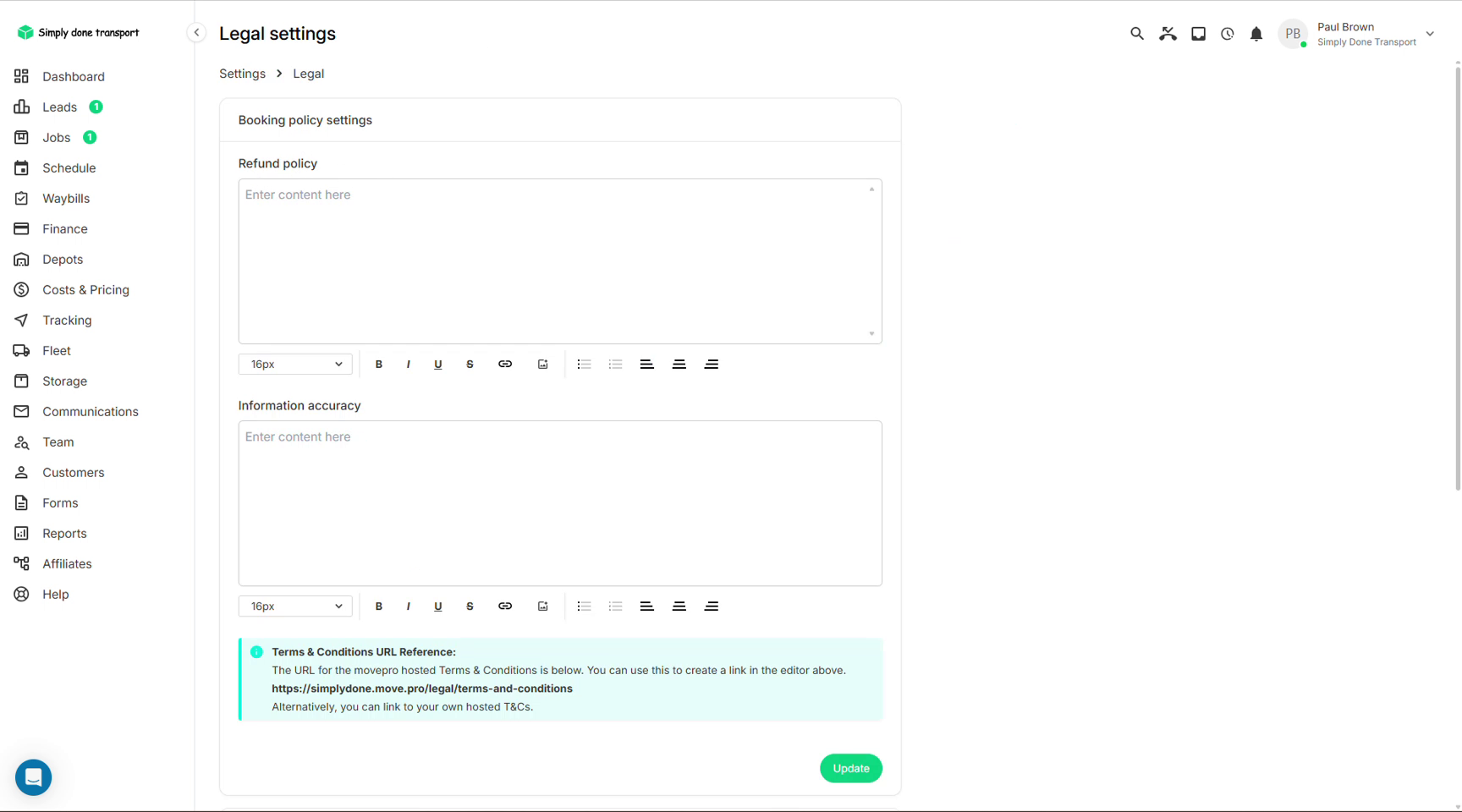
Legal settings carries your refund policy and information accuracy text (shown to customers during booking) and gives you the URL of your Movepro-hosted terms & conditions to link wherever you need (or you can point to your own hosted T&Cs).
Payments: bank details, card setup, invoicing
Payment settings covers three things:
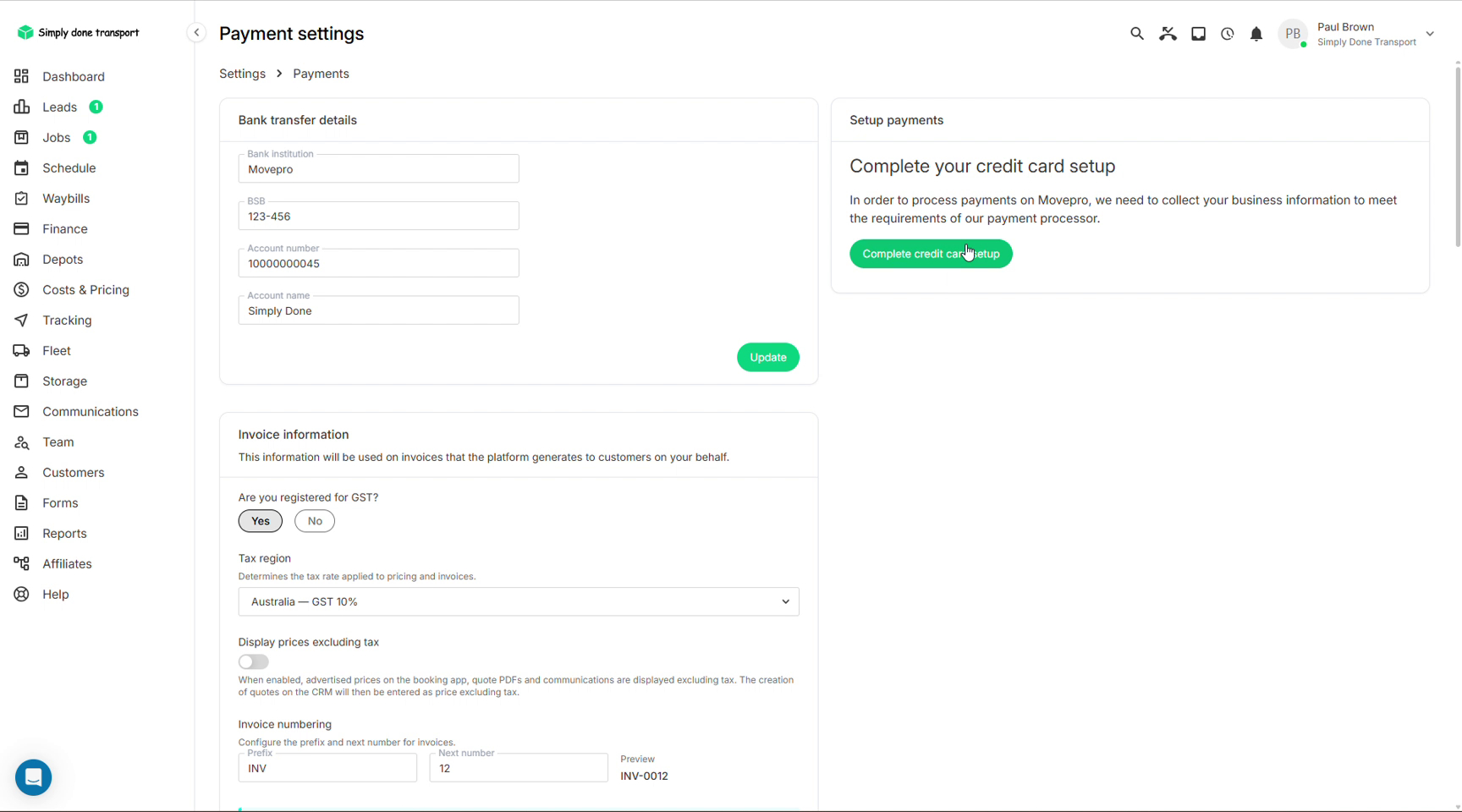
- Bank transfer details: the account shown to customers choosing bank deposit (these appear in the payment dialog and on invoices);
- Setup payments: the credit-card onboarding that connects you to the payment processor so you can charge cards. This is also where card payouts are pointed at your bank account (see Payouts), where Tap to Pay (mobile) is enabled so crew can take card payments by tapping the customer's card on their phone, and where card processing fees are set;
- Invoice information: the GST registration, tax region and price-display controls (covered next), and the invoice numbering (prefix + next number, e.g. INV-0012; with Xero connected, numbering is managed by Xero instead).
- Final payment days: how many days before pickup the balance falls due. A move booked inside this window charges the customer the full amount up front instead of the quoted deposit; see Variable vs fixed quotes for the effect on the portal.
GST: showing prices with or without tax
Want customers to see prices excluding GST, with the tax added separately? The Invoice information block in Payment settings is where owners and admins decide: set whether you're registered for GST, pick your tax region, and use the display prices excluding tax toggle. With the toggle on, the booking app, quote PDFs and customer communications all show ex-GST prices, and any price you type into the CRM (quotes, catalogue items) is treated as excluding GST. With it off, everything works GST-inclusive.
Three other places refine the picture: the Xero integration settings choose the tax treatment your invoices carry per revenue account, every quote line item holds its own tax entry (cost excluding tax, the tax percentage, cost including), and the order P&L has its own switch to display figures inclusive or exclusive of GST.
Pricing rules: call-out fee and minimums
Pricing settings tunes how local quotes calculate:
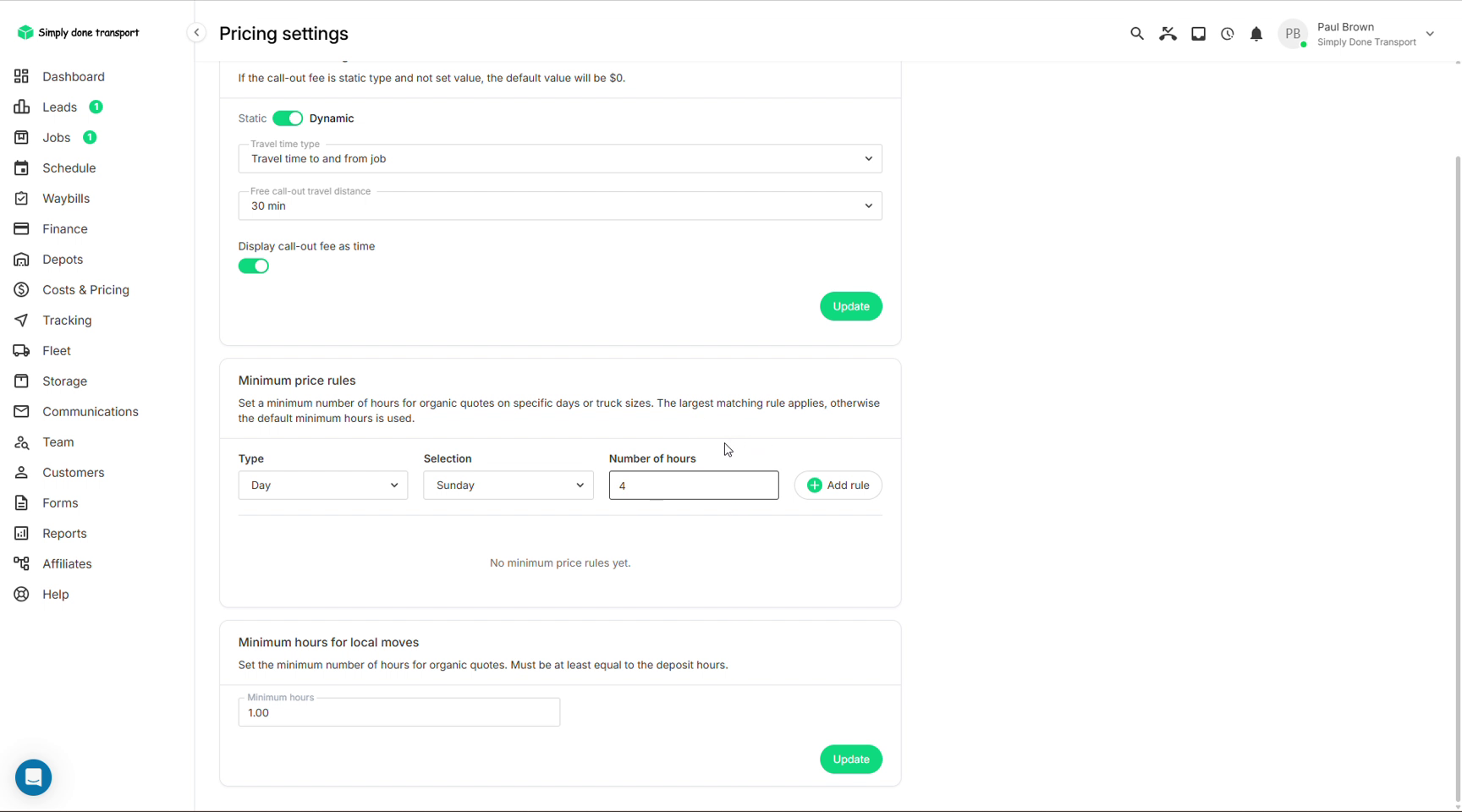
- Call-out fee: static amount, or dynamic based on travel time to and from the job, with a free travel allowance and the option to display it as time rather than dollars;
- Minimum price rules: minimum hours by day or truck size (e.g. Sundays are 4 hours minimum); the largest matching rule wins;
- Minimum hours for local moves: the floor for every organic quote.
Transport: truck sizes and distance rules
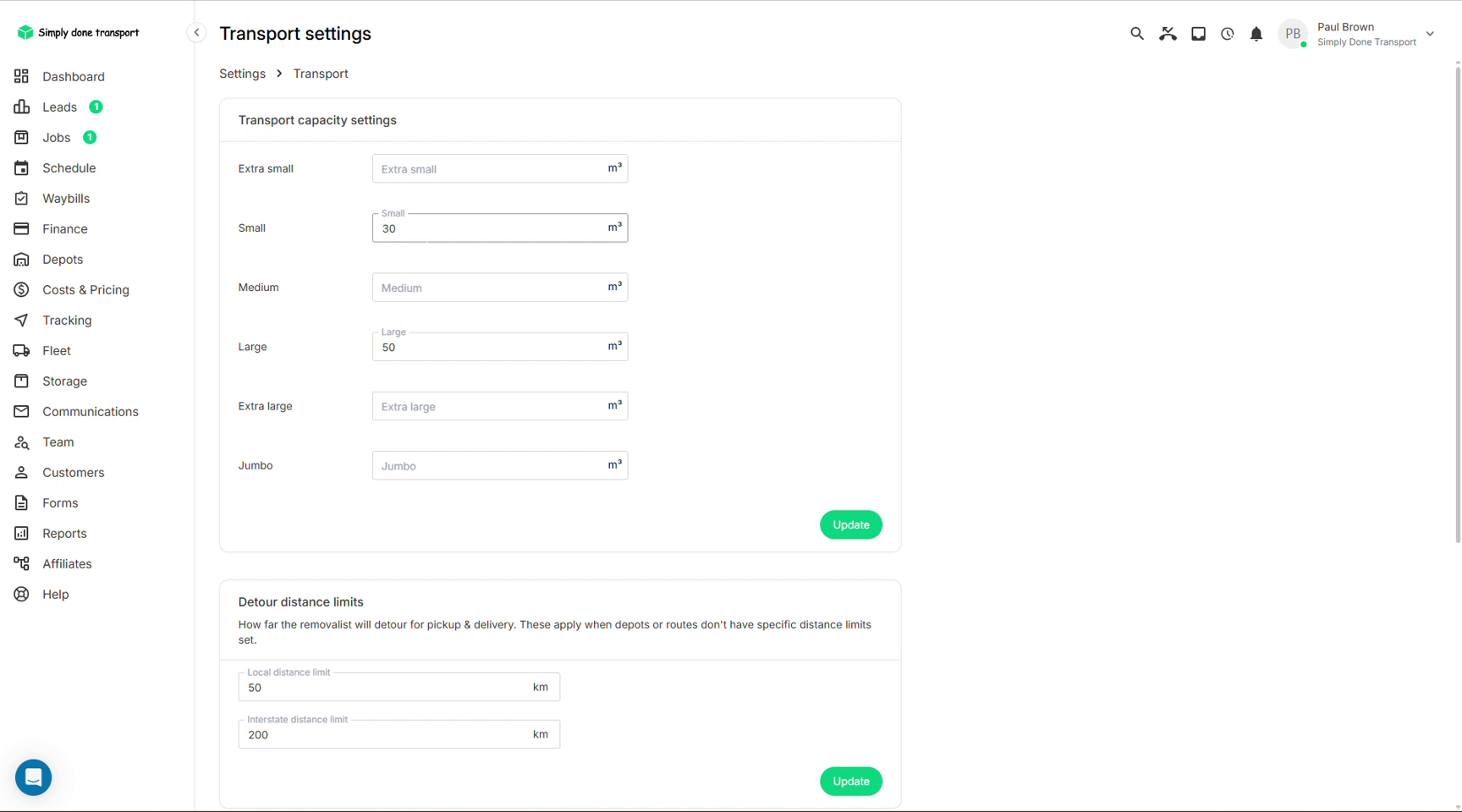
Transport settings defines the truck size categories (extra small through jumbo, each with a cubic capacity) that local pricing and the capacity maths run on, plus the distance rules:
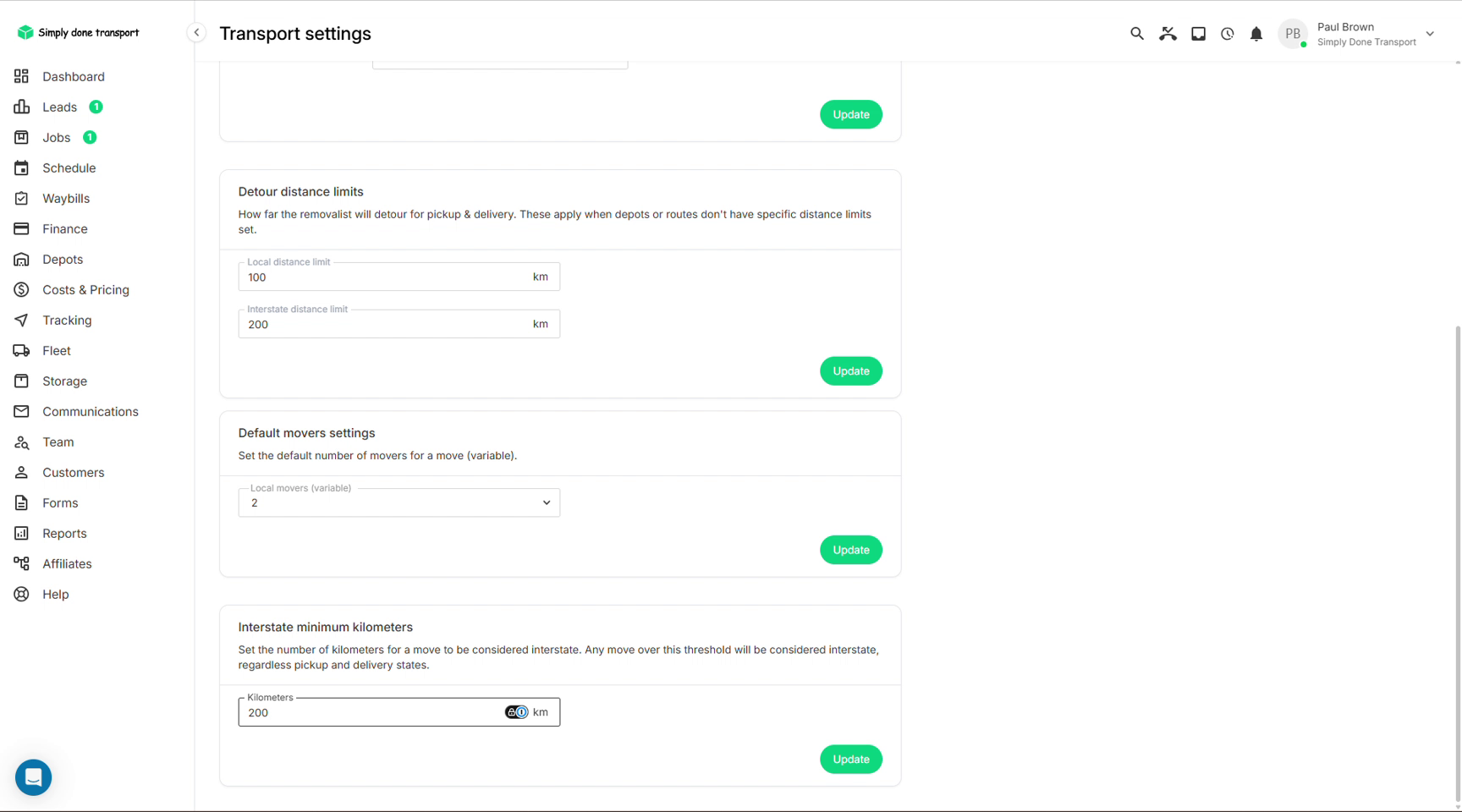
- Detour distance limits: how far you'll detour for pickup and delivery when a depot or route doesn't set its own;
- Default movers: the crew size a variable local quote starts from;
- Interstate minimum kilometres: any move over this distance is treated as interstate, regardless of states.
Diary entry types
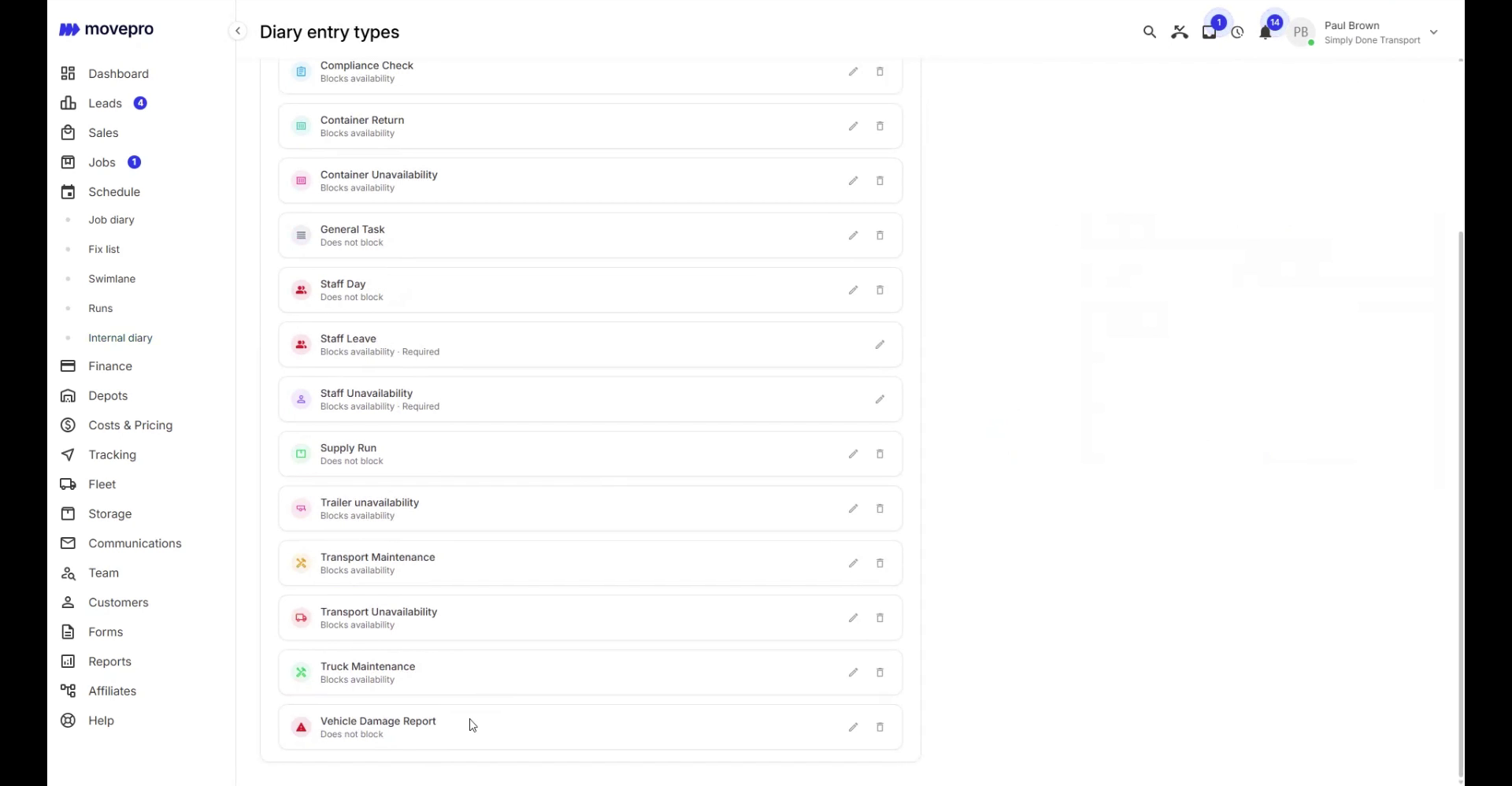
Diary entry types defines what can be scheduled in the internal diary: truck maintenance, compliance checks, supply runs, staff days, whatever your operation runs on. Each type carries a name, a colour and an icon (so the diary reads at a glance), whether its entries take an address, whether the type is active, and, most importantly, whether it blocks availability.
Blocking is the consequential setting: entries of a blocking type hold every staff member, truck, container and trailer assigned to them unavailable for the entry's dates, so the job diary's assign dialogs won't offer a truck that's at the mechanic. Non-blocking types record the plans without reserving anyone. Two staff types (leave and unavailability) are built in and required; the rest of the list is yours to add, edit or deactivate.
Inventory: the item catalogue
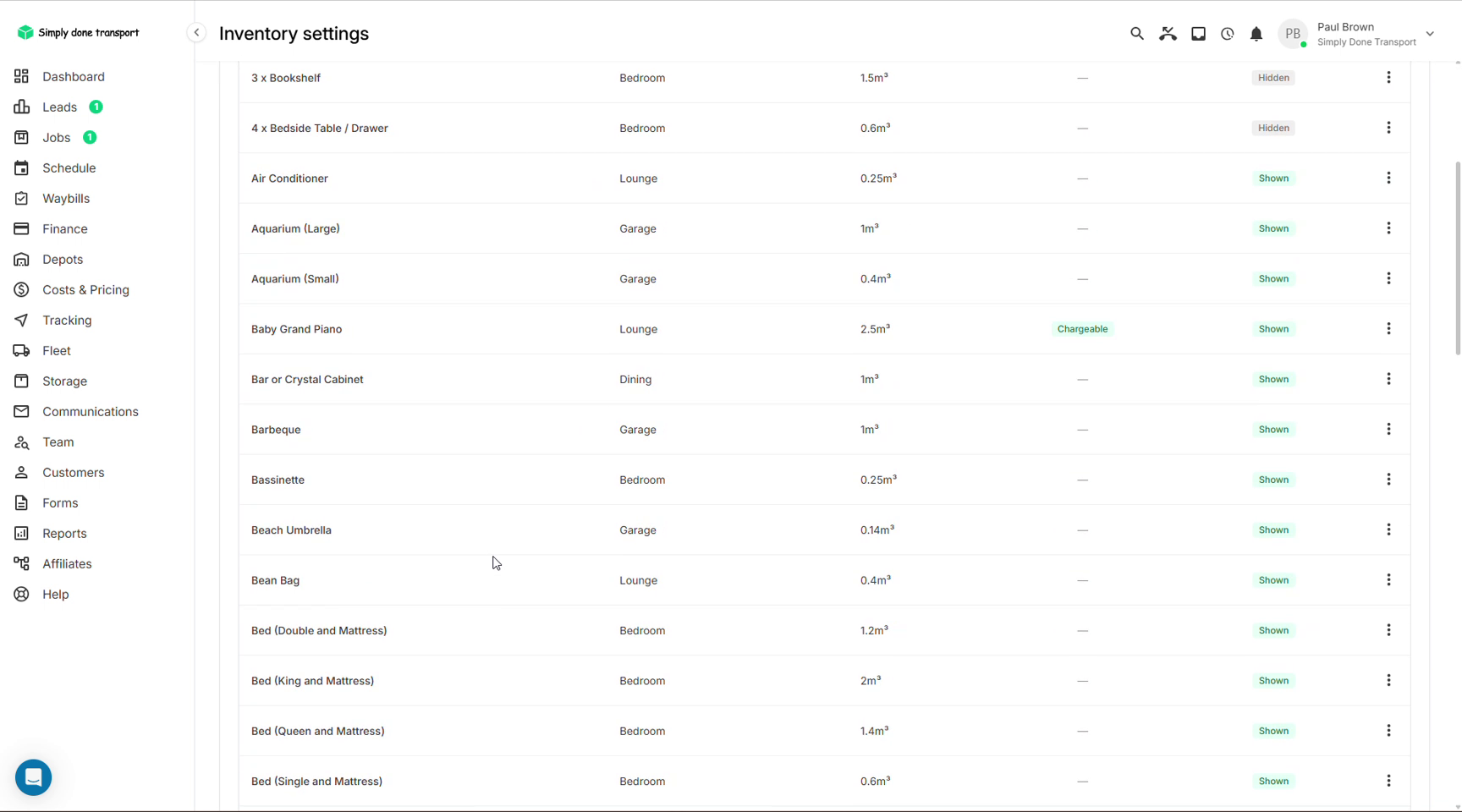
Inventory settings is the master item list customers and staff pick from: every item with its room, volume in m³, whether it's Shown or Hidden on the booking form, and optional Chargeable flags for items like pianos that should add cost items to the quote automatically.
Crew: visibility, acceptance, rate roles
Crew settings shapes what field staff experience:
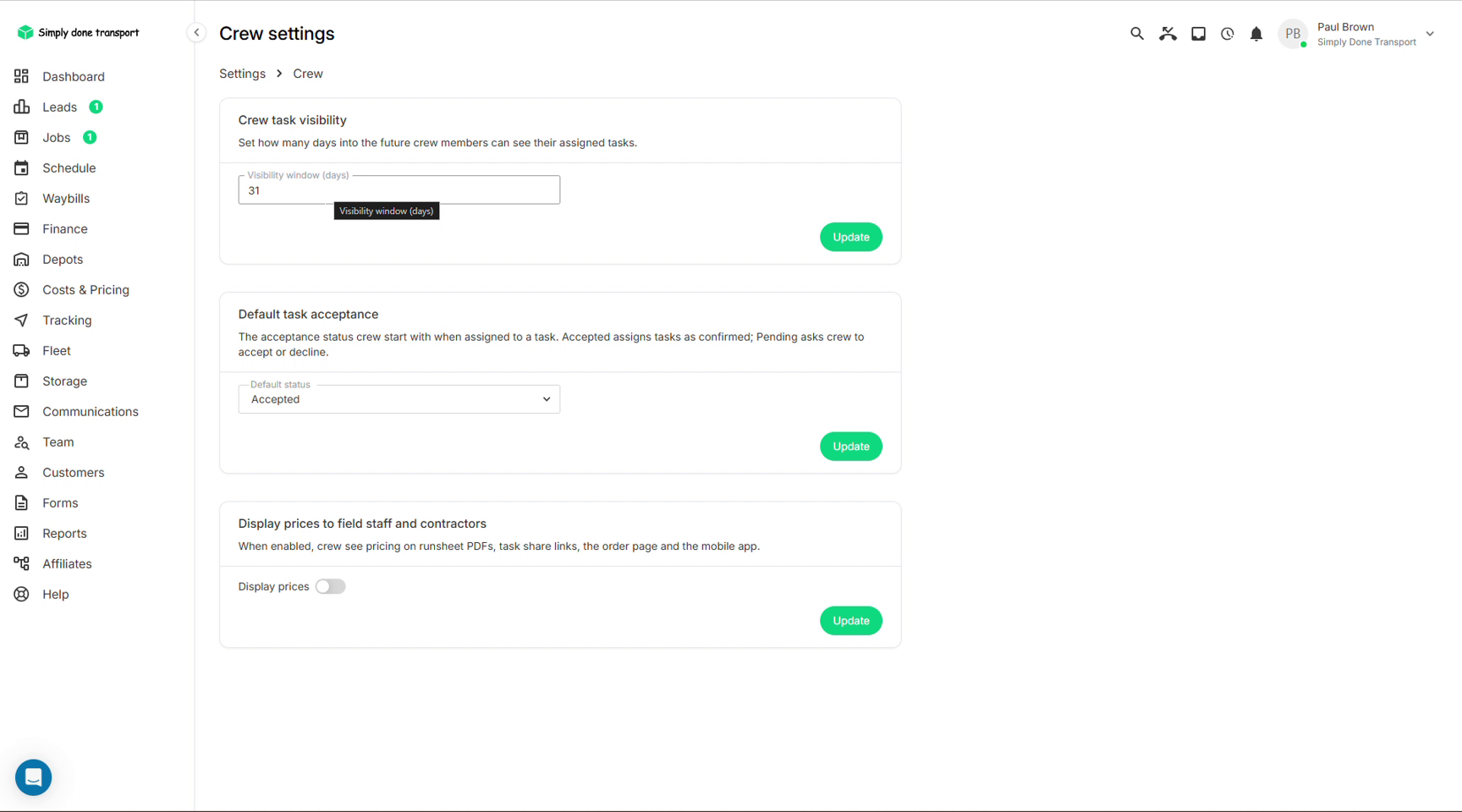
- Crew task visibility: how many days ahead crew can see their assigned tasks;
- Default task acceptance: whether a new assignment starts as Accepted (confirmed) or Pending (crew must accept or decline in the app; see Field crew app);
- Display prices to field staff: whether crew see pricing on runsheets, share links and the app.
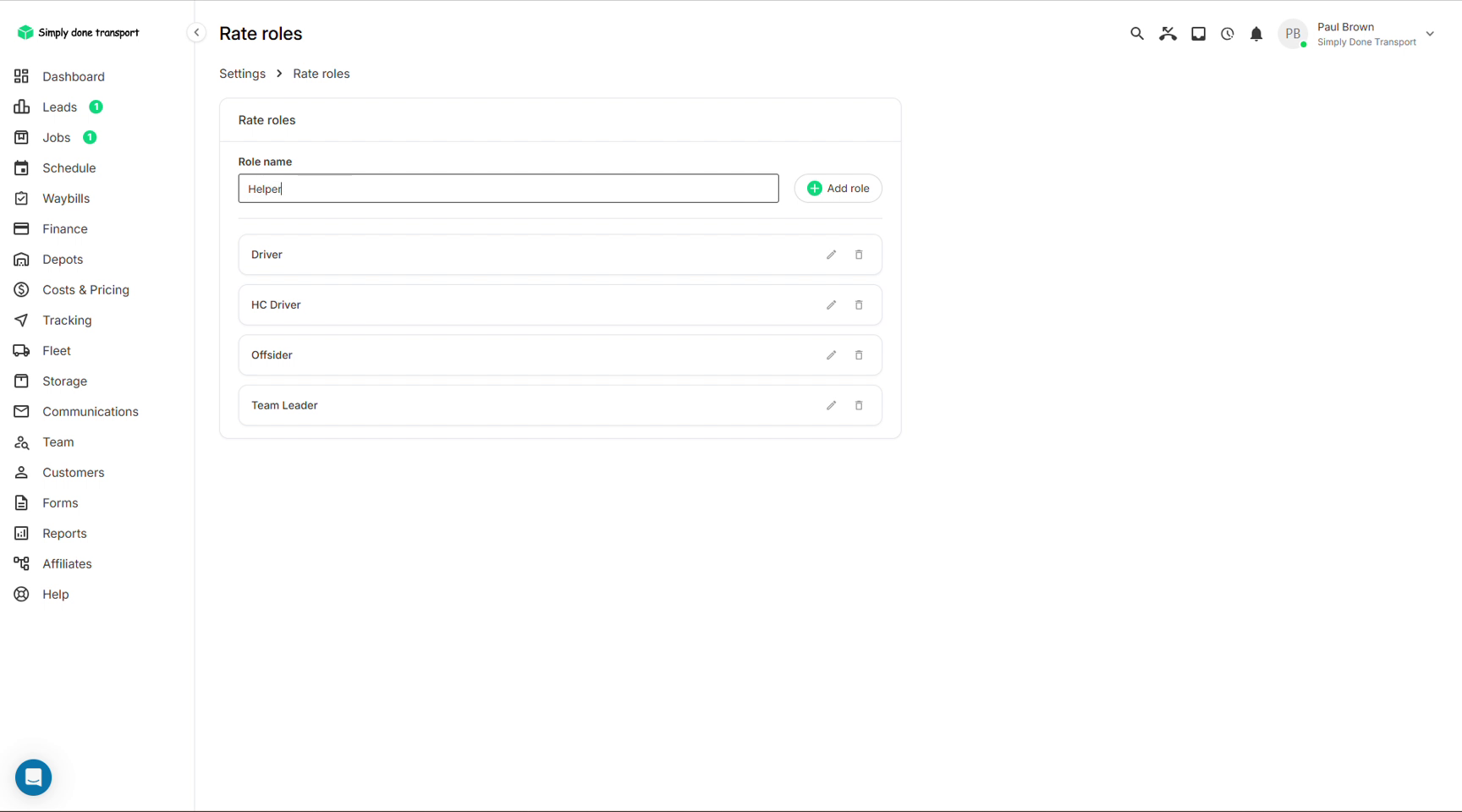
Rate roles defines the on-the-job roles (Driver, HC Driver, Offsider, Team Leader…) that pay rates and scheduling assignments hang off. Add your own with Add role, then set each member's rate per role in their team profile.
Communications & notifications
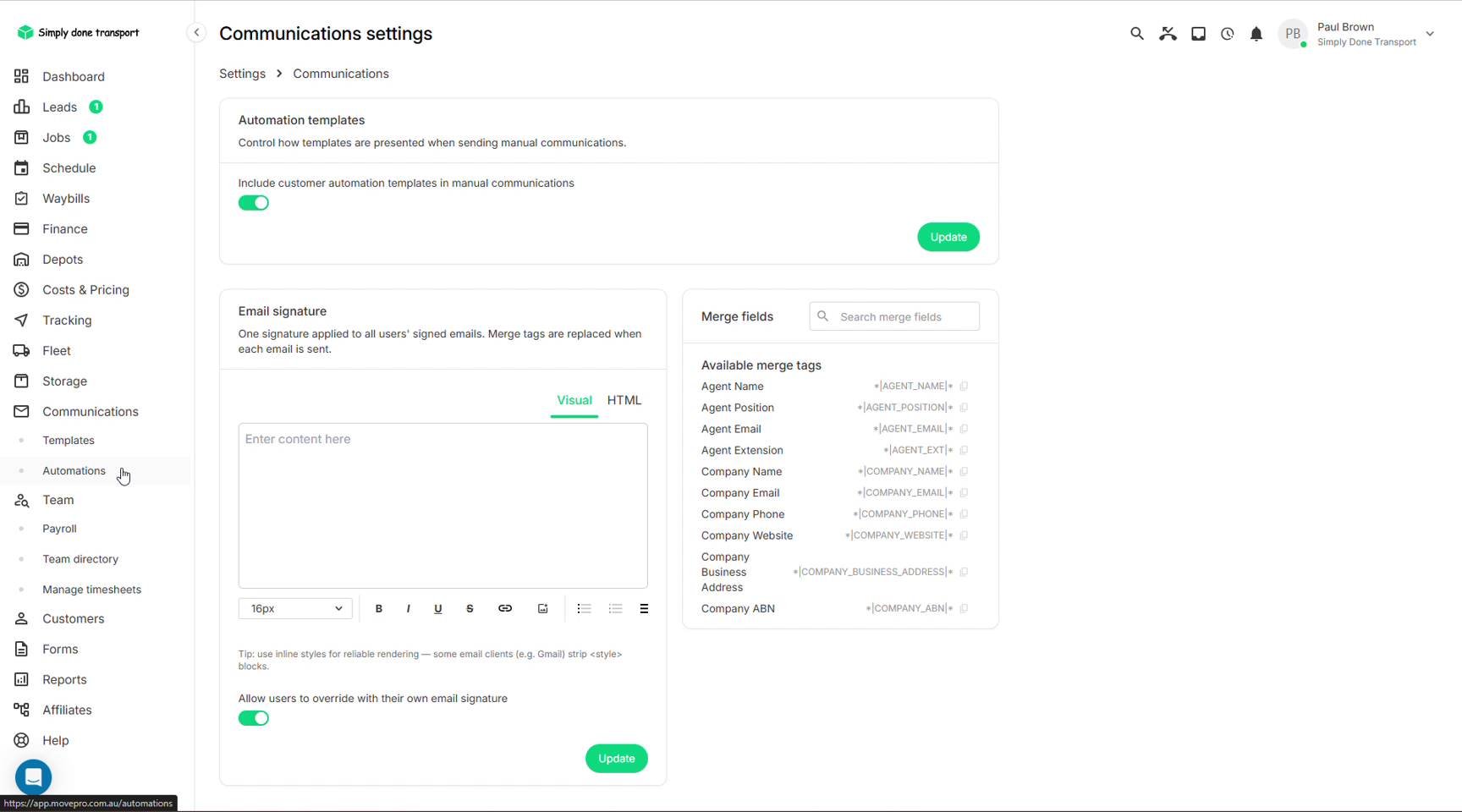
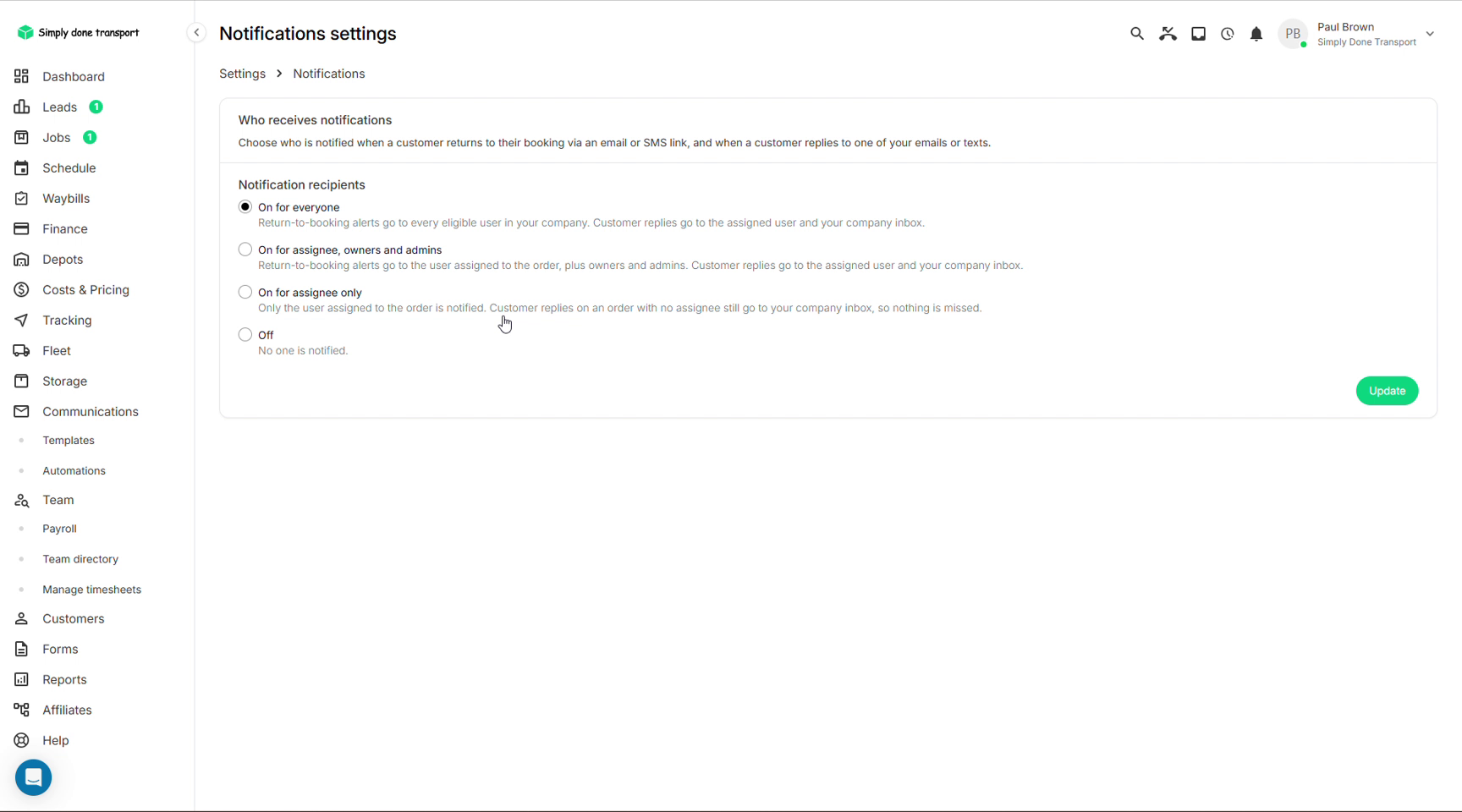
Communications settings sets the company-wide email signature (merge tags fill per sender; users can be allowed to override it) and whether customer automation templates appear in the manual composer. Notifications settings decides who is alerted when a customer returns to their booking or replies to an email or text: everyone, assignee plus owners and admins, assignee only, or off.
Integrations & API keys
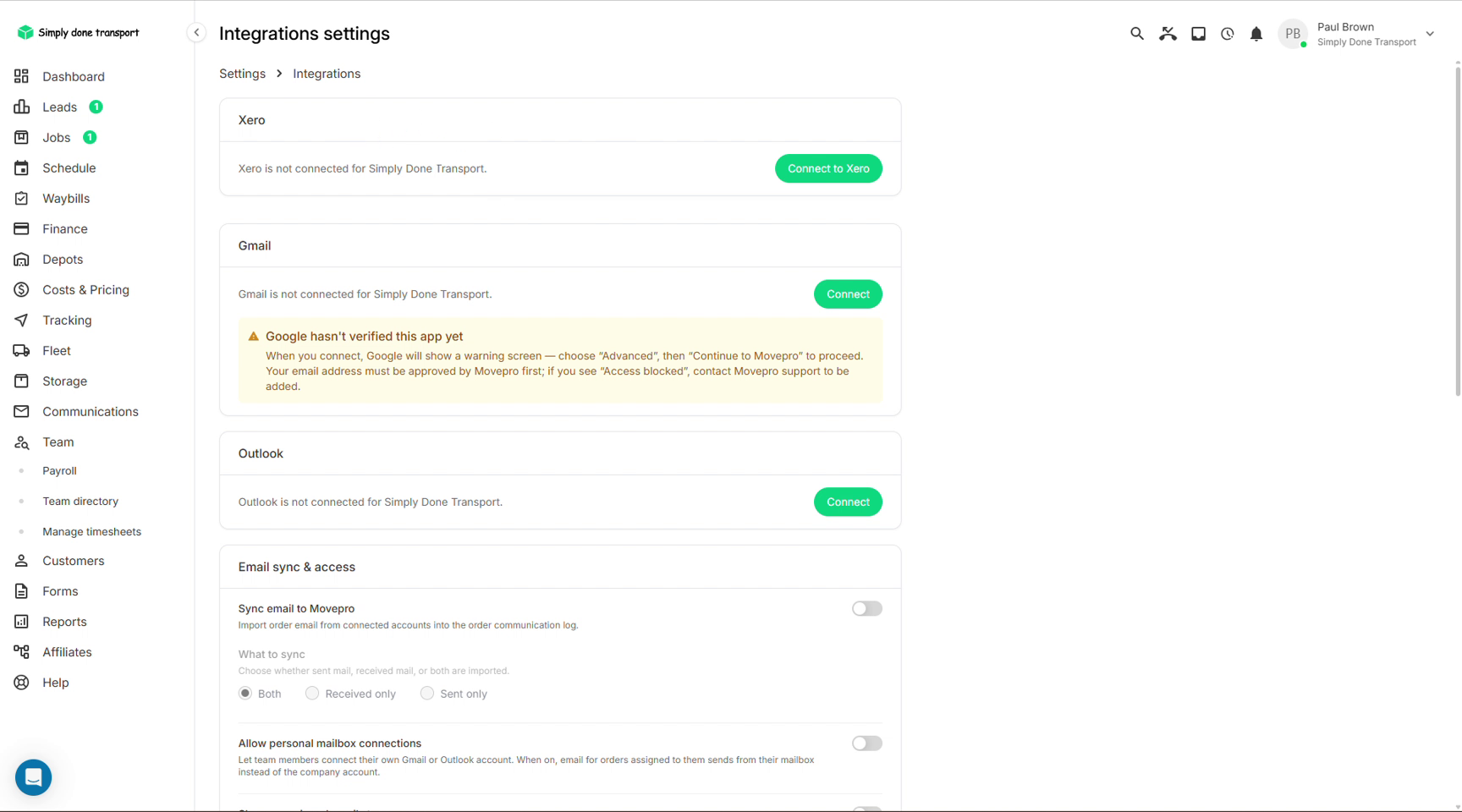
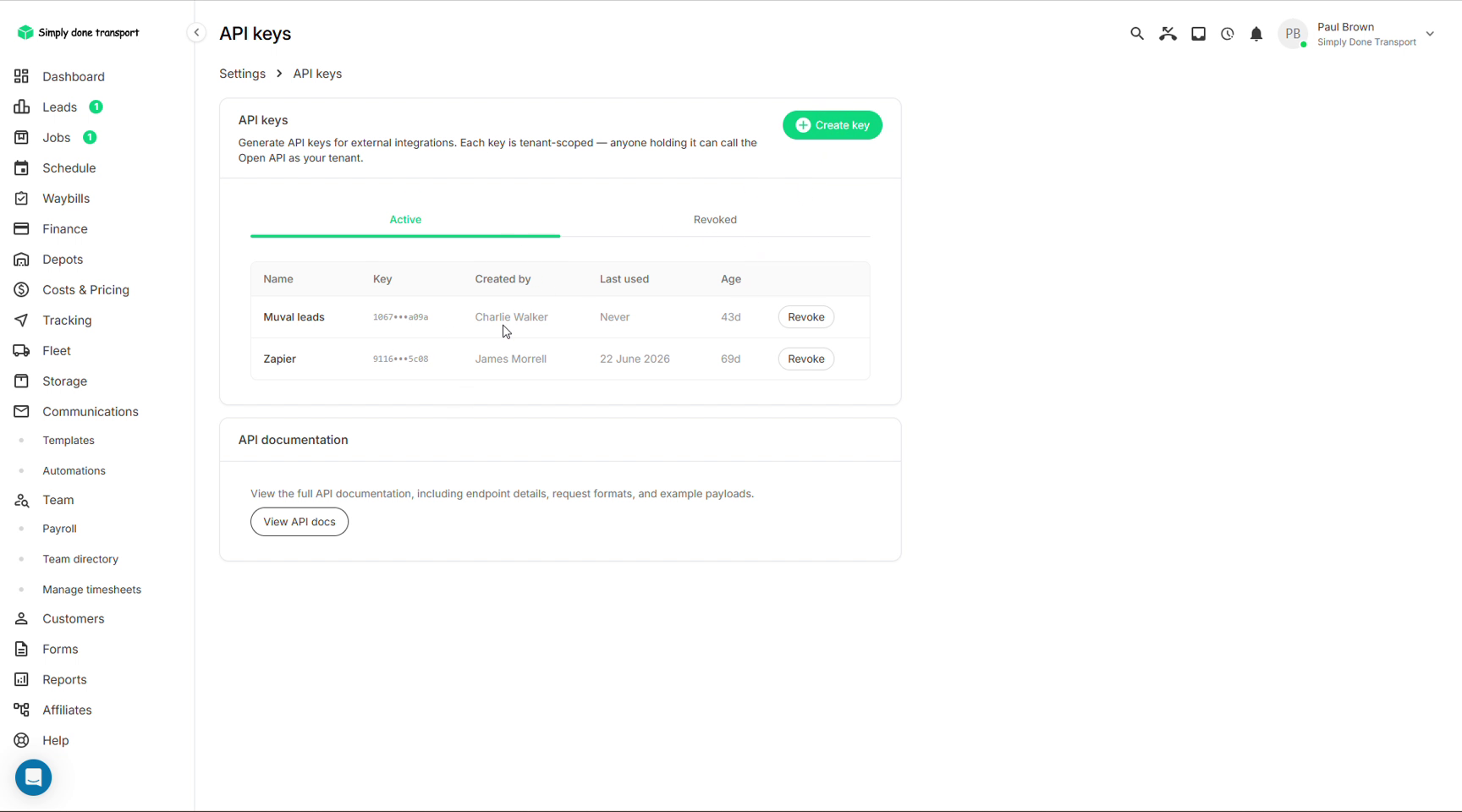
Integrations connects Xero (accounting), and Gmail / Outlook for email: with Sync email to Movepro on, order-related email from connected accounts lands in the order's communication log, and team members can optionally connect personal mailboxes so their sends come from their own address. The Xero connection and its invoice sync settings get a full walkthrough in Finance & Xero. API keys issues tenant-scoped keys for external tools (lead providers, Zapier), with full API documentation a click away.
AI permissions
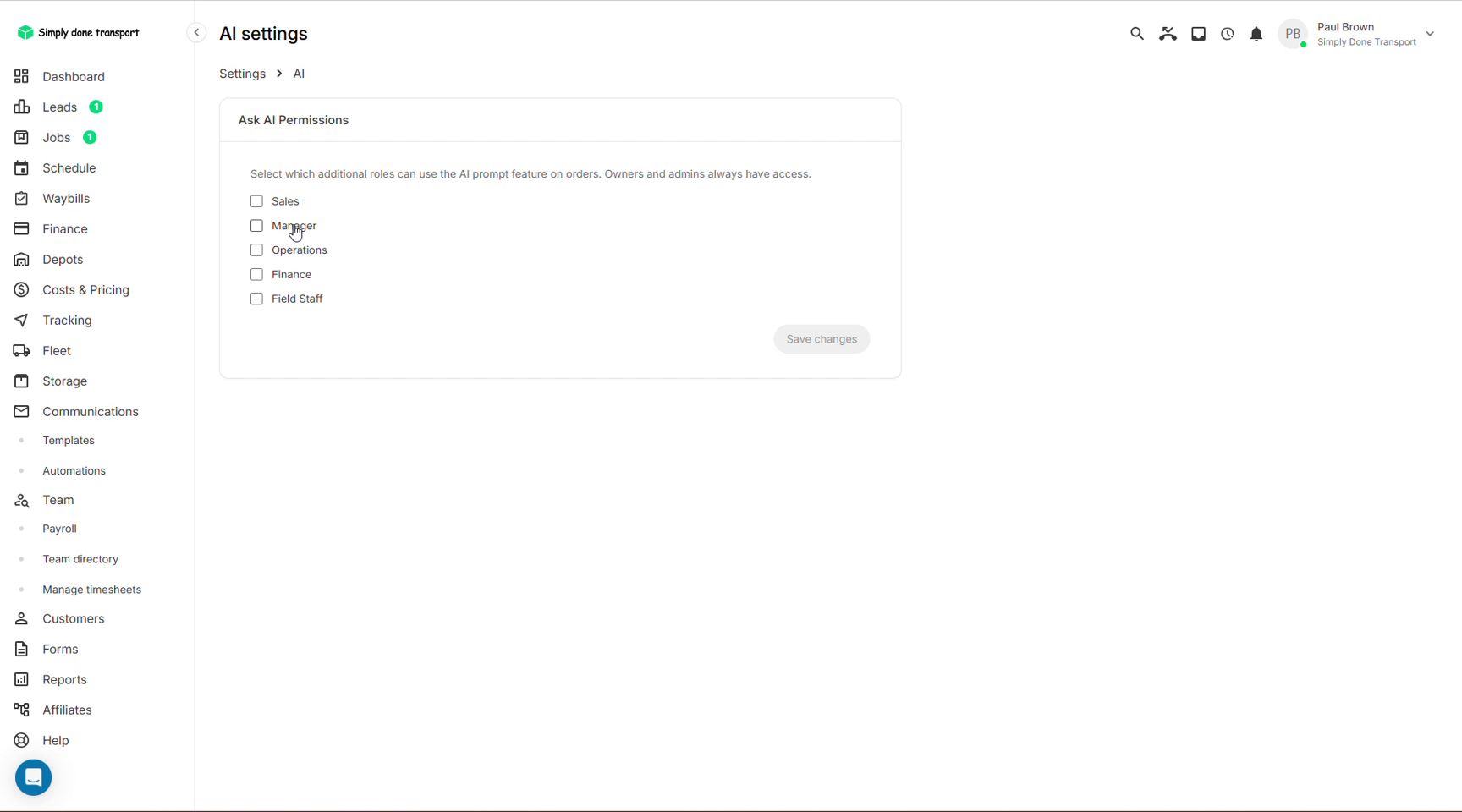
AI settings controls who can use the Ask AI feature on orders. Owners and admins always have it; tick the extra roles (Sales, Manager, Operations, Finance, Field Staff) that should too.
Fix list checks
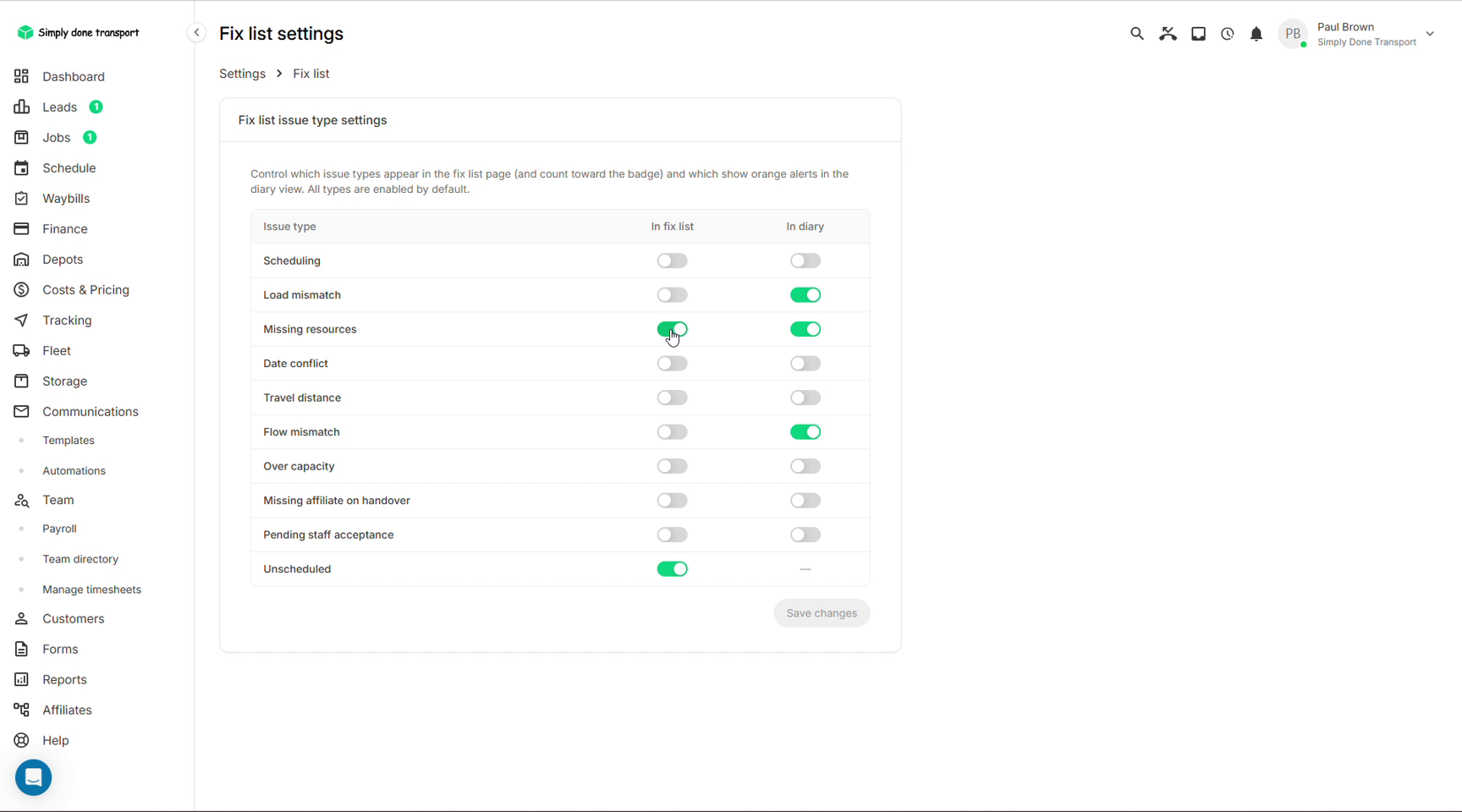
Fix list settings chooses which issue types feed the fix list and which also raise orange alerts in the diary: scheduling problems, load mismatches, missing resources, date conflicts, over-capacity, pending staff acceptance, unscheduled jobs and more.
Security: multi-factor authentication
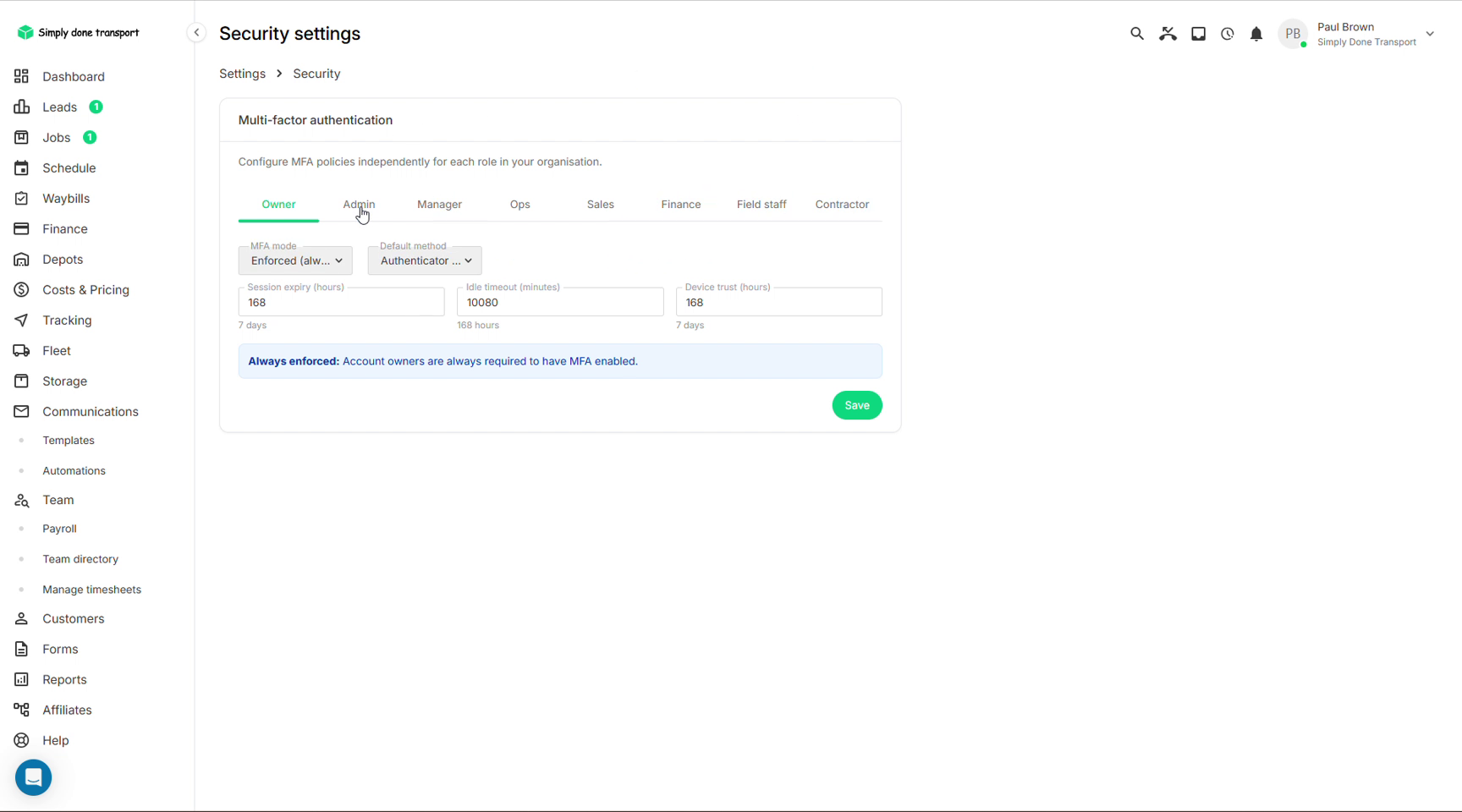
Security settings configures MFA per role: owners are always enforced; for each other role pick the mode, default method (authenticator app), session expiry, idle timeout and how long a trusted device stays trusted.
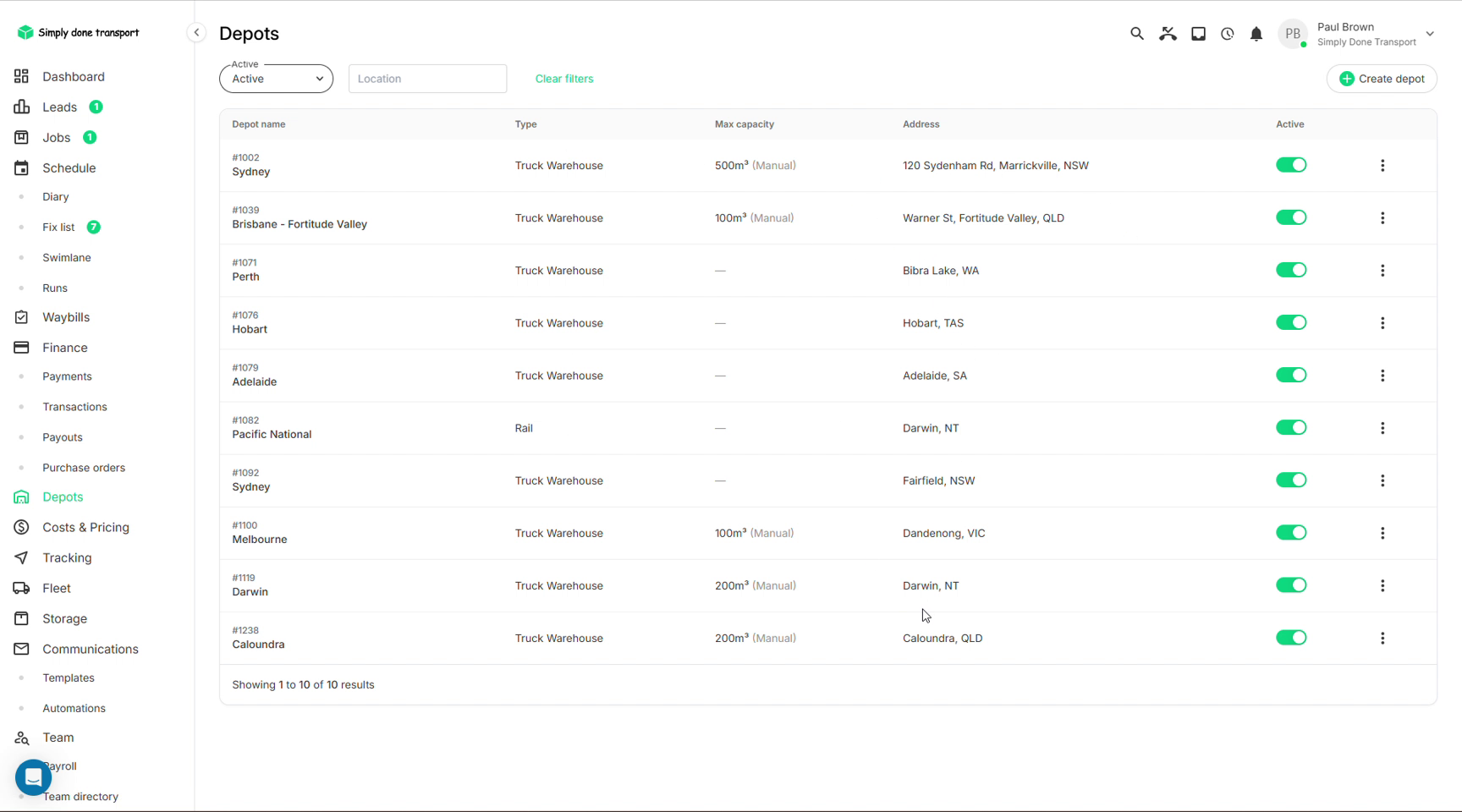
Depots
Depots (in the main left menu) is the list of bases your operation runs from: truck warehouses and rail depots, each with an address and optional maximum capacity. Depots anchor local pricing, scheduling and interstate lanes, so set them up before the pricing.