Communications
All customer communication (email, SMS, call logs) runs through the order's Comms tab, so the whole team can see the conversation. Templates with merge fields keep the wording consistent, and automations send the routine messages for you.
The Comms tab: email, SMS, calls
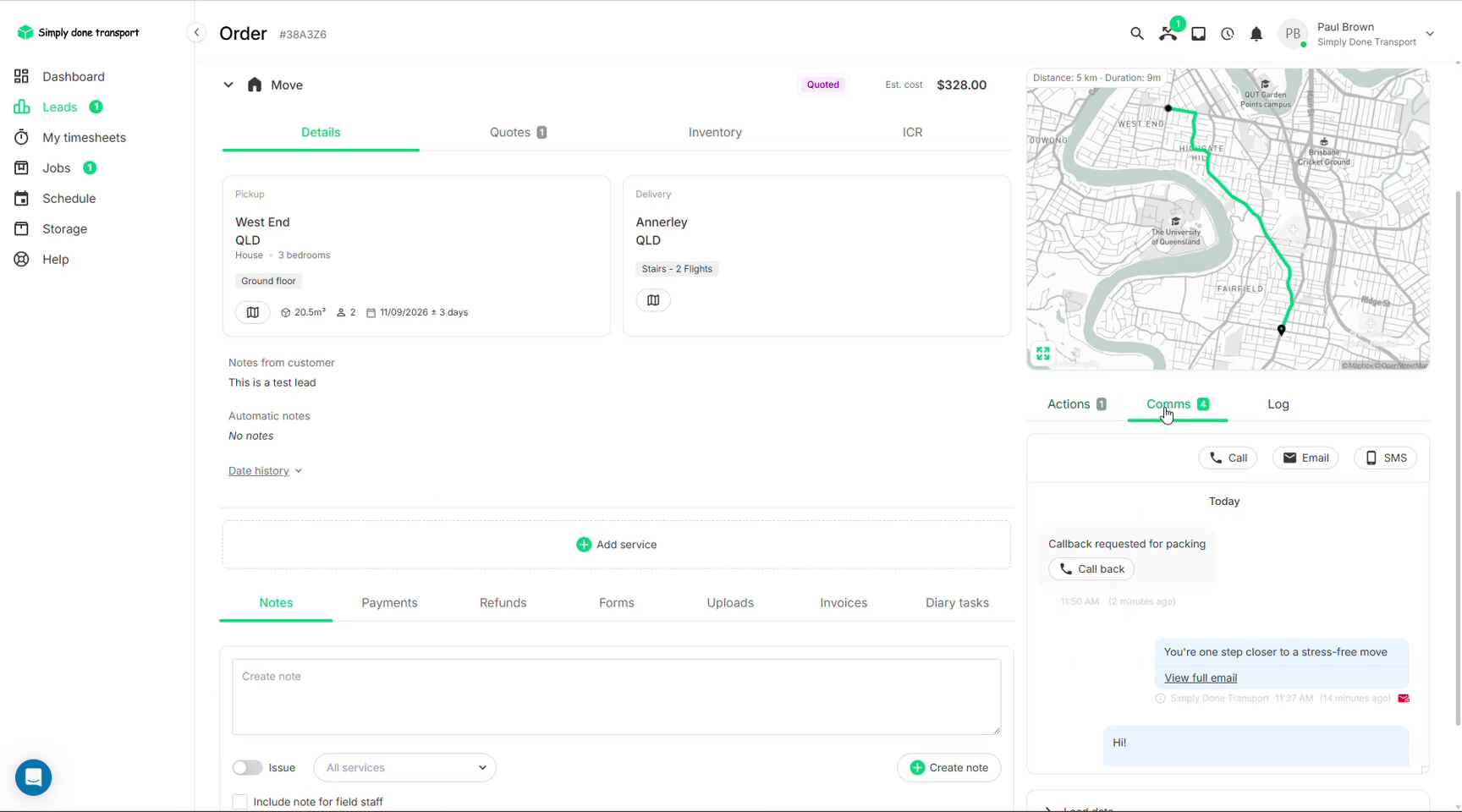
Open any order and switch the right rail to Comms. The Call, Email and SMS buttons start a message to the customer; below them, the thread shows everything ever sent or received on this job, newest at the bottom. Composing an email lets you pick a template, edit the body, add attachments, and optionally update the lead's status as you send (e.g. to Quoted).
How SMS works
Every Movepro account has its own dedicated phone number. SMS you send go out from that number, and replies feed straight back into the order's Comms thread, so there is no separate inbox to watch (you can see an SMS reply sitting in the thread in the screenshot above). Crew members don't see this customer thread; to get information to the crew, use a note with Include note for field staff (see Leads & CRM).
Templates
Go to Communications → Templates. The list shows each template's type (Email or SMS) and its trigger: Manual templates are ones you pick from the composer; Auto templates are sent by the system when their event fires (booking confirmed, job booked, inventory updated…). Template editing is reserved for Owners and Admins; Managers can open the page to read templates but can't create or change them (role matrix).
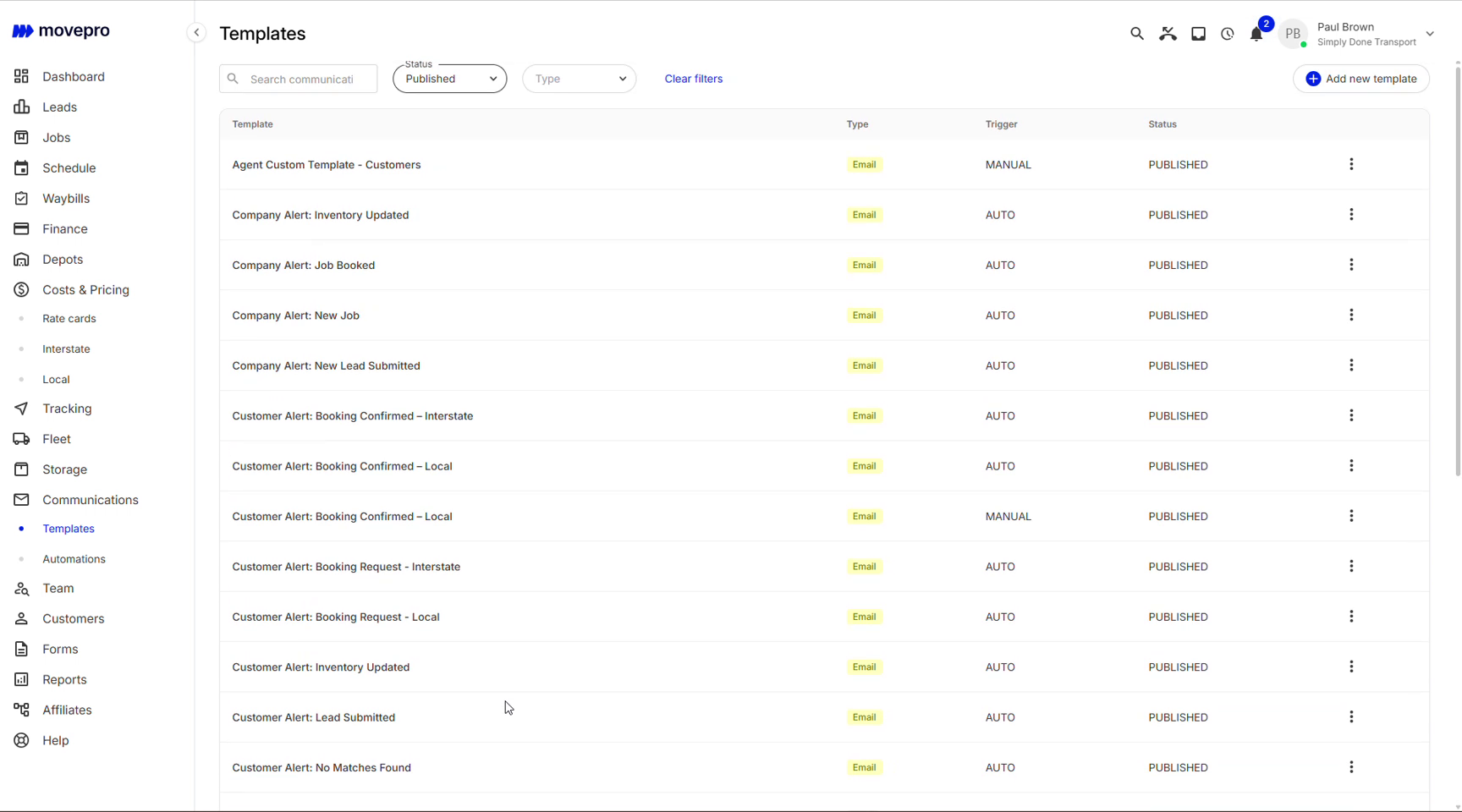
- Click Add new template.
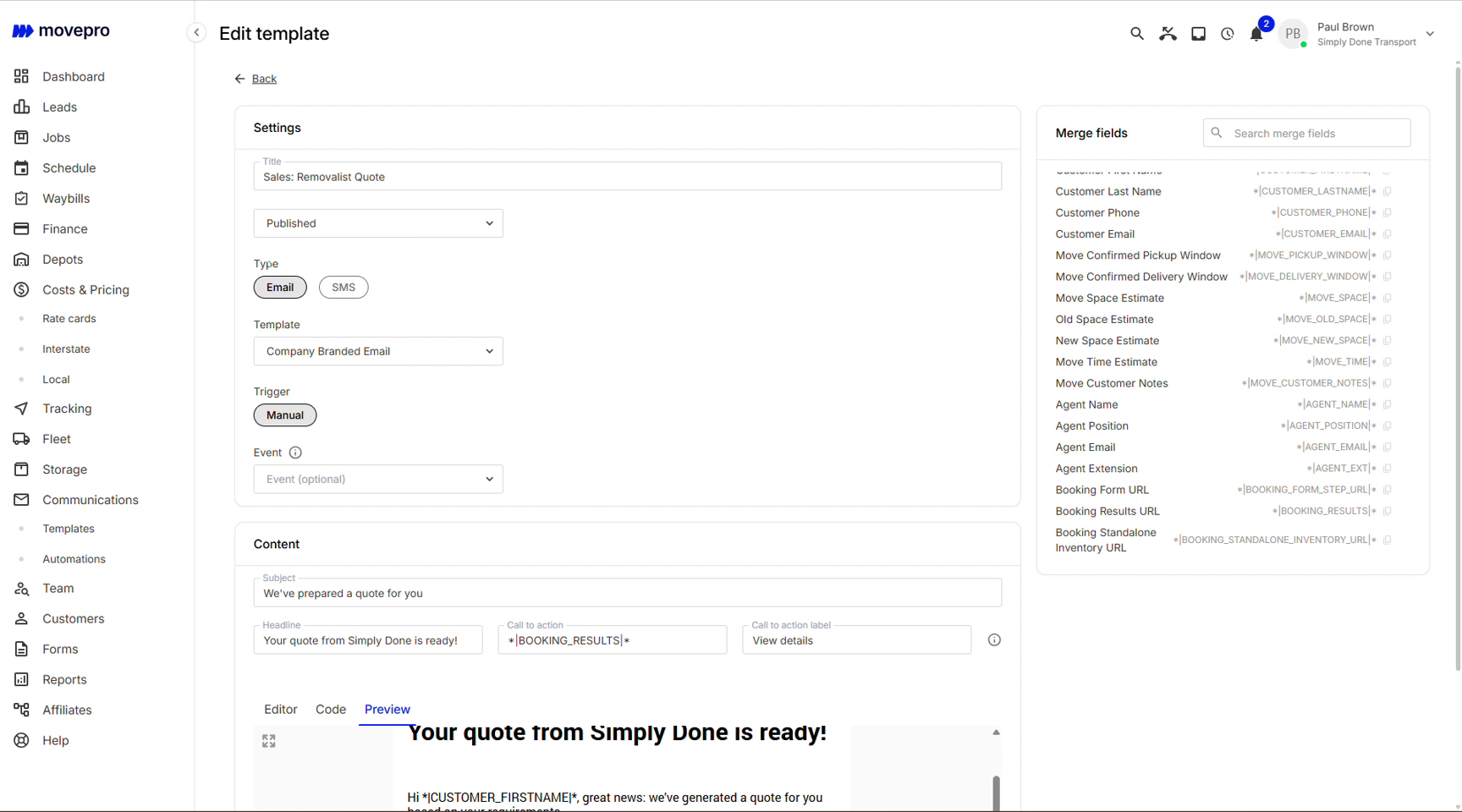
- In Settings, give it a title, choose the Type (Email or SMS), pick the Company Branded Email wrapper, and set the Trigger: Manual, or the event that should send it automatically.
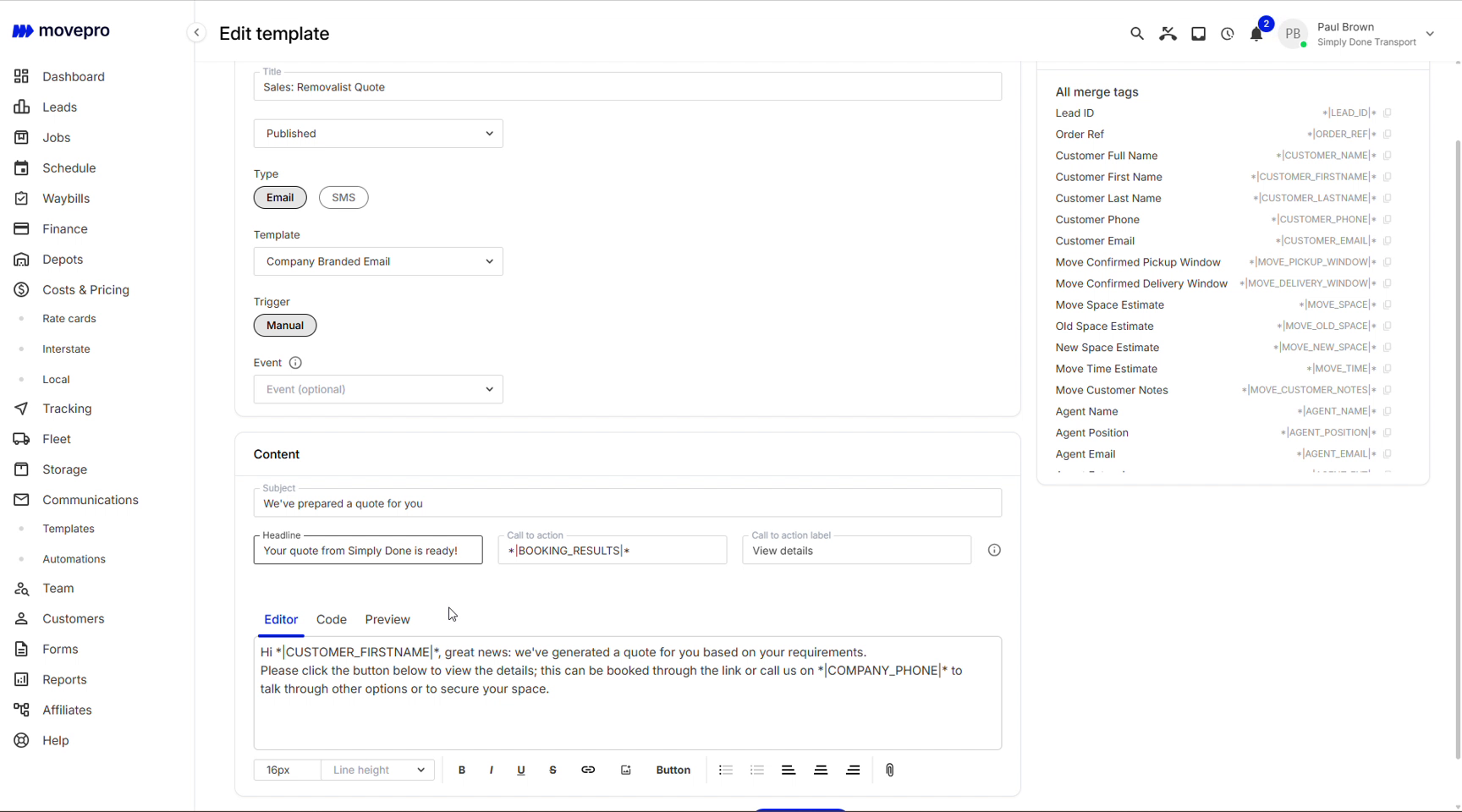
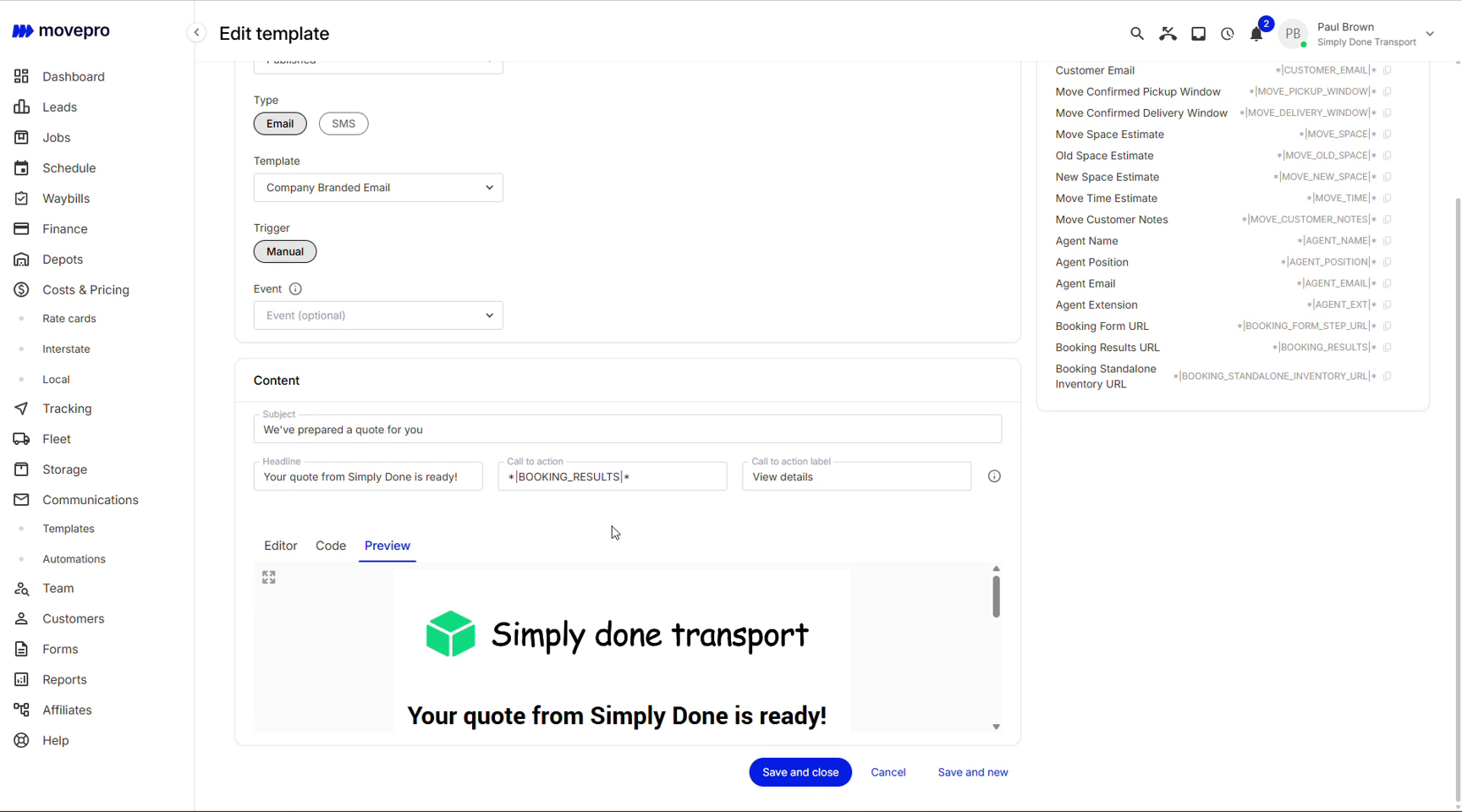
- In Content, write the subject, headline and body, inserting merge fields where the personal details go. The Call to action fields turn a merge-field URL (e.g. the quote link) into a button with your own label.
- Set the status to Published and save. It's now available in every order's composer (or armed on its event).
Merge fields
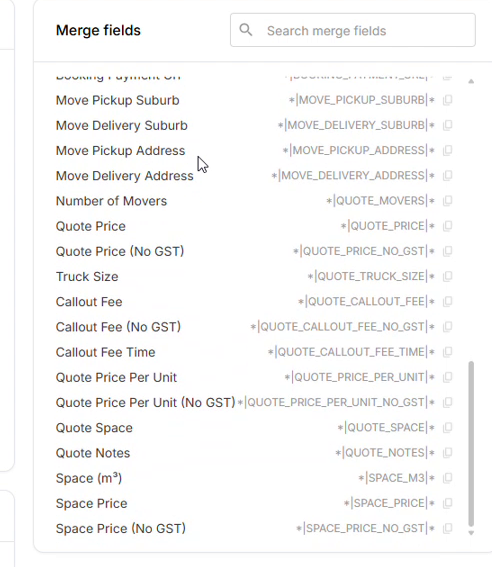
Merge fields are placeholders that fill themselves in per customer: Customer First Name, Agent Name, Order Ref, Move Time Estimate, Booking Form URL, Company Phone, Booking Payment URL and dozens more. The panel on the right of the template editor lists them all with a search; click to copy one into your text. A template like "Hi *|CUSTOMER_FIRSTNAME|*, great news: we've generated a quote for you…" personalises itself on every send.
Automations
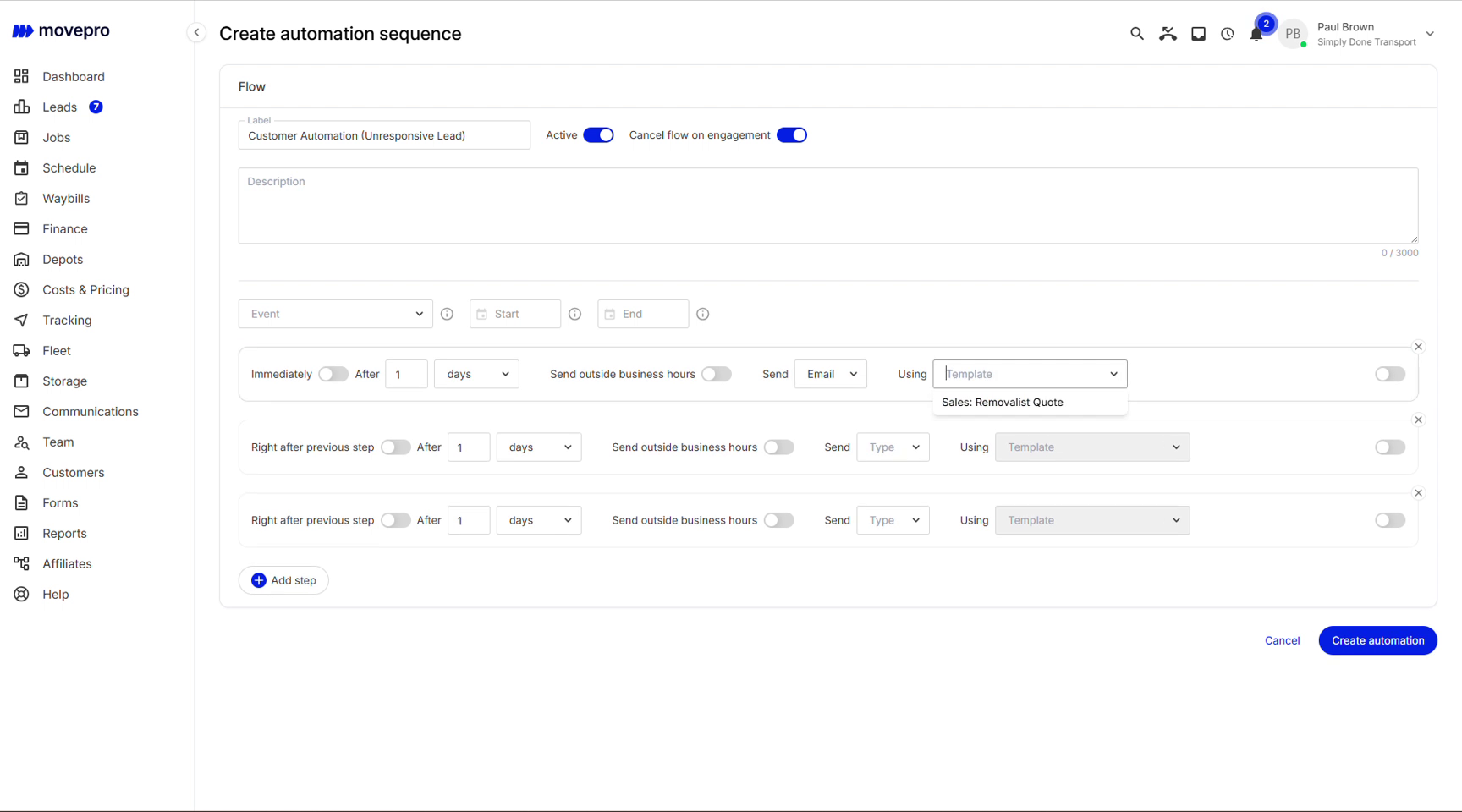
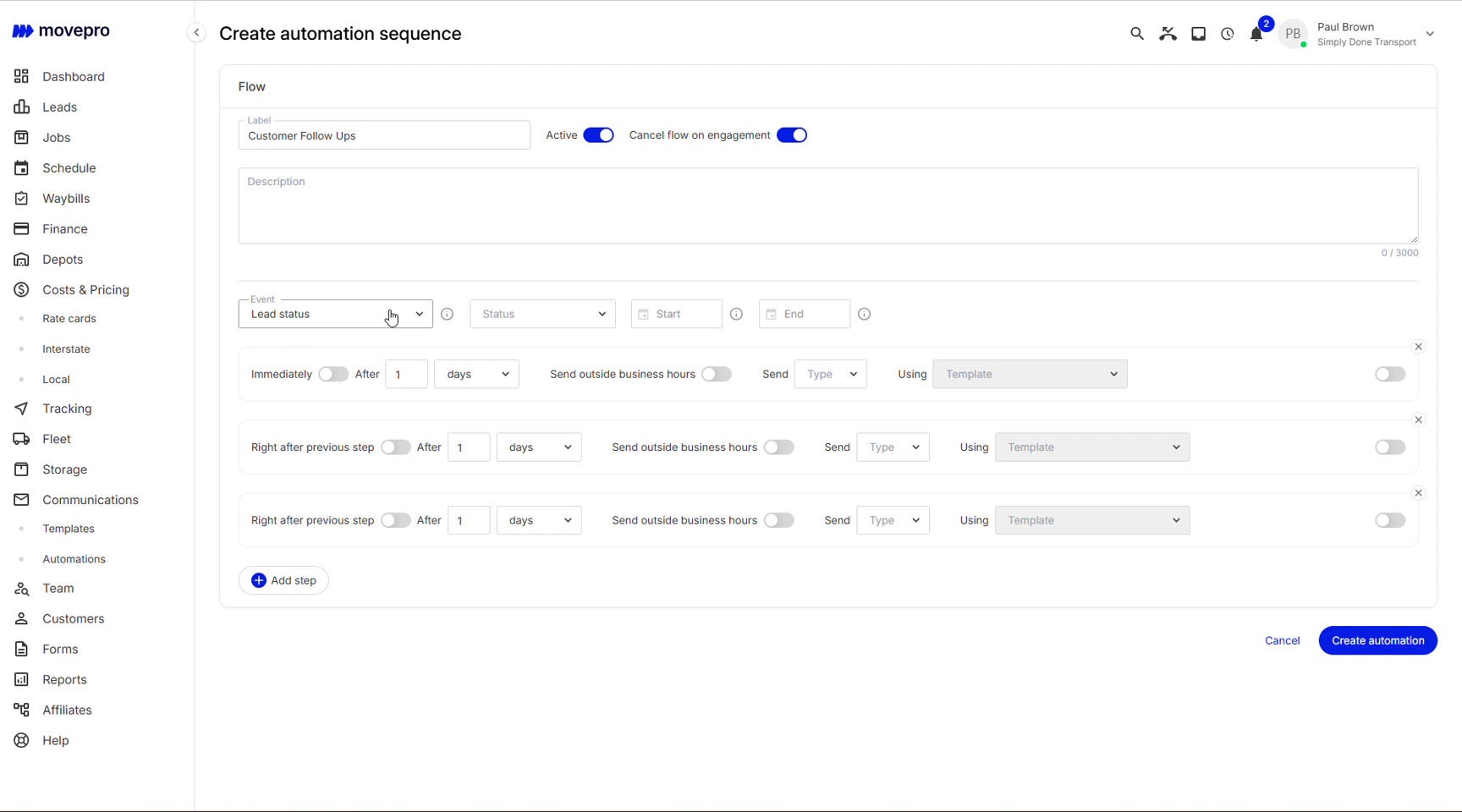
Communications → Automations chains messages onto a trigger over time: a follow-up sequence for unresponsive leads, a welcome series after booking. Build the flow once:
- Name the sequence and pick the Event that starts it, e.g. Lead status reaching a particular status.
- Add steps: each one waits (immediately, or after N days), then sends an Email or SMS using one of your templates. A toggle keeps sends inside business hours.
- Leave Cancel flow on engagement on so the sequence stops the moment the customer replies or books; nobody gets chased after they've answered.