Quotes
Once your pricing is set up, quoting takes seconds: Movepro pre-builds "quick add" quotes from your rate cards, you fine-tune the line items if needed, preview exactly what the customer will see, and email it with one click.
The Quotes tab
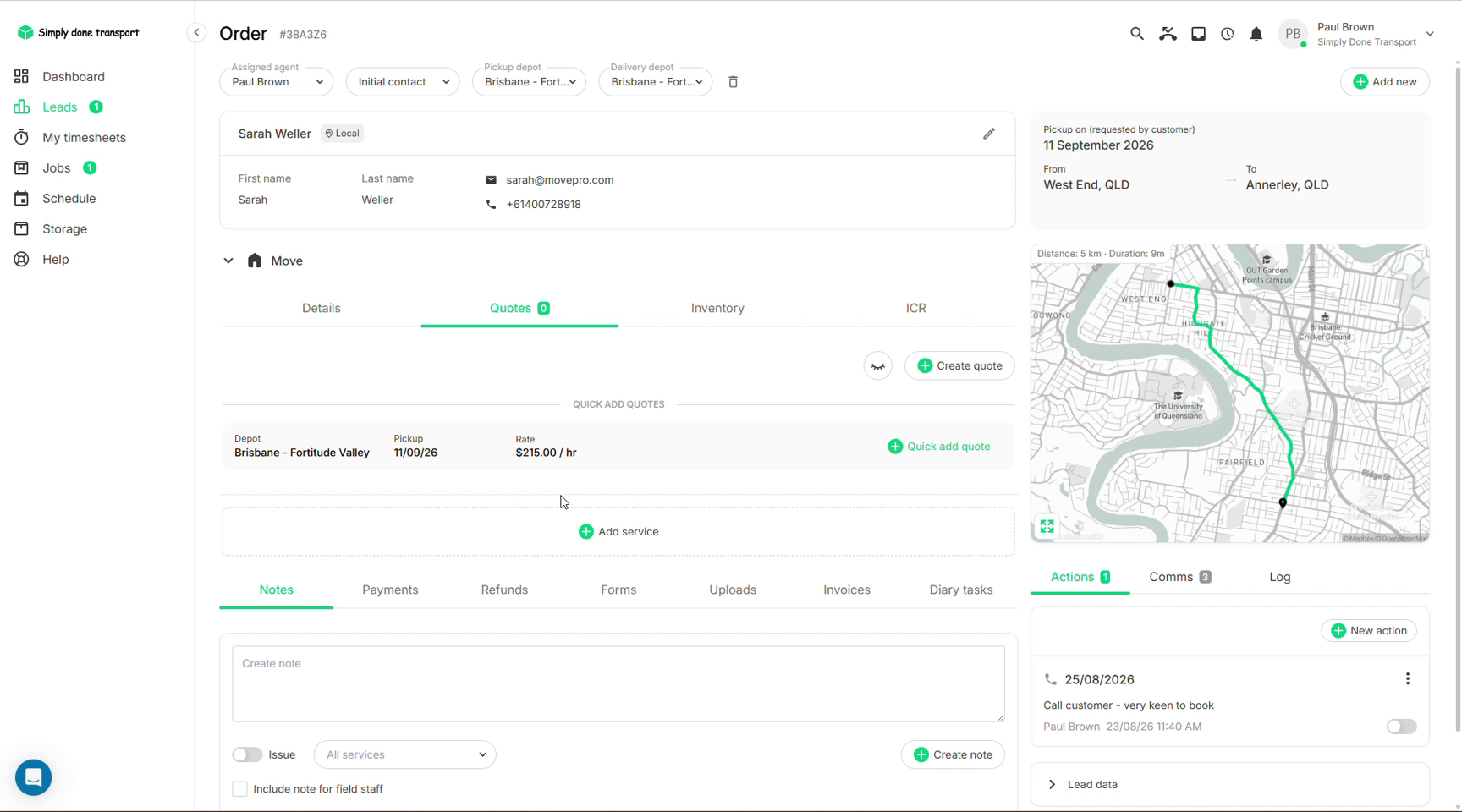
Open the lead and click the Quotes tab inside the service section. Before any quote exists you'll see a Create quote button (for a fully custom quote) and, below it, Quick add quotes: ready-made quotes generated from your Costs & pricing setup for the depot and date on this job.
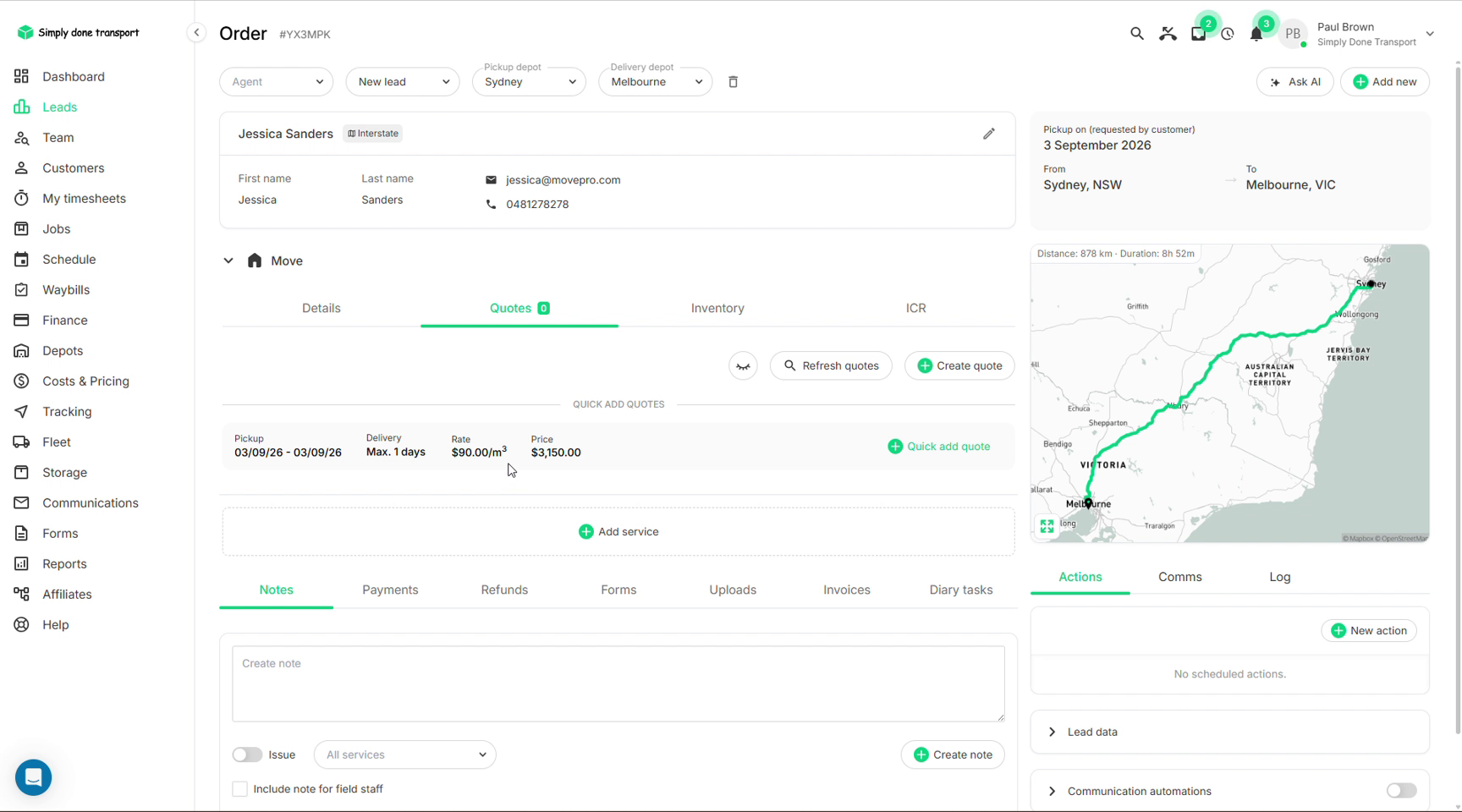
On an interstate order, the quick-add row comes from your lane pricing instead: a pickup window, a delivery window, the $/m³ rate and the calculated price for the customer's volume. See Costs & pricing → Interstate lanes.
Create a quick quote
- In the Quotes tab, look at the Quick add quotes rows. Each row shows the depot, the pickup date and the rate it was built from. Refresh quotes rebuilds them after you change dates or inventory.
- Click Quick add quote on the option you want: hourly (price follows the hours worked on the day) or fixed (a set price, e.g. calculated from the cubic metres in the inventory). The two are compared in Variable vs fixed quotes below.
- The quote appears at the top of the tab with the crew size, truck, call-out fee and rate. Add more quotes if you want to offer options.
Quote line items
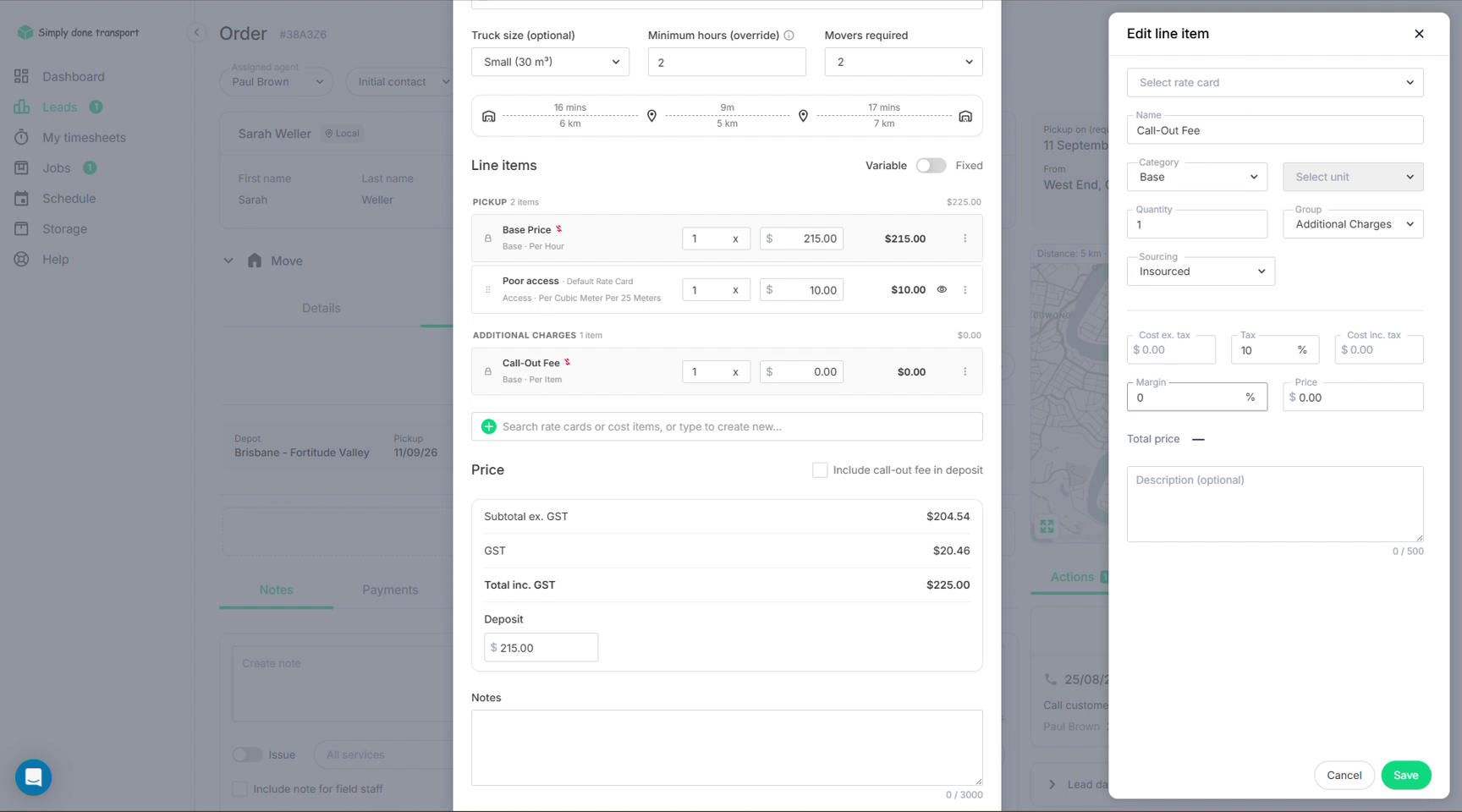
Click the pencil on a quote (or Create quote) to open the quote editor. The top sets the pickup date window, truck size, minimum hours and movers, with a travel-time estimate for the route underneath. Every price component is a line item you can adjust: the base price, call-out fee, and extra cost items such as poor access. The Variable / Fixed toggle switches between hourly and set-price quoting (compared below), and the price panel recalculates GST, total and deposit as you type. The search box adds anything from your rate cards or cost items. Lines sit in groups (pickup, labour, additional charges), and items attached to the depot's local price or the matched lane are already there with their quantities when the quote is created; see how pricing lands on a quote.
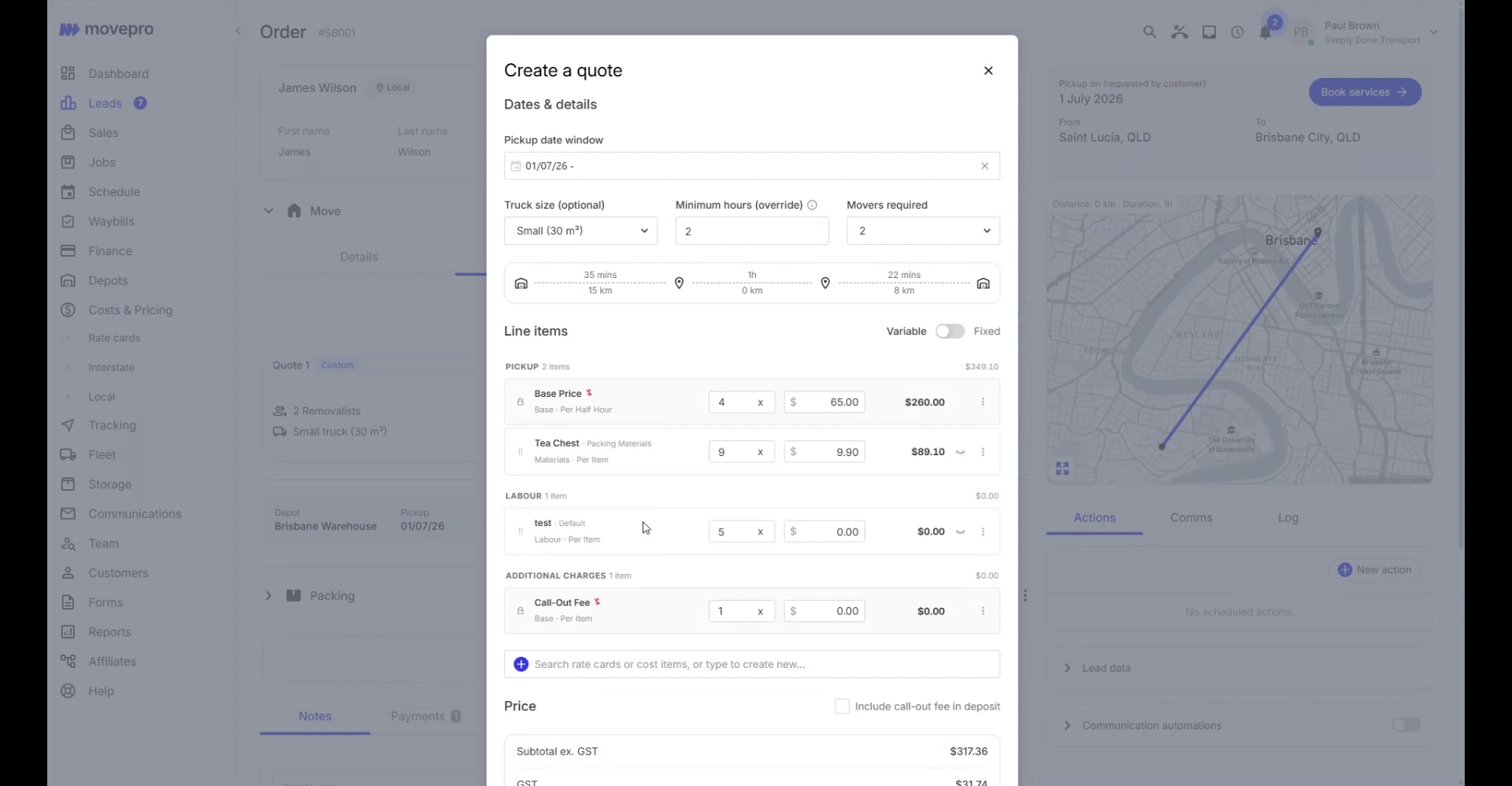
Click a line item's menu to open Edit line item, where you can change the quantity, unit, tax, margin and sourcing, or link the line to a rate card.
Variable vs fixed quotes
A local job can be quoted two ways, both fed by the same local pricing:
- Variable: hourly billing. The customer's portal states the rate plainly ("This move is $240 per hour"), shows your minimum hours, and explains the final payment is calculated after the job is done. It won't estimate total time unless you add that to the notes. Billing increments are per half hour by default; a toggle in Booking settings switches the display to per hour.
- Fixed: one set price from the inventory's cubic metres. The customer sees just the number, with no per-hour language anywhere, and access charges pull into the quote automatically.
You can also mix them. On a fixed quote, add a line item billed per hour (an optional third mover at $100/hr, say) and click the i icon so it shows to the customer as its own line in the price breakdown. Put "per hour" in the line's name; the breakdown otherwise shows only the figure, and the whole point is that the customer can't mistake a metered extra for part of the fixed price.
Preview what the customer sees
Two ways to check the customer's view before sending anything:
- The eye icon on a quote line item hides that line from the customer's view; they see the total, not your internal breakdown. (Hiding an entire quote is a different control: see Delete or hide a quote.)
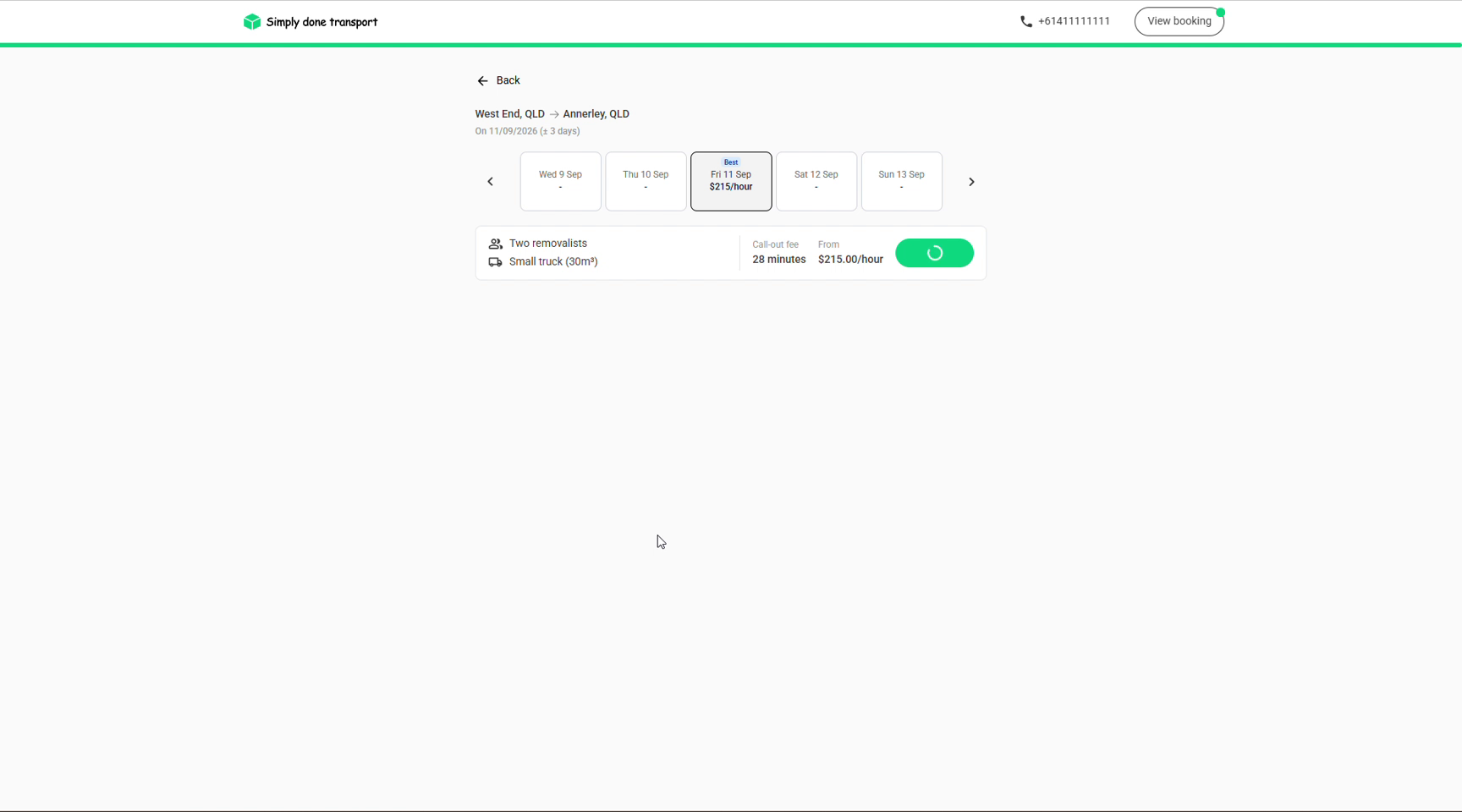
- The Booking shadow link (right rail → Lead data) opens the customer's live portal page: exactly what they get when they follow the link in your quote email.
Email the quote
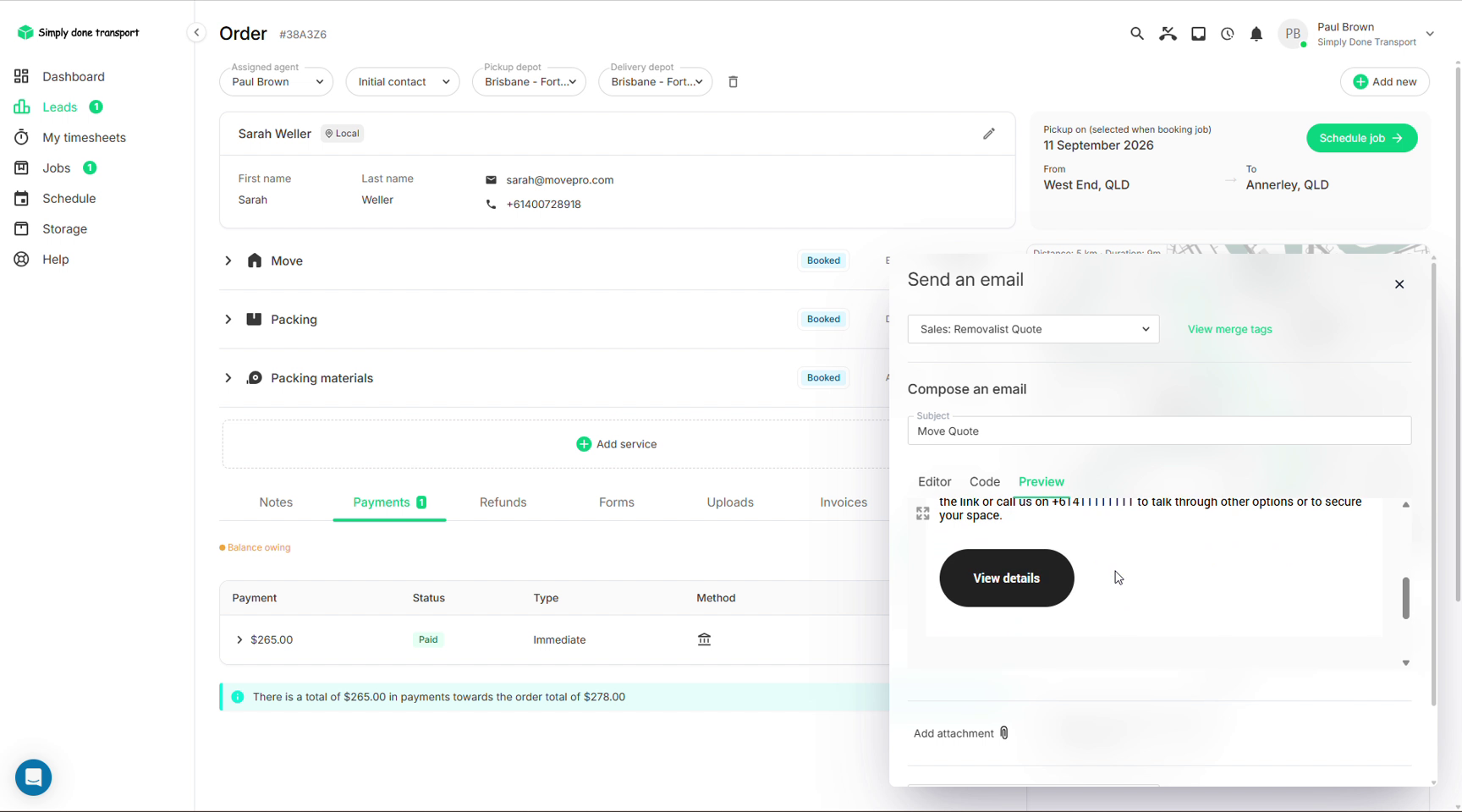
- In the right rail, open the Comms tab and click Email.
- Select your quote template at the top (e.g. "Sales: Removalist Quote"). Merge fields fill in the customer name, quote link and your company details automatically; see Communications to build templates.
- Check the Preview tab; the email includes a View details button that takes the customer to their portal page.
- Click send. The email lands in the Comms thread, so anyone on the team can see what was sent and when.
Quote acceptance
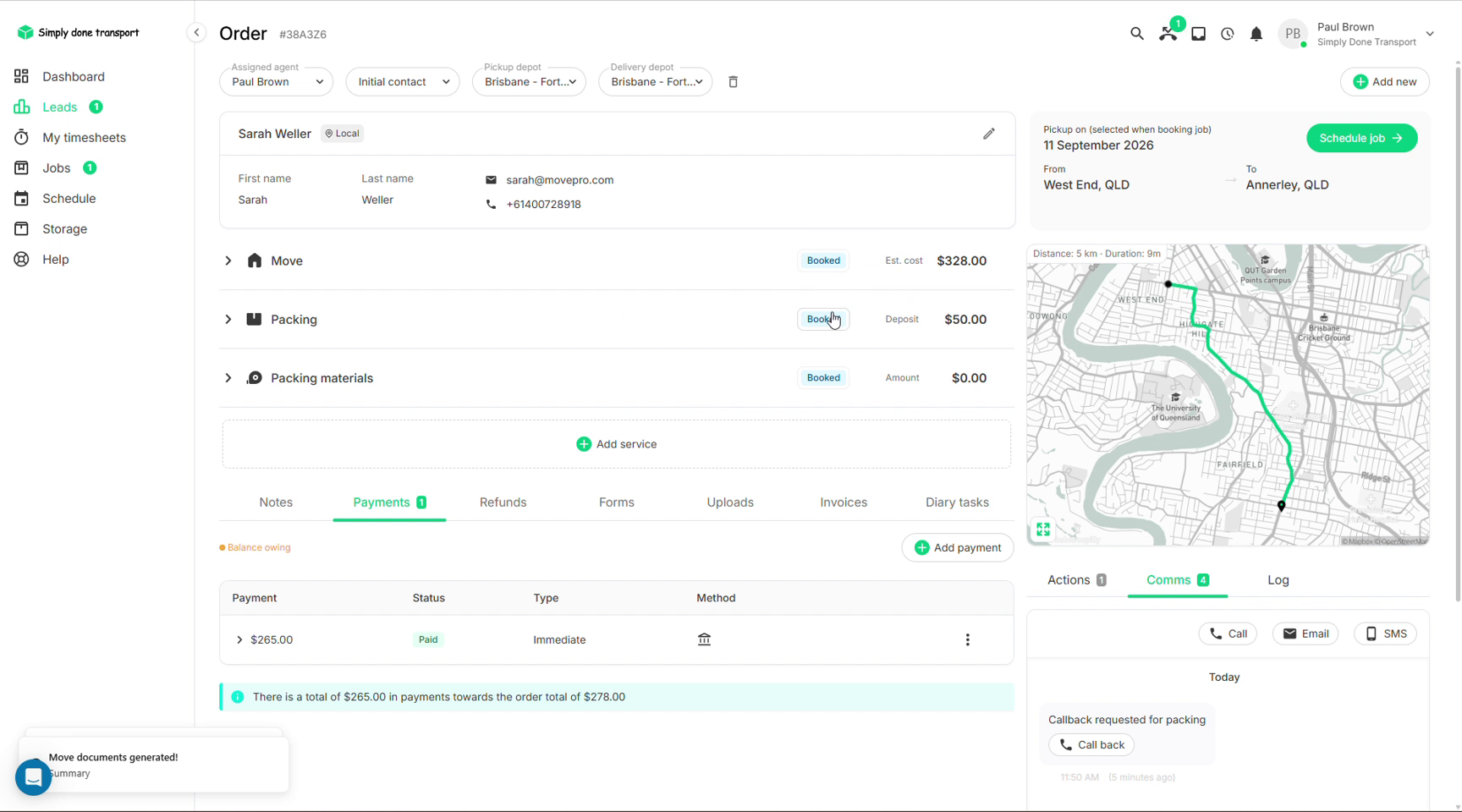
When the customer opens the portal and accepts a quote, the acceptance shows in green on the order and the accepted quote becomes the selected one. From there the job is ready to book: either the customer books and pays the deposit online, or you book it for them. Once booked, every service chip on the order flips to a green Booked.
Delete or hide a quote
A customer changes their mind, or the Quotes tab fills with options you no longer want them weighing up. Three tools, from lightest to heaviest:
- Edit it. Usually you don't need to remove anything: open the quote, click Edit, change the line items or pricing, and update. The quote keeps its place and its history.
- Hide it. The Hidden / Visible toggle on each quote controls whether the customer sees it in their portal. Hiding keeps the quote on the order as history, which beats deleting when you might want the paper trail. Hide everything and the customer sees no quotes at all.
- Delete it. The row's menu deletes a quote outright; use it for genuine mistakes rather than history you'd rather keep.
One rule governs both of the heavier tools: the selected quote can't be hidden or deleted. Movepro blocks it, because the selected quote is the one the order is pricing itself on. Unselect it (or select a different quote) first, and then hide or delete it.
There's also a Show organic quotes toggle on the Quotes tab: it controls whether the automatically generated quote options (the quick-add style quotes Movepro builds from your pricing) appear to the customer, independent of any quotes you built by hand.
Add more services to the order
An order isn't limited to one move. Click Add service (between the service section and the bottom tabs) to add packing, storage, or another move leg to the same customer; each service gets its own quotes, status and scheduled tasks. Every service carries a type with its own icon (move, packing, storage, car transport and more); the full set is decoded in Icons & categories.
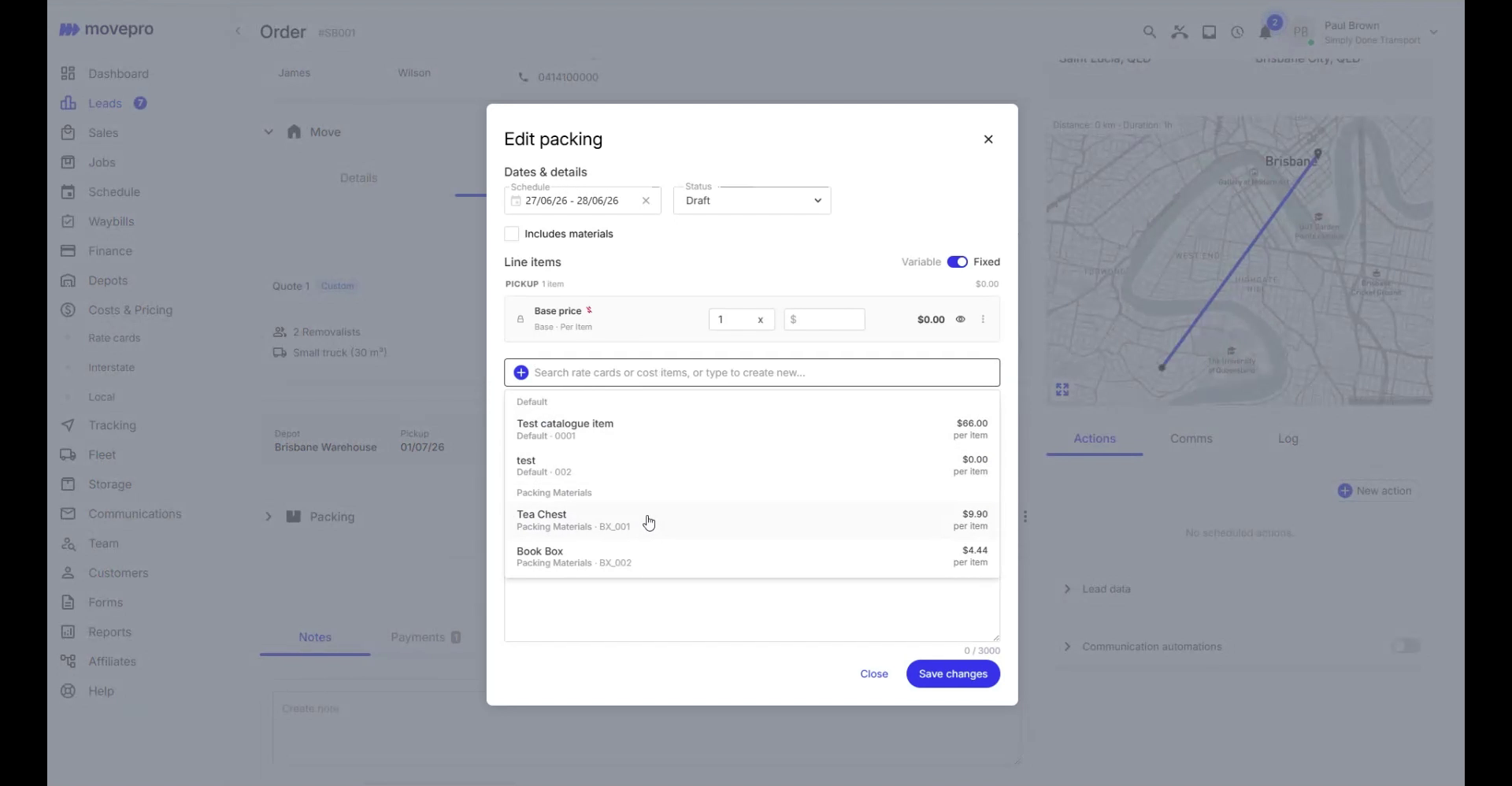
Whatever you add, the quote is edited the same way. Every service type except storage (packing, unpacking, packing materials, pet transport, vehicle transport, miscellaneous) carries the same line-item editor as the move itself: dates and service details up top, then a base price line, the same Variable / Fixed toggle, and the search box for anything in your catalogue. A packing quote can hold its per-box base line plus tea chests and tape as their own lines, priced from the rate card, rather than a single number that hides what's in it.