Movepro Docs / Icons & categories
Icons & categories
Movepro uses small icons to say a lot in a little space. Every order carries a move category chip that tells you what kind of move it is, and every service on an order shows a service type icon that tells you what work is being sold. This page decodes both sets, so a jobs list, a diary card or a dashboard reads at a glance.
In this guide
The move category
Every order has exactly one move category. It describes the kind of move, and it matters beyond the label: local moves are typically quoted from your hourly local pricing while interstate moves draw on lanes and trips, and your reporting slices by category too.
The category lives in the chip beside the customer's name at the top of the order view. Click the chip and the full list opens; pick a different category and the order updates immediately.
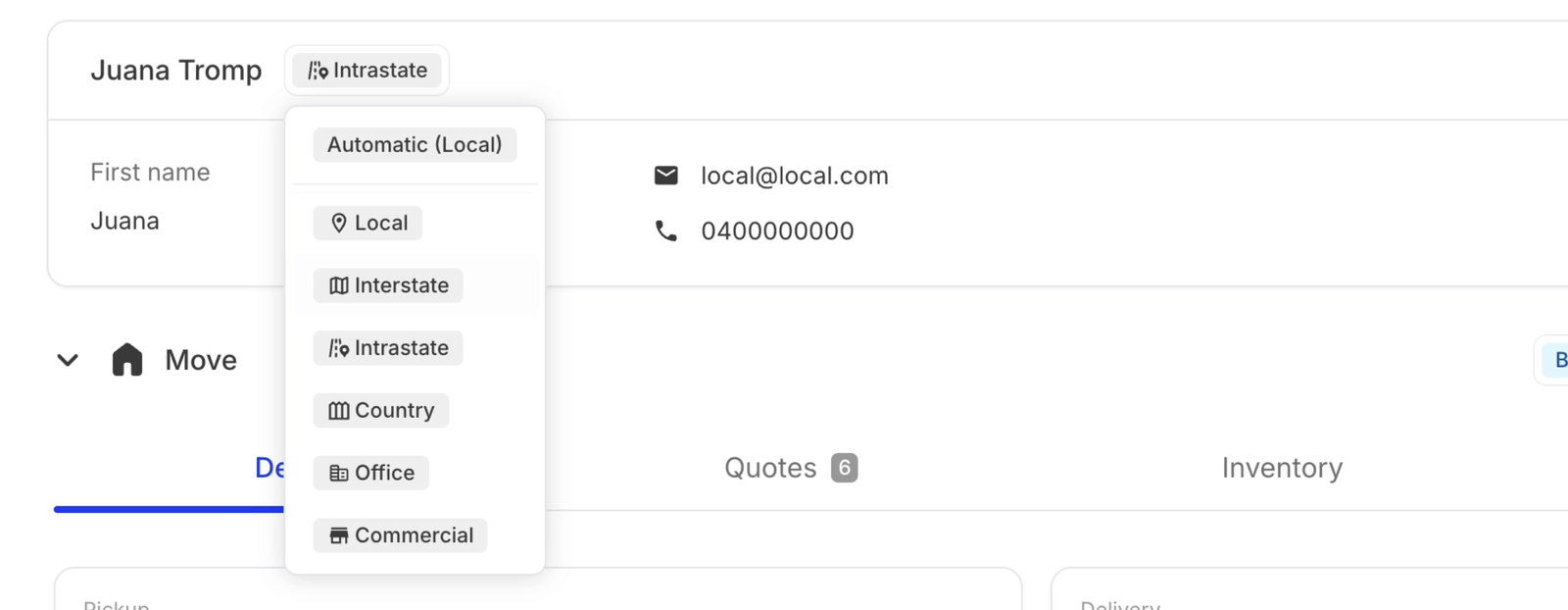
| Category | What it means |
|---|---|
| Automatic | The default. Movepro reads the pickup and delivery addresses and assigns the category itself; the brackets show its current pick, e.g. Automatic (Local). Choose any other option to override it. |
| Local | A move within the same city or metro area. The bread-and-butter job, usually quoted hourly. |
| Interstate | A move that crosses a state border (Sydney to Melbourne, Brisbane to Adelaide). Usually priced from your interstate lanes. |
| Intrastate | A long-distance move that stays inside one state (Sydney to Newcastle). Further than local, but no border crossed. |
| Country | A move to or from a regional or country area, where travel time and access are different propositions from a metro job. |
| Office | An office relocation for a business customer: desks, IT, filing, usually after-hours. |
| Commercial | Other business moves that aren't an office: warehouses, shopfronts, machinery and equipment. |
Once set, the category shows beside the customer's name on the order, so anyone opening the job knows what kind of move they're looking at before reading a single detail.

When to override. Automatic gets it right from the addresses most of the time. Override it when the addresses don't tell the whole story, e.g. a two-suburb move that is actually an office relocation, or a metro address that's really a staging stop on a country run.
Service types
An order holds one or more services: the things the customer is buying. Each service has a type, and each type has an icon. The same icons follow the service everywhere it appears: the service header on the order, the jobs list, diary cards, and the per-service sales dashboards. (For how services fit into orders and tasks, see Orders, services and tasks.)
Move
Car transport
Pet transport
Storage
Packing
Unpacking
Packing materials
Miscellaneous
| Service type | What it covers |
|---|---|
| Move | The removal itself: pickup, transport and delivery. The house icon. On dashboards, move services are shown split by category, which is why you see both Local moves and Interstate moves cards with the same icon. |
| Car transport | Moving a vehicle, whether on the truck or driven. |
| Pet transport | Getting the family pets to the new home. |
| Storage | Time in your storage units or containers, between moves or ongoing. |
| Packing | Your crew packs the home before the move, priced per box or per hour. |
| Unpacking | Your crew unpacks at the destination. |
| Packing materials | Boxes, tape, paper and covers sold to the customer. Items first and foremost: it usually creates no scheduled task, though a materials delivery or collection can be scheduled when the boxes need their own trip. |
| Miscellaneous | Anything that doesn't fit the other types: a one-off charge, custom work, a service unique to your business. |