Costs & pricing
Everything under Costs & Pricing exists to make quoting automatic: hourly rates per depot for local moves, lanes and trips for interstate work, and rate cards full of catalogue items for the extras. Set it up once and the quick add quotes price themselves.
What lives where
Open Costs & Pricing in the left menu. The section splits into:
- Local: rates for local moves, set per depot with a travel radius;
- Interstate: lane and trip pricing for interstate work (per m³);
- Rate cards: the published catalogue(s) of cost items your quotes draw from.
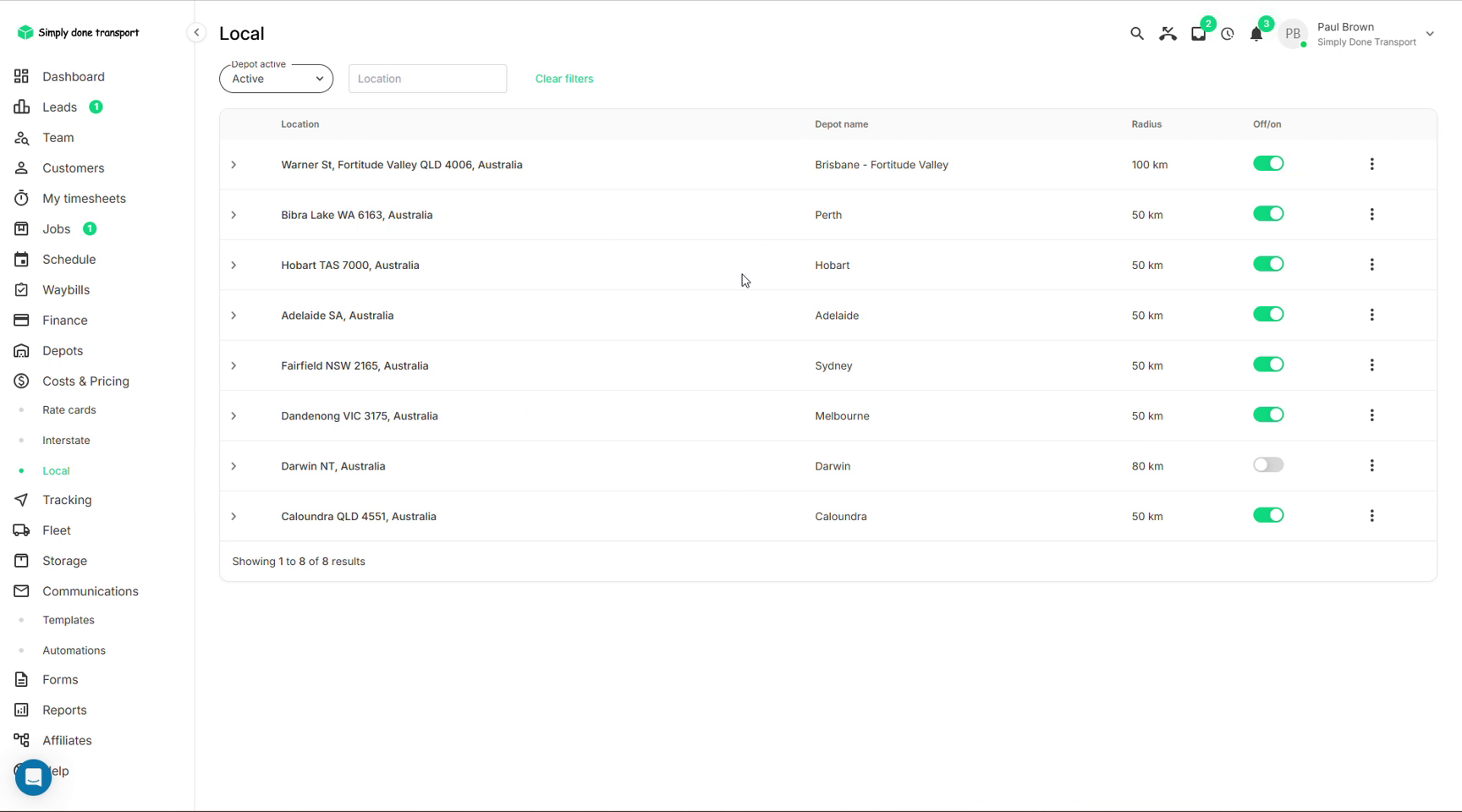
Local pricing: variable or fixed
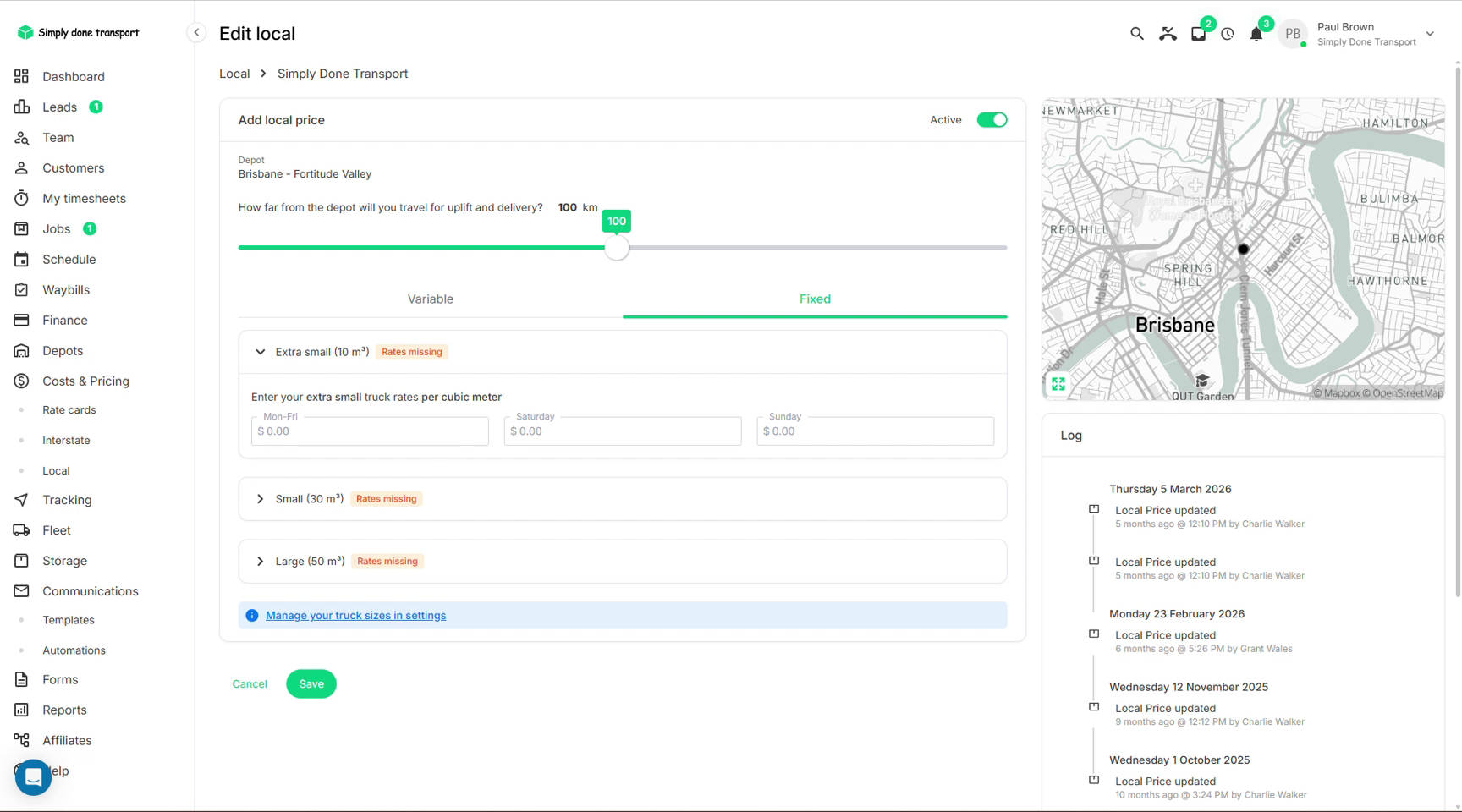
Open a depot's local price to edit it. First set how far from the depot you'll travel for uplift and delivery (the radius drives which leads count as "local"), then pick a tab:
- Variable: hourly work. For each truck size you enter rates per half hour, by crew size (two, three, four people) and by day (Mon–Fri, Saturday, Sunday). When a lead matches (two removalists and a large truck on a Saturday, say) the quick quote offers that rate automatically.
- Fixed: price the job by volume instead, with a rate per cubic metre for each truck size.
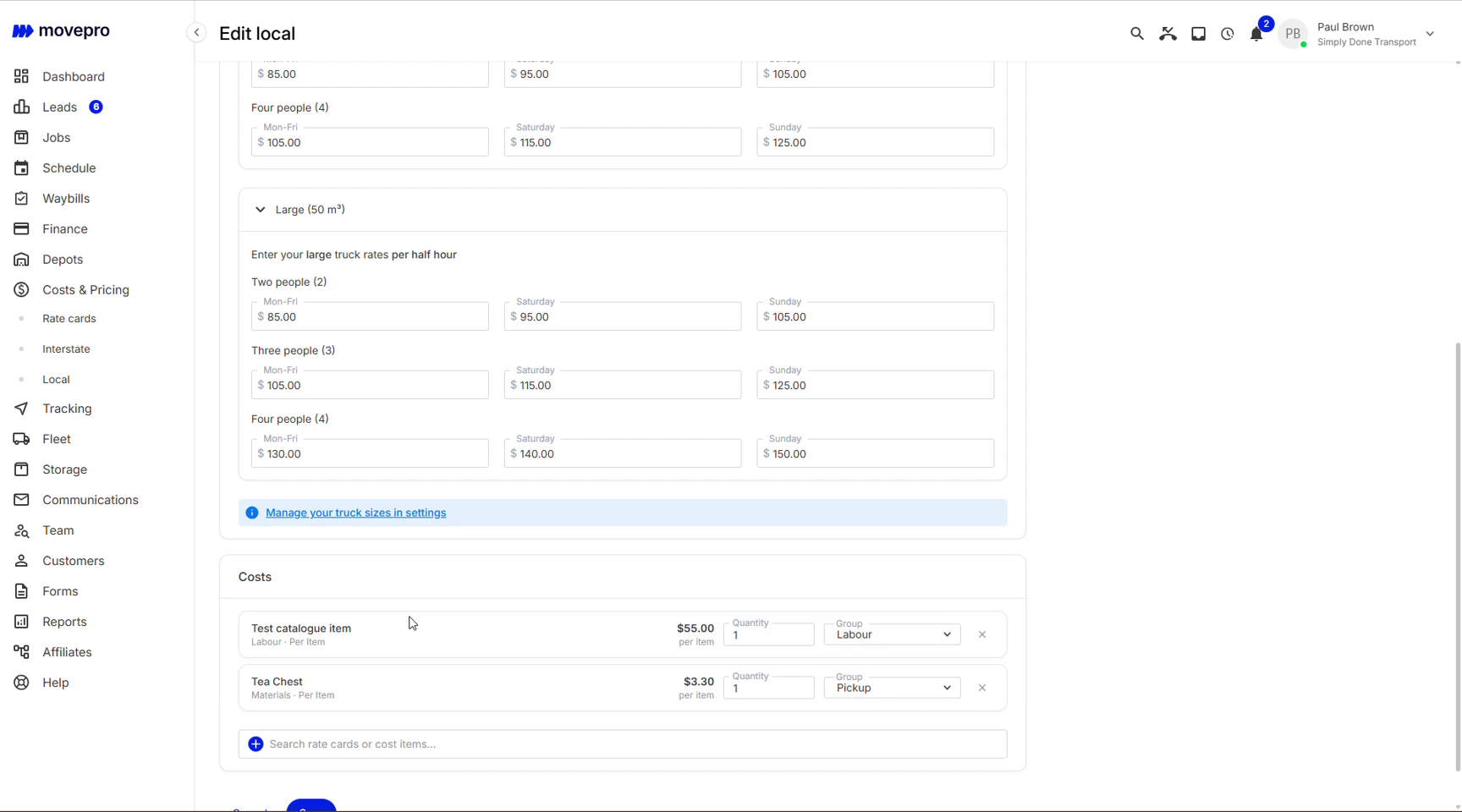
Below the rates, the Catalogue items panel attaches items from your catalogue to this local price, each with a quantity and a group. Every quick-add quote priced from this depot then pulls those items in automatically. It's how a charge nobody should have to remember (insurance on every job, a fuel levy) gets onto every local quote without relying on the salesperson, and it works for pure costs too: attach a cost-only item for an overhead and it never changes the customer's price, but it's on the order feeding the costing analysis when the job is done.
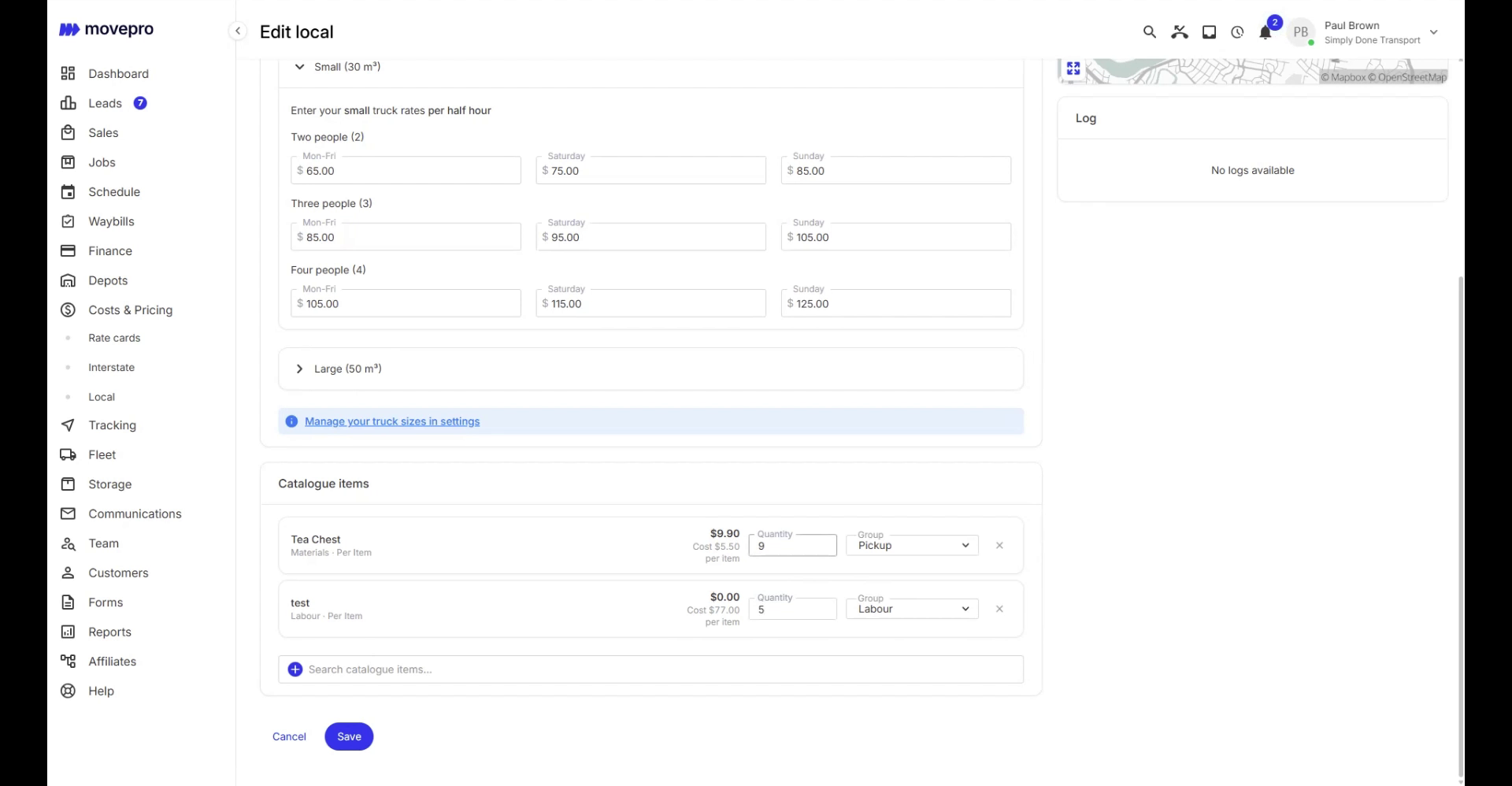
How the two types present to the customer, and the deposit rules around each, are covered in Quotes: variable vs fixed.
Interstate: lanes and trips
Interstate pricing is a list of routes. There are two kinds:
- A Lane is a standing route, e.g. "Melbourne to Sydney, pickup within 2 days, max 1 day in transit", always available while it's toggled on.
- A Trip is one specific truck on one specific date, e.g. "Sydney to Brisbane, departing 29/08", ideal for selling the empty space on a return leg (backloading).
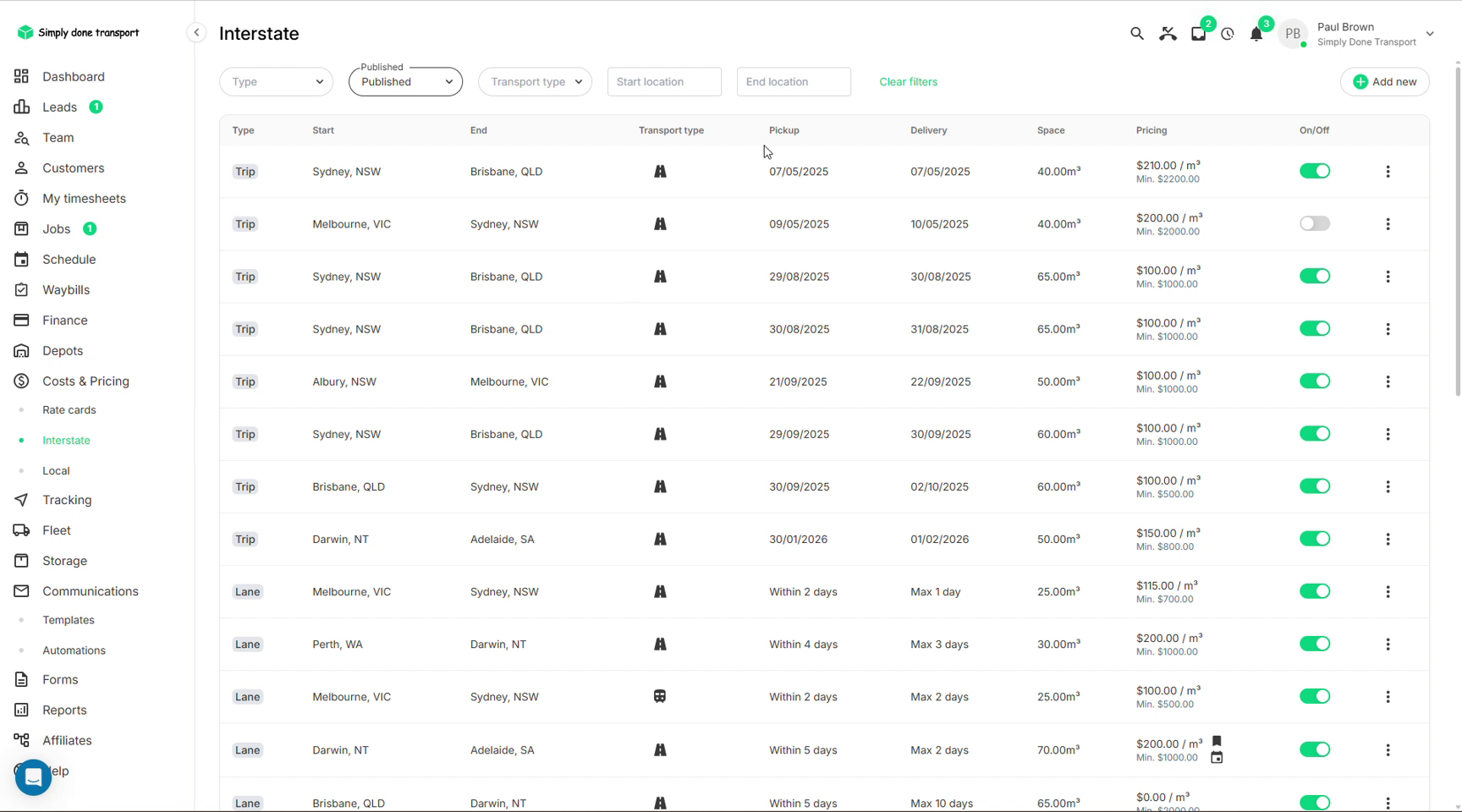
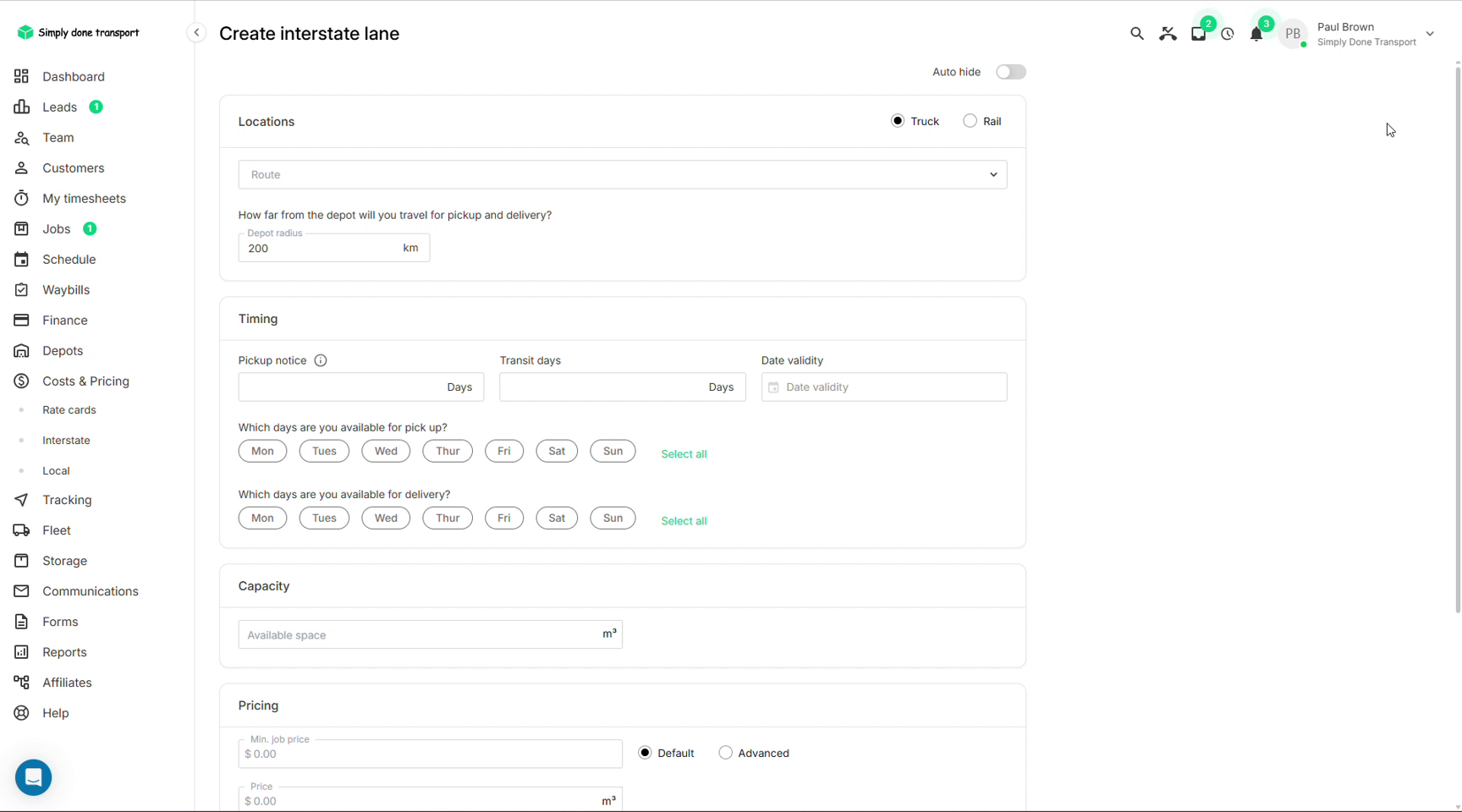
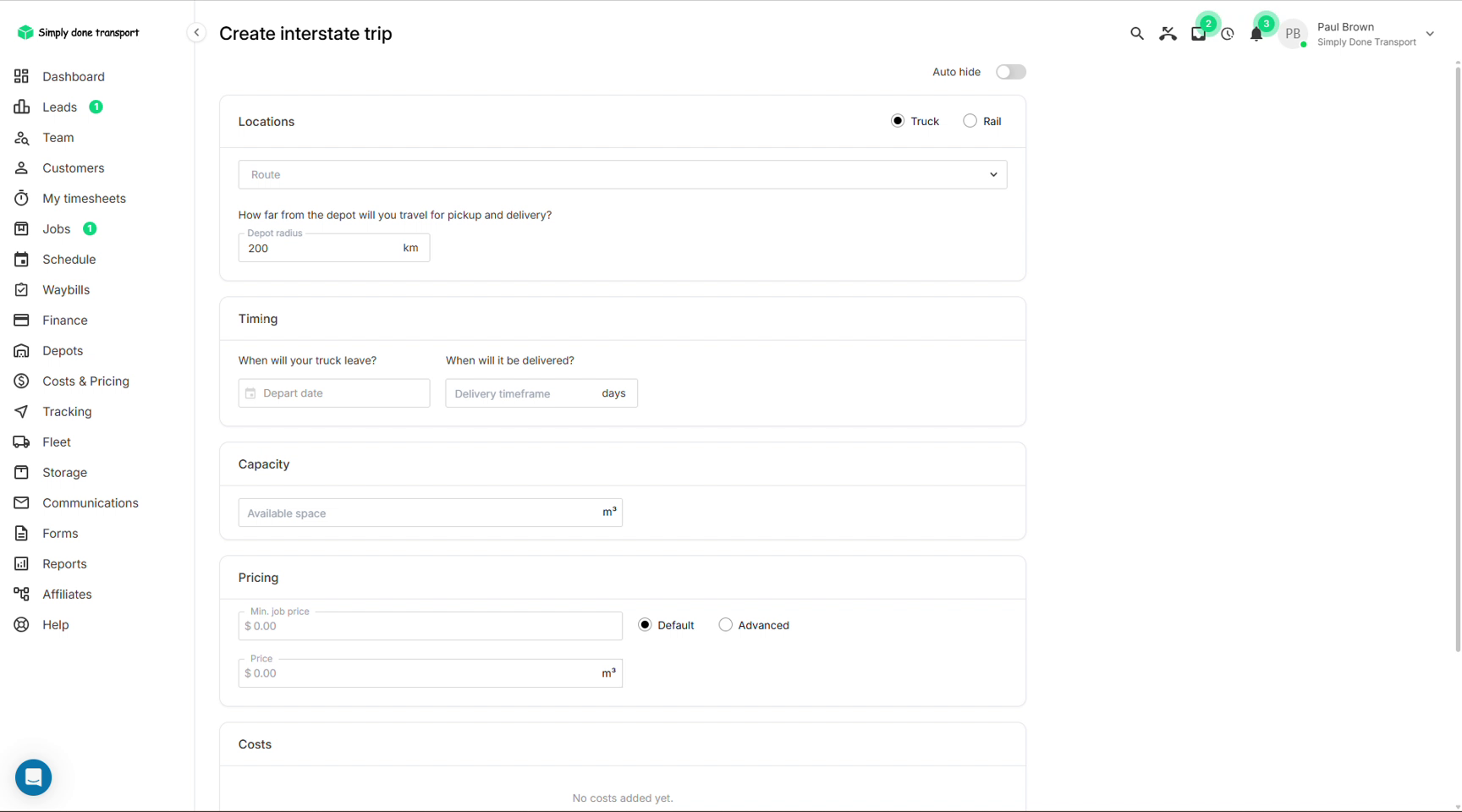
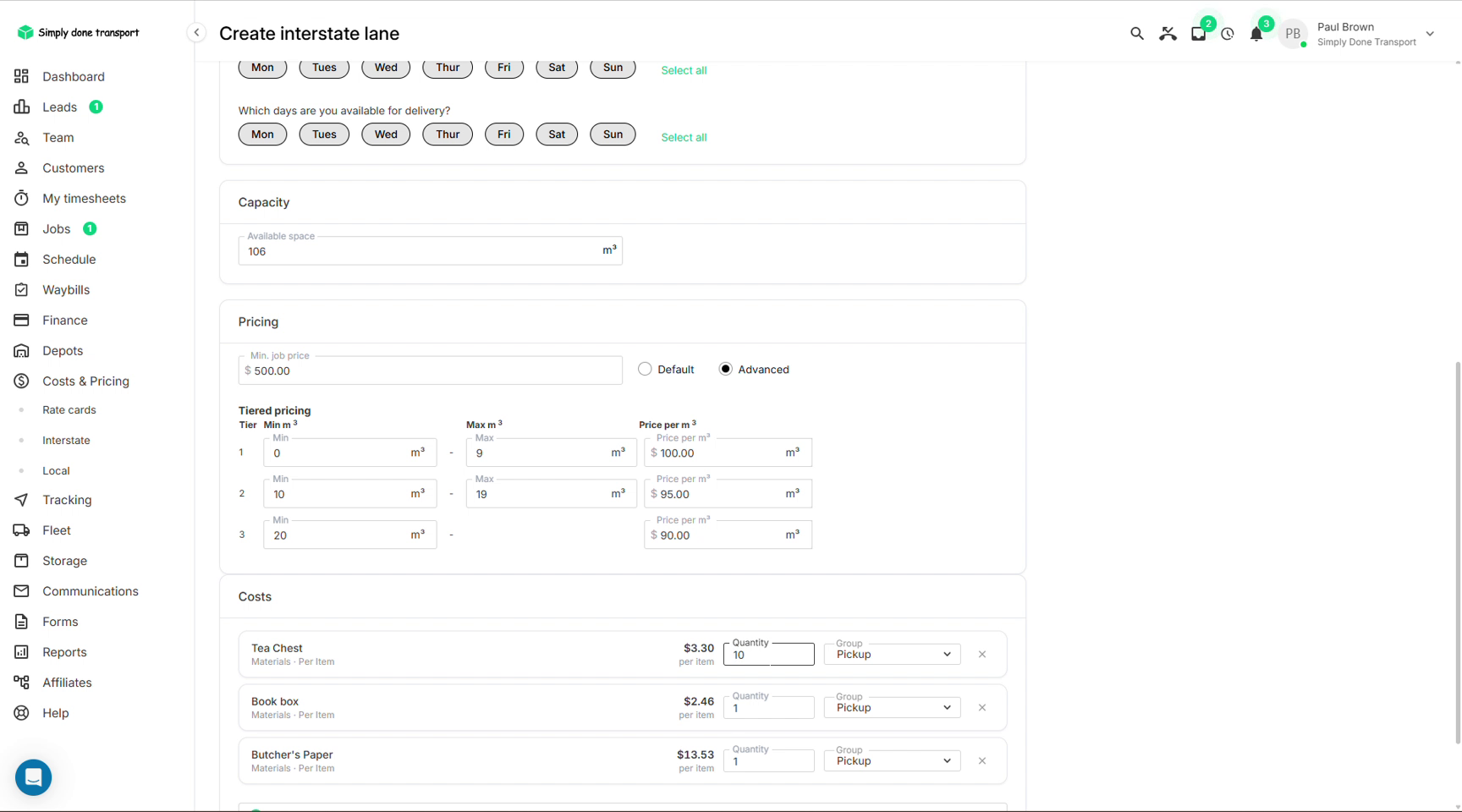
- Click Add new and choose lane or trip. Pick Truck or Rail, set the route and how far from each depot you'll travel for pickup and delivery.
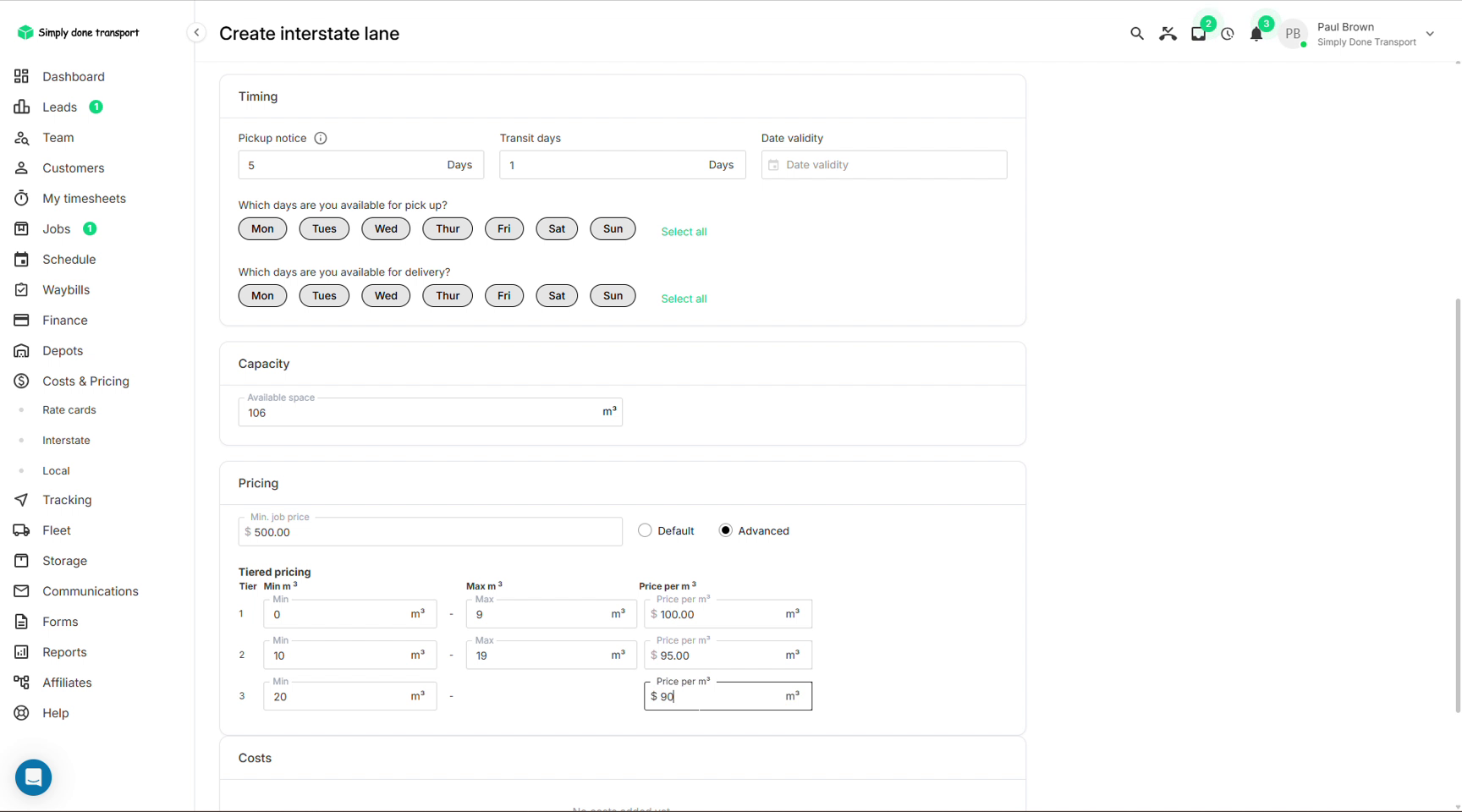
- Set the Timing. For a lane: pickup notice, transit days and which weekdays you pick up and deliver; for a trip: the departure date and delivery timeframe.
- Enter the Capacity you're selling (available space in m³).
- Set the Pricing: a minimum job price, then either a flat Default rate per m³ or Advanced tiered pricing.
Rate cards
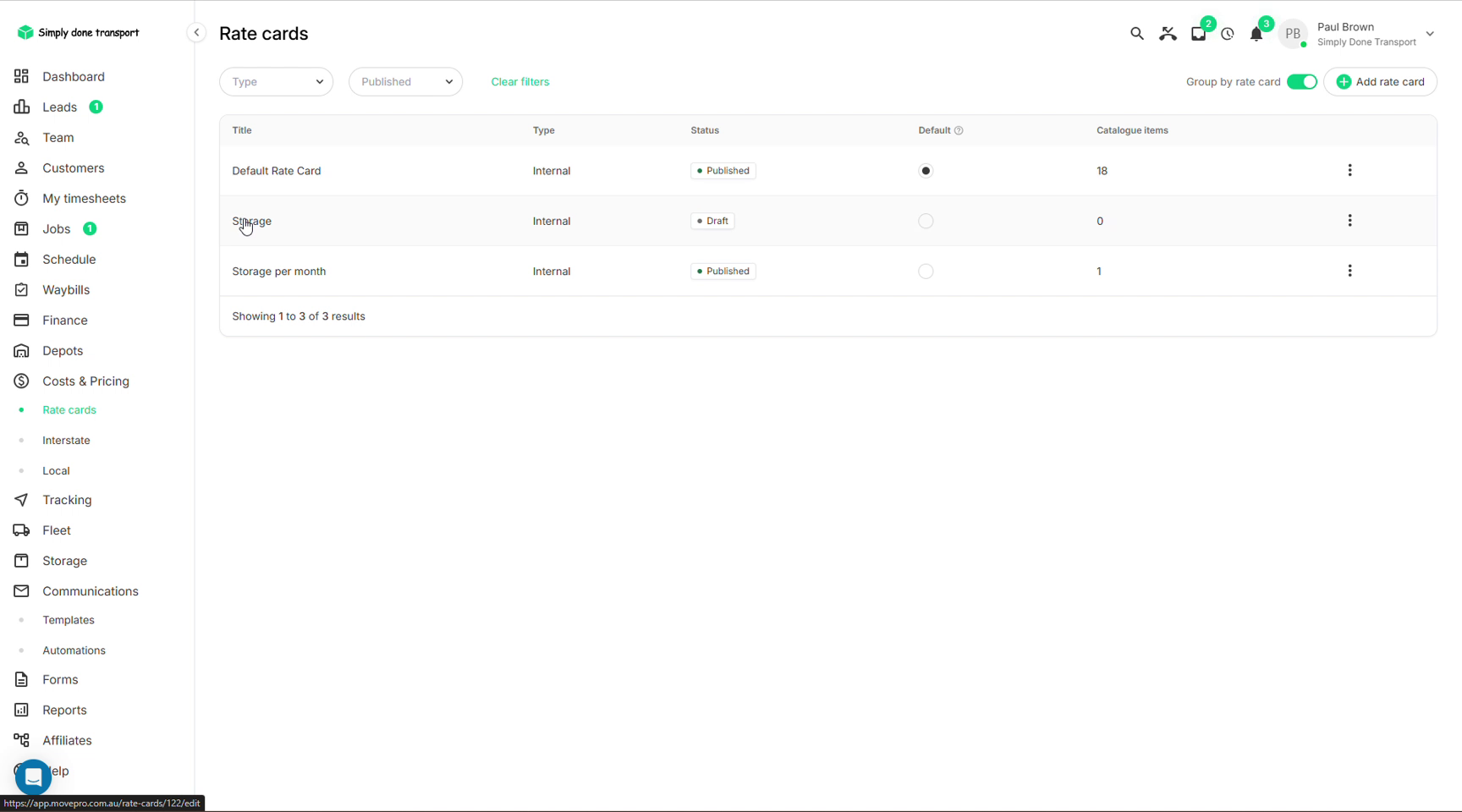
Rate cards bundle your catalogue items into published sets. Most companies run a Default Rate Card for the everyday catalogue and add cards for specific purposes: a storage card, a packing-materials card, a card for a corporate client. A card must be Published to be live; the default card is what quotes reach for first. A card is a grouping, not an auto-fill: picking one doesn't add its items to a quote. The quote editor searches your published cards for individual items (and quick-add quotes price from your rates), so cards exist to organise the catalogue.
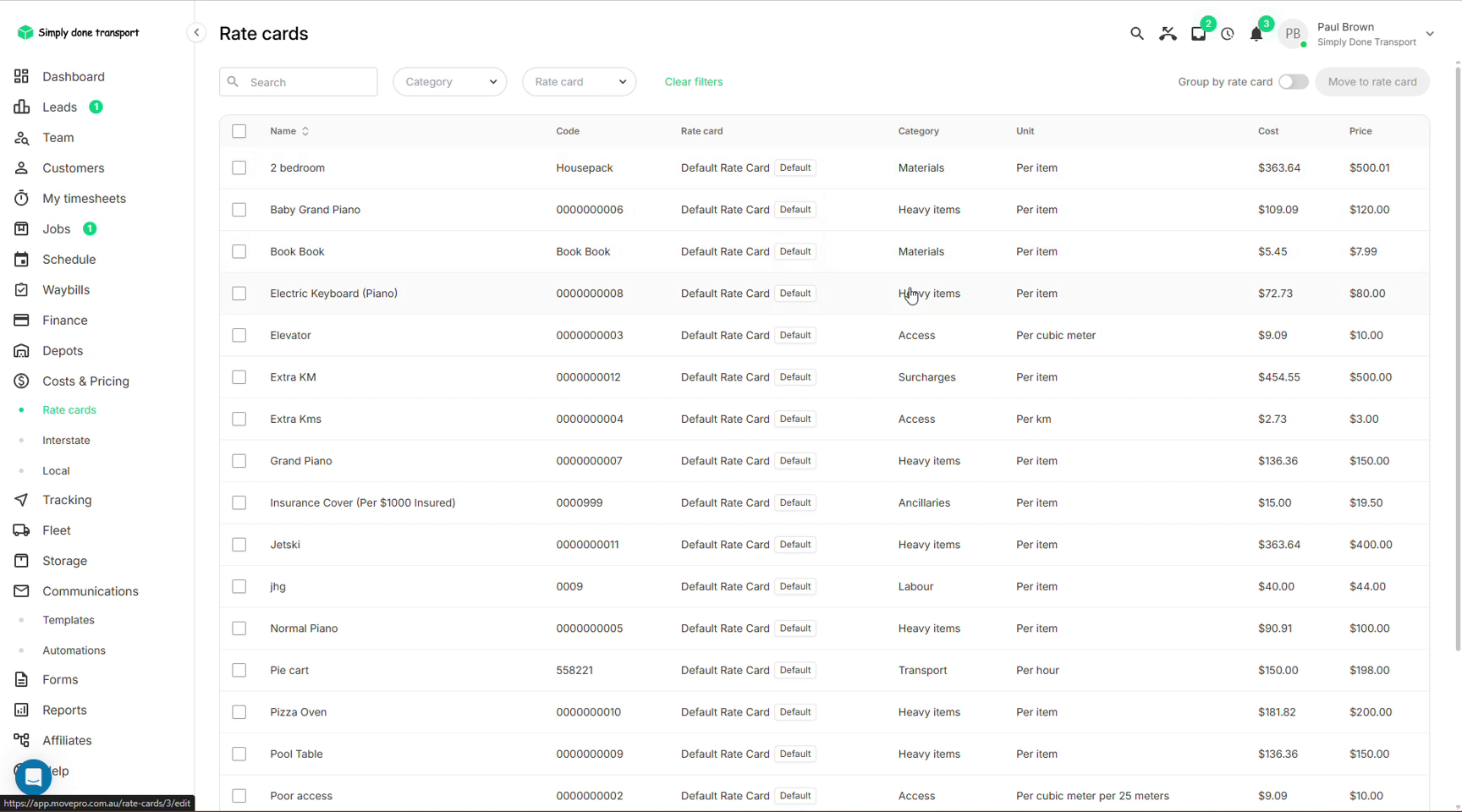
Turn off Group by rate card and you see the whole catalogue in one list: every item with its category (materials, heavy items, access, surcharges…), unit, cost and sell price.
Catalogue items
Open a rate card and click Add catalogue item. Each item carries:
- a code, category and name (e.g. Materials → Tea Chest);
- sourcing: insourced or outsourced (bought in from an affiliate);
- a unit: per item, per hour, per m³, per km…;
- Buy and Sell: what it costs you (with tax), then either a margin percentage or a straight sell price.
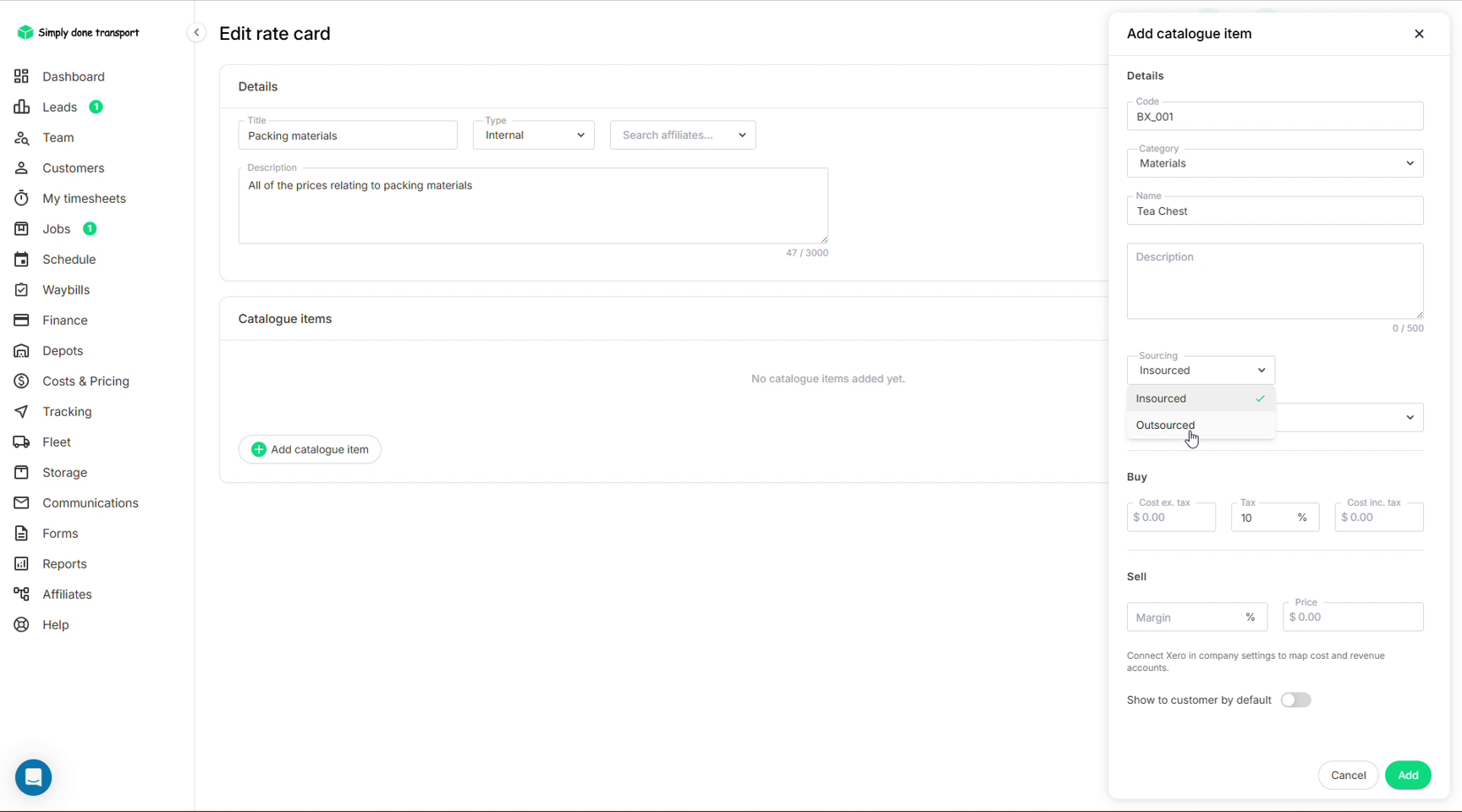
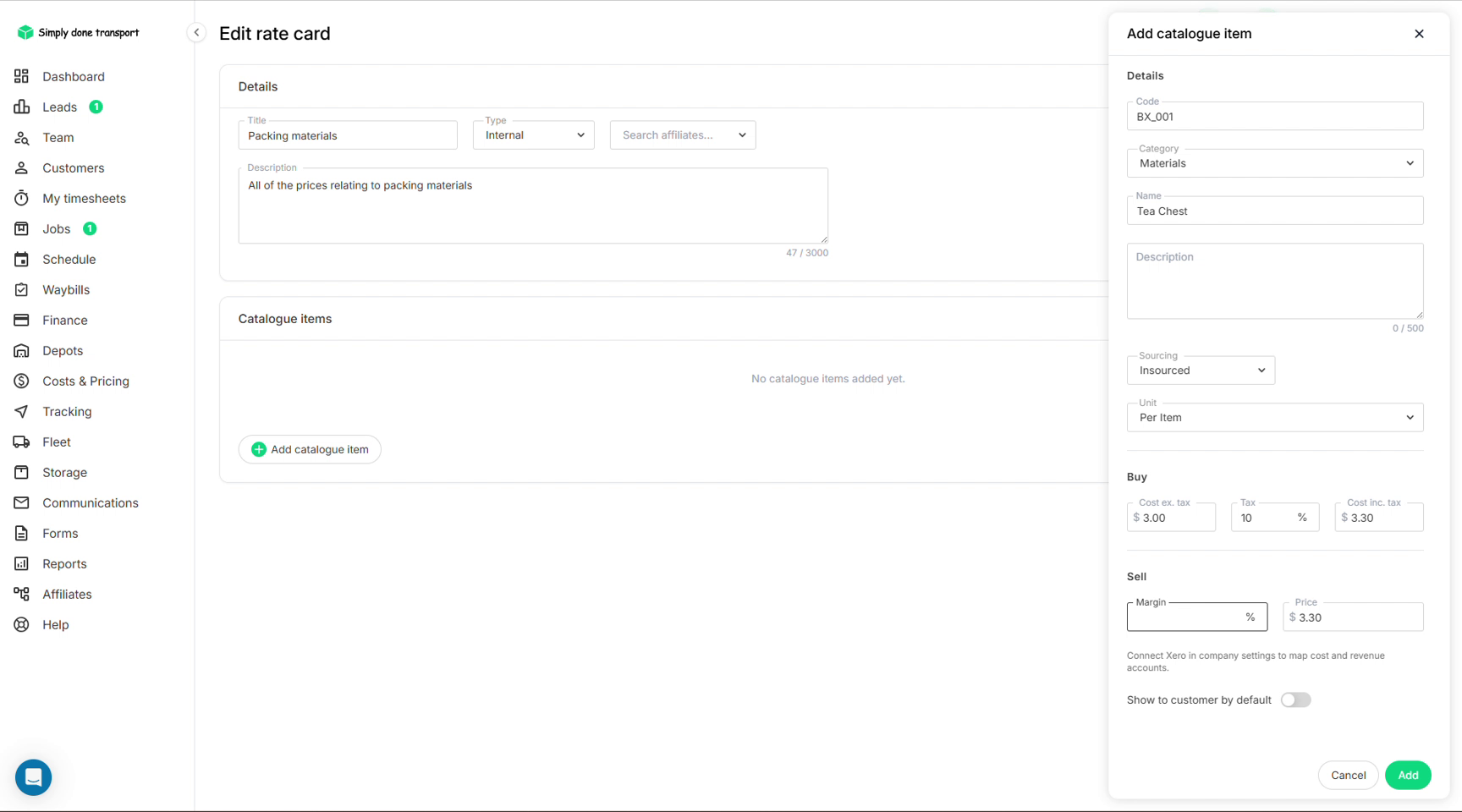
The buy and sell sides are independent, and an item only needs one of them. A cost-only item (a cost, no price) tracks an overhead through the order P&L without ever appearing as a charge to the customer; a price-only item (a price, no cost) charges the customer when you don't need Movepro doing the costing analysis on it.
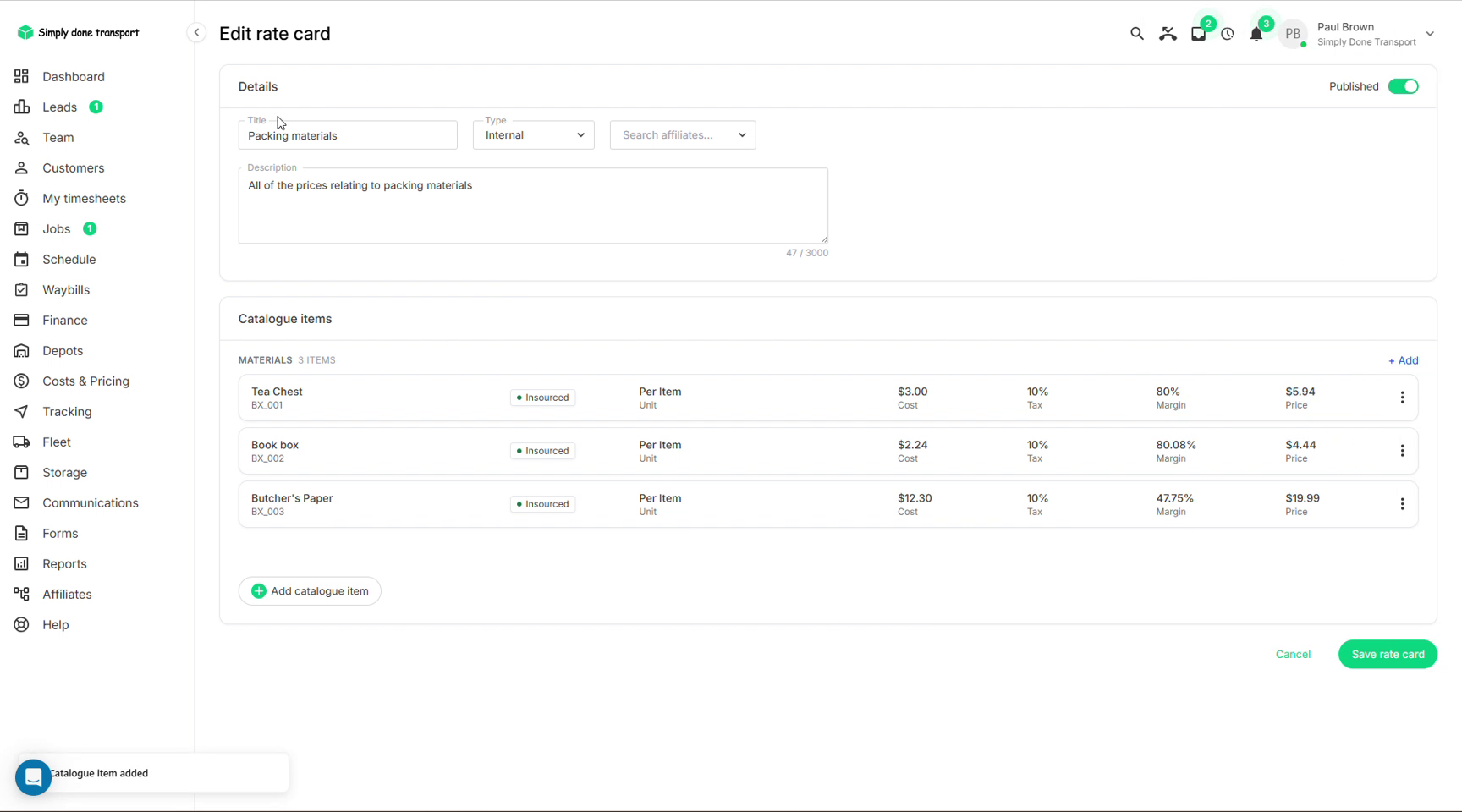
Back on the card, the items list shows the full economics side by side (cost, tax, margin and price) so you can see exactly what you make on a tea chest.
How it lands on a quote
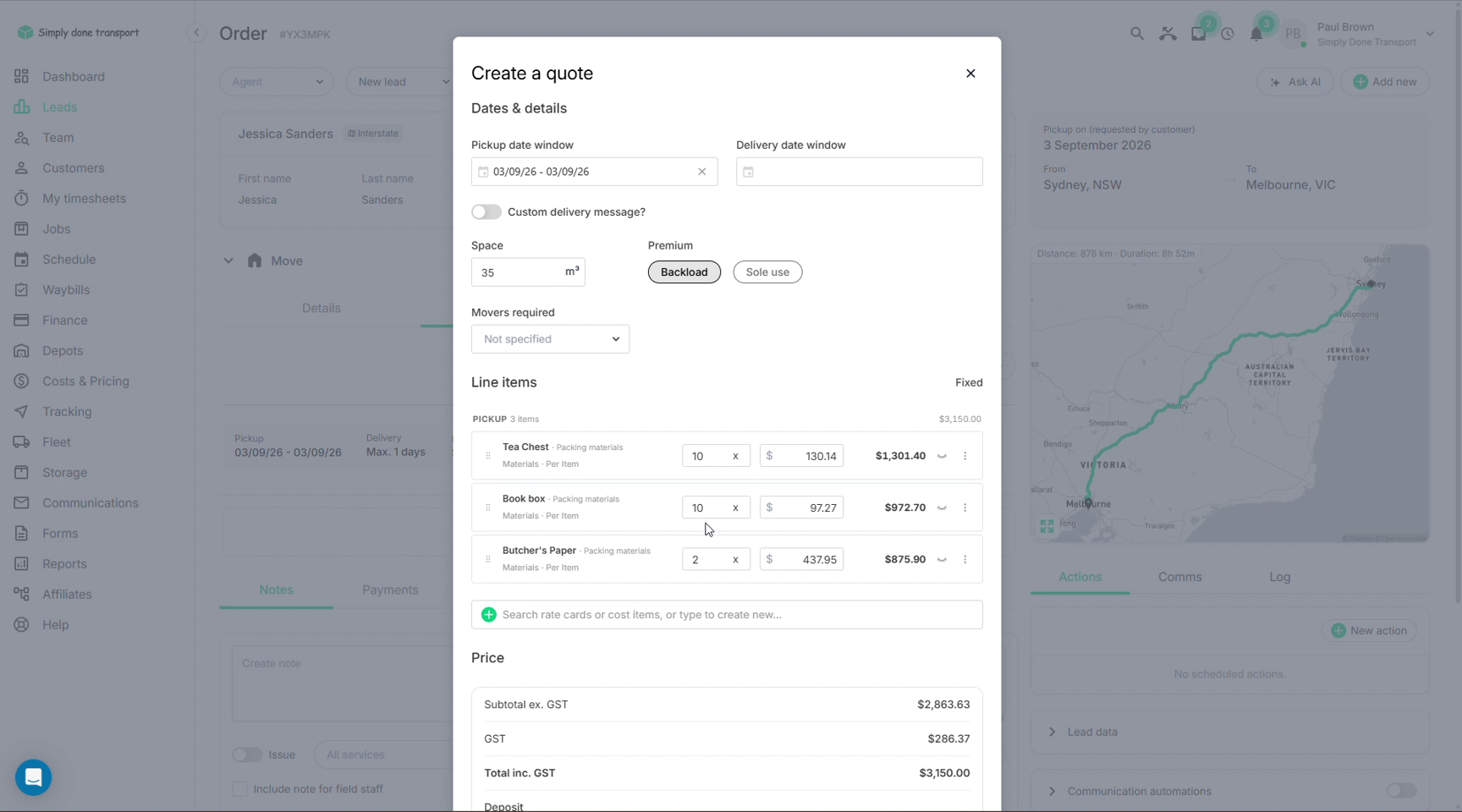
All of this comes together in the quote editor. A matching lane fills in the transit details and the $/m³ maths (with Backload or Sole use premiums), attached costs arrive as line items at their catalogue prices (from the local price for local quotes, from the lane for interstate), and anything else is a search away in the Search rate cards or cost items box. See Quotes: line items for the editing side.
Access charges: stairs, narrow streets, parking
Access problems are captured on the lead and charged through the catalogue. The customer can set them in the booking form (choose Stairs and it asks how many flights; No parking asks how far from the property the truck must stop), leads fed in through the API can carry the same fields, and in the CRM they're the Property access tags on the Create lead form or the order's move details. Once saved, chips appear on the pickup and delivery cards: Stairs - 2 Flights, Poor access - 50 m.
The prices live in your default rate card as access items with compound units: stairs are charged per m³ per flight, poor access per m³ per 25 m. On a fixed quote they land automatically with the quantity pre-multiplied: a 10 m³ job up two flights books 20 units, so at $10 a unit the quote gains $200. A variable (hourly) quote doesn't add them by itself, since the hours already absorb slow access; add the stair or poor-access items as line items if you want the charge, and the named line doubles as the written notice to the customer that stairs cost extra.