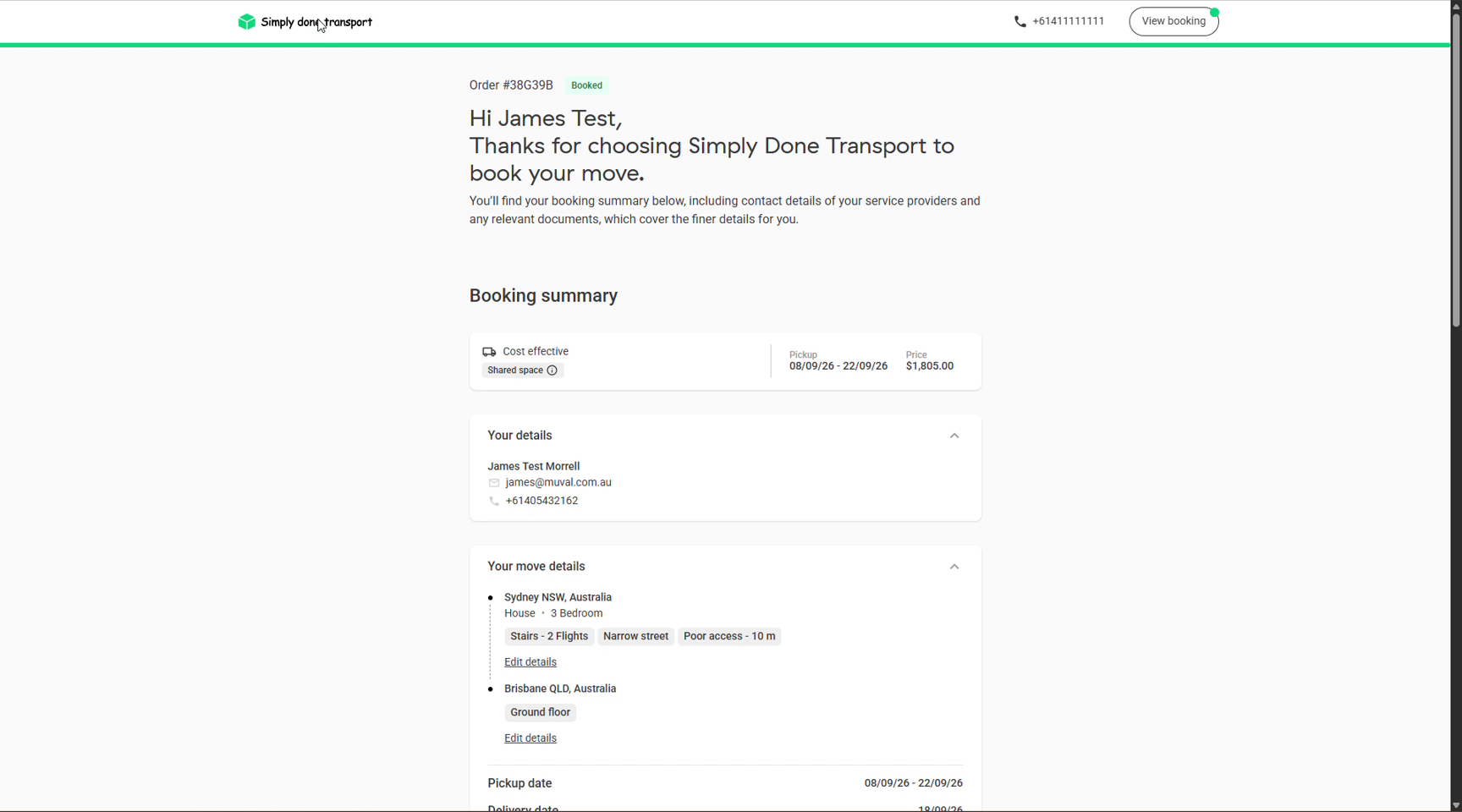
The customer booking form
The booking form is your self-service front door: a branded, step-by-step flow where customers price and book their own move. Every submission becomes a lead or a booked order in the CRM. This page walks the journey your customers walk, so you know exactly what they saw before they called.
Where it lives, what it shows
The form runs on your Movepro URL (your company slug, from Company settings); link it from your website's "Get a quote" button. It wears your logo, accent colour and contact number, and it only offers what you sell: the service toggles in Booking settings decide whether storage, packing, materials, pet and vehicle transport appear at all.
The journey, step by step
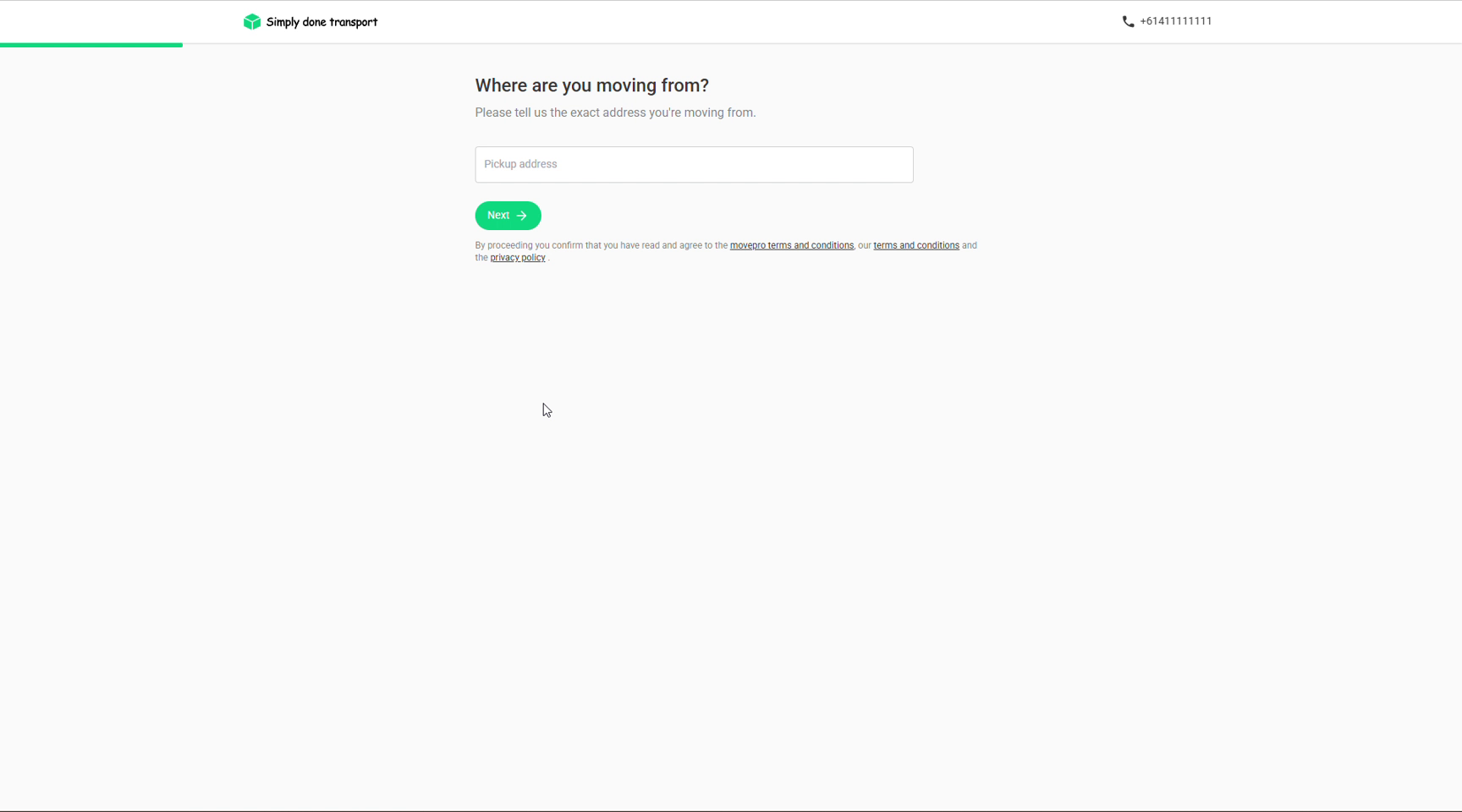
The flow is one question per screen. It opens with the pickup address, then delivery, property details (type, bedrooms, access), the move date, and contact details, after which the customer sees live prices. The exact steps flex with your settings, but the shape is always: where → what → when → who → price.
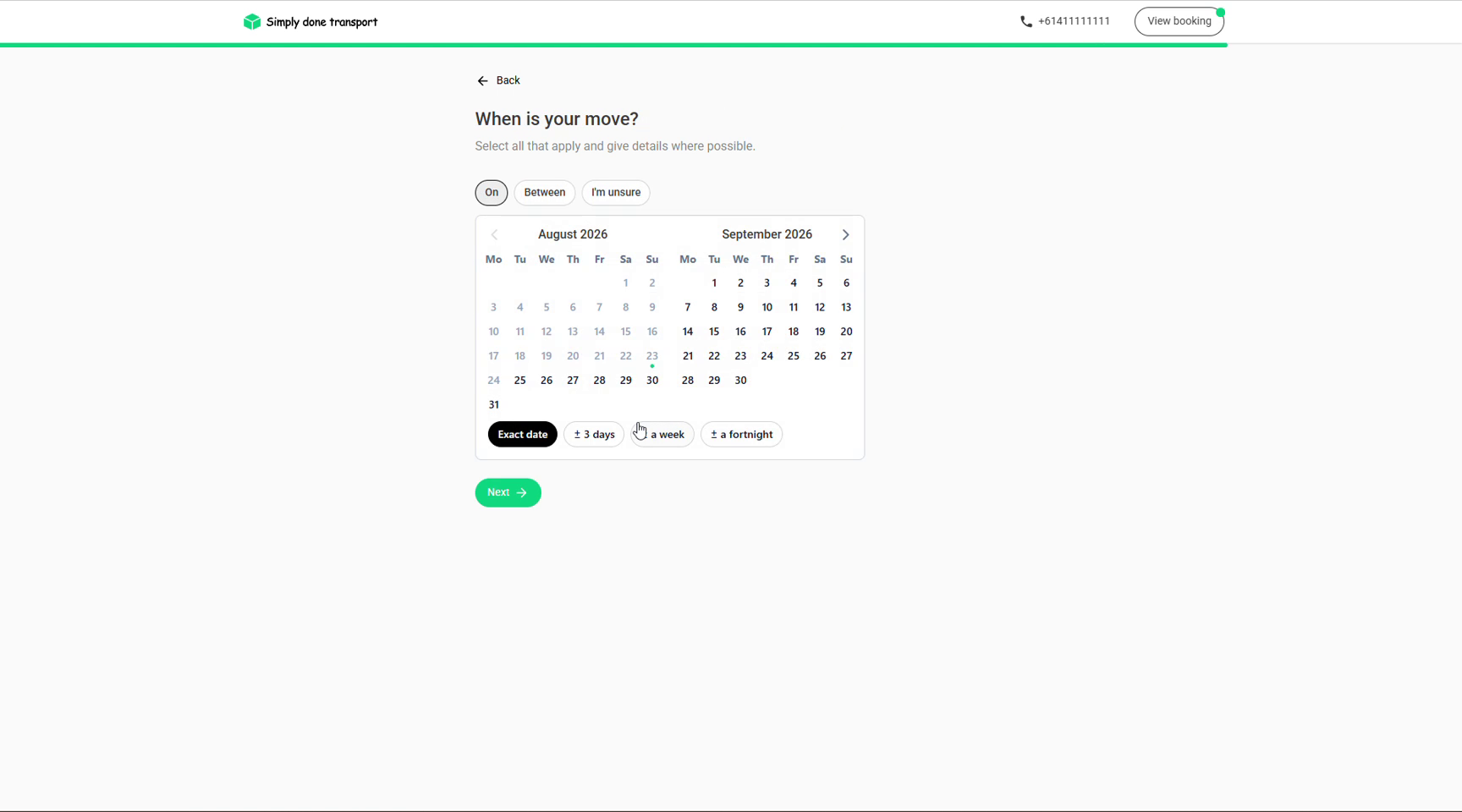
The date step is built for honesty about flexibility: On a date, Between dates, or I'm unsure; for exact dates, a flexibility chip: exact, ± 3 days, ± a week, ± a fortnight. Flexible dates give you room to slot the job where your diary has space, and on interstate lanes, where a truck already has capacity.
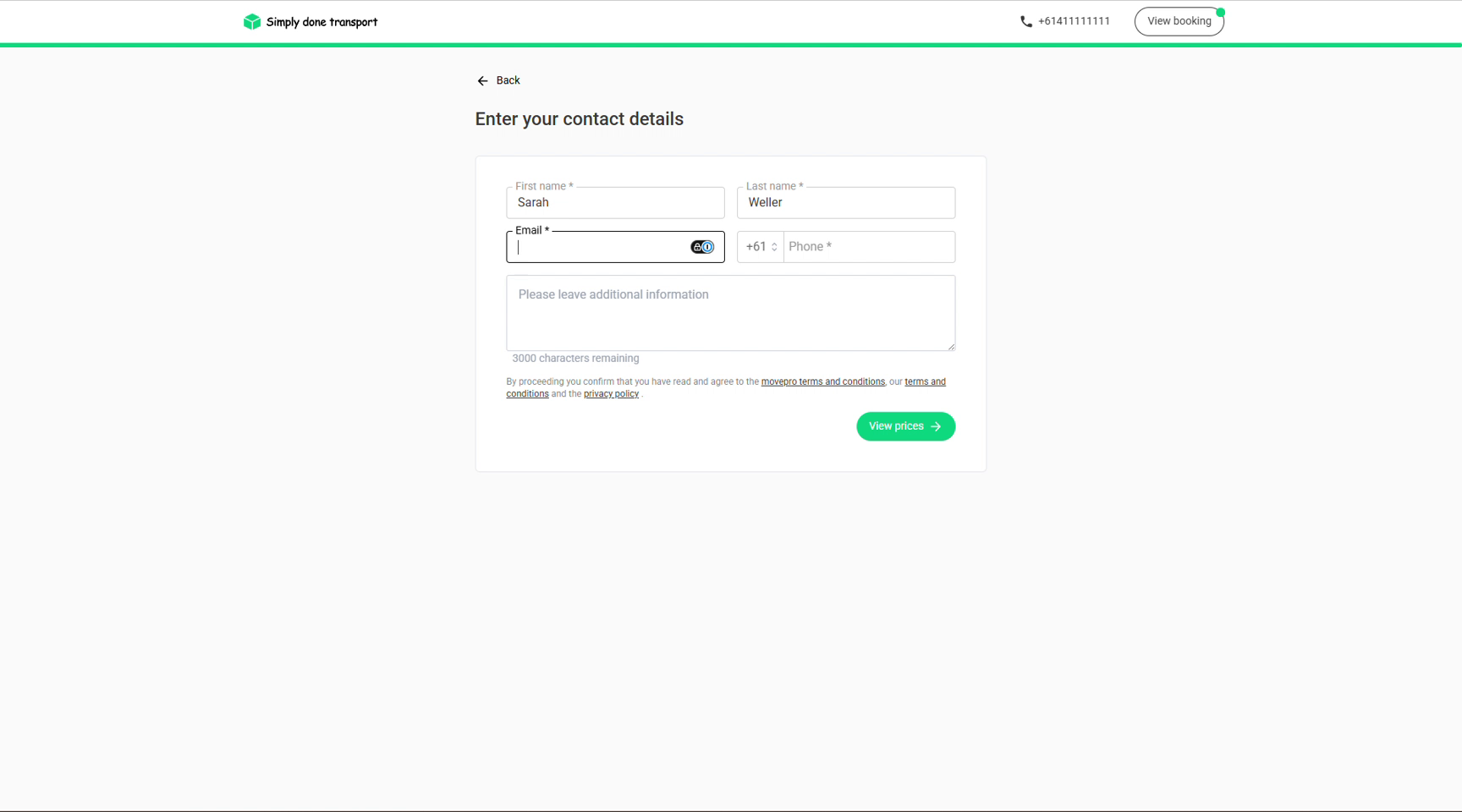
The moment it becomes a lead
Before prices are shown, the form asks for name, email and phone. The instant this step is submitted, a lead card lands on your Leads board, even if the customer never goes further. That's the design: every priced enquiry is a lead with contact details attached, ready for follow-up.
The inventory step
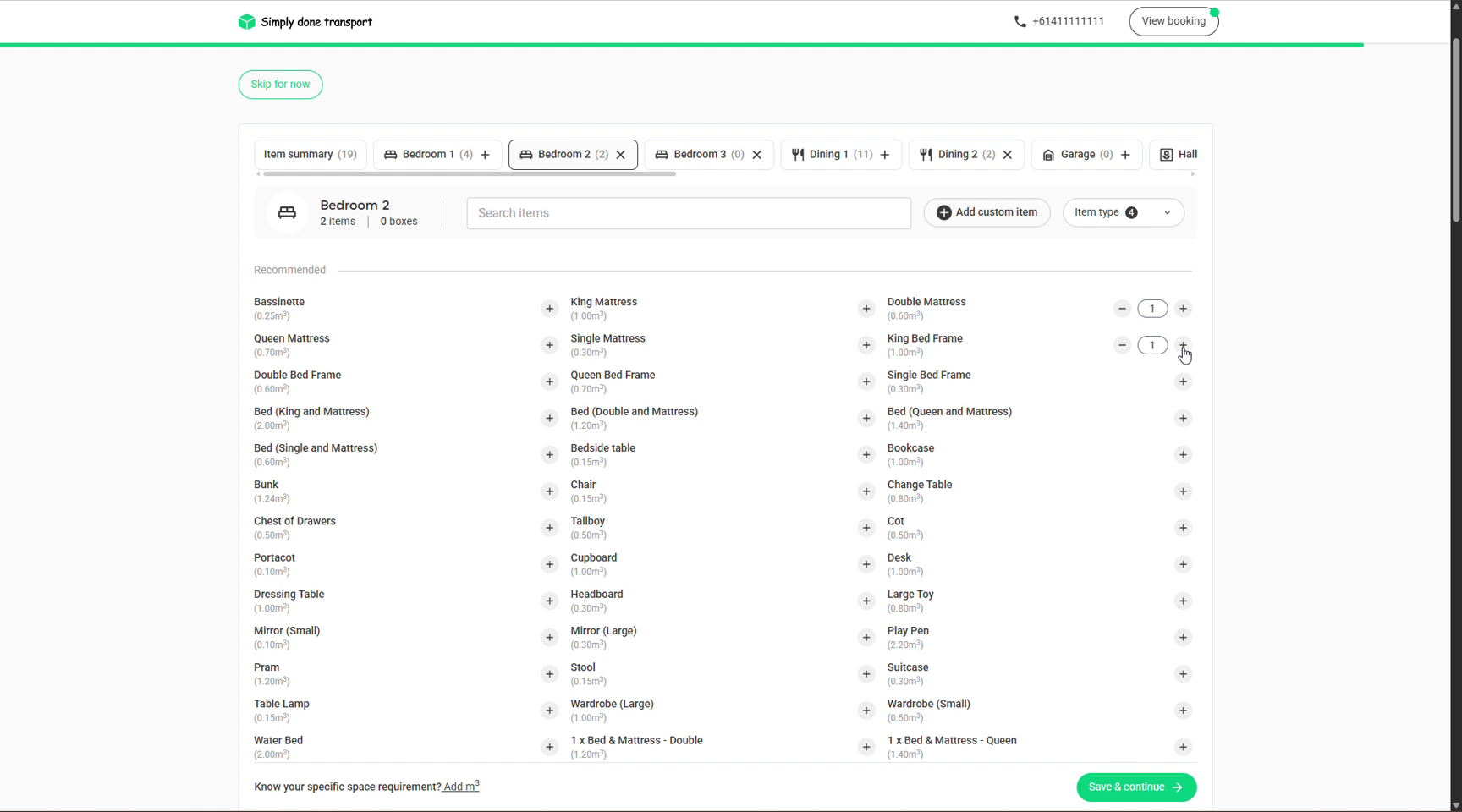
Customers list what's moving room by room in the same editor your team uses, with recommended items, quantities and a running m³ total. It's skippable (Skip for now), and customers who know their volume can just enter the m³. Whatever they build here becomes the order's inventory, and they can come back and edit it until your cut-off.
The utilities concierge
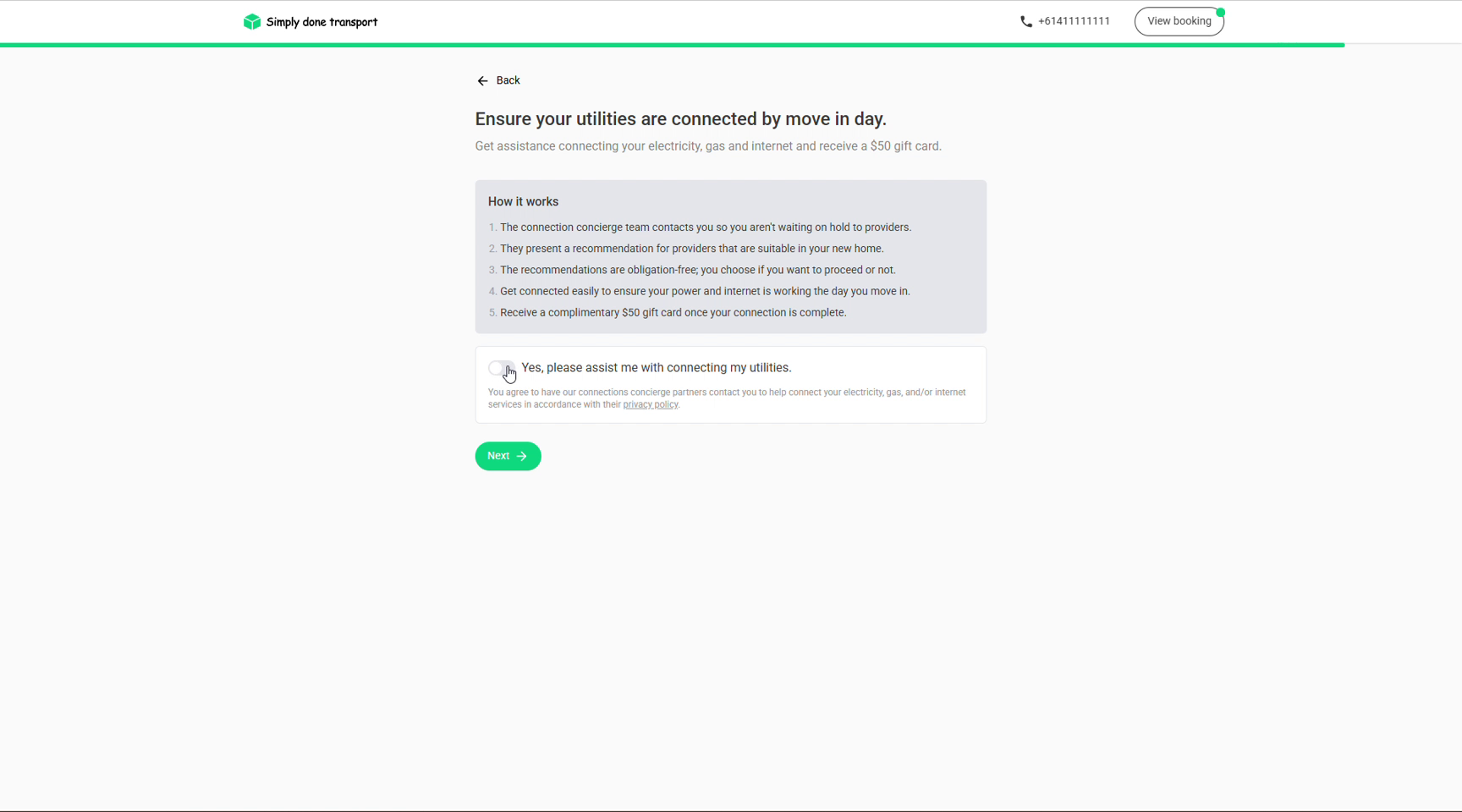
If enabled in Booking settings, a utilities step offers to have a connection concierge sort the customer's electricity, gas and internet at the new address: obligation-free recommendations, with a gift card sweetener on completion. It's a value-add for the customer and costs your team nothing; the customer opts in with a single toggle.
The confirmation page
After payment (deposit or otherwise, per your settings), the customer lands on a booked confirmation: order number, the option they chose, the date window, the price, their details and move details, with Edit details links so they can fix a phone number or access note themselves. The View booking button in the header brings them back to this portal any time from the emails they receive.