AI tools
Movepro puts AI to work on the typing. It reads an enquiry into a lead, turns a customer's list or a video of a room into a cubed inventory, writes up damage for a condition report, and answers questions about an order's history. This page maps every AI tool: where its button lives, what it does, and where the full walkthrough is. One rule runs through all of them: the AI drafts, you review.
The AI tools at a glance
Six buttons, four jobs. The sparkle icon marks the AI buttons throughout Movepro.
| Tool | Where its button lives | What it does | Full guide |
|---|---|---|---|
| Auto fill | Top right of the Create lead and Create job forms | Reads a pasted email, or an uploaded PDF, document or screenshot, and fills in the customer, the move details and, if you ask, the inventory. | Leads & CRM |
| AI Prefill | Bottom right of the inventory editor, beside Done | Turns a pasted or uploaded item list into inventory lines, matched to your catalogue and sorted into rooms, with a volume on every line. | Inventory & media |
| Upload media and Analyse | Top of each room in the inventory editor | Finds the furniture in photos or a video of a room and adds it to that room. | Inventory & media |
| Scan with AI | The crew app, on a task's Inventory tab | The same recognition, straight from the phone's camera on site. | Field crew app |
| AI mode | The inventory condition report, in the CRM and in the crew app | Studies a photo or short video of an item and writes up each piece of damage, with the images that show it. | On the day & completion |
| Ask AI | Top right of every order | Answers a question about the order from its details, messages, notes and logs. | This page |
Auto fill: an enquiry becomes a lead or a job
An enquiry that already exists as words somewhere should never be retyped. Auto fill sits at the top right of the Create lead form, and of Create job for work that's already confirmed. Paste the customer's email, or upload a file: a PDF work order, a Word document, or a screenshot of the lead as it appears on a marketplace or aggregator site. The AI reads it and fills the form in on your behalf, customer and move details alike, for you to check and save. Tick Prefill inventory and an item list in the same text becomes the inventory too.
The step-by-step, with the dialog's options, is in Leads & CRM: Add a lead with AI auto-fill.
Inventory from a list, photos or video
The inventory decides the cubic metres, and the cubic metres decide the truck, the crew and the price, so it's worth getting right and tedious to type. Three AI routes build it for you, depending on what the customer has given you:
- They sent a list. AI Prefill in the inventory editor takes the list as pasted text or an uploaded document, matches each line to your catalogue, creates a custom item for anything it can't match, estimates the missing volumes, and shows you every line on a review screen before anything is saved. See AI Prefill.
- They sent photos or a video. Upload media at the top of a room in the editor takes the footage; Analyse picks out the furniture and adds it to that room while you carry on working. See Building inventory from photos and video.
- They sent nothing, and the crew is standing in the house. Scan with AI in the crew app does the same from the phone's camera, room by room. See AI inventory and condition reports.
And if the list arrives with the original enquiry, Auto fill can take it in the same pass as the lead itself.
Condition reports with AI mode
An inventory condition report (ICR) is only as good as its detail, and detail is what gets skipped at 7 am on a driveway. With AI mode switched on, adding an item to the report asks for a photo or a quick video instead of a form. The AI studies the footage, identifies each piece of damage, writes the notes, and keeps the photo and video evidence with the item. Crews use it in the app at pickup; the office has the same toggle on the Inventory condition report page in the CRM, with an AI and a Manual tab on every item.
The CRM side is covered in Inventory condition reports; the crew's version, with the bingo sheet and customer sign-off, is in the field crew guide.
Ask AI: question an order's history
A busy order collects a lot of history: emails, texts, notes, follow-ups, status changes, a log entry for every edit. Ask AI reads all of it so you don't have to. Ask a plain question about the order (who did what, when something happened, whether something was ever said) and get the answer in seconds, instead of digging through the Comms tab, the notes and the log one by one.

- Open the order and click Ask AI. The dialog names the order it's about to read (Ask AI questions about #87PYEB), and shows how many questions you have left today.
- Under Context categories, choose the order data the AI may use: Move details, Additional services, SMS messages, Emails, Notes, Actions and Activity logs. Pick the ones that could hold the answer, or all of them when you don't know where it lives.
- Type your Question (up to 500 characters) and click Submit.
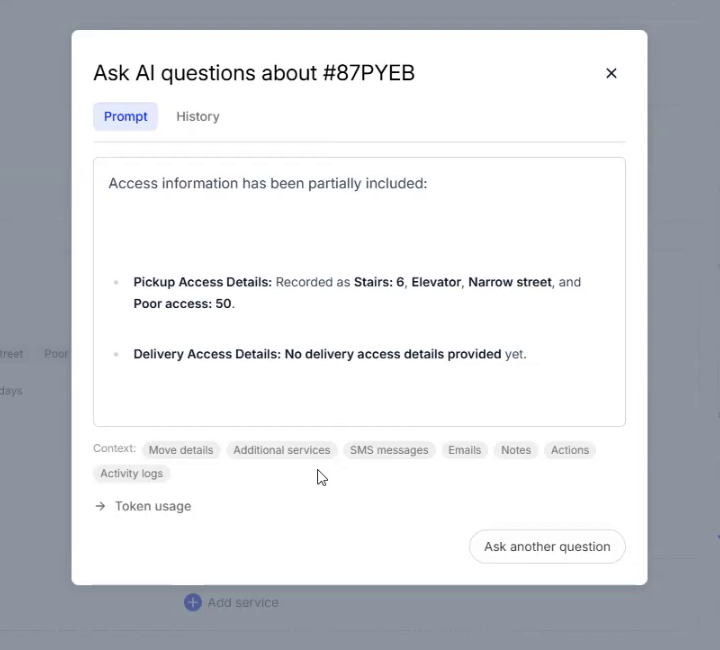
- Read the answer. The context it drew on is listed underneath, and Ask another question takes you back to the prompt. The History tab beside Prompt keeps earlier questions and their answers.
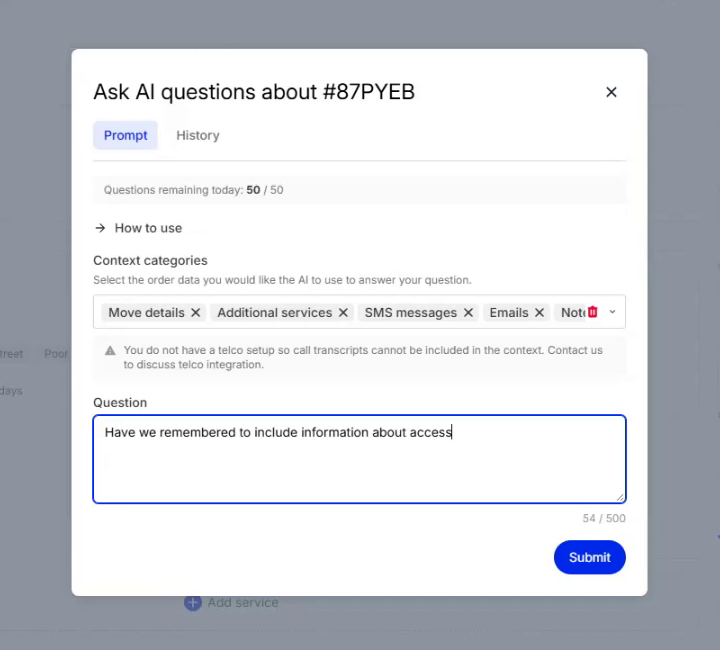
In the walkthrough the question is "Have we remembered to include information about access?" on an interstate move from Melbourne to Sydney. The answer comes back specific and honest about the gap: pickup access is on record (Stairs: 6, Elevator, Narrow street, and Poor access: 50), and no delivery access details have been provided yet. That's a question to put to the customer before the quote goes out, found without opening a single tab.
Good questions to ask:
- When did we send the quote, and has the customer replied since?
- Who changed the move date, and when?
- Did we tell the customer about the stairs charge?
- What has the customer asked us for that we haven't actioned?
The last kind matters most. When a customer says "you never told me that" or "I was never informed", Ask AI goes back through every message on the order and tells you what was said and when, so the conversation that follows is about facts.
Who can use what
Ask AI is switched on role by role under Settings → AI settings: owners and admins always have it, and you tick the other roles (Sales, Manager, Operations, Finance, Field staff) that should. See AI permissions.
AI settings covers Ask AI only. The other tools come with the screens they sit on: Auto fill is part of the Create lead and Create job forms, AI Prefill and the media strip are part of the inventory editor, and Scan with AI and AI mode are part of the crew app. What each role can access has the full picture of who sees which screen.
Working well with AI
- Review before you rely on it. Every tool shows its work: Auto fill leaves the form open for you to check, AI Prefill has a review screen, media analysis adds items you can edit or remove, and AI mode lists conditions you can change. The AI is accurate, and it still makes mistakes; a wrong address or a phantom wardrobe is cheapest to fix now.
- Check the volumes that matter. When AI Prefill creates a custom item it estimates the cubic metres. Glance over the big ones: volume drives the quote.
- Give it something legible. If pasted text comes out garbled, upload a screenshot or a PDF of the original instead. Lists with room headings come back sorted into those rooms.
- Keep videos short. AI video analysis takes files up to 50 MB. Film one room per clip, or lower the resolution, rather than one long tour of the house.
- Don't wait for it. Media analysis runs in the background and tells you when it's done, in the office and in the app. Start the next room.