Field crew app & magic links
The office schedules in the diary; the crew live on their phones. Movepro gives field staff two ways in: the crew app for your regular team, and magic links (no login, no install) for contractors and casuals. This page follows a mover's whole day, and shows what each step looks like back in the CRM. It also covers the app's newest trick: AI that builds inventories and condition reports from a quick video. The Field staff role is deliberately narrow: crews get their own schedule view, job details and forms, and nothing else in the CRM; what each role can access has the full picture.
- Magic links: the no-login option
- Getting the app: install, update, permissions
- The app: home, jobs, schedule
- Accepting and declining tasks
- The working day: clock in, start, track
- Daily and pre-job forms
- Everything on site: inventory, job, files
- AI inventory and condition reports
- Completing the task and taking payment
- What the office sees
Magic links: the no-login option
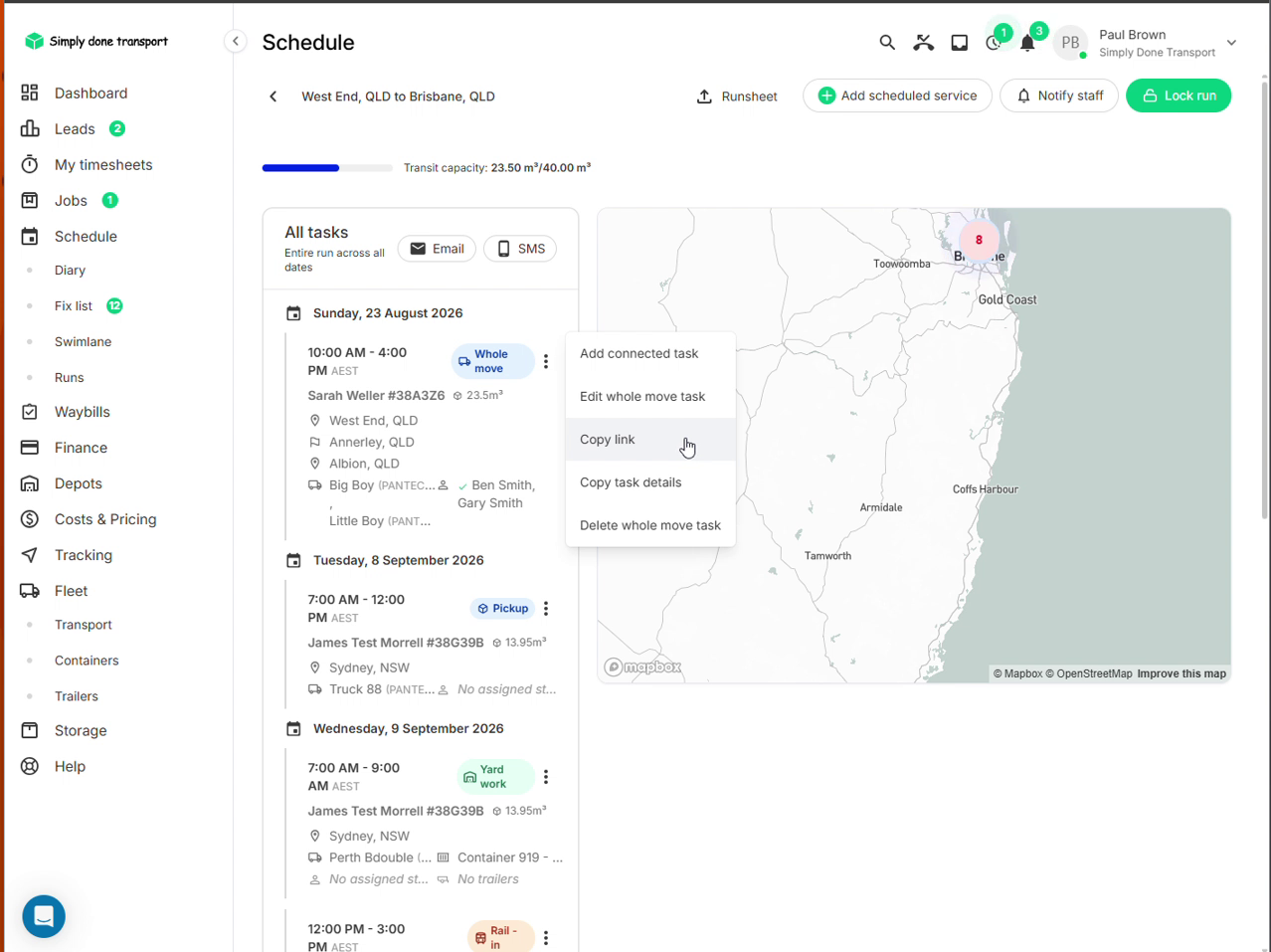
Any scheduled task can be shared as a magic link: open the task's ⋮ menu in the diary or a run and choose Copy link, then text or email it to whoever is doing the work. No account, no app store: the link opens the task in any phone browser.
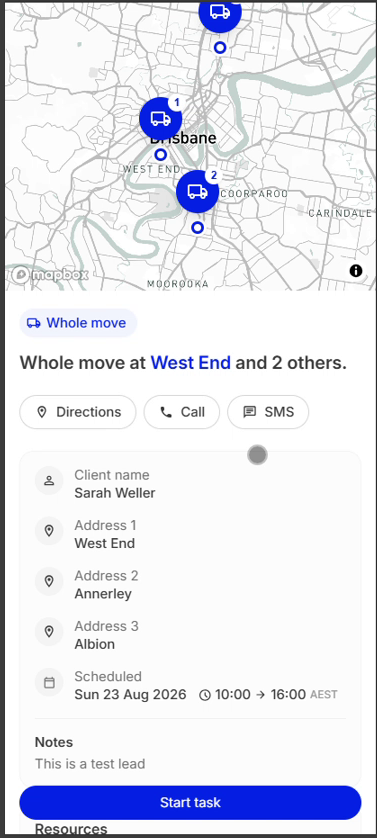
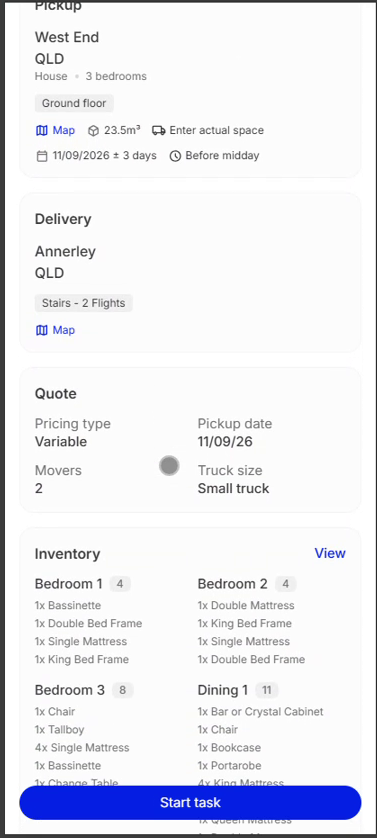
What they see is the task, complete: a map of the stops, the client's name and phone (with Directions, Call and SMS buttons), every address, the scheduled window, notes; then scrolling down, the pickup and delivery details with access flags, the quote parameters (movers, truck size), and the full room-by-room inventory. They can Start task and complete it from the same link, so even a borrowed crew runs your process.
Getting the app: install, update, permissions
The crew app is deliberately unlisted: searching the App Store or Google Play directly won't find it. Install it from the link on the Field & Fleet page of the Movepro website, which opens the right store listing (the app is called Movepro Crew) with its Install button ready.
One quirk worth knowing on a fresh install: updates ship over the air, and a just-installed app hasn't fetched them yet. Open the app, sign in, give it half a minute, then close it completely (swipe it away, not just background it) and open it again. That single close-and-reopen pulls the latest version, and the phone is on current software from day one.
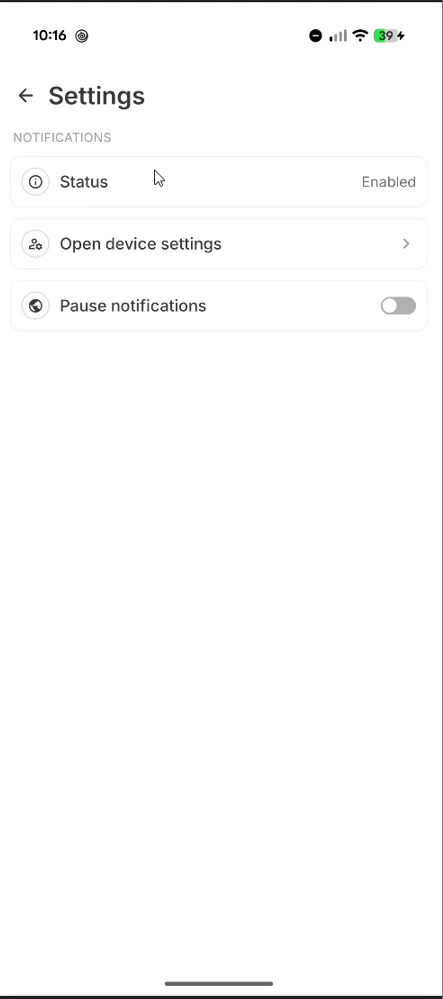
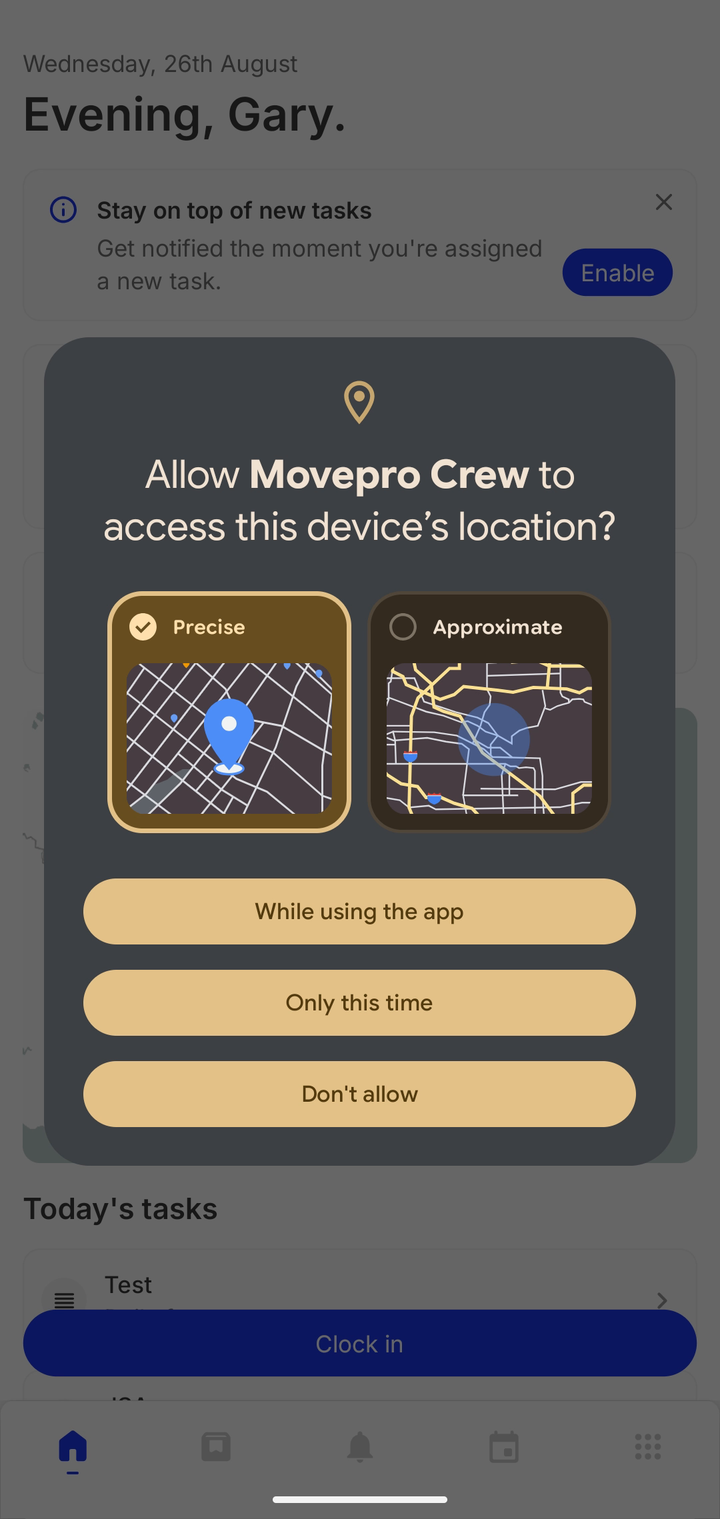
Two permissions decide how useful the app is. Allow push notifications, or new assignments and schedule changes arrive silently or not at all. And when the app asks for location, choose Precise and set access to Allow all the time. The app only tracks while someone is clocked in and working a task, but with anything less than all-the-time access the phone stops reporting as soon as the app leaves the screen, and the task's tracking trail ends up with holes in it.
The app: home, jobs, schedule
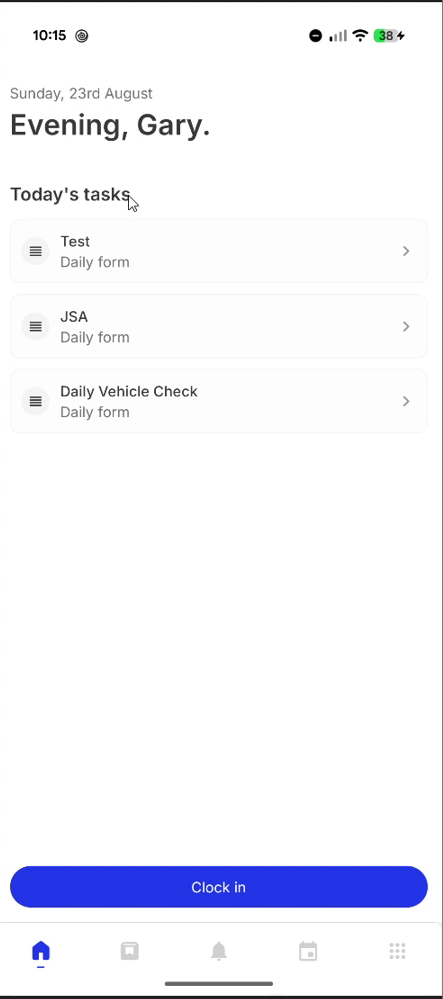
Regular staff use the Movepro app, signed in with their team login. Home greets them with the date, any daily forms to fill before work, and the Clock in button. The bottom bar covers the rest: Jobs, Notifications, Schedule, and the menu.
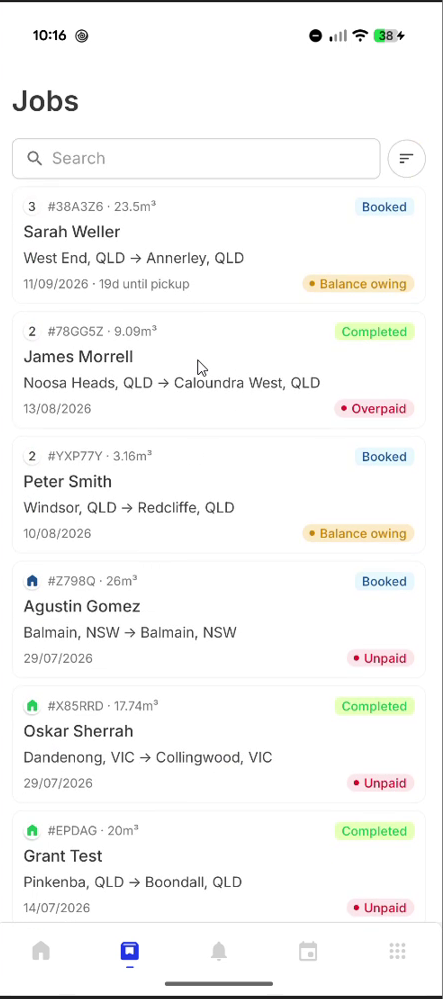
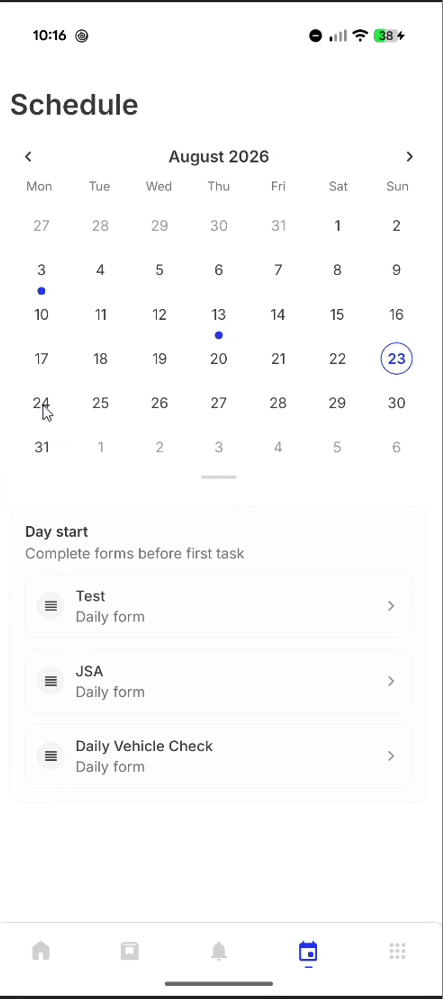
The Jobs tab lists everything assigned to them (order number, volume, route, date) with two chips per card: job status (Booked, Completed) and payment status (Balance owing, Unpaid, even Overpaid). The Schedule tab is a month view with a dot on every working day; tapping a day lists its tasks and day-start forms.
Accepting and declining tasks
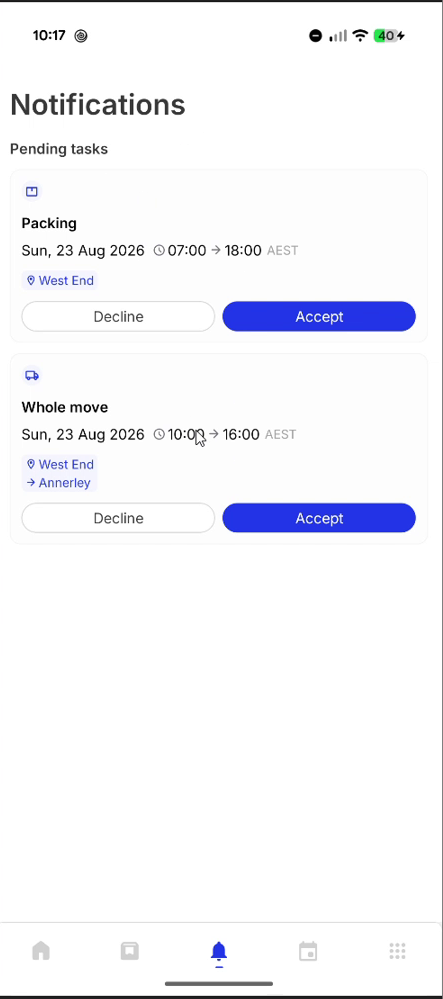
If your default task acceptance is Pending, a new assignment isn't a done deal until the crew member says so. The app's Notifications tab lists pending tasks with Accept and Decline buttons, with the date, window and route on each card.
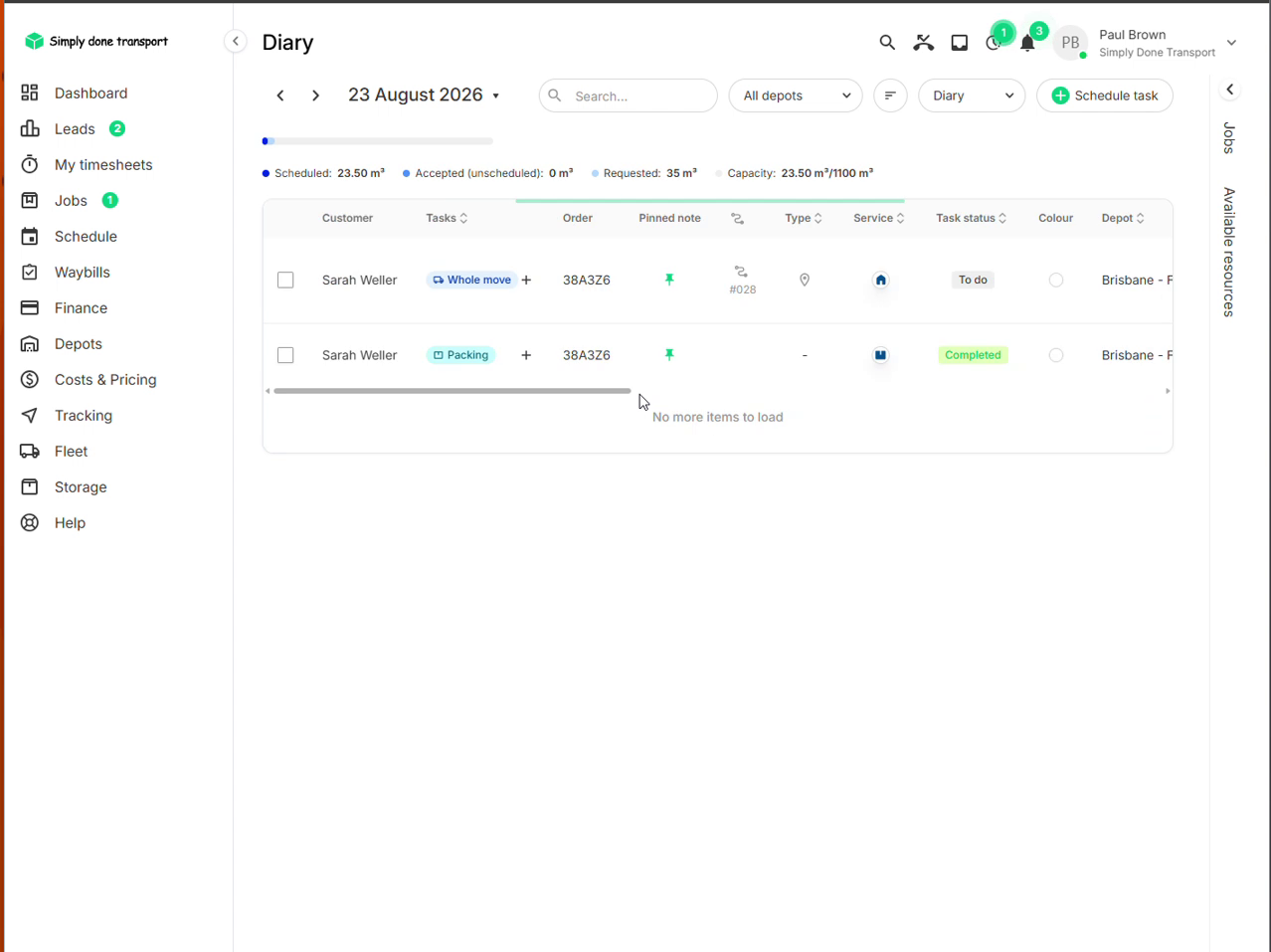
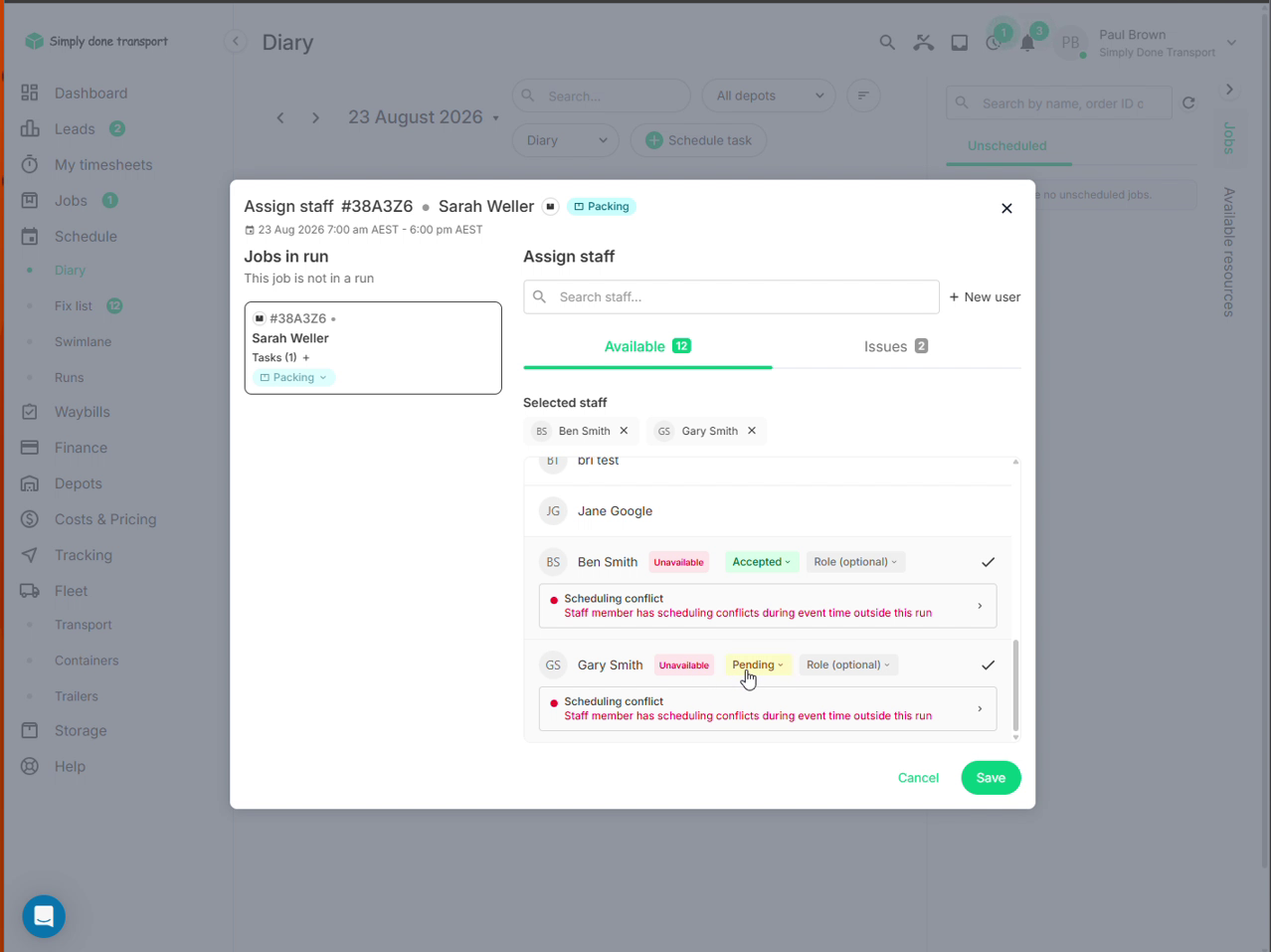
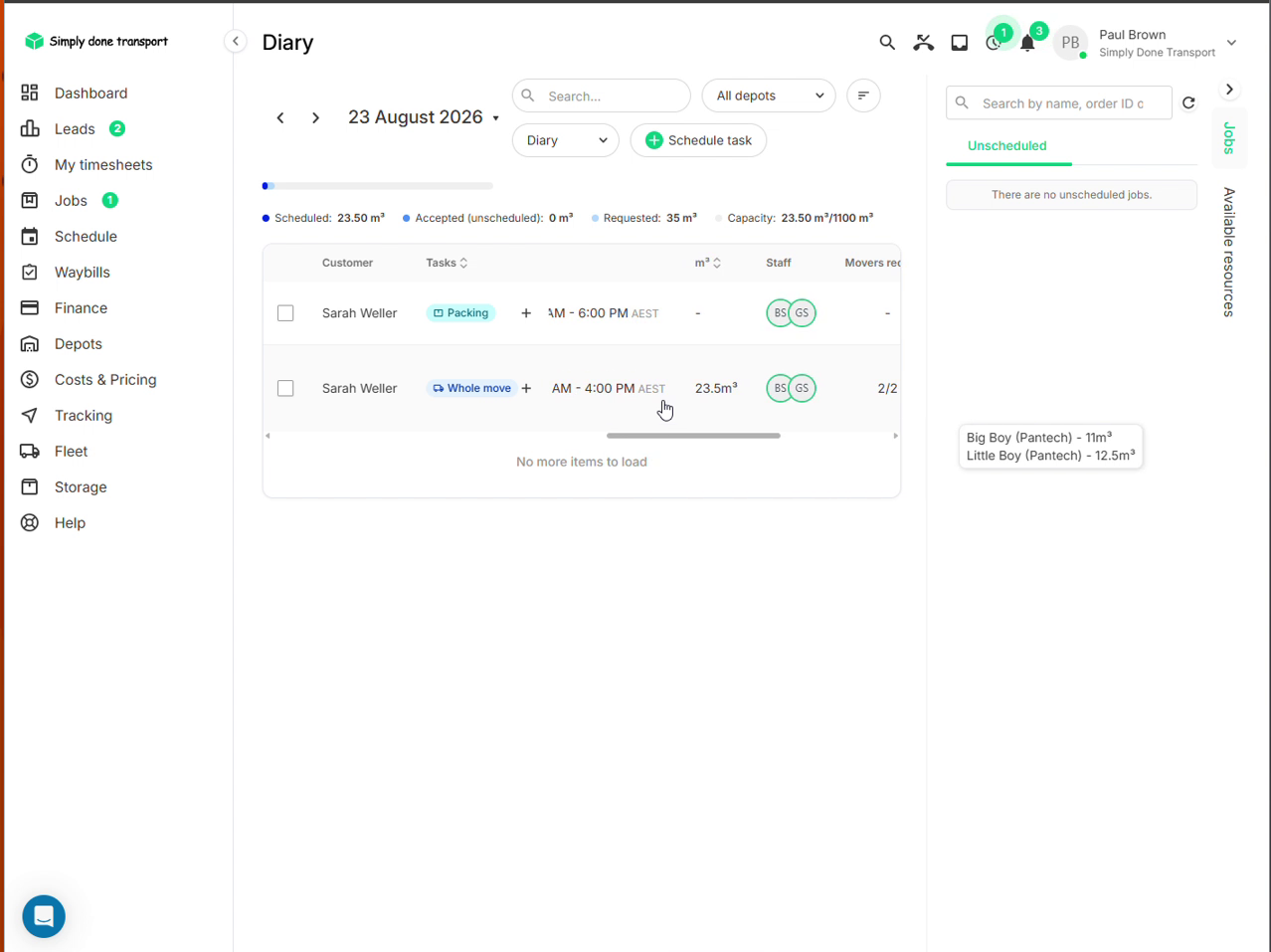
The office watches the answer land in real time. In the diary's Assign staff dialog, each selected member carries a status chip (Accepted green, Pending yellow), and out on the diary, the avatar rings tell the same story at a glance: green ring, confirmed crew.
The working day: clock in, start, track
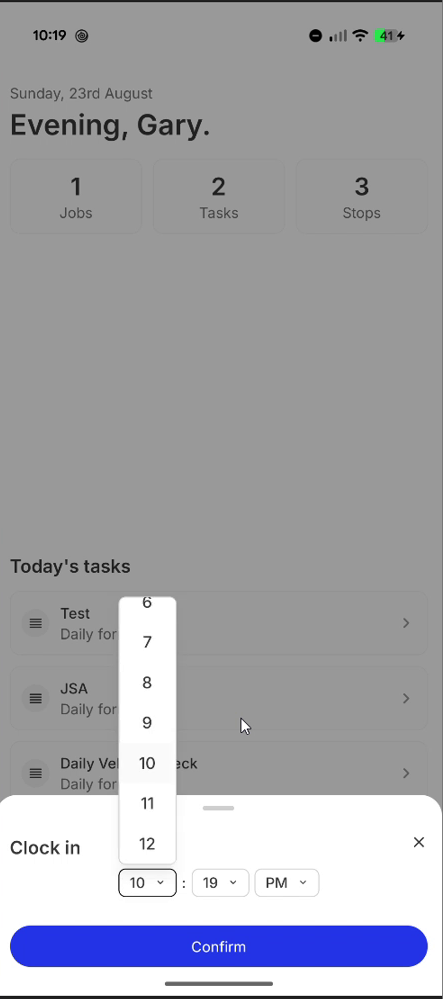
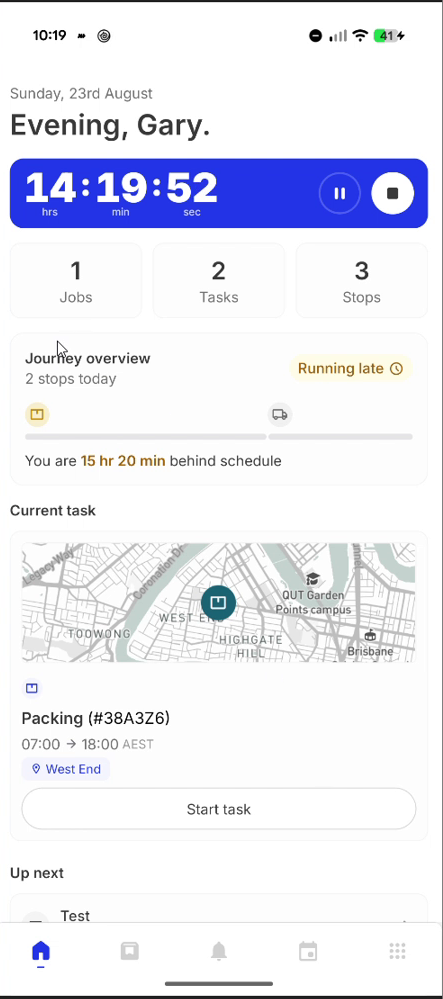
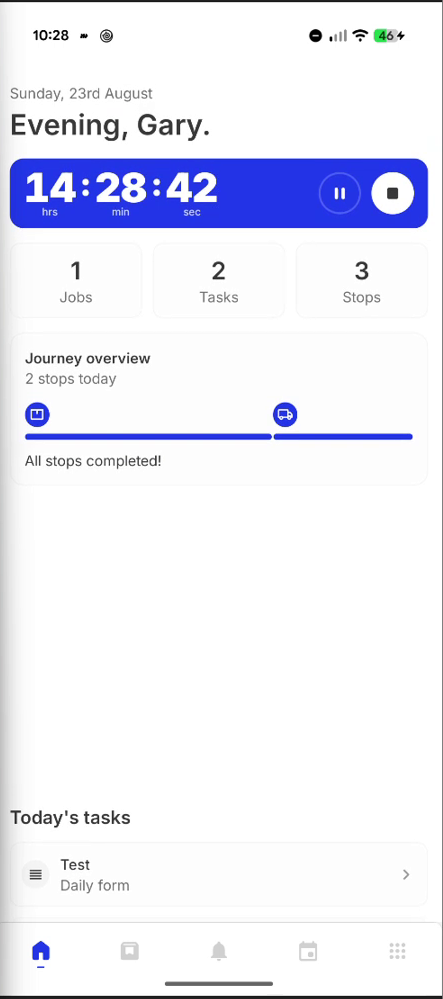
The day starts with Clock in: the app suggests the current time, adjustable if someone forgot. Clocking in starts the shift timer that feeds timesheets, and the home screen becomes mission control: jobs, tasks and stops for the day, a Journey overview progress bar, and the Current task card with Start task.
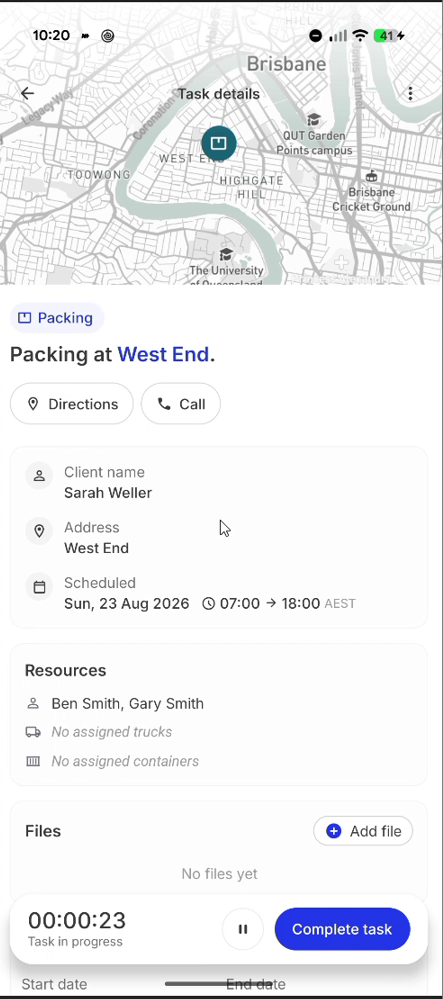
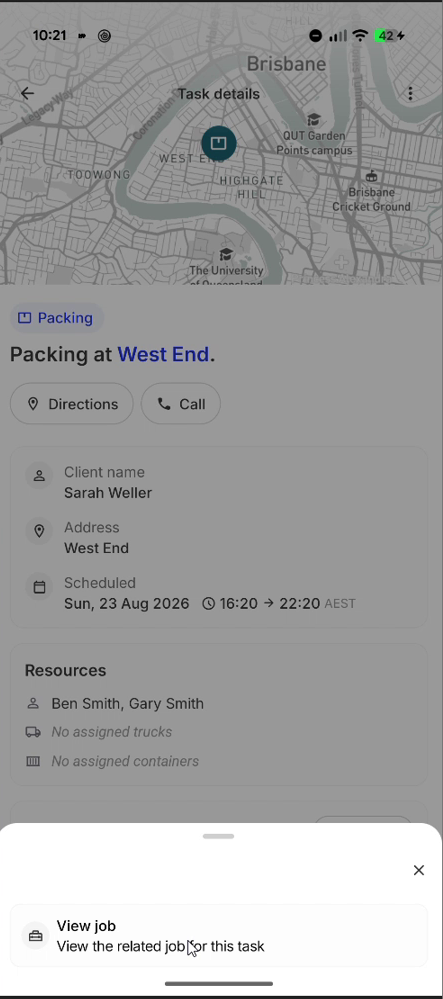
Start task opens the task detail: map, client, window, the assigned crew and vehicles, and a running task timer pinned to the bottom next to Complete task. Starting a task is also what lights up the customer's tracking and the office's live map.
Daily and pre-job forms
Forms meet the crew at two moments. Daily forms (vehicle checks, JSAs) sit on the home screen before the first task. Pre-job forms pop as a checklist when a task starts (risk assessment, pre-move check), each a tap-to-fill form with ratings, text fields and photo uploads, submitted straight onto the order.
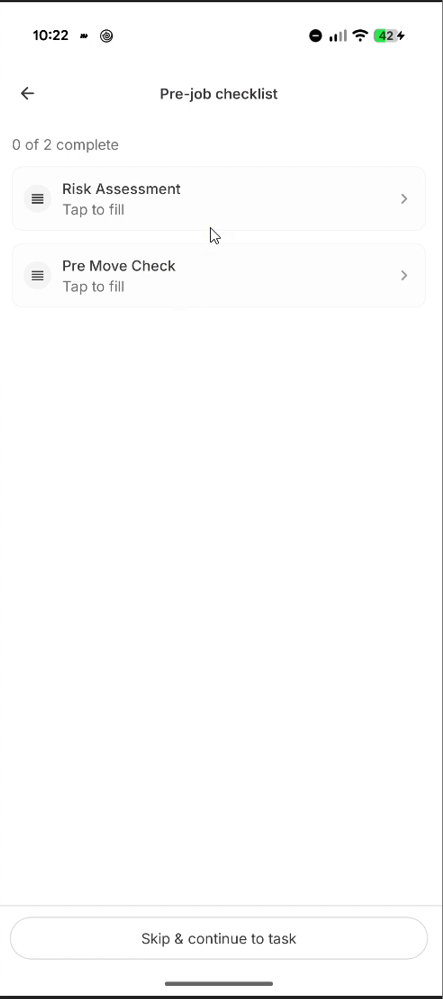
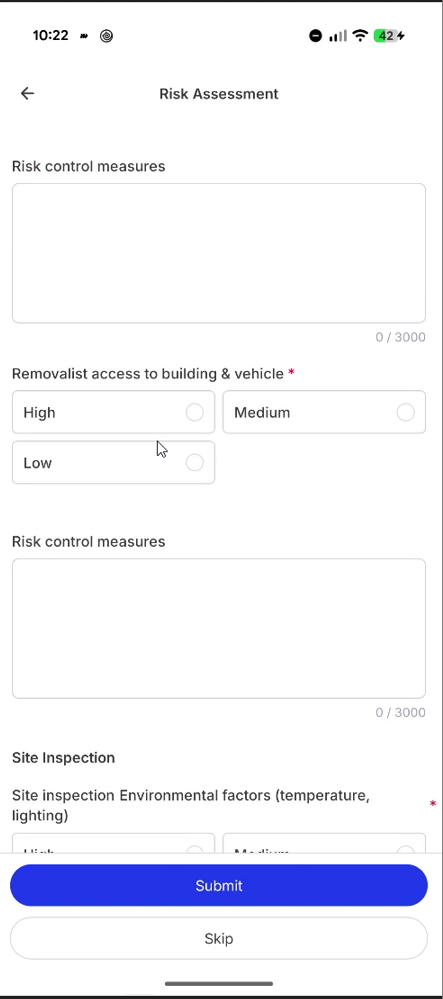
Which forms exist, and which are required, is managed in Forms; completed ones land on the order's Forms tab for the office.
Everything on site: inventory, job, files
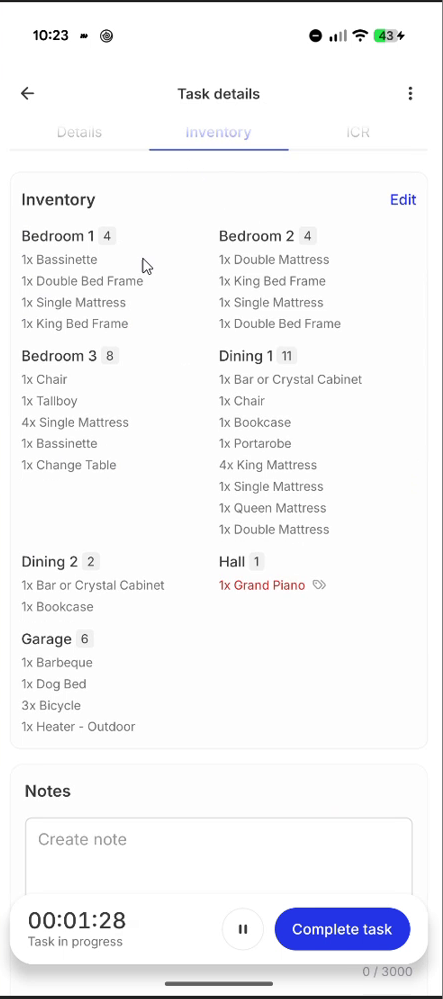
The task detail tabs carry what the crew needs mid-job. Inventory shows the room-by-room list (heavy items highlighted in red, like the grand piano below) with Edit to correct it on the spot, and a notes field for anything worth recording. The ⋮ menu jumps to the full job view when the crew needs more than this one task, and Files holds photos they attach on site. And if the job arrives with no inventory at all, the crew can build one from a video of the room; that's the next section.
AI inventory and condition reports
Two jobs used to eat crew time on site: building an inventory that doesn't exist, and writing down the condition of every item going onto the truck. The app now does both from the phone's camera: point it at the room (or the item), let the AI do the typing, review the result.
Scan a room, get an inventory
When a move arrives with no inventory, open the task's Inventory tab, create the list, pick a room and tap Scan with AI. Record a slow pan of the room, or snap a series of photos, then hit Analyze. There's no need to stand around waiting: move to the next room and scan again, because the analysis runs in the background.
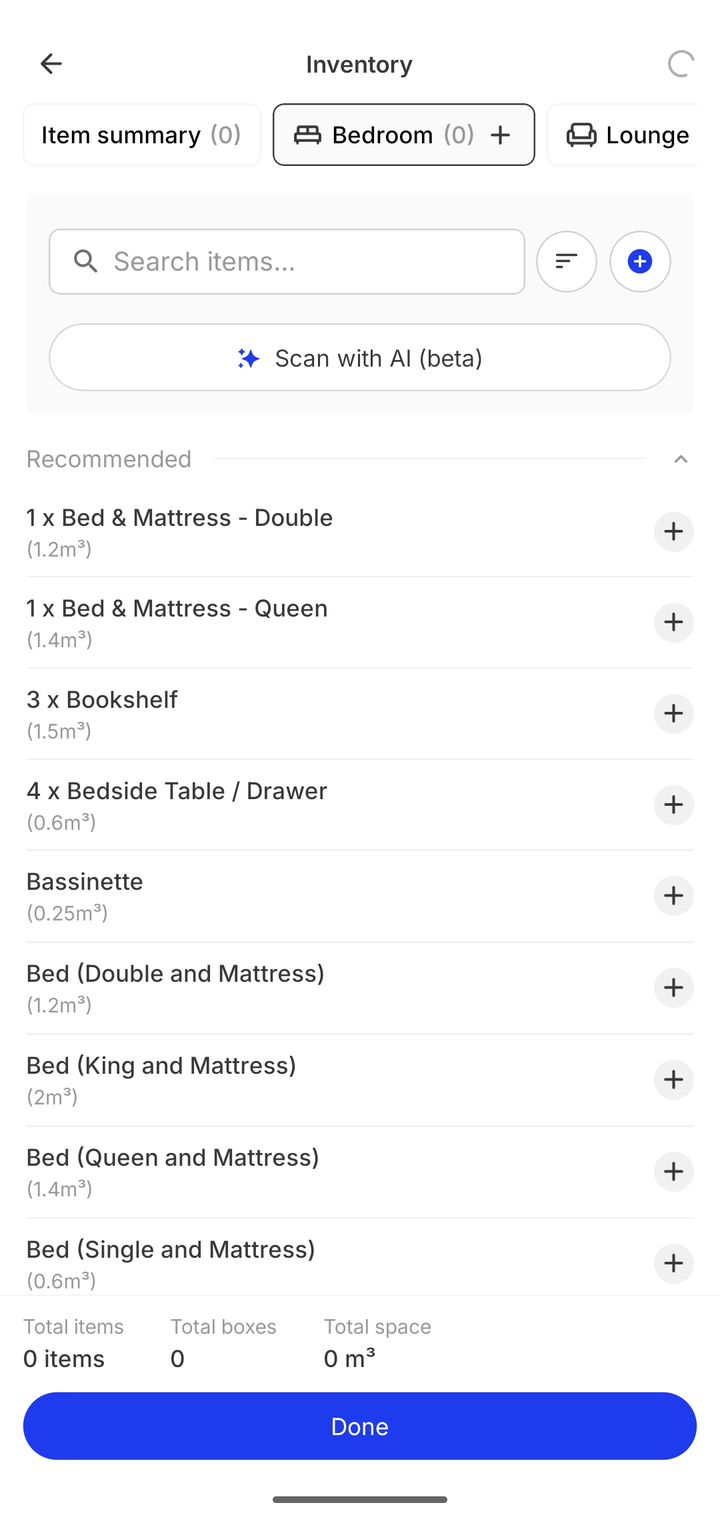
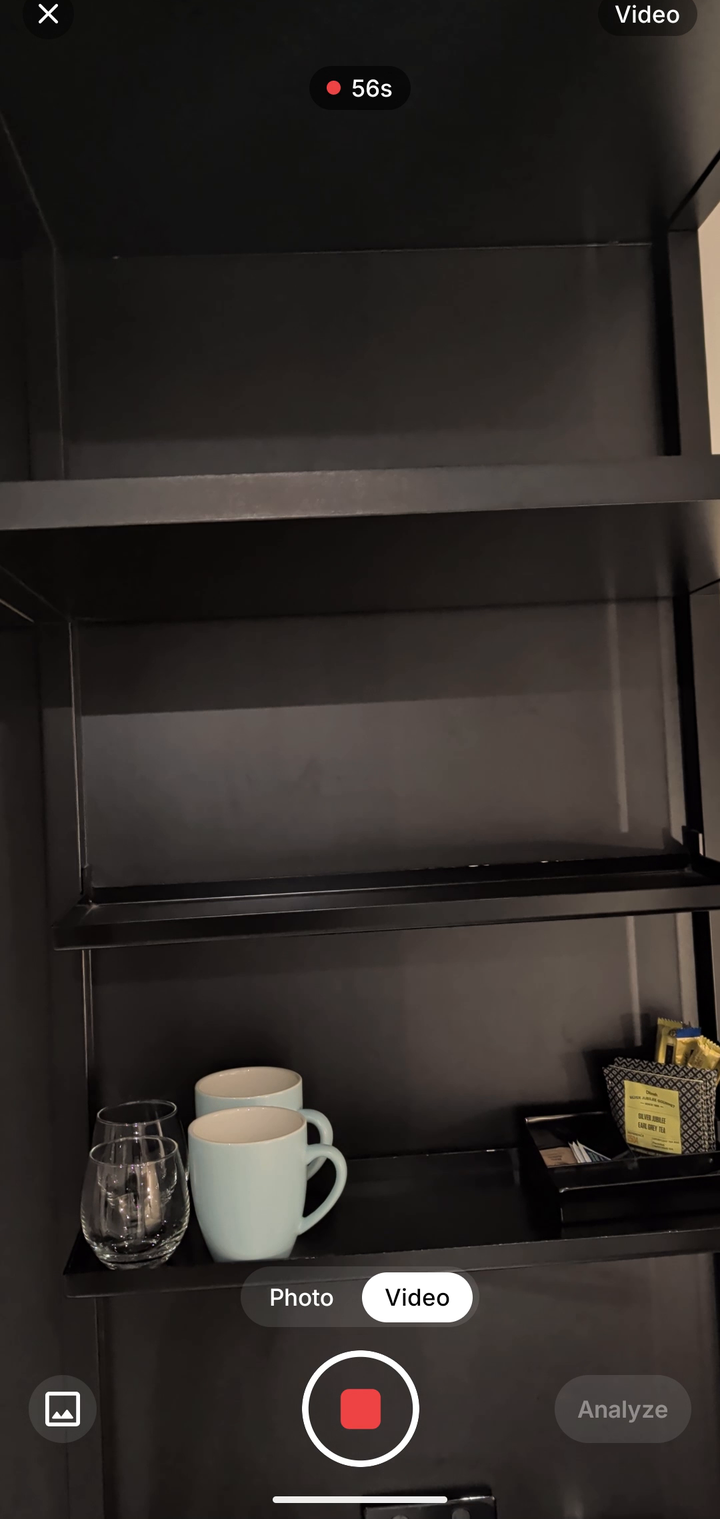
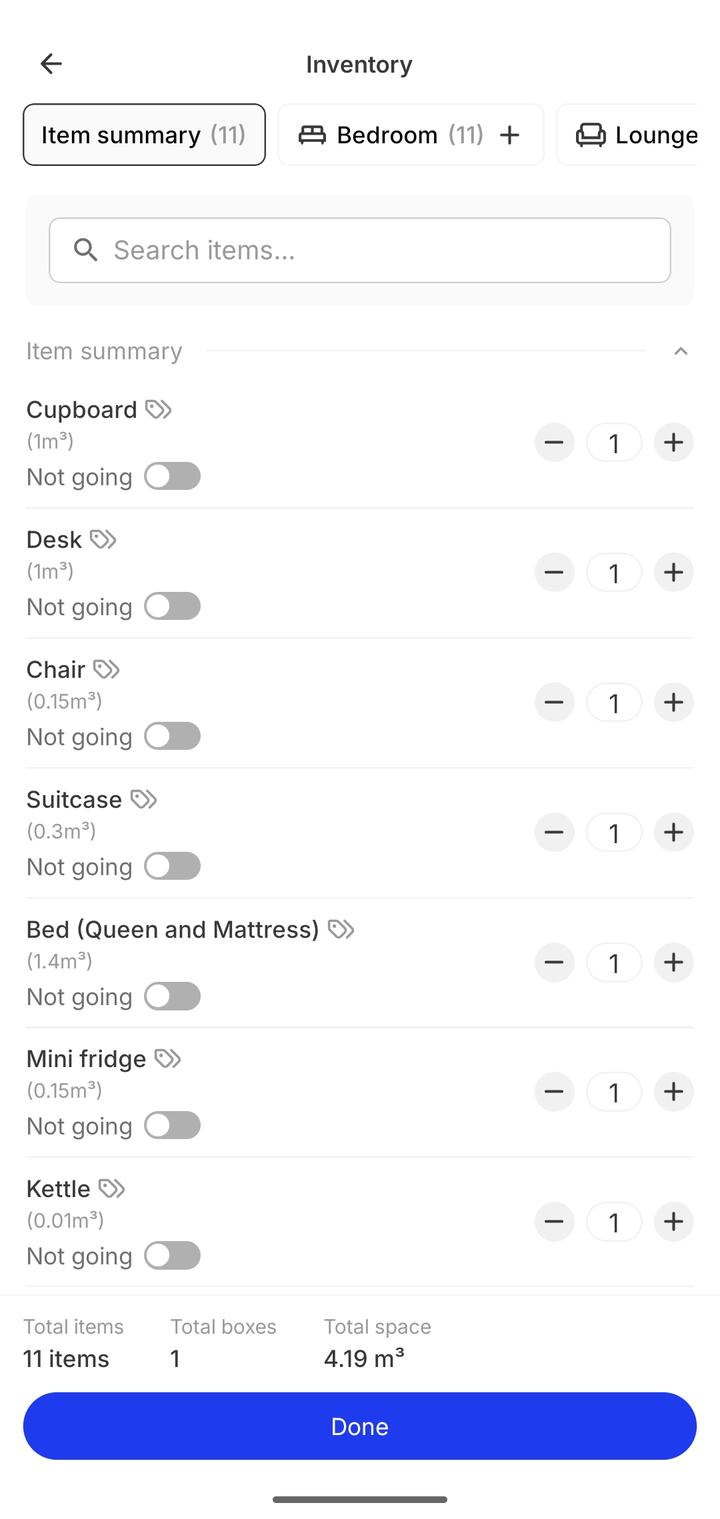
A minute later the room is populated: each item recognised from the footage, matched to the catalogue with its cubic volume, and the totals bar keeping score. The scan below picked out the cupboard, desk, chair, suitcase, bed, mini fridge, kettle and three framed artworks, plus a removalist carton for the loose bits. The AI is accurate, but give the list a quick manual once-over before relying on it; it's faster to delete a phantom chair now than to argue about one later.
The AI condition report at pickup
The same camera-first thinking applies to the ICR (inventory condition report). On the task's ICR tab, create a report at Pickup, pick the room, and add items with AI mode switched on: every item added asks for a quick photo or video. The AI watches the footage, finds each bit of damage, names it, notes where it sits on the item, and attaches screenshots of the exact frames where that damage is visible.
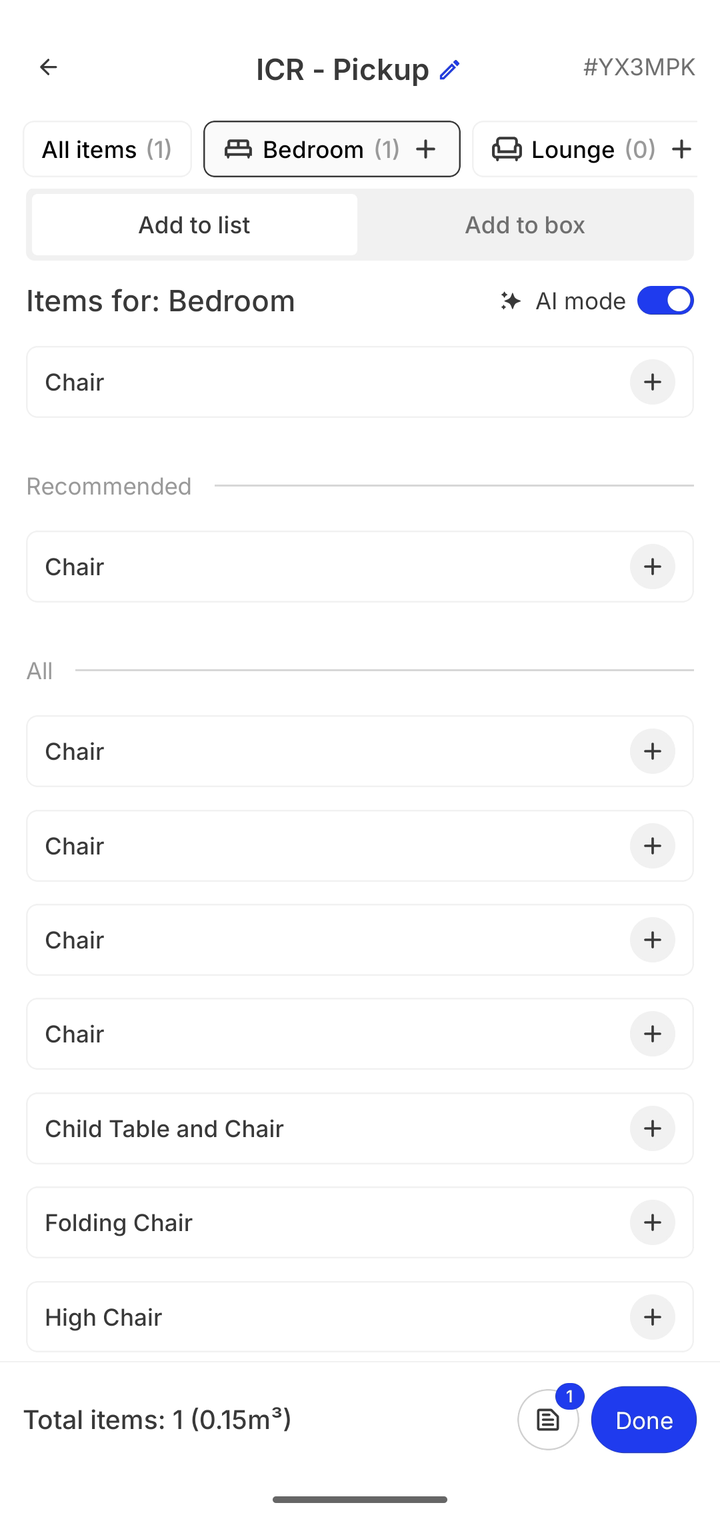
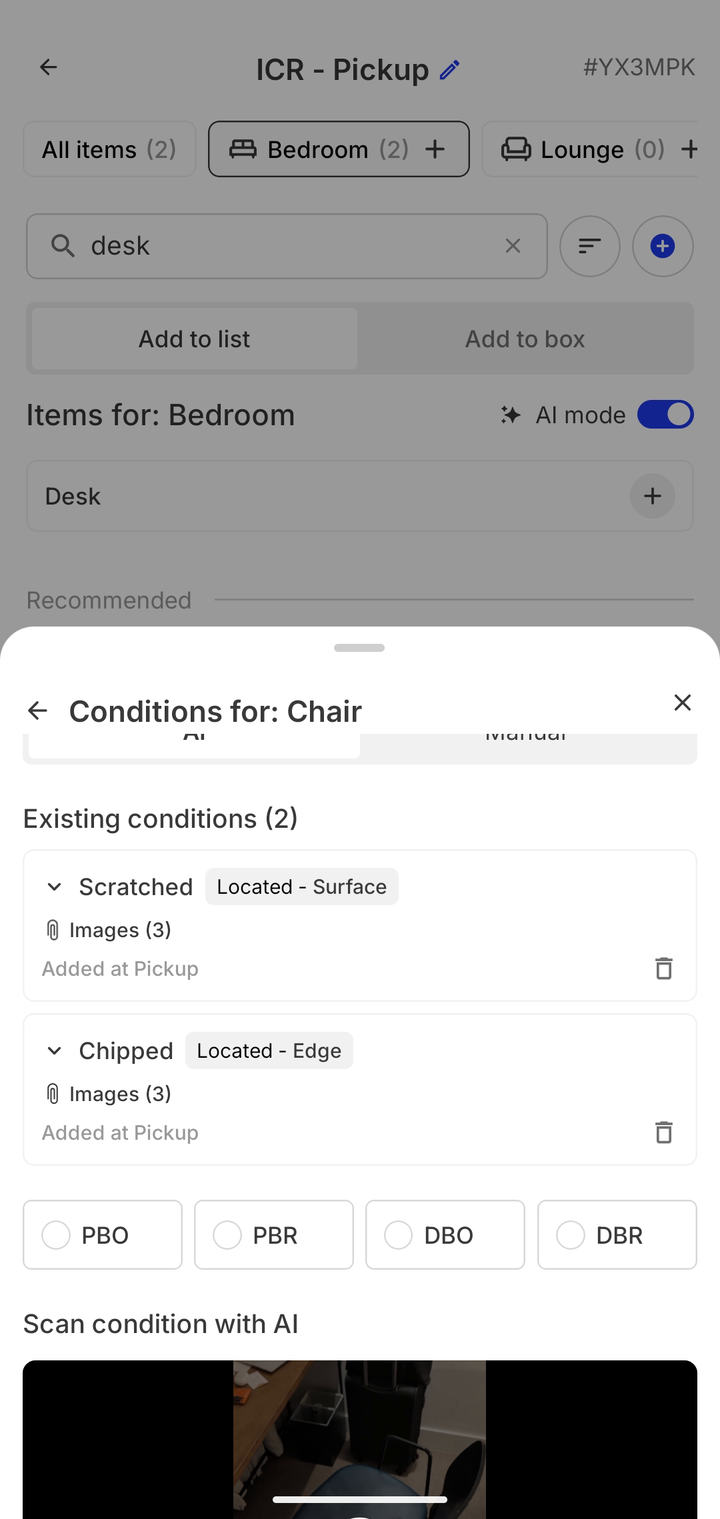
Processing runs in the background, and the button beside Done shows what's still analysing. In the demo, the chair returned two conditions with six images (a long scratch across the seat, chipping along the top edge of the backrest) and the desk three, split, soiled and gouged, each with its own evidence shots. Prefer the old school way? Toggle AI mode off and record conditions by hand: packed by removalist, scratched on the front, add another, save. Items can be duplicated for multiples or marked Not going, and every condition carries its location and the stage it was added at.
The bingo sheet and customer sign-off
Tap Done and the report lands on the task's ICR tab in two views: a Summary of rooms, items and condition counts, and a Bingo sheet, a numbered grid for ticking items off as they come off the truck at delivery. Sign off hands the phone to the customer: they review every item and condition, tick the certification statements, sign on screen and can receive a copy of what they signed.
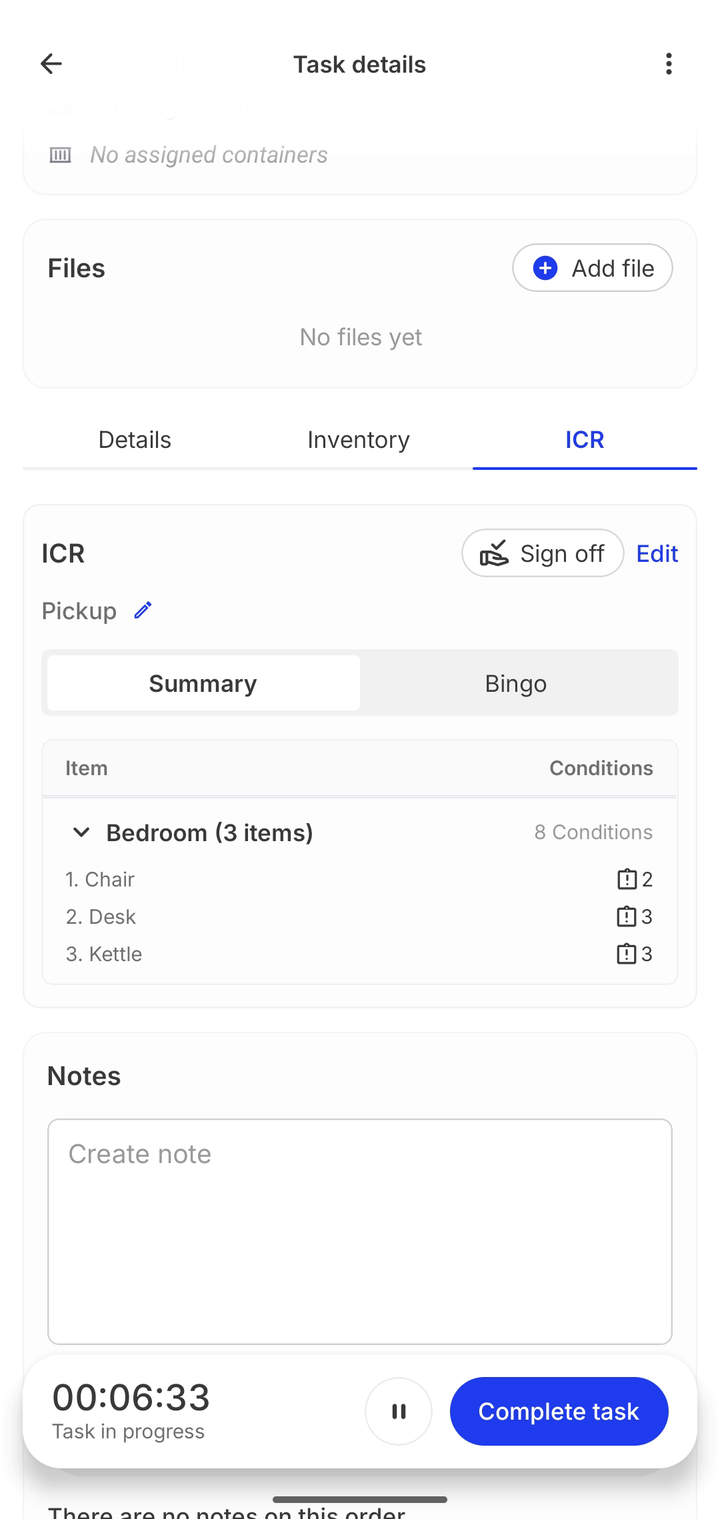
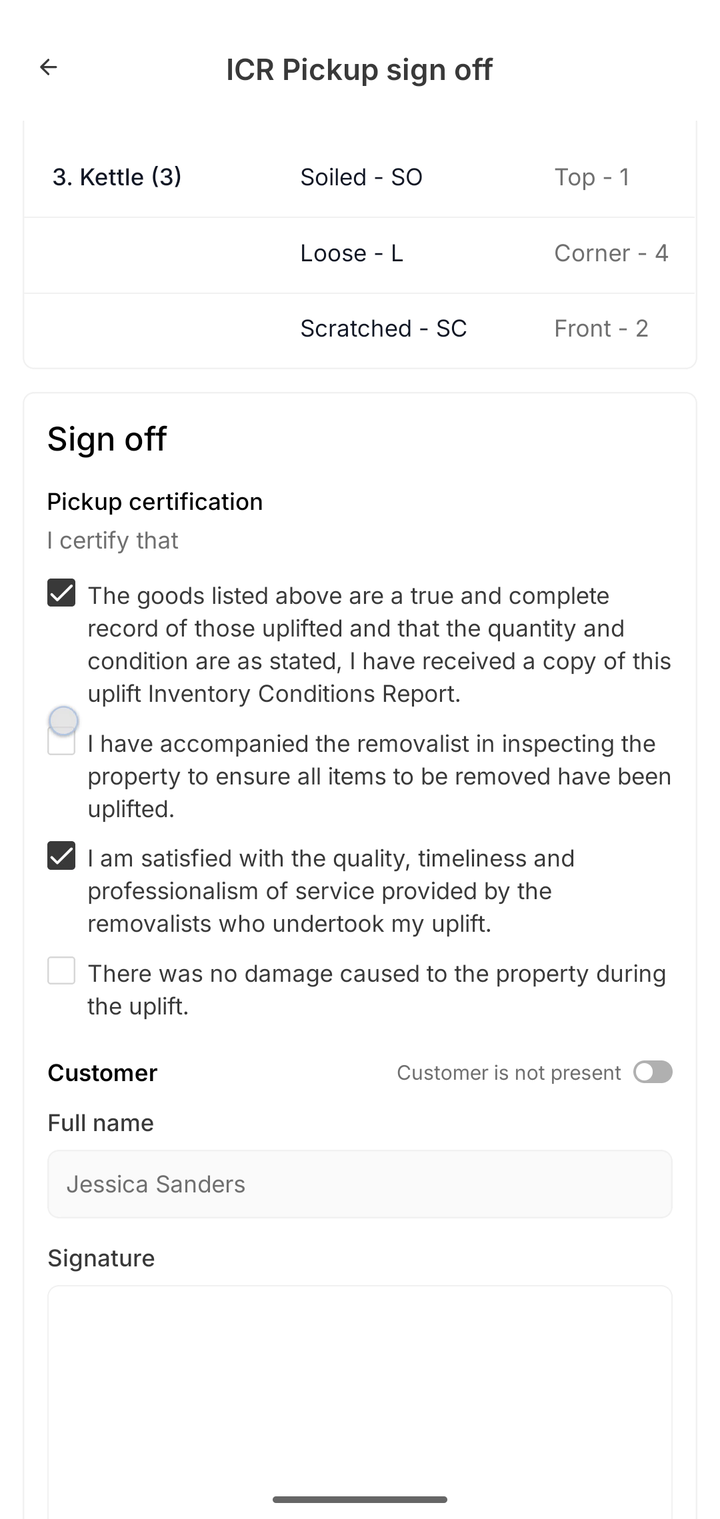
That signature is the point of the exercise: a record of what was picked up and what state it was in, agreed on the doorstep before the truck moves. If something is disputed weeks later, the ICR and its photo evidence is the answer. The office sees and edits the same report from the order's ICR tab.
Completing the task and taking payment
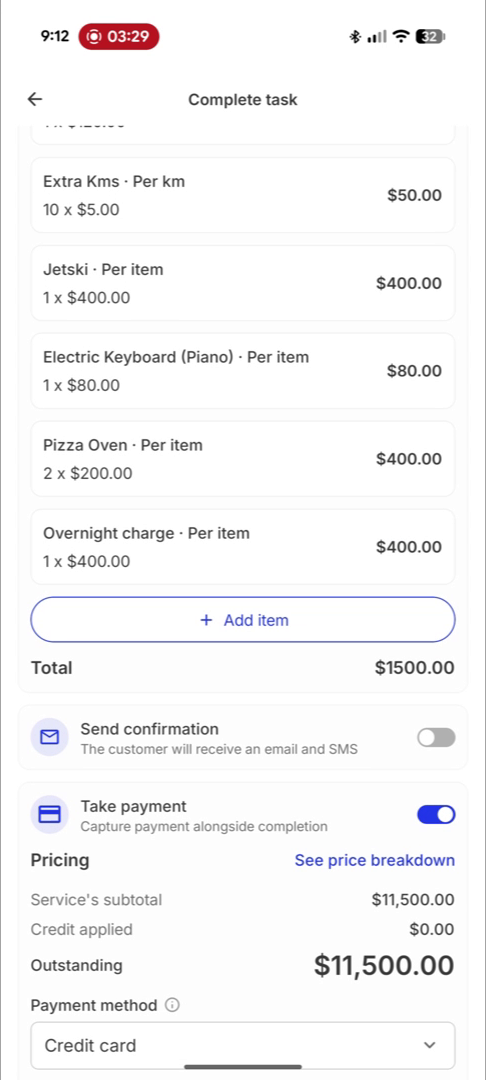
The task view keeps the crew honest about money before anything is completed: a Pricing panel shows the service subtotal, any credit applied and what's Outstanding, with See price breakdown for the line-by-line.
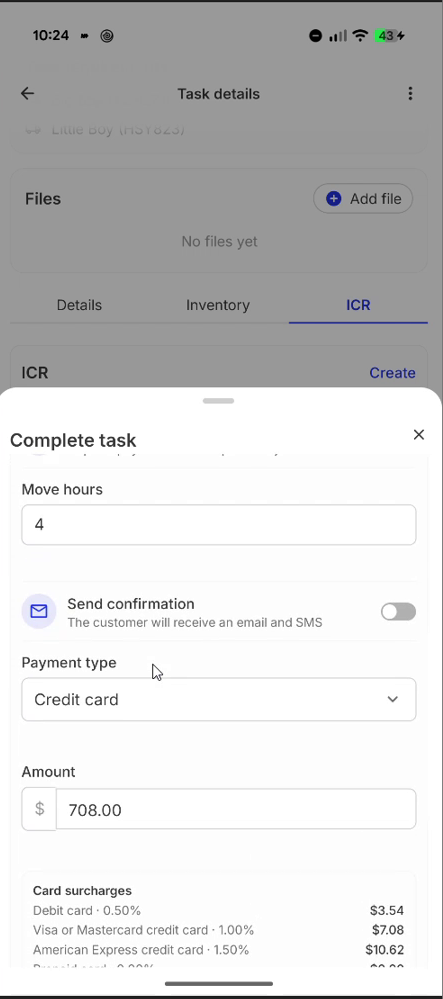
Complete task ends more than the timer. The completion sheet asks for the actuals (move hours, boxes packed, whatever the service's pricing runs on), and the crew can add whatever the day added as extra items straight from the catalogue, each with a quantity: the piano nobody mentioned, extra kilometres, an overnight charge. The list totals as they go, the same way the office does it when completing services in the CRM.
Then the doorstep settlement: a Send confirmation toggle emails and SMSes the customer, and the Take payment toggle captures payment alongside completion with the outstanding balance pre-filled. Pick the payment type and how to capture it (Tap to Pay on the crew member's own phone, or keying in the card details); for cards the surcharge for each type is calculated and shown before charging. Cash is recorded as collected; the amount defaults to the balance owing.
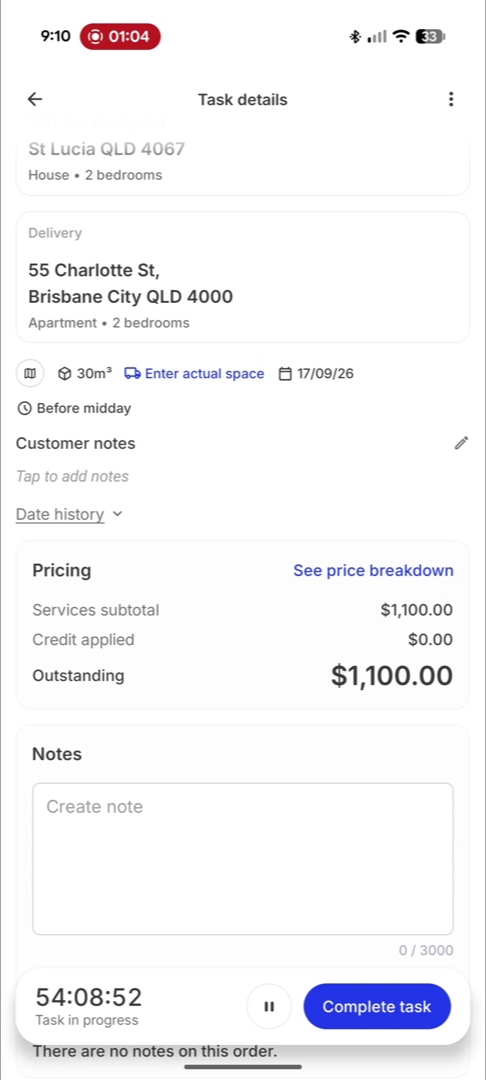
With every stop done, the journey bar fills and the day is wrapped: clock out from the home screen and the shift lands in timesheets.
What the office sees
Every app action mirrors into the CRM as it happens: task status flips to Completed in the diary, actuals flow into the order's services (see completing services), doorstep payments appear on the payments tab; cash collected shows as owed by the crew member until it's marked returned.