Inventory & media
The inventory is where the quote gets honest. Every item carries a volume, the volumes add up to cubic metres, and the cubic metres drive truck size, crew size and price. This page covers reading an order's inventory, editing it room by room, and the media upload that builds it from a customer's photos.
The Inventory tab on an order
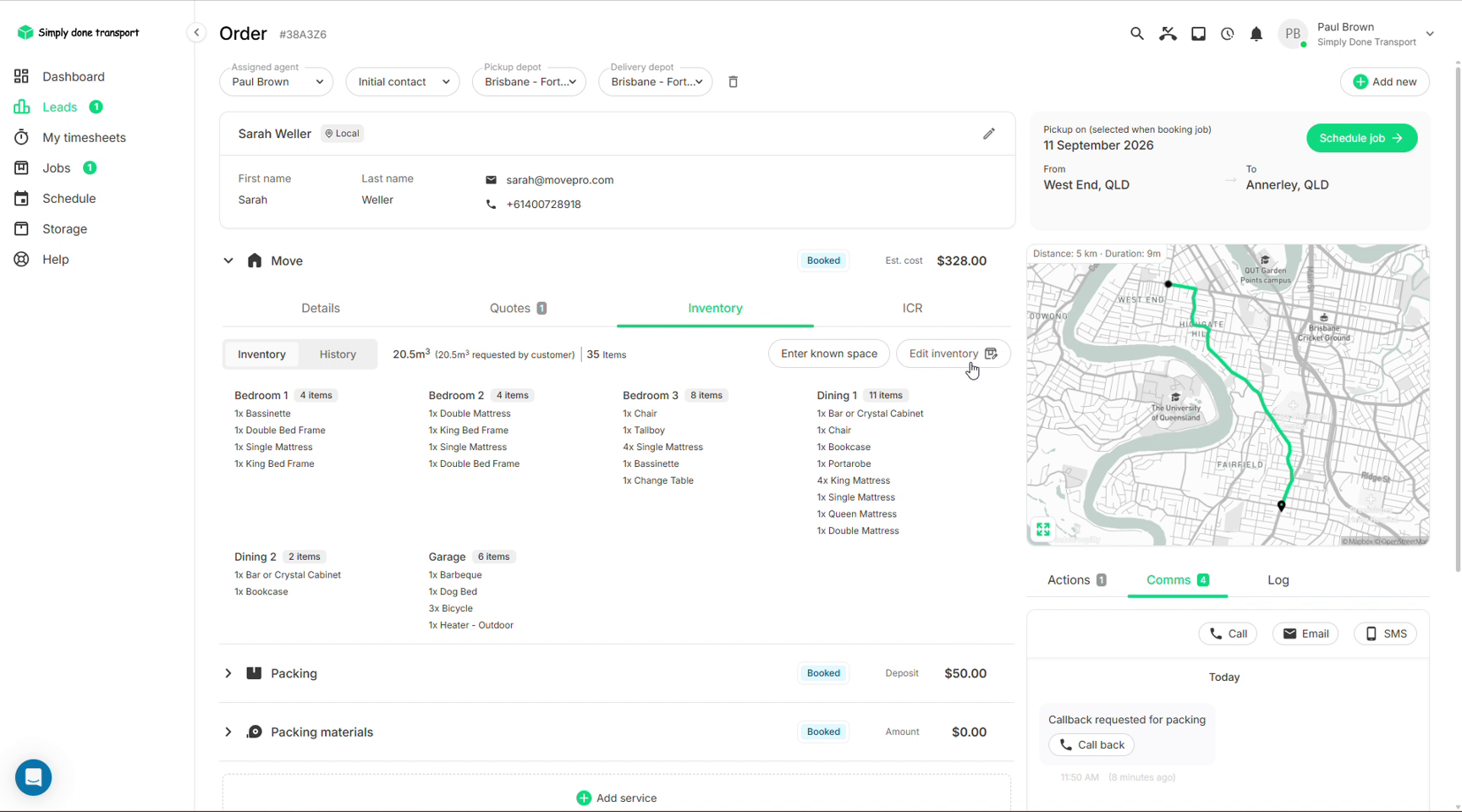
Every order has an Inventory tab: items grouped by room, the item count, and the headline that matters: the space estimate, shown next to what the customer originally requested (e.g. 20.5 m³, 20.5 m³ requested by customer). Two buttons sit on the right:
- Enter known space: skip the itemising and type a m³ figure straight in, for when you've surveyed the job or the customer just knows;
- Edit inventory: open the full room-by-room editor.
The room-by-room editor
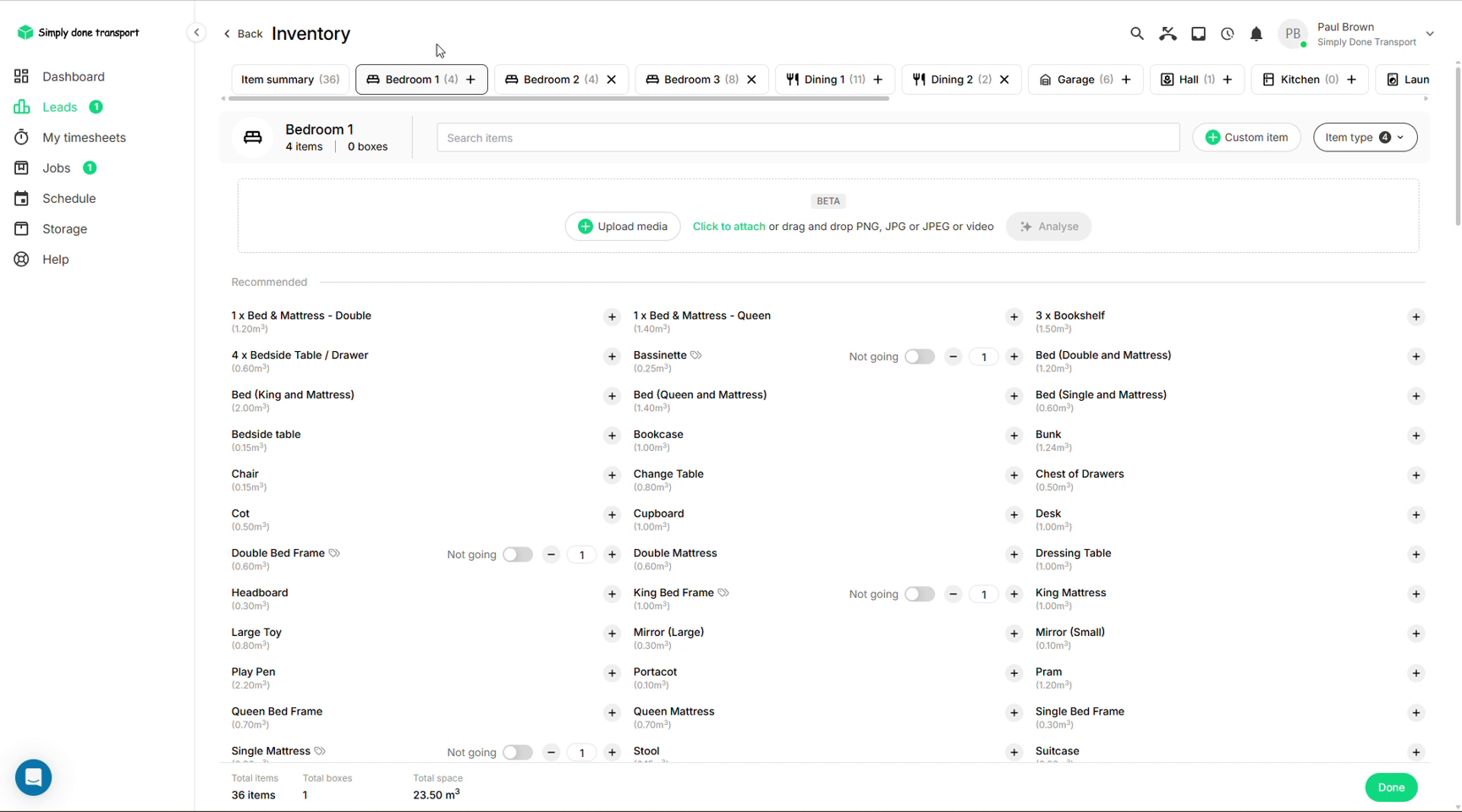
Edit inventory opens the same editor the customer sees on the booking form: a tab per room, a search box, and a recommended list of items with volumes; click + to add, adjust quantities, or flag an item as Not going to keep it listed but out of the totals. Custom item covers anything not in the catalogue. The bar along the bottom keeps the running score: items, boxes, and total m³. Done saves back to the order.
Building inventory from photos and video
The Upload media strip at the top of the editor takes PNG, JPG or video: a customer's walkthrough clip, or photos of each room. Click Analyse and Movepro identifies the furniture and adds the items to the room for you; you review and adjust rather than type. It's the fastest way to turn "here's a video of my garage" into a priced inventory. Crews get the same engine on site: the app's Scan with AI builds the room list from a video taken standing in the doorway.
Heavy items, customer updates and history
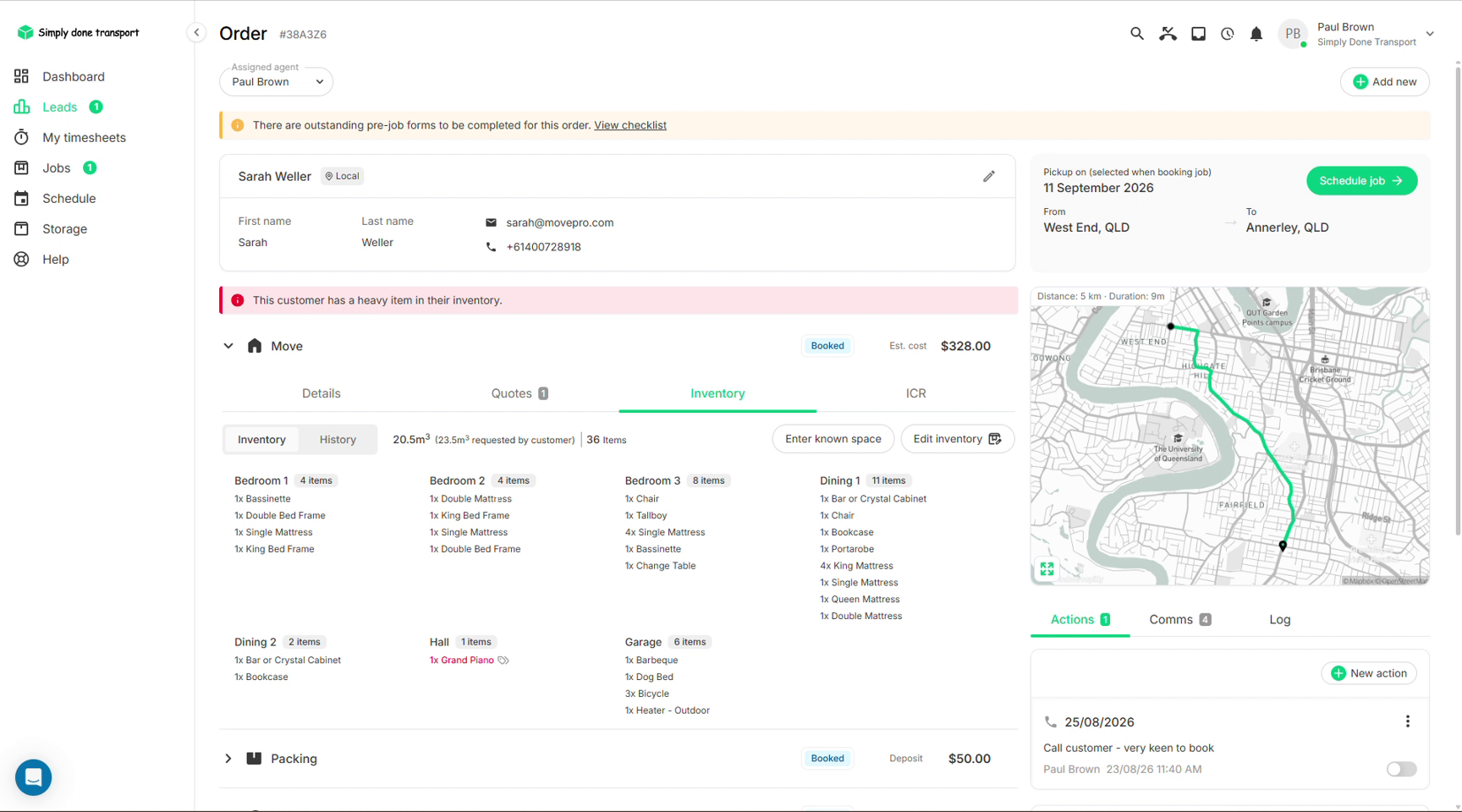
Items flagged as heavy or chargeable in the catalogue announce themselves: a banner on the order warns this customer has a heavy item in their inventory, and the item shows highlighted in its room (the grand piano below). That's your cue that crew, equipment or an extra charge may be needed; chargeable items can add their cost item to the quote automatically.
The History toggle next to the Inventory heading shows how the inventory has changed over time: what the customer originally submitted versus what's there now, useful when the m³ has crept and the price needs revisiting.
Those customer edits have one more consequence worth knowing. If a fixed-price quote is already on the table and the customer then changes their inventory enough to move the volume, the quote hides itself from their portal, because the price no longer matches the job. Re-quote against the new m³ (or unhide it if the old price still stands) and it comes back for booking. Hiding works the other way too: you can hide or delete quotes deliberately whenever the customer shouldn't see them.