Orientation & dashboard
Five minutes of geography before the real work: what's in the left menu, what the dashboard is telling you, and where the inbox, activity feed and notifications live. Everything else in this guide assumes you can find your way around this screen.
The dashboard
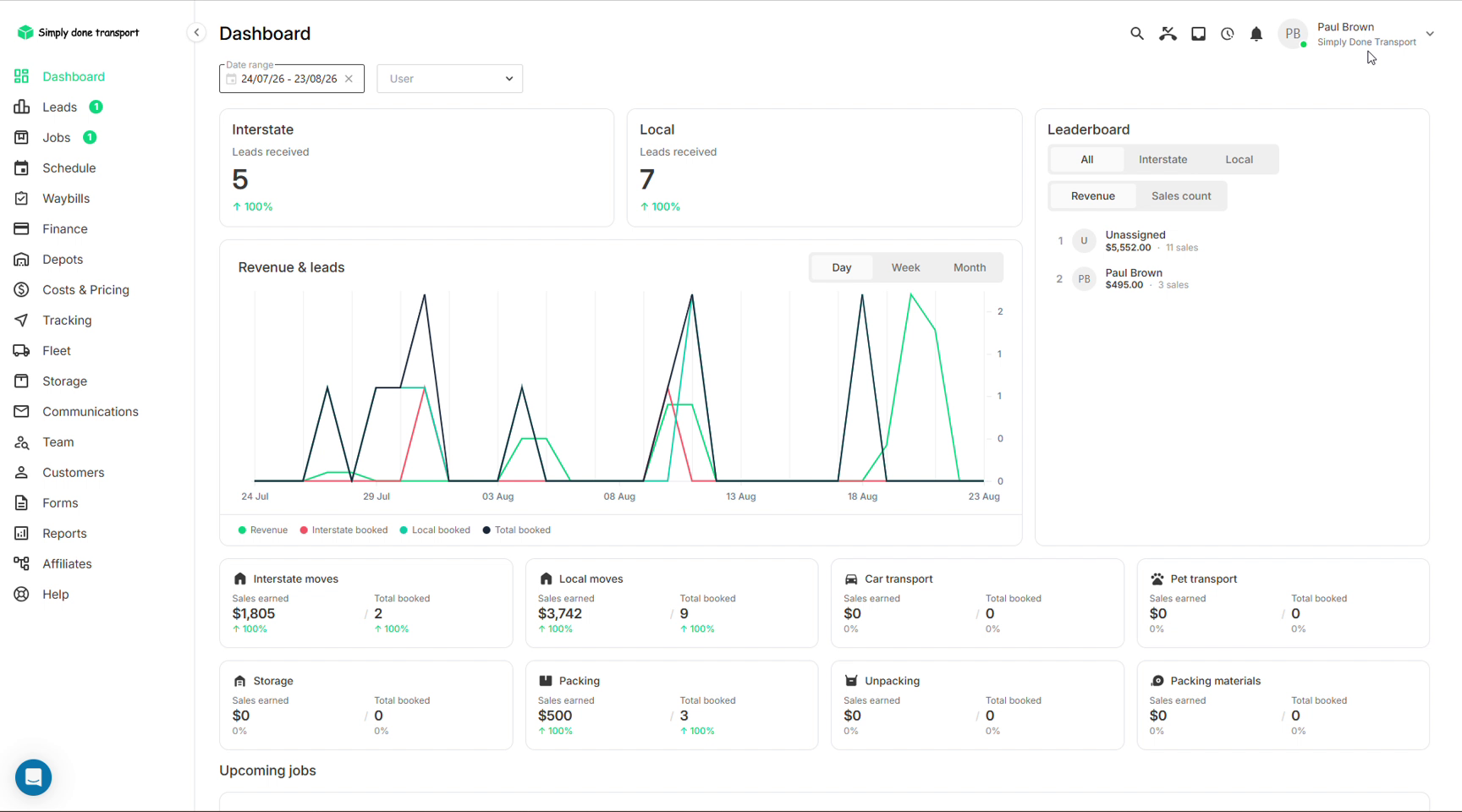
Logging in lands you on the Dashboard: leads received for the period (split interstate / local), a Revenue & leads chart you can switch between day, week and month, a sales Leaderboard by revenue or sales count, and a tile for every service type (interstate, local, car and pet transport, storage, packing) showing sales earned and jobs booked. The date-range and user filters at the top scope everything, and Upcoming jobs waits below the fold.
The left menu, mapped
The left menu is the whole product. Here's what each item is, and where this guide covers it. One thing to know up front: the menu bends to your role, so items your role can't open simply don't appear. The page-by-page matrix is in What each role can access.
| Menu item | What it is |
|---|---|
| Dashboard | The overview above. |
| Leads | The sales board: every enquiry as a card. See Leads & CRM. |
| Jobs | Booked work as a list. See Booking. |
| My timesheets | Your own clock-in/clock-out record. |
| Schedule | Job diary, Fix list, Swimlane, Runs and the Internal diary. See Scheduling. |
| Waybills | Interstate consolidation documents; see below. |
| Finance | Payments, Transactions, Payouts, Purchase orders. See Payments & invoicing. |
| Depots | Your bases; each depot anchors local pricing and scheduling. See Settings reference. |
| Costs & Pricing | Rate cards, Interstate, Local. See Costs & pricing. |
| Tracking | Live crew map. See On the day. |
| Fleet | Transport, Containers, Trailers. See Fleet & storage. |
| Storage | Storage units and storage jobs. See Fleet & storage. |
| Communications | Templates and Automations. See Communications. |
| Team | Payroll, Team directory, Manage timesheets. See Team & affiliates. |
| Customers | Everyone you've ever moved; see below. |
| Forms | Sign-off and checklist forms. See On the day. |
| Reports | The reporting library; see below. |
| Affiliates | Referrer tracking. See Team & affiliates. |
The top bar: inbox, activity, notifications
The icons in the top-right corner follow you everywhere:
- The magnifying glass is global search: customers, orders, references.
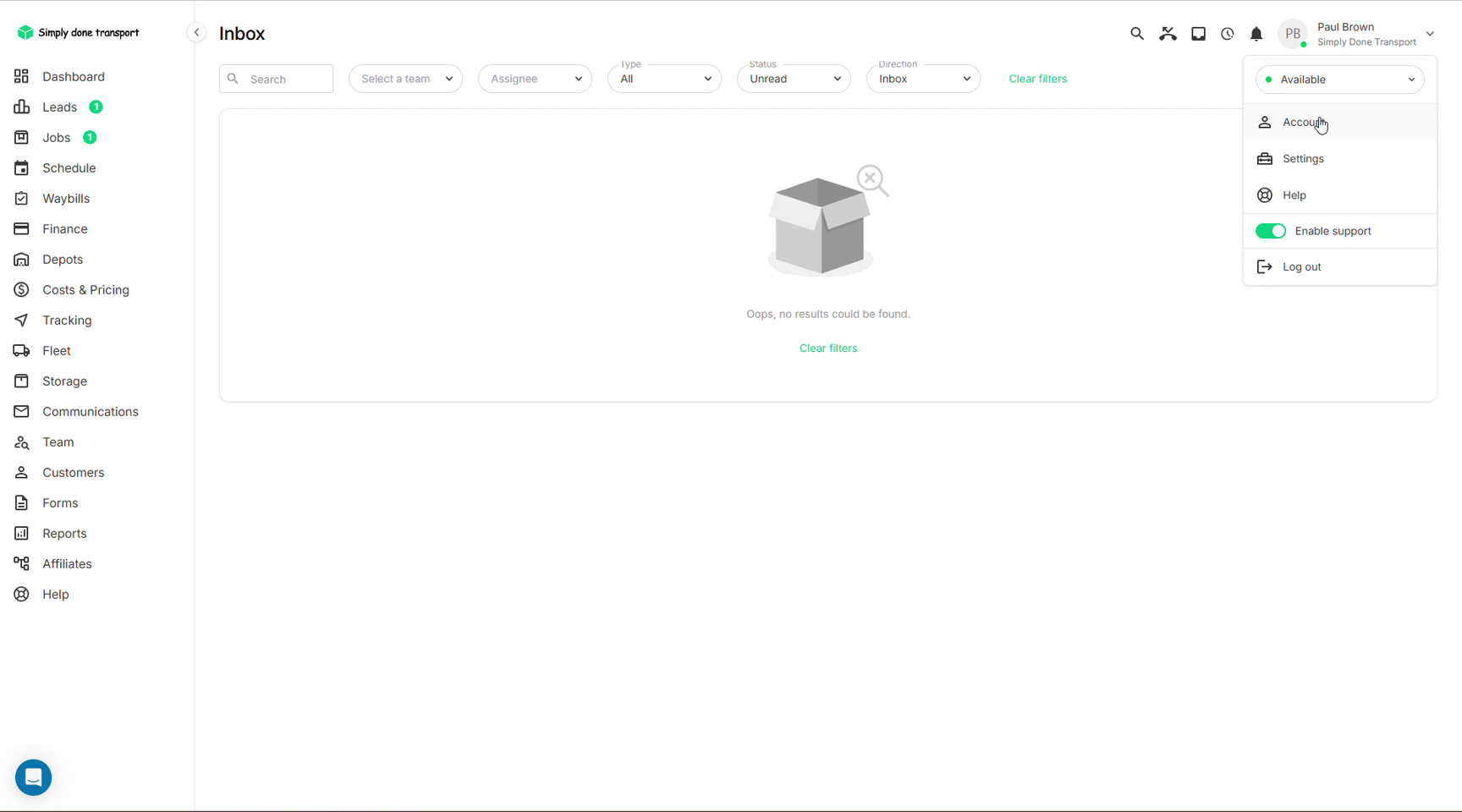
- The inbox icon opens the team Inbox: incoming communications filtered by team, assignee, type and read status, so nothing a customer sends goes unseen.
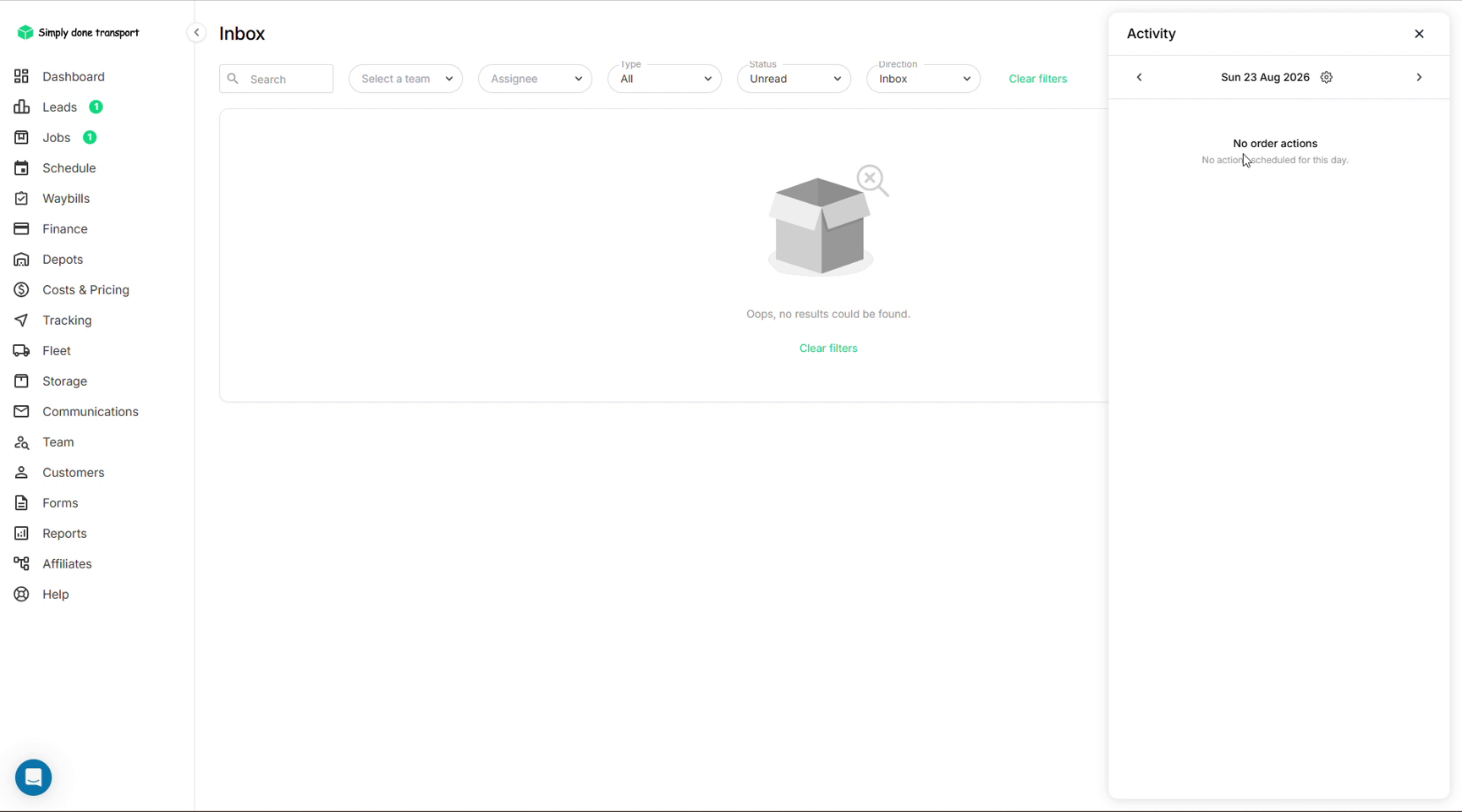
- The clock icon opens the Activity panel: the scheduled order actions (call-backs, follow-ups) for any day. Actions are covered in Leads & CRM.
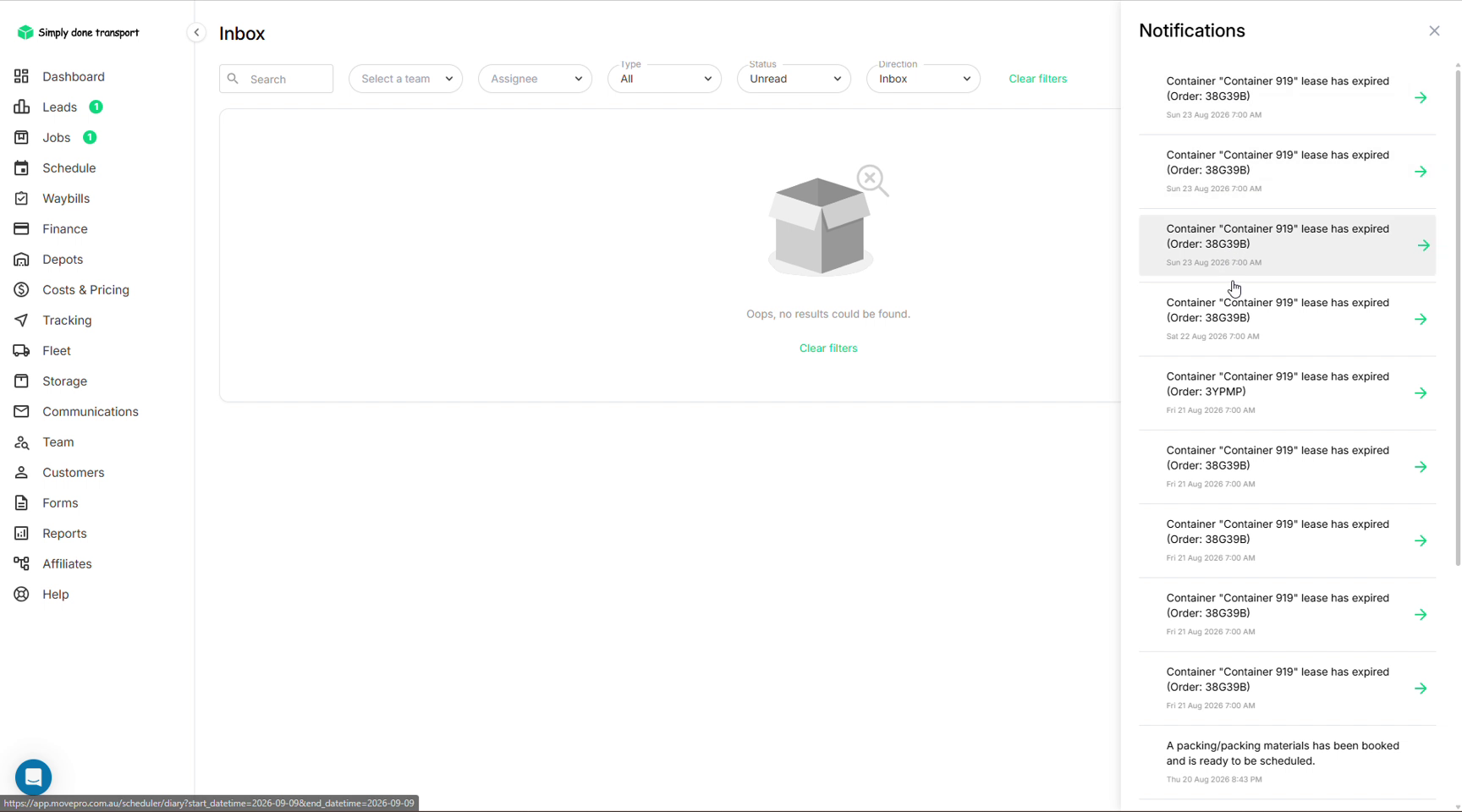
- The bell is notifications: expiring container leases, bookings ready to schedule, and anything else that wants a human.
Your profile menu
Click your avatar (top right). From here you set your availability status, open your Account and the company Settings (see the Settings reference), reach Help, and, usefully when working with Movepro support, flip Enable support to let the support team see your account.
Customers
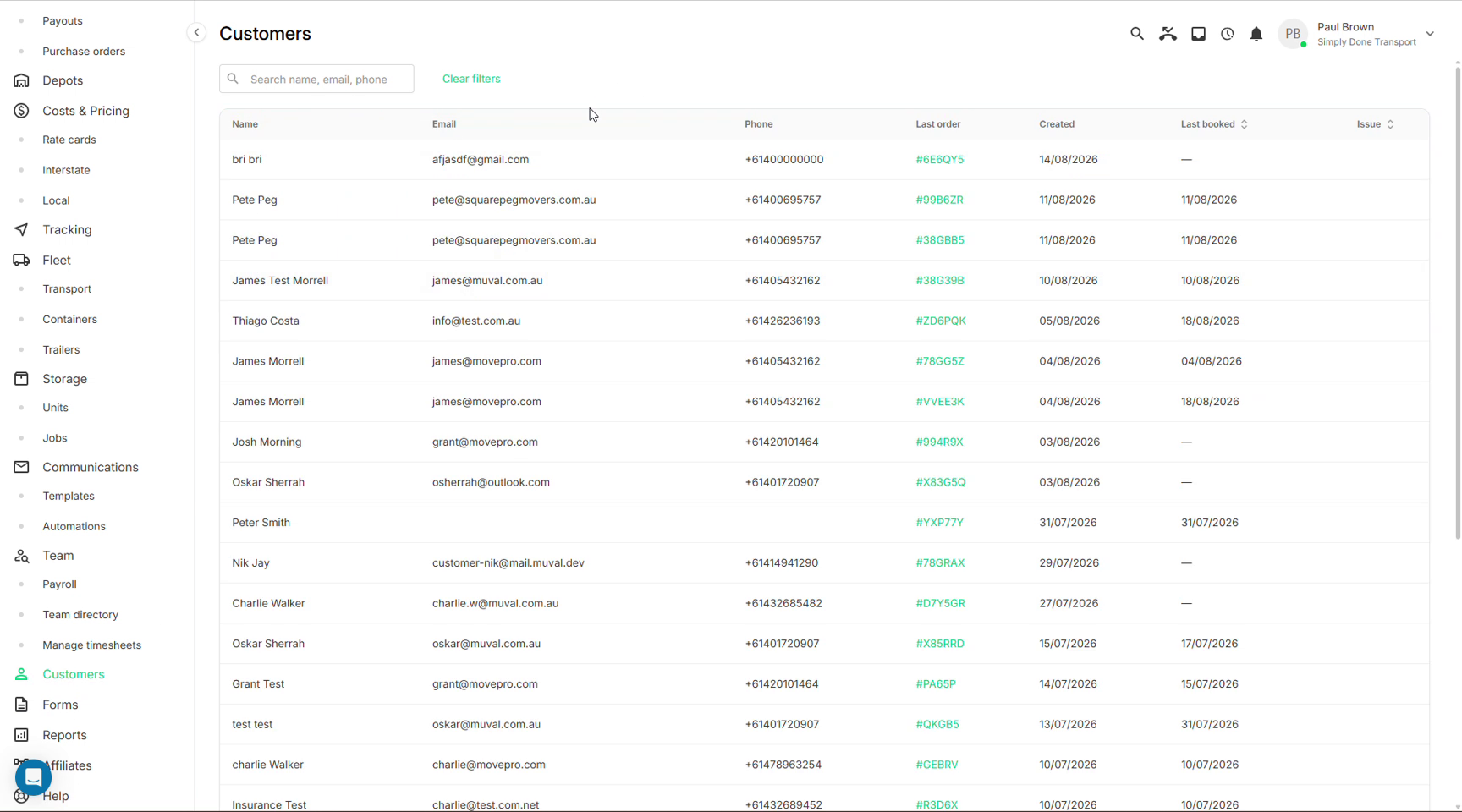
Customers is the master list of everyone you've moved or quoted: name, email, phone, their most recent order (linked), when they were created and last booked, and whether they have an open issue. It's the fastest way to answer "have we moved this person before?": search by name, email or phone and jump straight to the order.
Reports
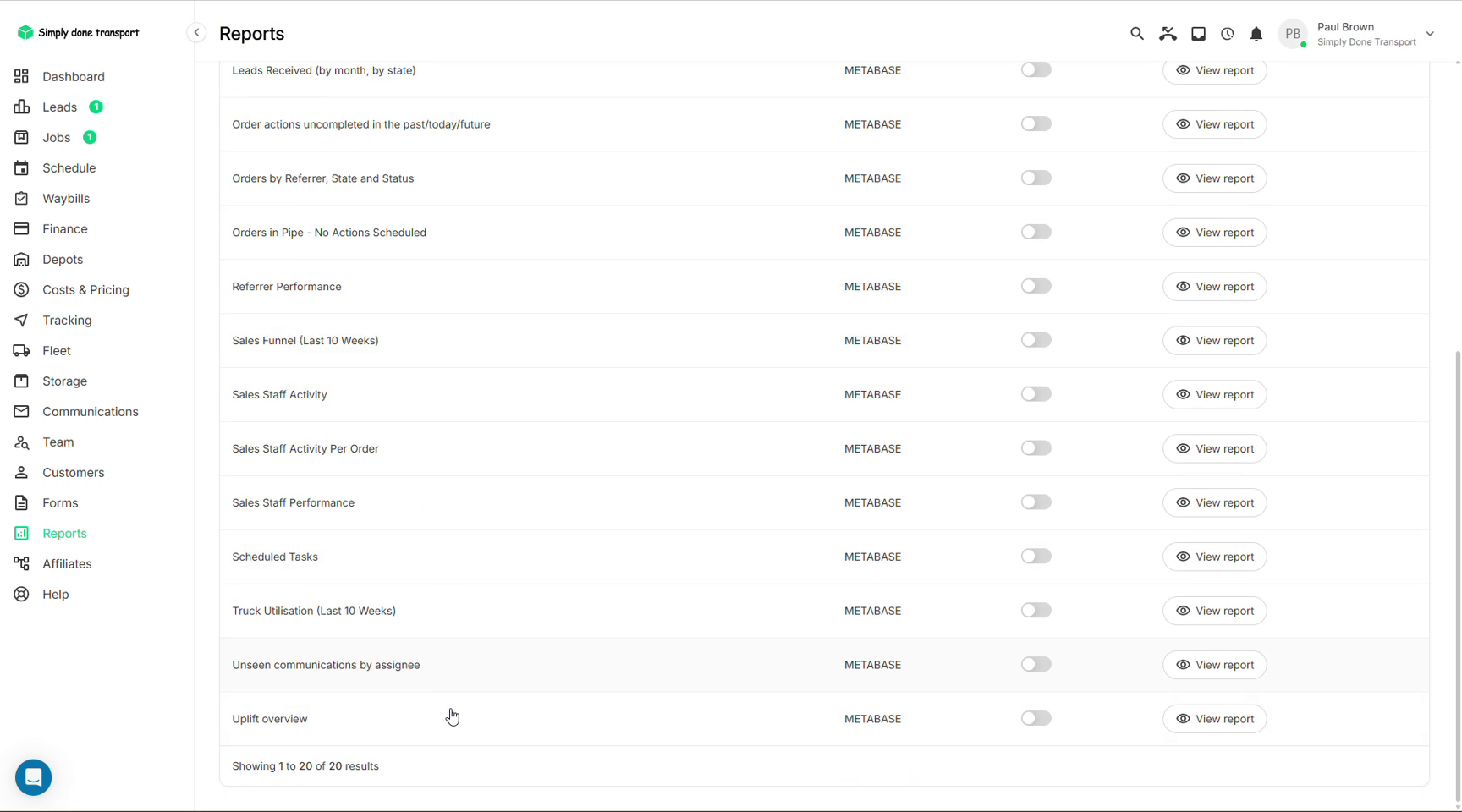
Reports is a library of prebuilt analytics: leads received by month and state, orders by referrer, the sales funnel, sales staff activity and performance, truck utilisation, unseen communications by assignee, uplift overview and more. Each report opens with View report; the toggles pin your favourites.
Waybills
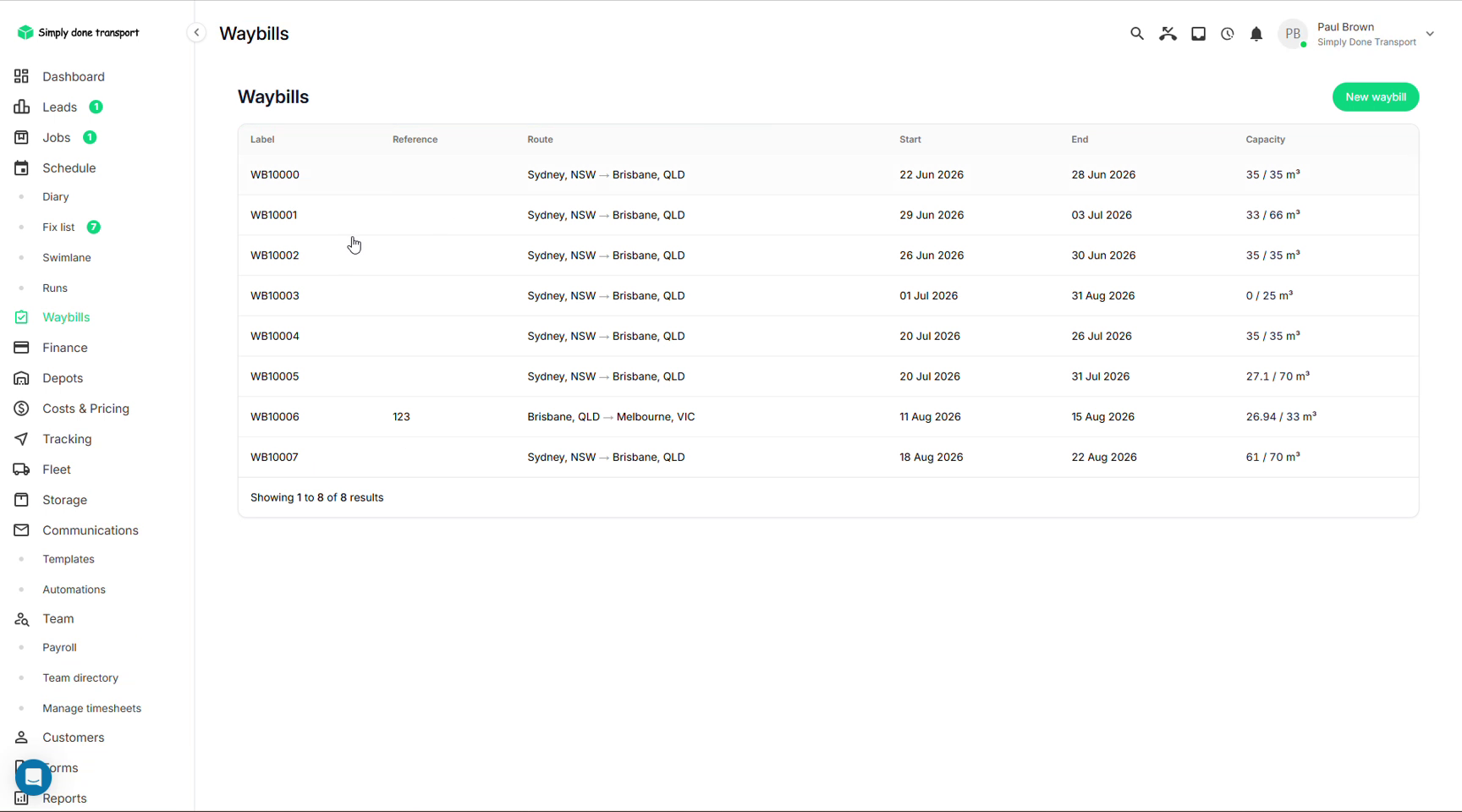
Waybills are the consolidation documents for interstate work: each one represents a vehicle running a route window (e.g. Sydney → Brisbane, 22–28 June) and shows how much of its capacity is used. Interstate jobs are grouped onto waybills so the paperwork for the whole load travels together. Day-to-day local work never touches this screen.