Fleet & storage
Everything the diary assigns has to exist first. Fleet holds your transports, containers and trailers (with capacities, documents and availability), and Storage holds the units you rent out. Get the capacities right here and the m³ maths everywhere else takes care of itself. Fleet pages are for the Owner, Admin, Manager and Operations roles (Sales can also see storage).
The transport list
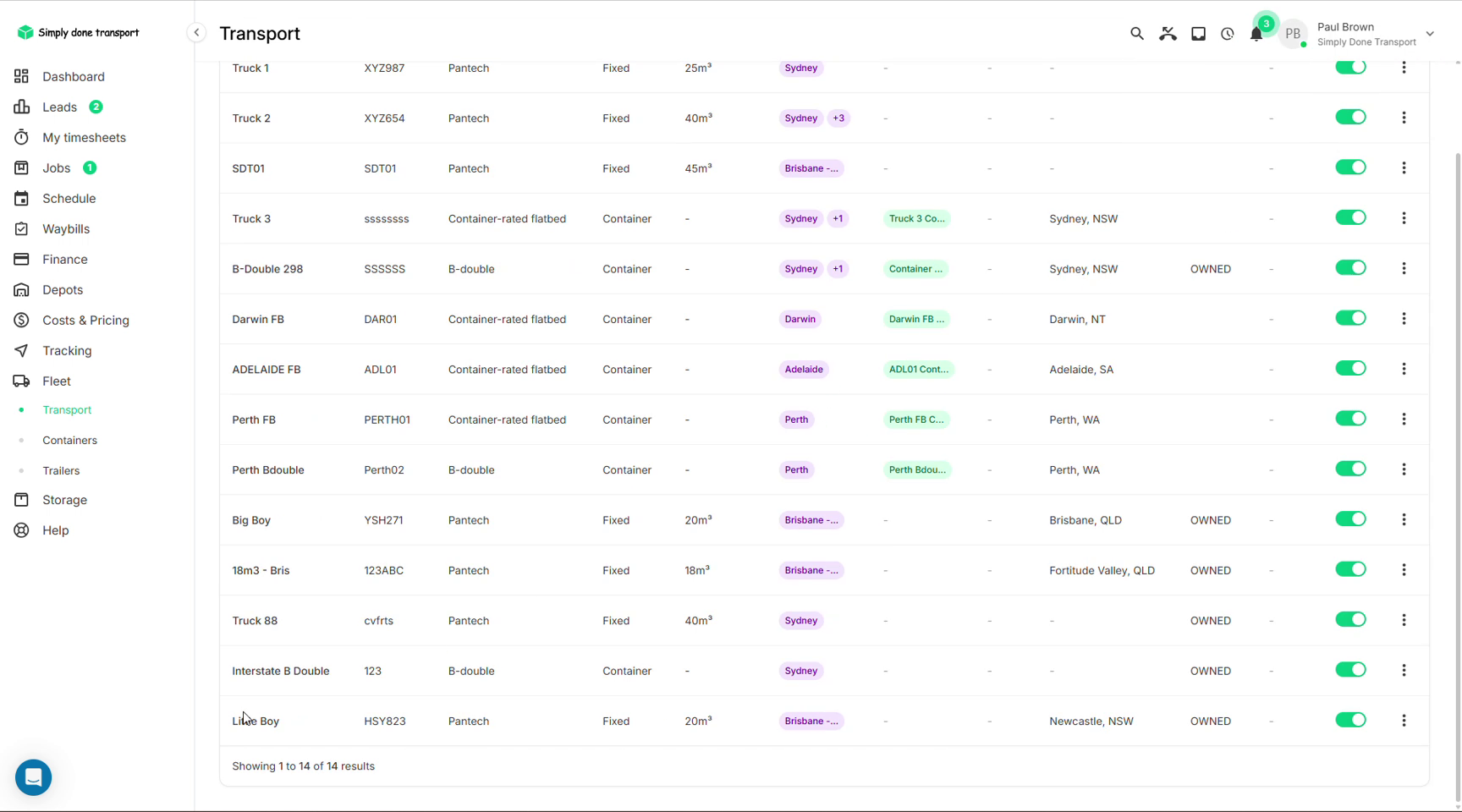
Fleet → Transport lists every vehicle. Two capacity types matter:
- Fixed: the vehicle has its own load space (a pantech with 25 m³, say);
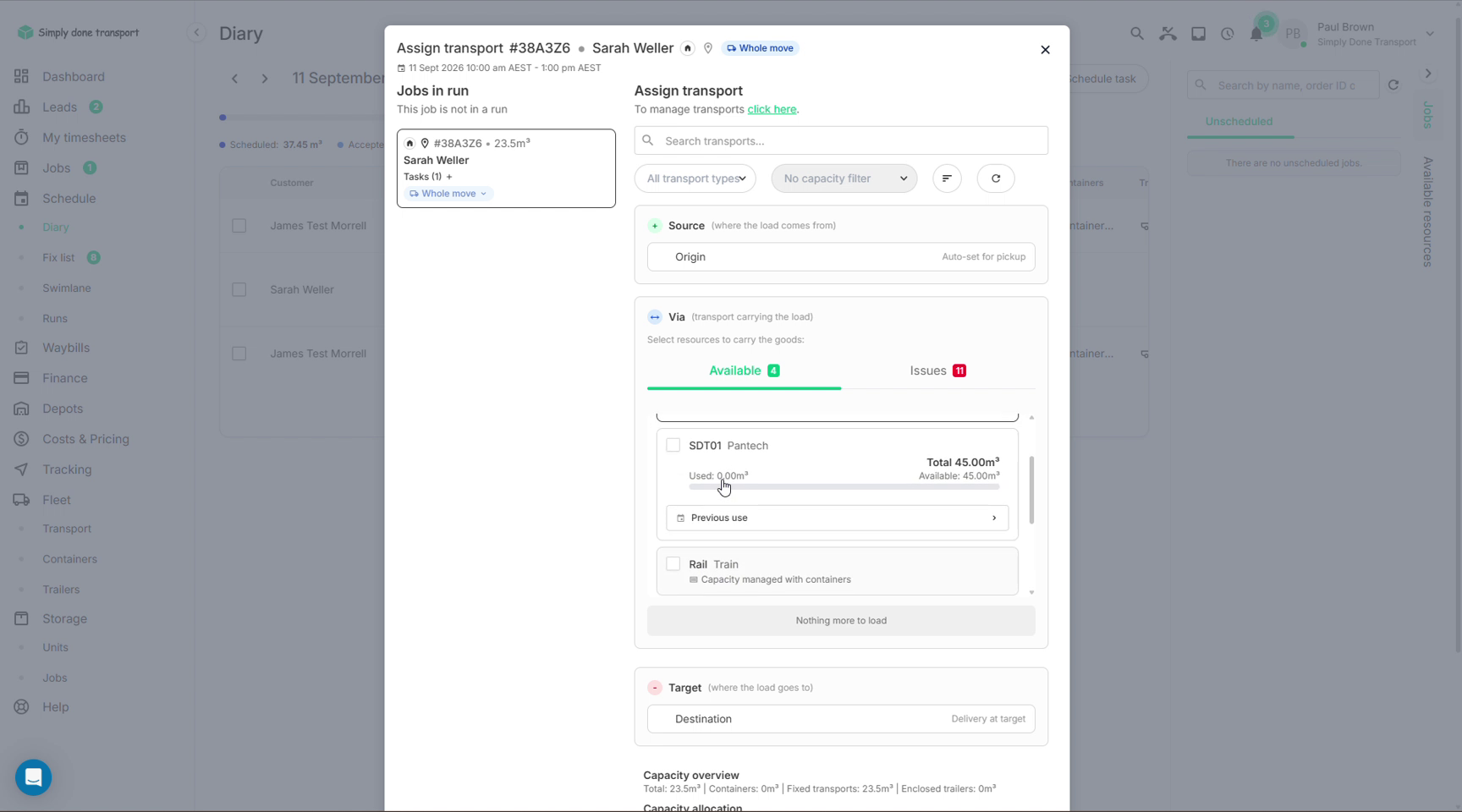
- Container: the vehicle carries its capacity as containers (flatbeds and B-doubles), so its usable space depends on what's mounted.
Each row shows the identifier, rego, type, capacity, home depot, any linked containers, current location, and an on/off toggle to retire a vehicle without deleting its history.
Add a transport
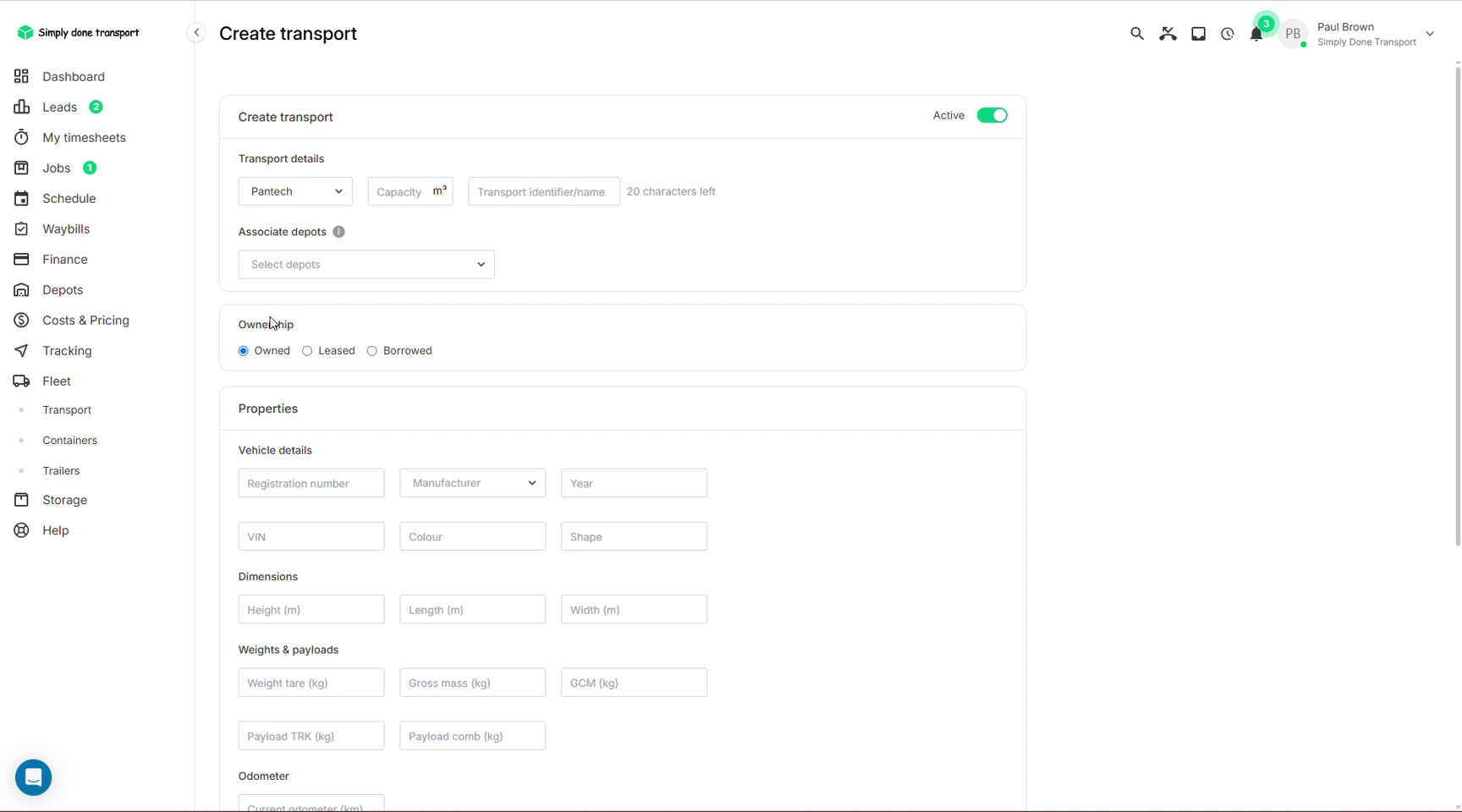
- Click Add transport. Pick the type (pantech, flatbed…), its capacity in m³ and a name; this is the label the diary shows.
- Associate depots so the vehicle appears for the right branch, and set the ownership: owned, leased or borrowed.
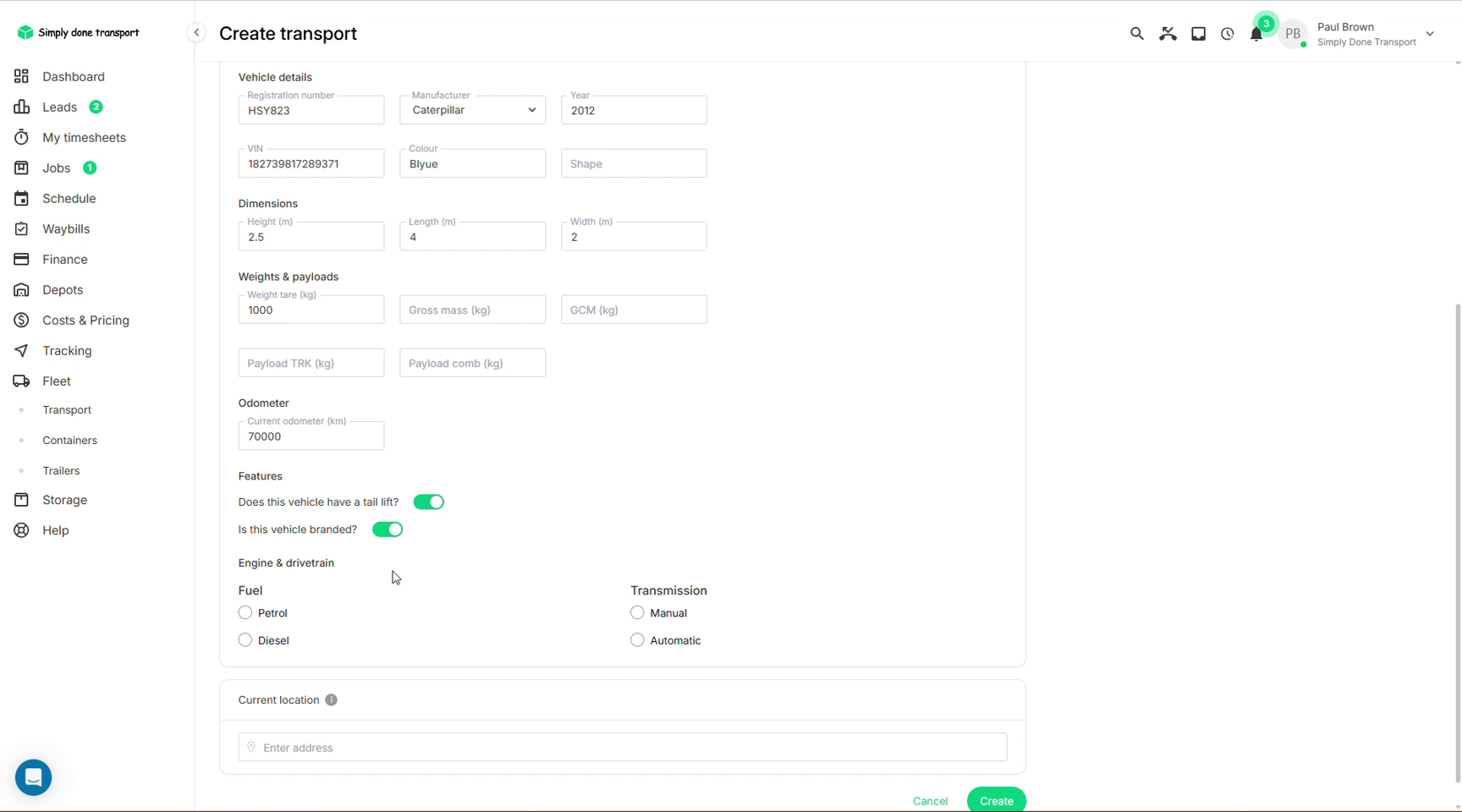
- Fill the Properties that matter to you: rego, manufacturer, year, VIN, dimensions, weights, odometer.
- Flag Features: tail lift and branding, useful when a job needs one or the other.
- Set the current location and click Create.
Documents, expiries and block-outs
Open any transport to manage its paperwork and availability:
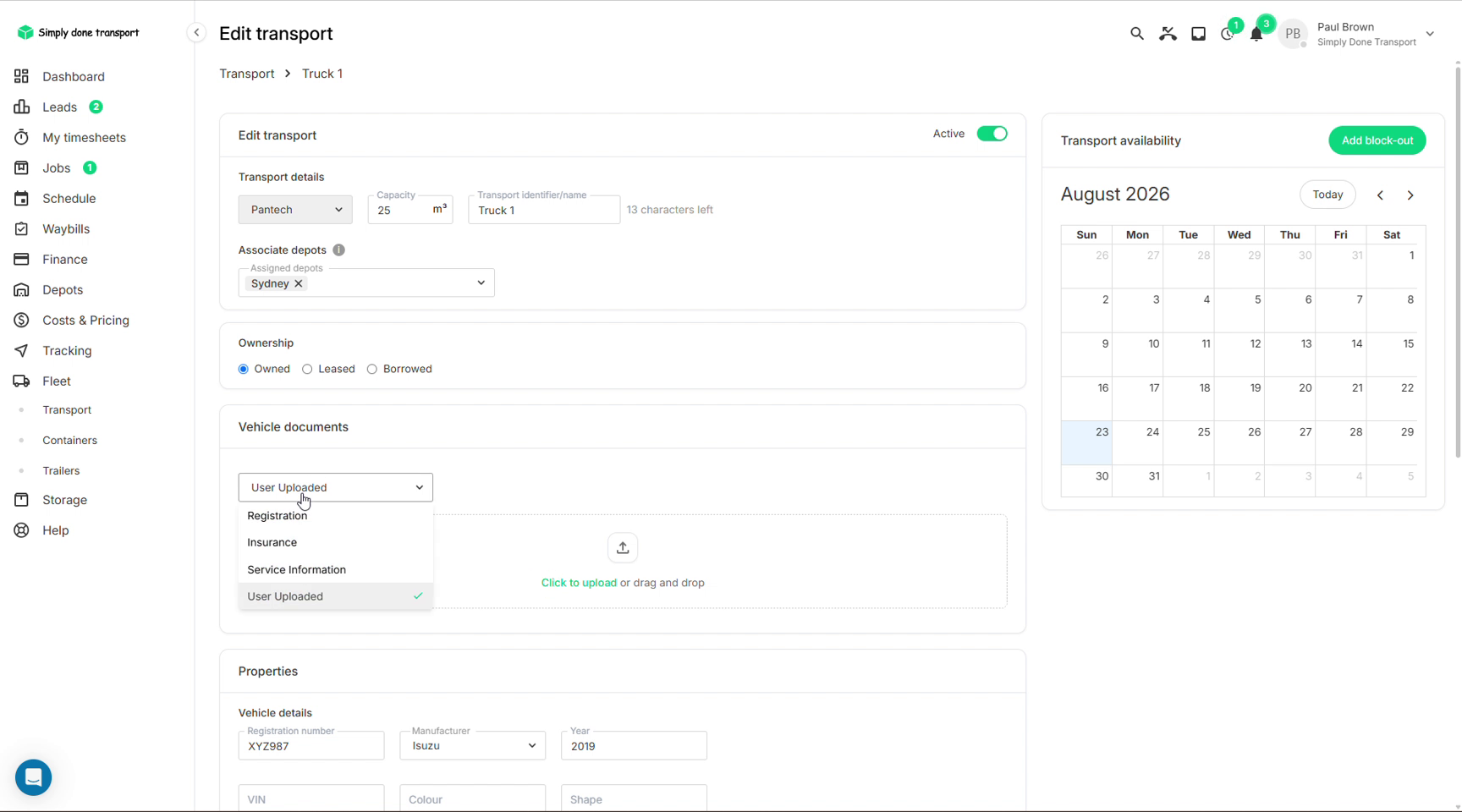
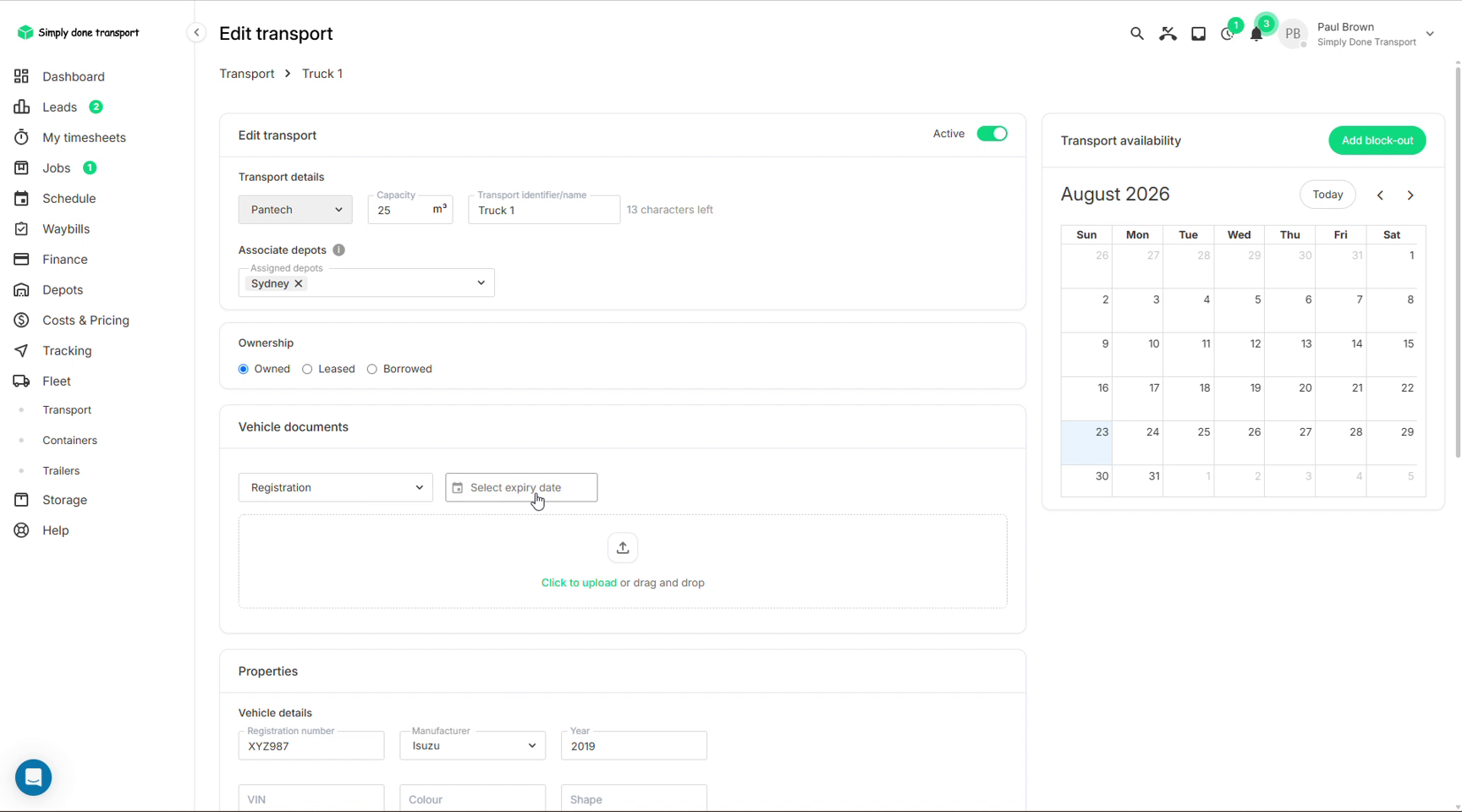
- Vehicle documents: upload registration, insurance and service records (or anything else). Give each an expiry date and Movepro reminds you before it lapses.
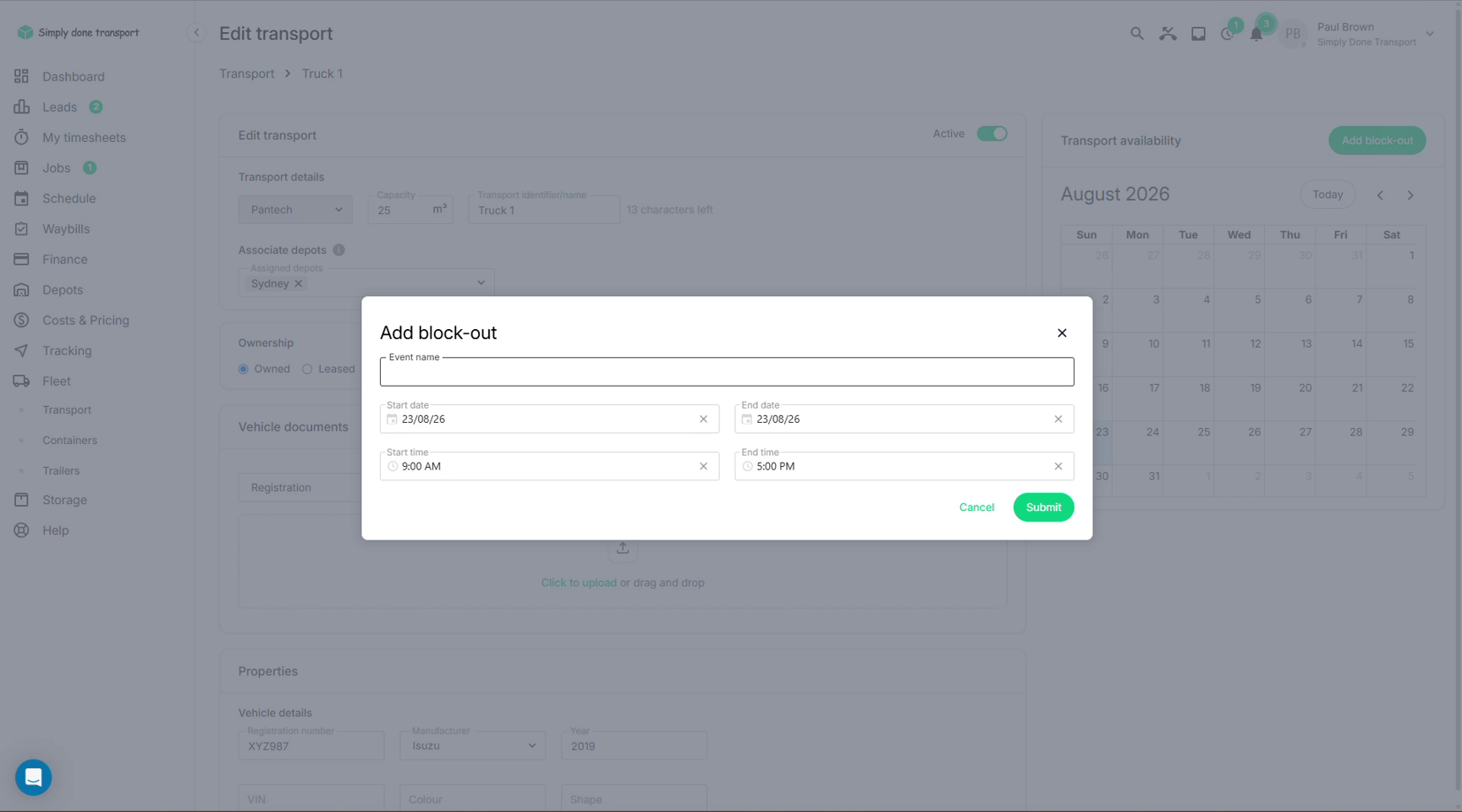
- Transport availability: the calendar on the right shows the vehicle's commitments; Add block-out takes it out of scheduling for a window (servicing, repairs), so the diary won't offer it.
Containers and rail
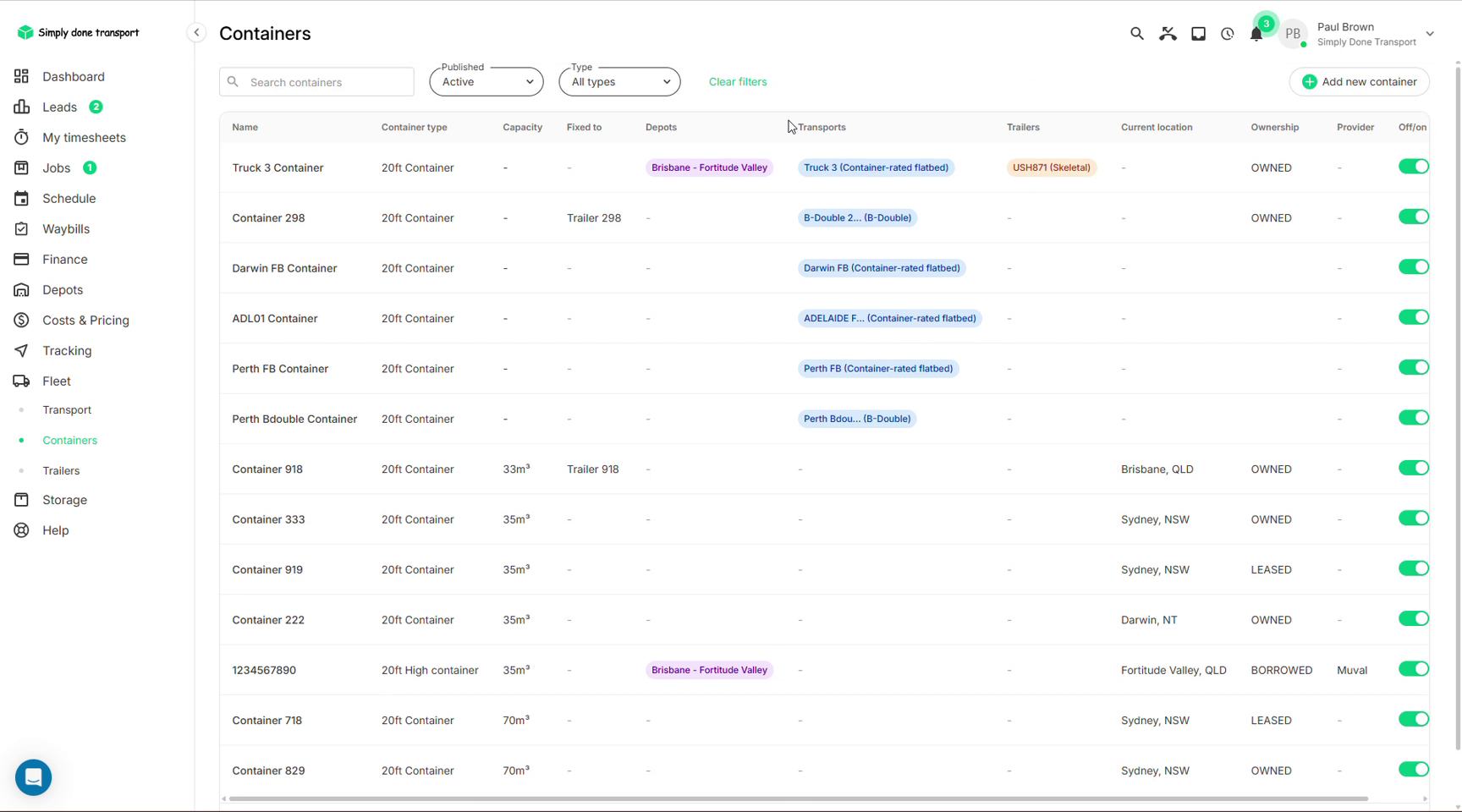
Fleet → Containers tracks each box: type (20 ft, high-cube), capacity, what it's fixed to or mounted on, its current location, and whether it's owned, leased or borrowed (with the provider). Containers are how rail freight is priced and scheduled; a train's capacity is "managed with containers", so assigning rail transport means choosing boxes.
Trailers
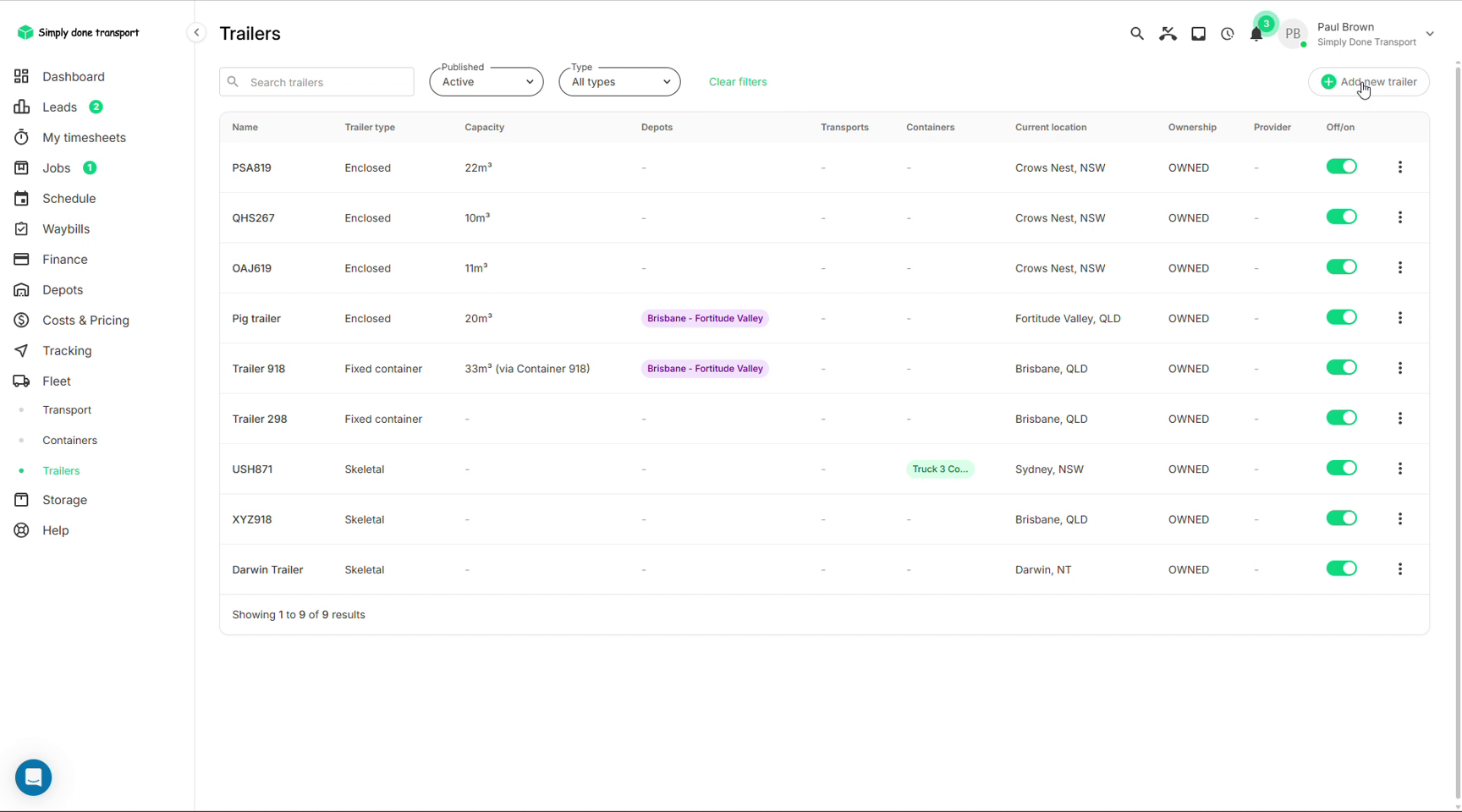
Fleet → Trailers holds the towed kit: enclosed trailers with their own m³, fixed container trailers whose capacity comes from the container bolted to them, and skeletal trailers that carry whatever container you load. The diary assigns them from their own column, just like trucks.
Storage units
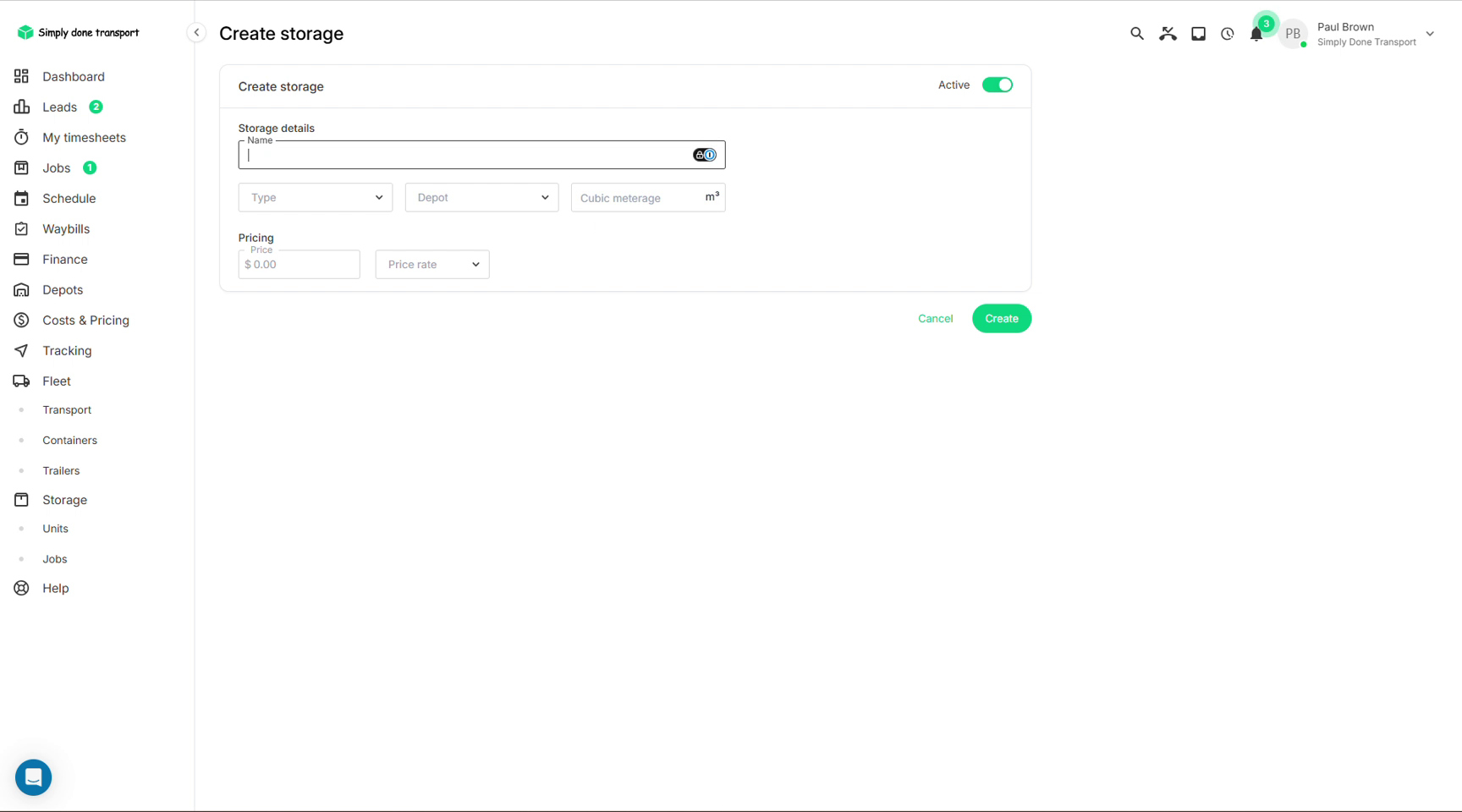
Storage → Units is your rentable space: each unit has a name, type, depot, cubic meterage and a price with its rate (e.g. per month). Once units exist, storage jobs sell against them: a storage service on an order occupies a unit, and Storage → Jobs lists what's currently in store. Storage must be enabled as a service in Booking settings for customers to book it themselves.