Finance & Xero
Movepro is not designed to be your accounting system, and doesn't try to be. It is the source of truth for your operational and sales information: the jobs, the payments received, the invoices raised. Those invoices sync to Xero, and Xero is where reconciliations, BAS and end-of-year work happen. This page covers the finance side: connecting Xero, mapping accounts, how invoices sync (and how voiding works), the Finance views, the per-order P&L, and payouts.
Connect Xero and set the sync defaults
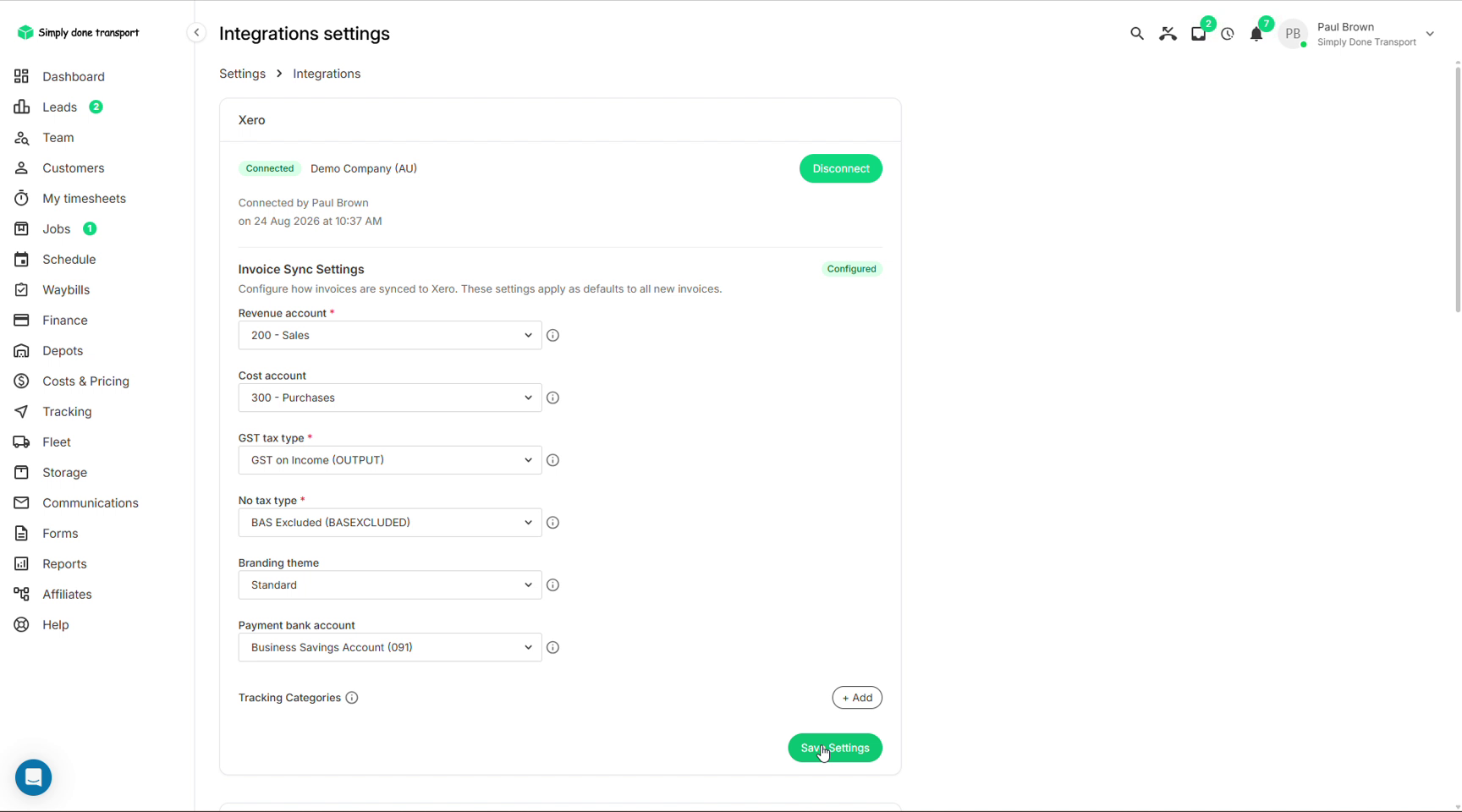
An admin connects the account from Settings → Integrations: click Connect to Xero, authorise access in Xero, and the card comes back as Connected. The Invoice Sync Settings then appear underneath. These are the global fallbacks the system uses whenever nothing more specific is set:
- Revenue account and Cost account: where sales and purchases land by default (e.g. 200 - Sales and 300 - Purchases);
- GST tax type and No tax type (e.g. GST on Income and BAS Excluded; how prices display with or without GST is set in Payment settings);
- Branding theme: which Xero invoice template to use;
- Payment bank account: the account invoice payments are recorded against. Worth setting deliberately.
Every one of these dropdowns is fed live from your Xero organisation, so what you see is your own chart of accounts.
Map accounts on catalogue items
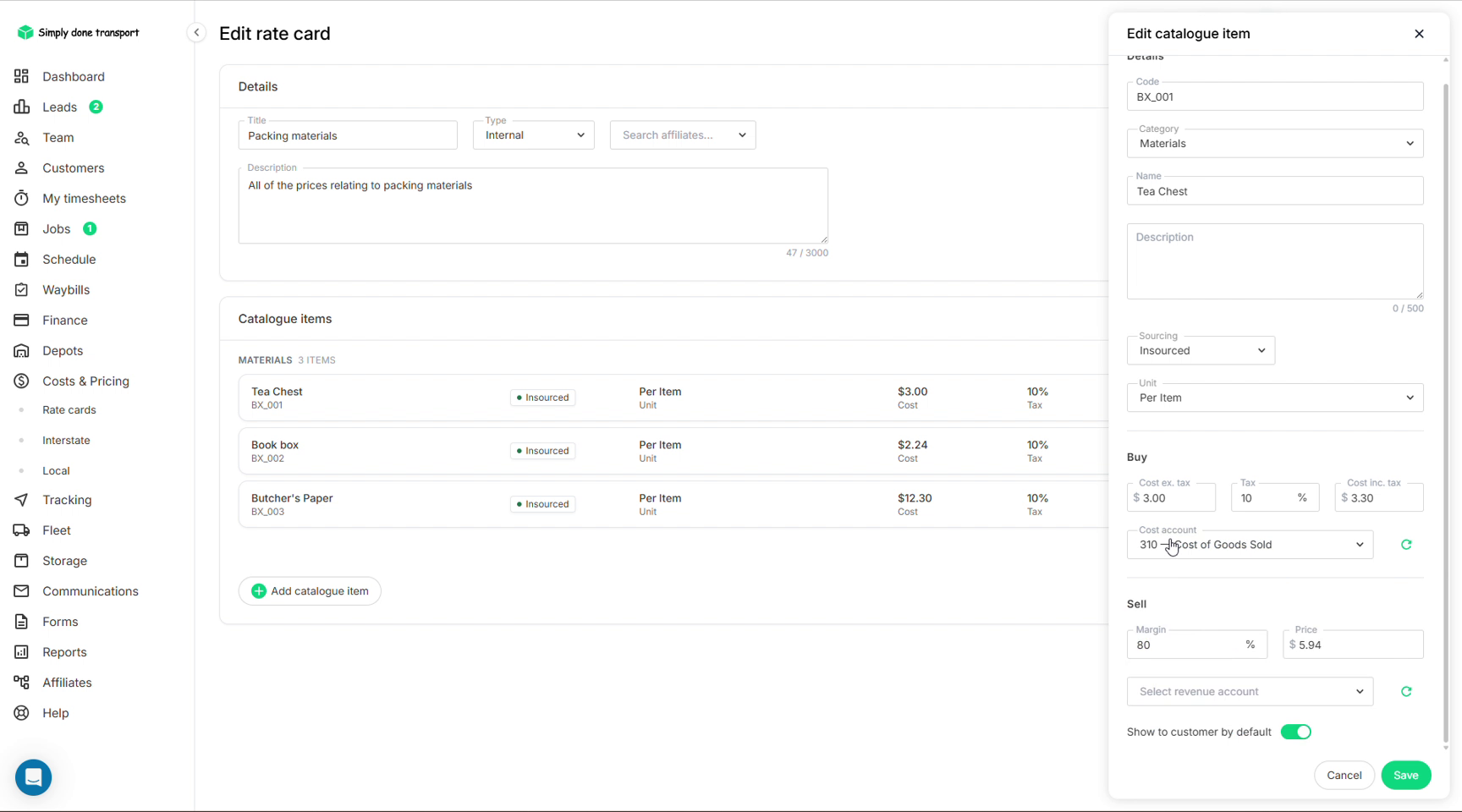
For revenue tracking that sorts itself, put the mapping on the catalogue items. Open a rate card, edit an item, and two extra fields appear once Xero is connected: a cost account in the Buy section and a revenue account in the Sell section. You might buy packing materials against Cost of Goods Sold and sell them under Other Revenue, while your hourly moves stay in Sales. When these items land on an invoice, each line arrives in Xero already coded.
The payment status column
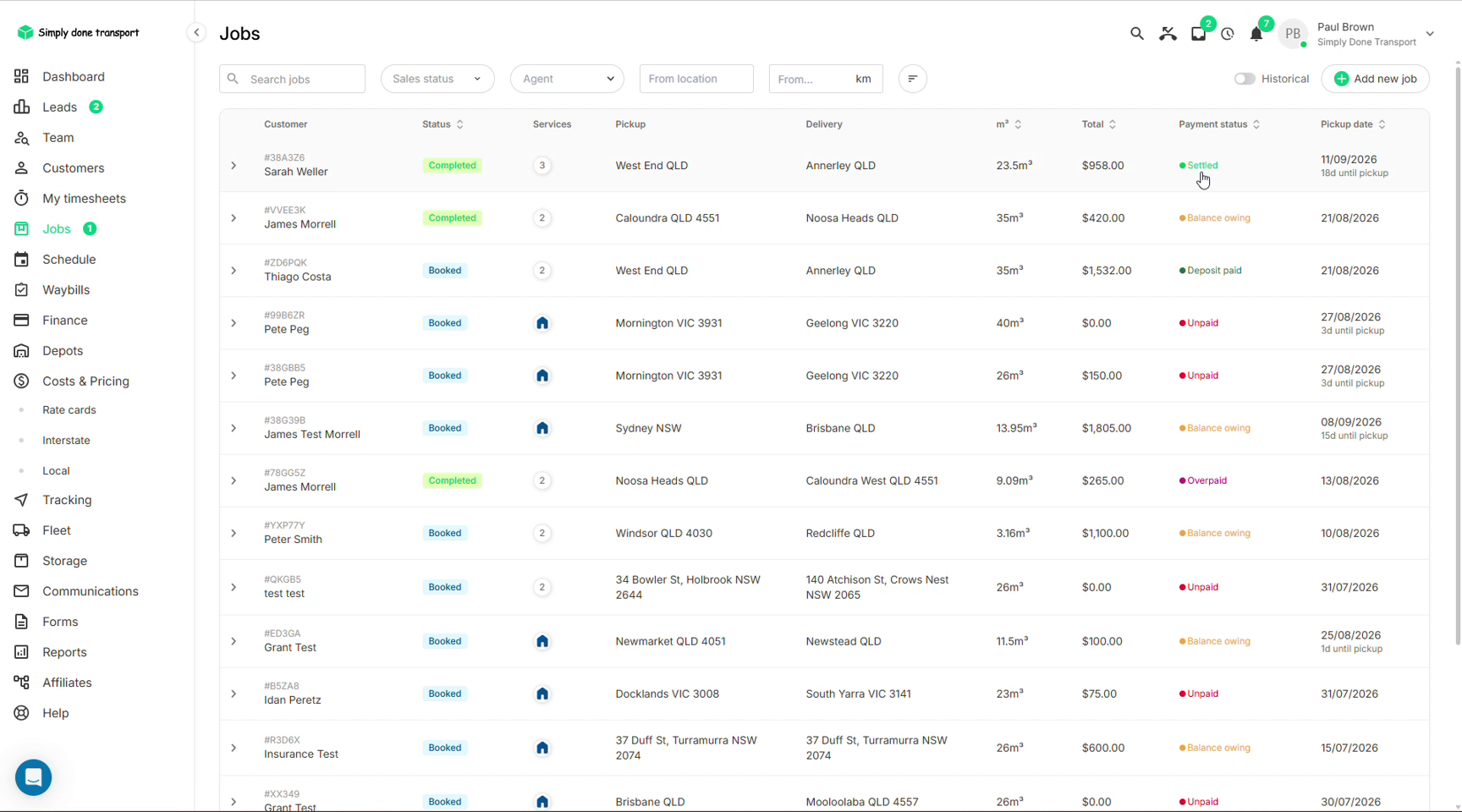
The Jobs list carries two status columns. Status is the order itself (Booked, Completed); the one that matters to finance is Payment status, which compares money received against the order total:
- Unpaid no payments received yet;
- Deposit paid the deposit is in, nothing more;
- Balance owing some money received, but less than the order total;
- Settled payments received match the order total exactly;
- Overpaid payments exceed the order total, which also deserves a look.
How invoices sync to Xero
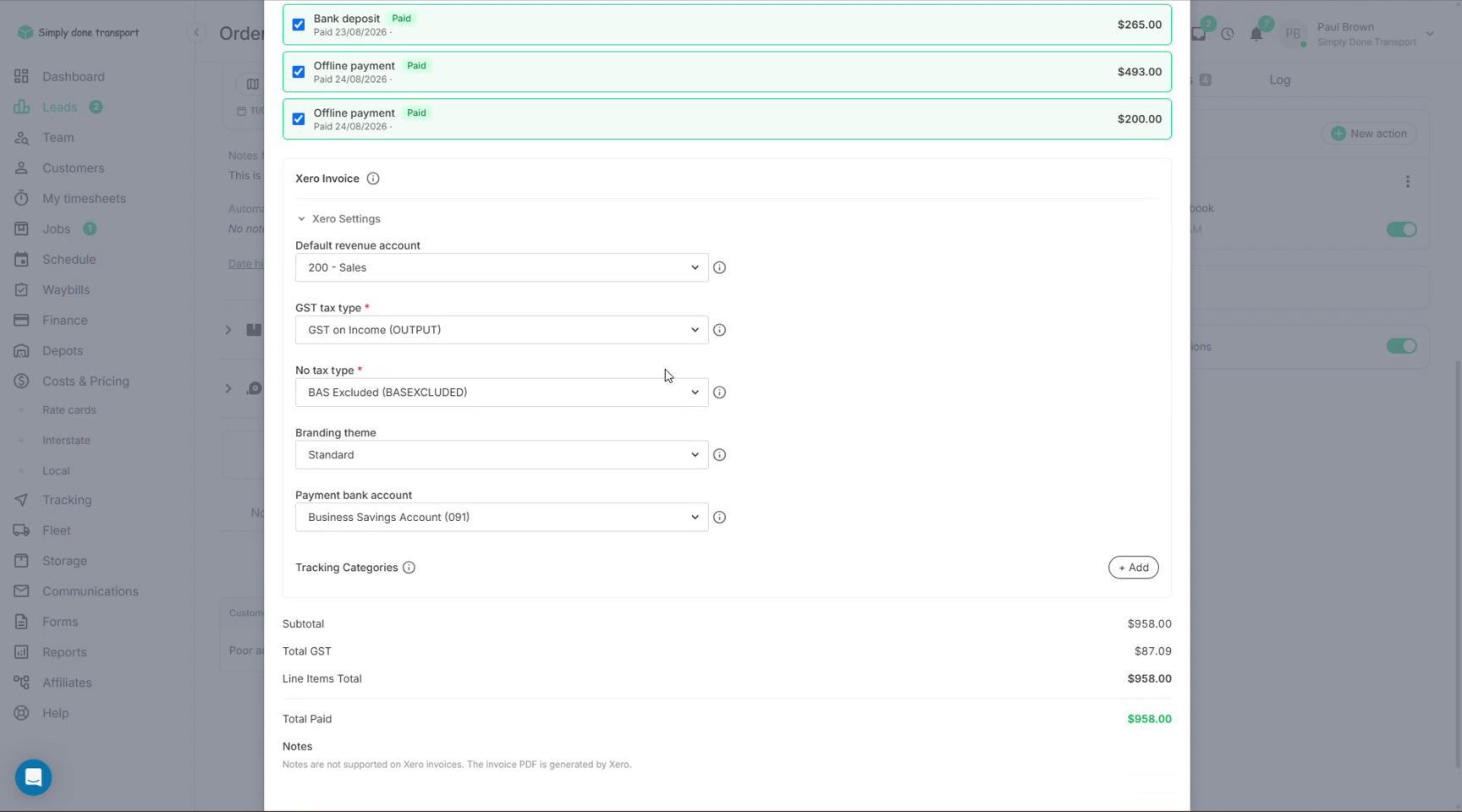
Invoices are created on the order, and with Xero connected the editor becomes account-aware. Each line item carries its own revenue account (prefilled from the catalogue mapping, changeable per line), and the Xero Settings section can override the whole invoice instead: one revenue account for everything, tax types, the branding theme and the payment bank account. Payments ticked on the invoice flow through with it, so the invoice arrives in Xero with its payments already applied. Invoice numbering is managed by Xero.
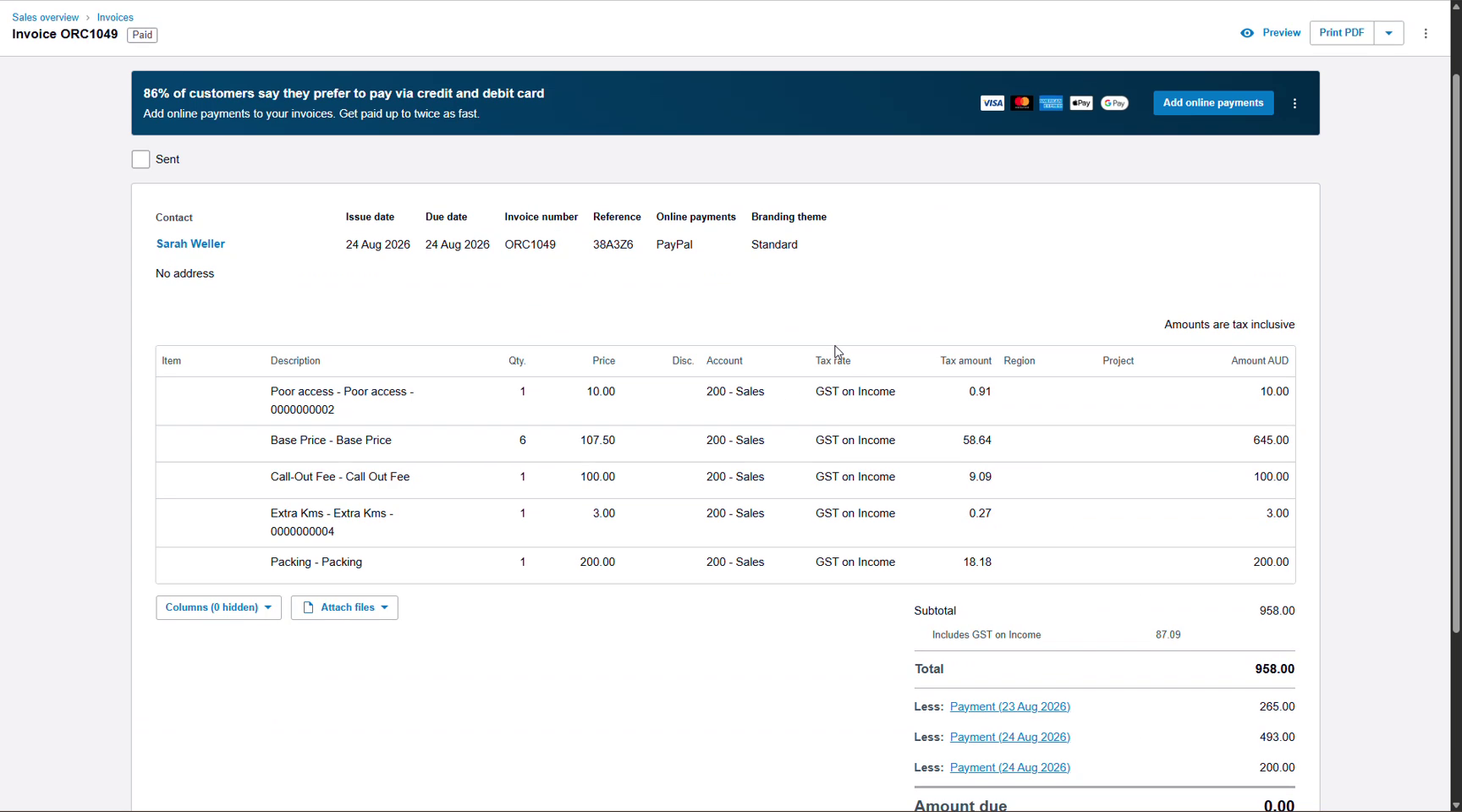
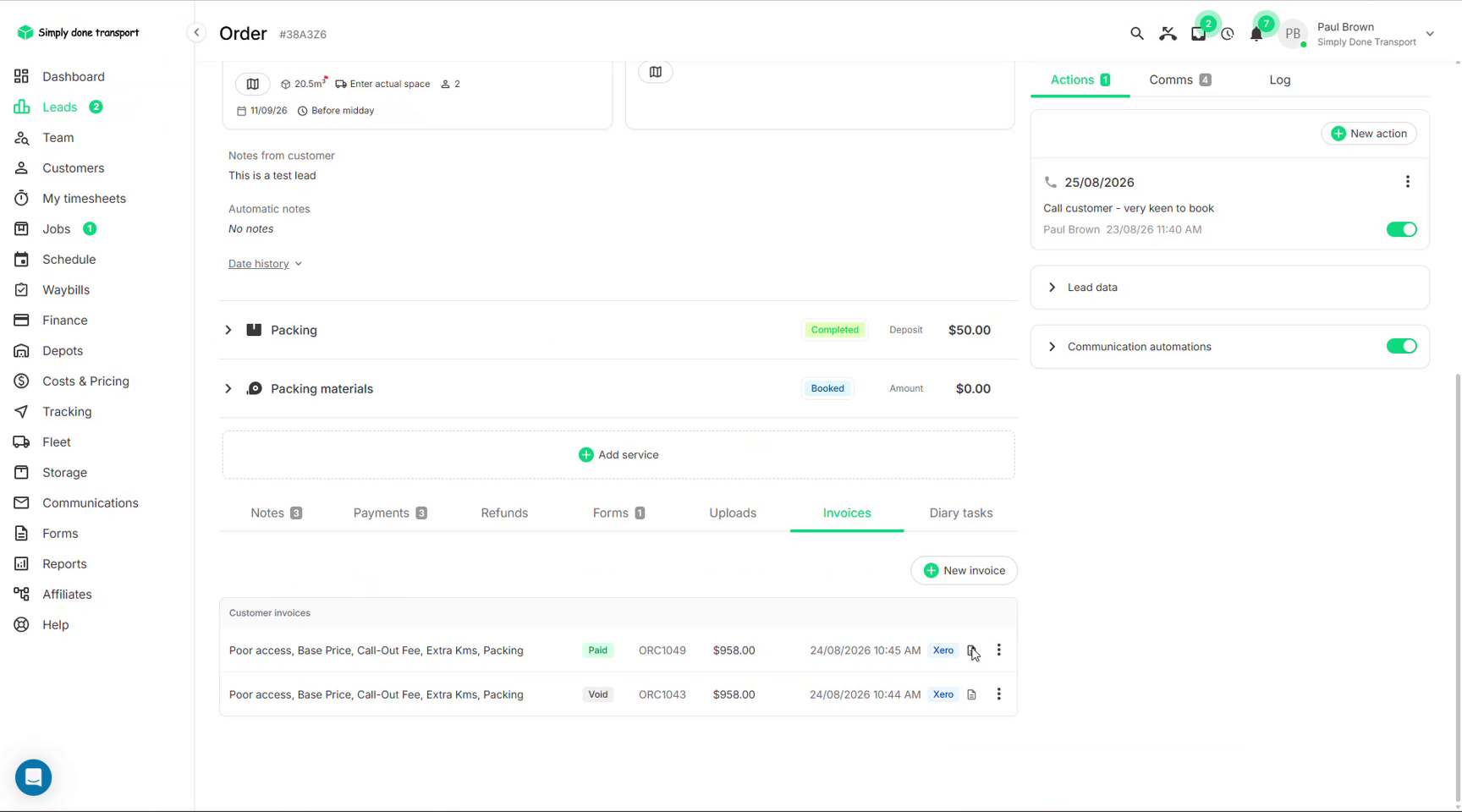
A saved invoice shows a Xero tag in the Invoices tab, meaning it synced. The row's Sync from Xero action re-pulls it whenever the Xero side changes. In Xero itself, the invoice looks exactly as built: the line items with their accounts, the linked payments, and nothing due.
Voiding an invoice, and fixing sync errors
There is no draft state for invoices. Once created, an invoice is treated as sent, and by accounting convention you don't edit a sent invoice: you void it and create a new one (the row's ⋮ menu has both). Two rules keep this clean:
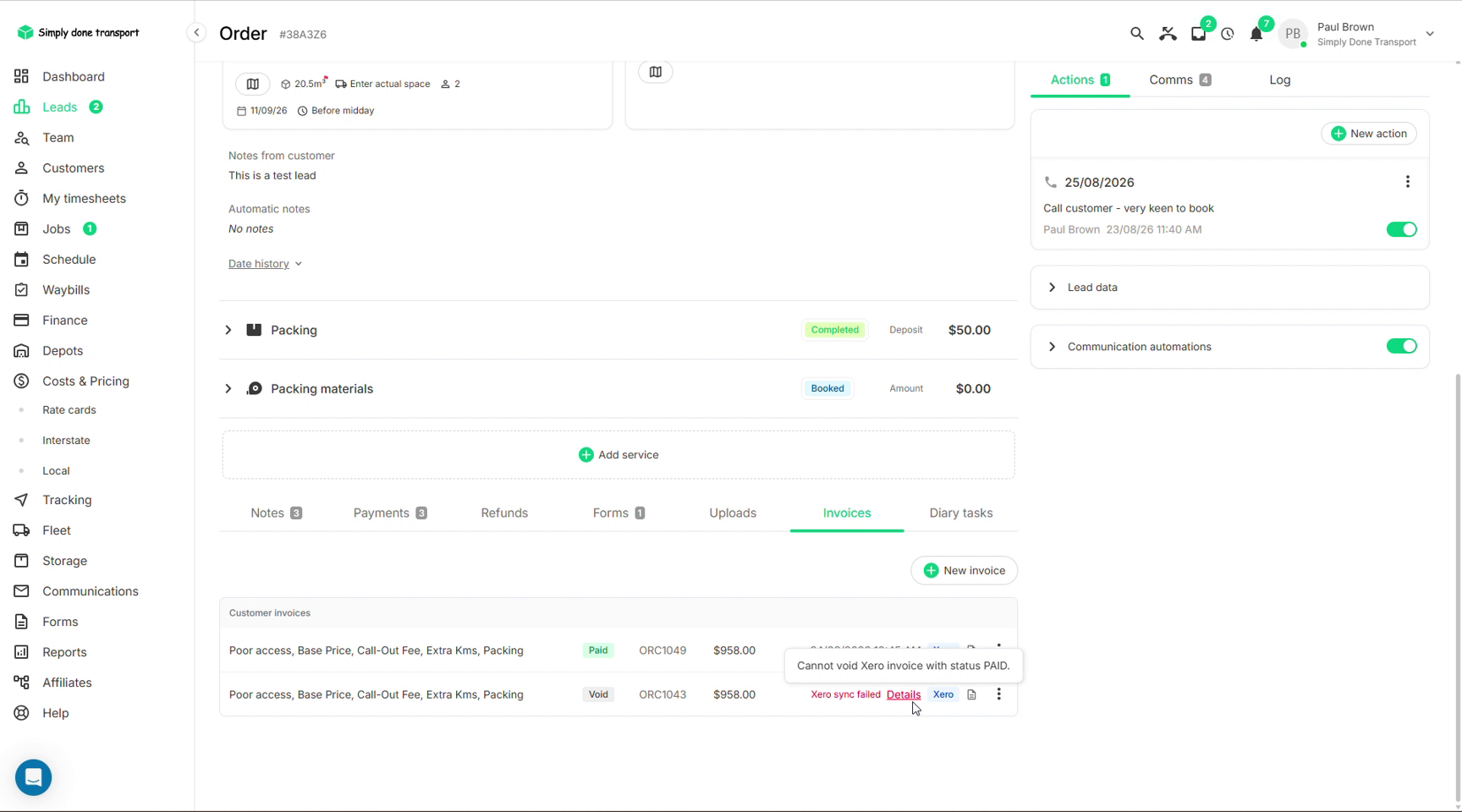
- You can't void an invoice that has payments applied. Movepro will report "Cannot void Xero invoice with status PAID". Un-assign the payments from the invoice in Xero first, then void.
- If a void comes back with a red Xero sync failed on the order's Invoices tab (the Details link explains why; sync failures surface there, not in the Finance menu), fix it on the Xero side: mark the invoice void in Xero, then use Sync from Xero on the row to pull the corrected status back.
The Finance menu: payments, transactions, purchase orders
The Finance item in the left menu holds the company-wide money views. Only the Owner, Admin and Finance roles see it; managers, operations and sales staff work with money on the order itself.
- Payments: every payment logged in the system, searchable by customer, note, status and method. Pending means the money hasn't been confirmed yet; red means a payment failed and someone should call the customer. Offline payments are confirmed here with Mark as Paid, and pending card payments are charged with Process payment. The walkthrough lives in Payments & invoicing.
- Transactions: the card-gateway ledger, filterable and exportable; see Finance → Transactions.
- Purchase orders: raised automatically when a quote uses an outsourced catalogue item linked to an affiliate. The PO lands here against that affiliate, and the cost flows through to the order's P&L.
- Payouts appears as a fourth item once Stripe card payments are set up; it gets its own section below.
The order P&L
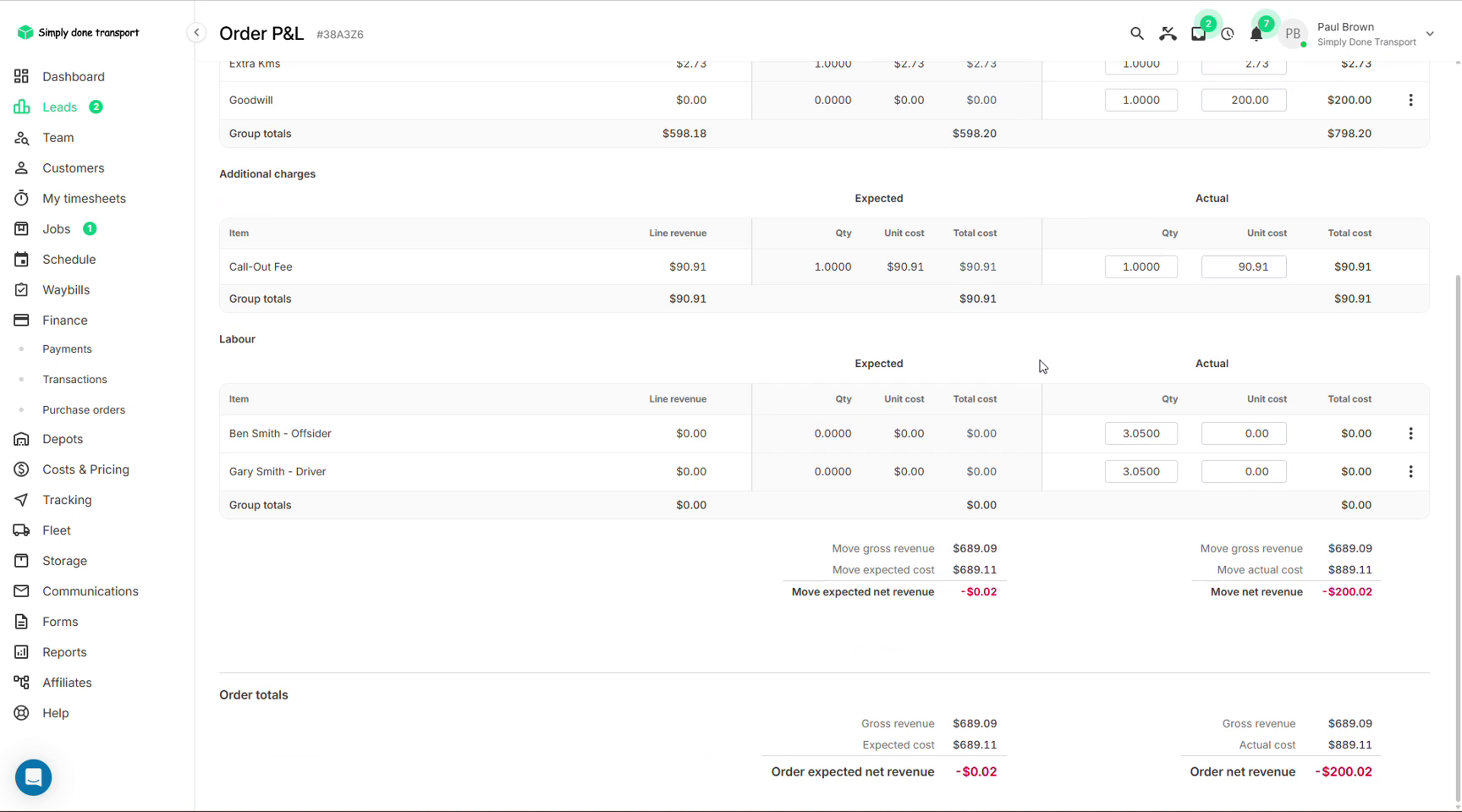
Every order has a Profit & loss view (the button sits in the order header), and it becomes meaningful once the order is marked complete. Because quotes are built from catalogue items that carry both a cost and a sell price, the P&L can lay out Expected against Actual for every line: the revenue items, additional charges like the call-out fee, and labour, where the assigned crew's hours are costed at their rate-role rates.
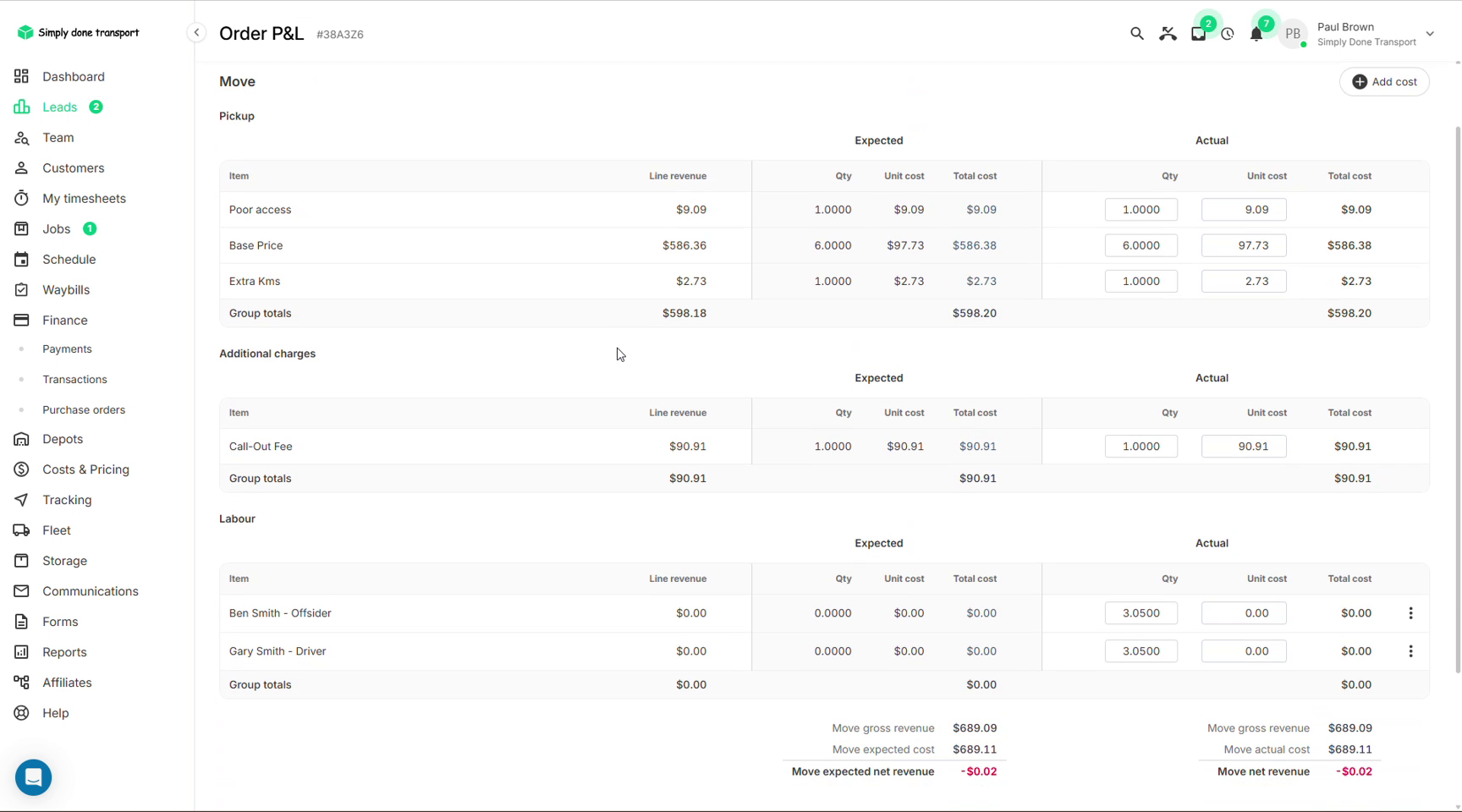
Add cost drops an unplanned line into the actuals so the ledger stays honest: a $200 goodwill payment, a parking fine, a tolls surprise. The bottom of the page rolls everything up to net revenue per service and for the whole order.
Payouts: card money on the way to your bank
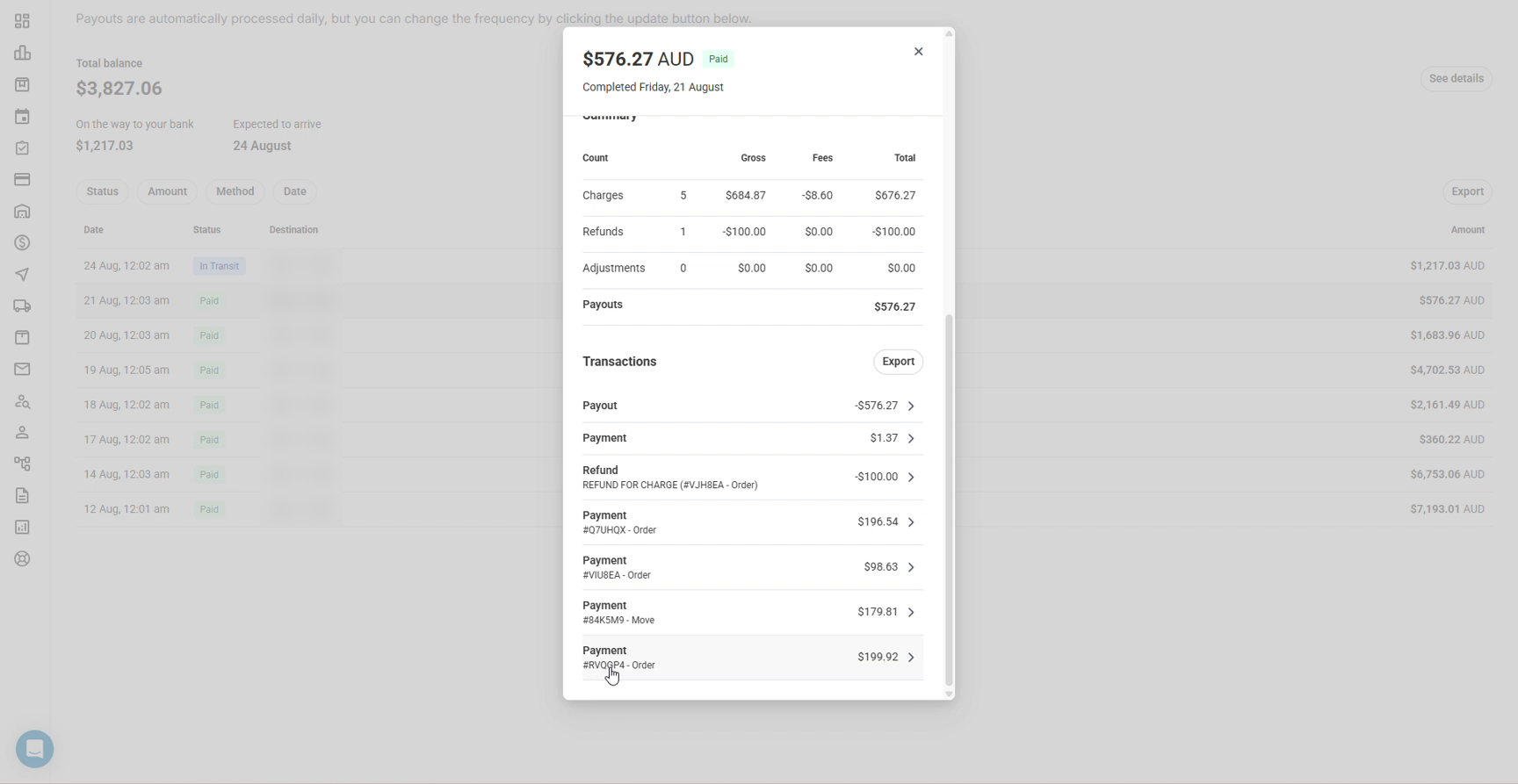
When card payments run through Stripe, cleared money is paid out to your bank automatically: daily by default, with the frequency changeable from the Payouts page. Each payout bundles the day's transactions into a single bank deposit, which is why the deposit on your statement rarely matches any one job. Finance → Payouts is the view that unpicks them: every payout with its date, status (In Transit, then Paid) and destination account, plus the running balance still on its way. Payouts is the most tightly gated page in the CRM: only the Owner and Finance roles can open it.
Click a payout to see exactly what's inside: a timeline (initiated, in transit, completed), the statement descriptor to find it on your bank statement, and a summary of charges, refunds, adjustments and fees, followed by every transaction with its order reference. That's reconciliation sorted: for the $576.27 that landed, look up each order reference in Movepro and tick them off.