Booking
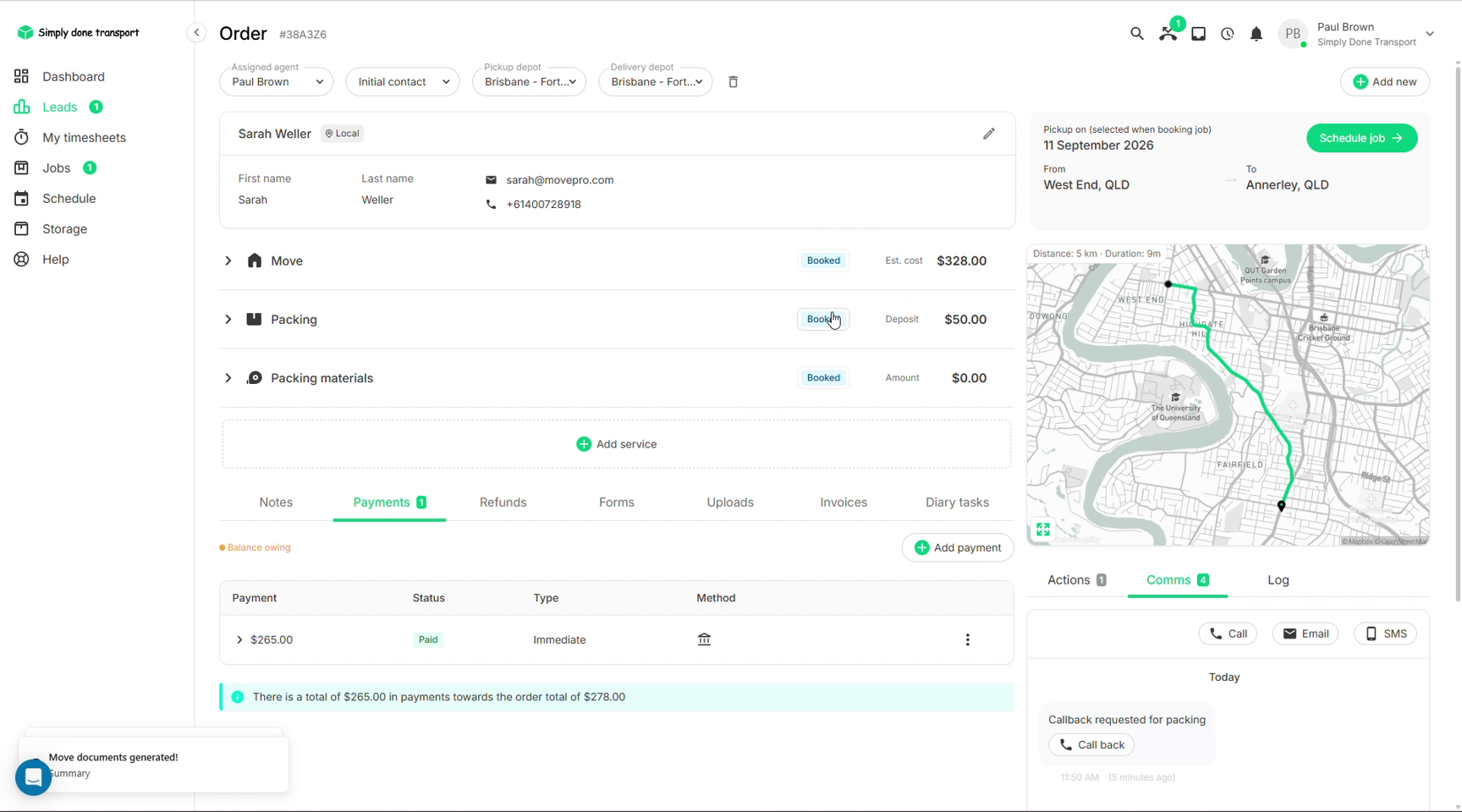
A quoted job becomes a booked job in one of two ways: the customer accepts and pays a deposit through the online portal, or you book it for them over the phone with the Book service dialog. Either way the service status flips to Booked and the job is ready to schedule.
The customer books online
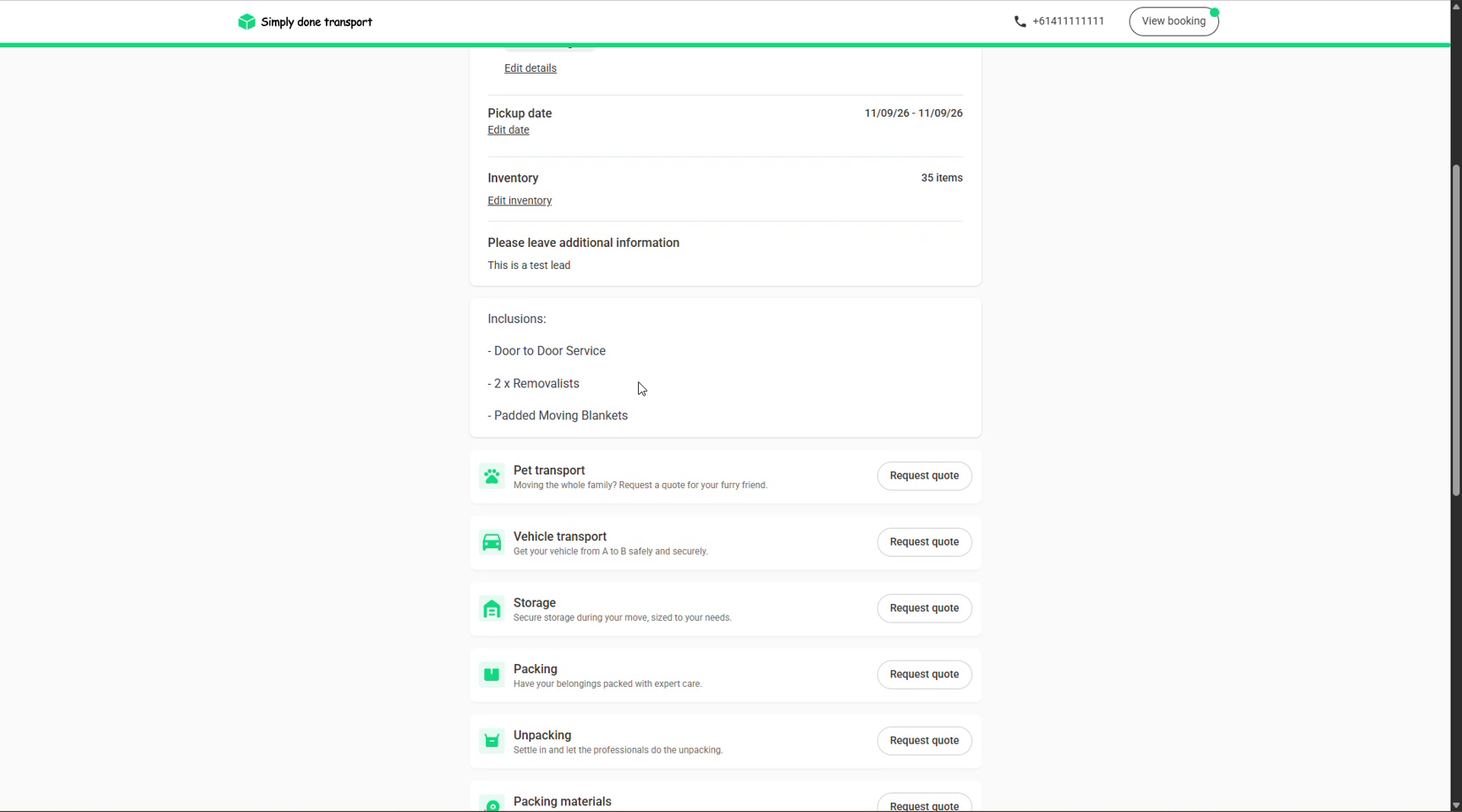
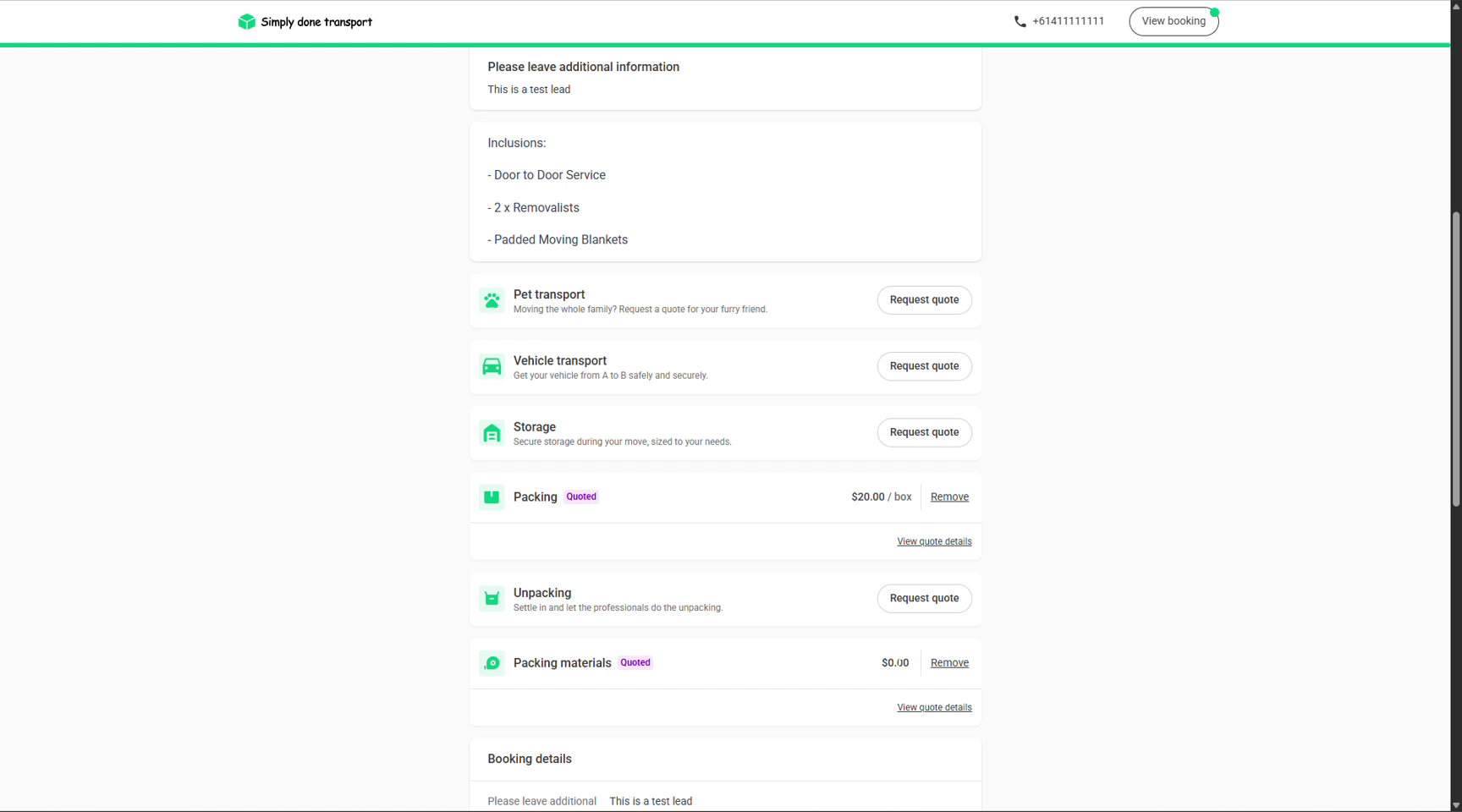
The quote email contains a link to the customer portal. After choosing a quote, the customer lands on a review page: their addresses, pickup date and inventory (all editable), what the service includes, and optional extras they can add: pet transport, vehicle transport, storage, packing, unpacking and packing materials. From there they confirm the booking and pay the deposit; once they do, the job books itself.
You book it: Book services
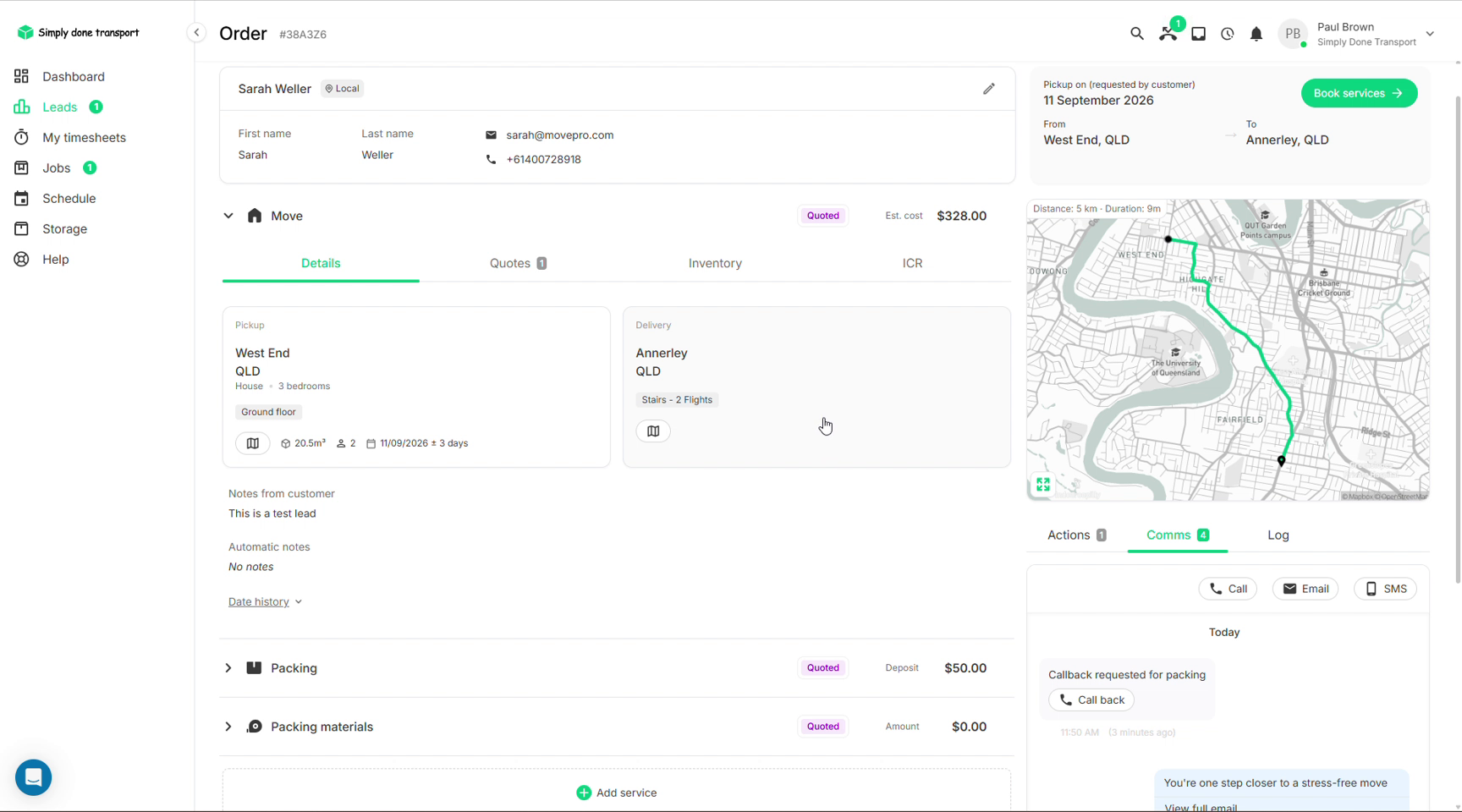
Customer rings up and says "let's do it"? Book it on the spot and take the deposit in the same dialog. On a quoted order the green Book services button sits in the top-right corner.
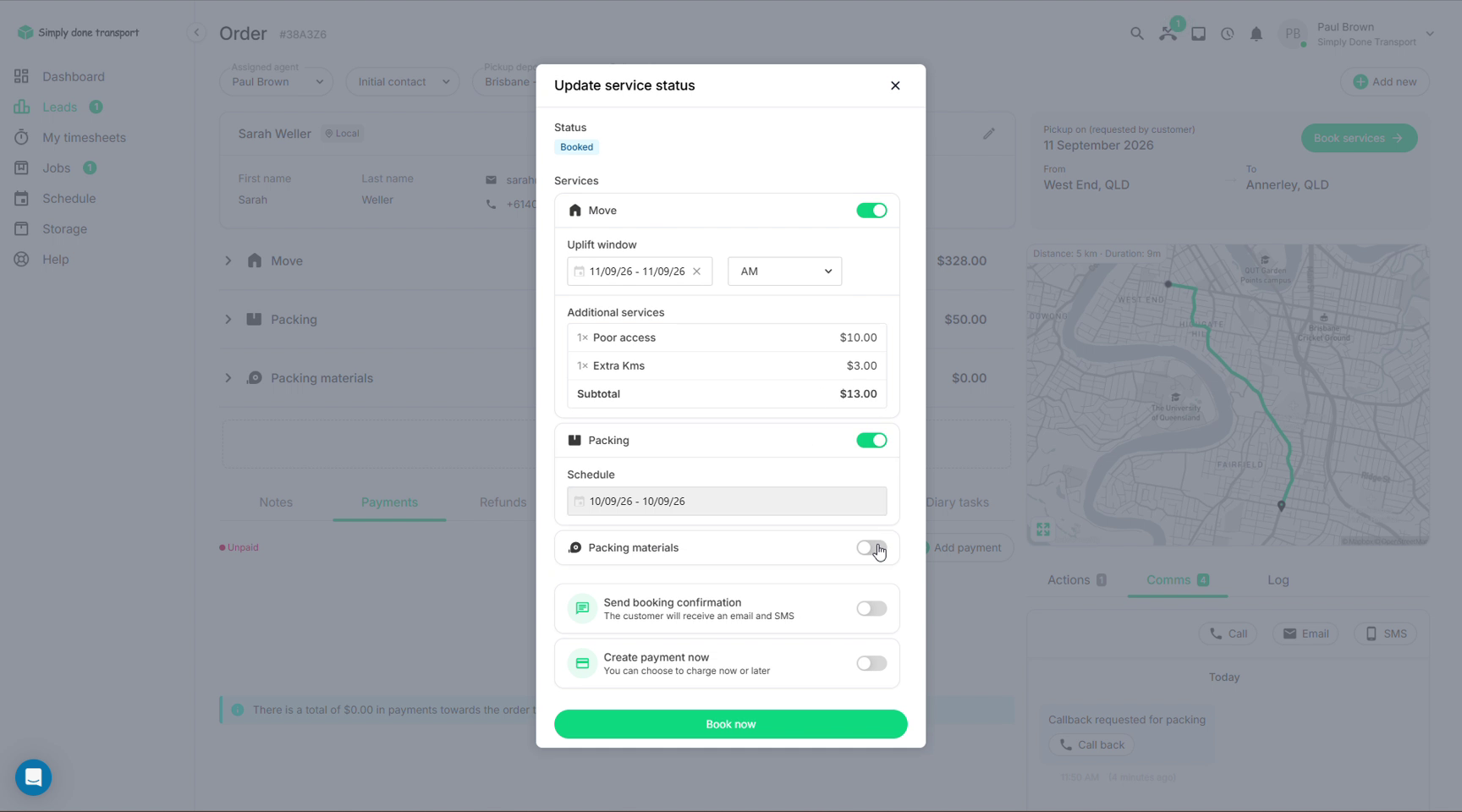
- Open the order and click Book services. The Update service status dialog opens with the new status set to Booked.
- Toggle on the services being booked. For the move, confirm the Uplift window and choose the arrival window: AM or PM. Additional charges on the quote (poor access, extra kms) are listed underneath.
- Toggle Send booking confirmation if you want the customer to get an automatic email and SMS.
- Toggle Create payment now to take the deposit; the amount fills in automatically, applied to the whole order or a specific service, with the payment method chosen in the same dialog (see Payments).
- Click Book now. The status flips to Booked and the job is ready for scheduling.
Booking requests and pending payments
When a customer books online, their deposit can arrive as a payment that sits as Pending in the order's Payments tab until it's processed or marked paid. The banner under the tab keeps score, e.g. "There is a total of $265.00 in payments towards the order total of $808.00", so you always know what's owing before the truck rolls. Marking offline payments as received is covered in Payments & invoicing.
Statuses and the Jobs list
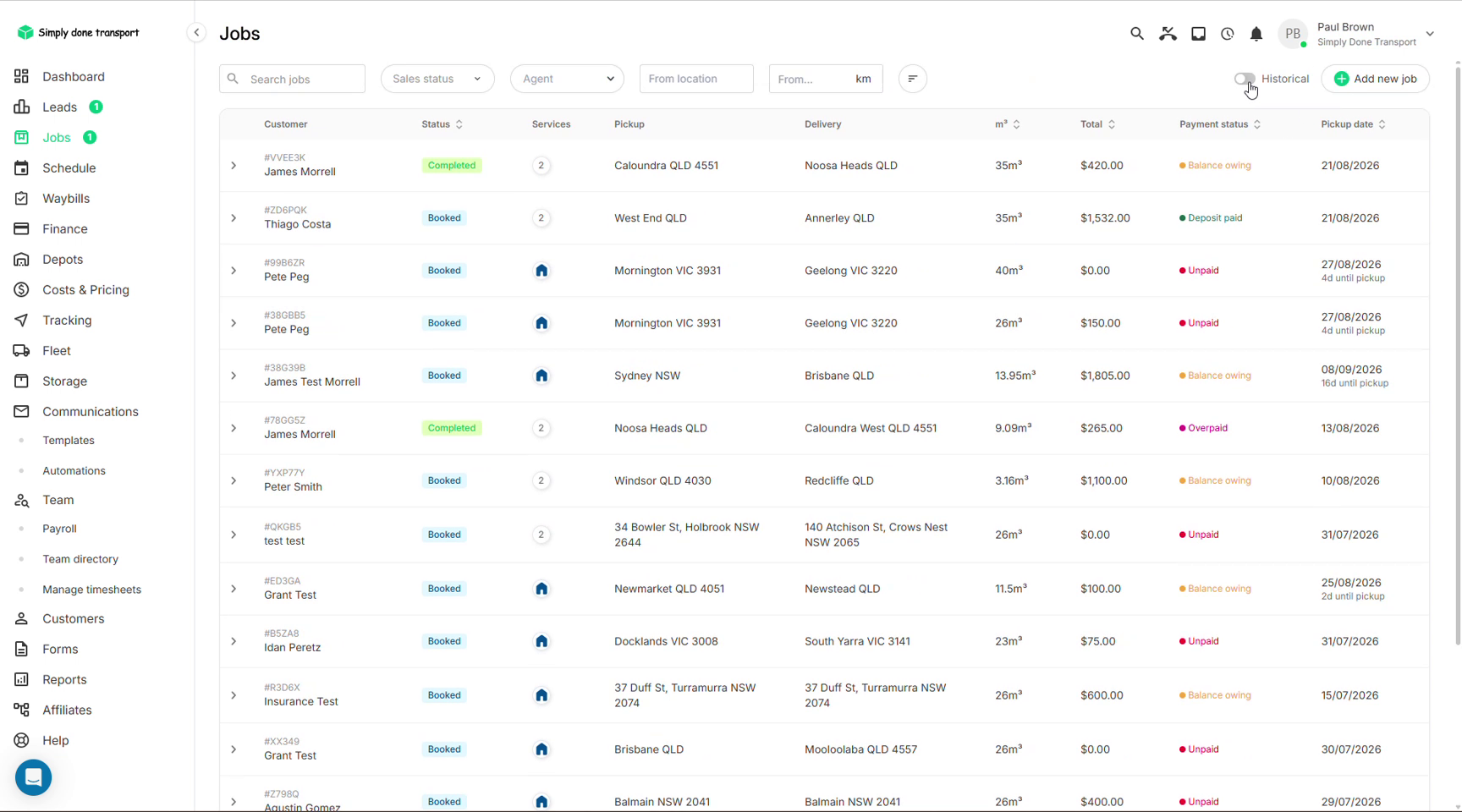
Booked work leaves the sales pipeline and shows up under Jobs in the left menu. The status chip on each service tells you where it sits at a glance:
| Status | Meaning |
|---|---|
| Pending | New lead / not yet quoted, or awaiting a confirmation payment |
| Quoted | Quote sent, waiting on the customer |
| Booked | Confirmed (deposit usually taken), ready to schedule |
| Completed | Work done, ready for final payment and invoicing |